


As you may know, Xiaomi smartphones run on Android OS optimized with MIUI ROM. Sadly, Xiaomi seems to have missed adding a boot animation to their devices that are found on almost every Android phone. Boot animation refers to a short graphic that appears whenever you reboot the phone, certainly the first sight when you power up your smartphone. On Xiaomi phones such as Mi 3, Mi 4, Redmi 1S, and Redmi Note; the boot animation is represented by a simple Mi logo in white. Surprisingly, Mi didn’t find it necessary to include a beautiful and colorful animation that tends to always appear when the device boots up.
Well, if that matters to you and your Mi phone is rooted, then you can easily switch to a boot animation of your choice. In this post, we will describe “How to customize the boot logo/ animation on your Mi phone.” Following the steps below, you can get the latest stock Android boot animation, the one included in Android 5.0 Lollipop, Nexus 6, and Nexus 9.
What’s great is that the original Android L boot animation @30fps (by Google) has been customized by an XDA-Developers forum member ‘guerreromanuel’ to run @60fps. The change in the improved animation at 60fps is huge and it’s smooth without any loss in quality. The boot animation is available for these screen sizes – 480p, 720p, and 1080p.
NOTE: The same boot animation and procedure should work for other Android devices as well, provided they’re rooted. But we’ve tried it only on Xiaomi Mi 3 and Redmi 1S, by adding the boot animation file to the device with an appropriate screen resolution.
Disclaimer – Try it on other devices at your own risk! We won’t be responsible in case your device gets stuck in a boot loop.
Requires – ROOT
How to Change Boot Animation on Xiaomi Mi 3 and Redmi 1S –
1. Make sure your device is rooted.
- Refer: How to Root Xiaomi Mi 3 (Those running MIUI 6 Developer ROM, refer to this guide.)
- To root Redmi 1S, follow the easy instructions described in this MIUI thread.
2. Install ‘ES File Explorer’ from the Play Store.
3. Open ES File Explorer, tap the menu icon from the top left corner, and select Tools. In tools, enable the ‘Root Explorer’ option and grand full root access to ES Explorer when prompted.
4. In ES Explorer, open the Device (/) directory from Menu > Local > Device. Go to /system/media folder.
5. Long-press the “bootanimation.zip” file and rename it to bootanimation.zip1
6. Download the relevant Android Lollipop boot animation file from the links below [Source] –
- bootanimation60fps720p.zip (For Redmi 1S users)
- bootanimation60fps1080p.zip (For Mi 3 users)
7. Copy the above-downloaded bootanimationxxxxxx.zip file to /system/media directory.
8. Carefully rename the bootanimationxxxxxx.zip file to bootanimation.zip
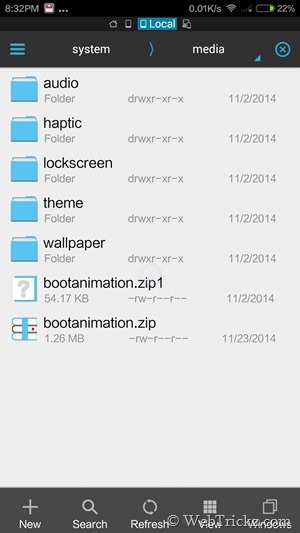
9. Long-press the new “bootanimation.zip” file and open its properties.
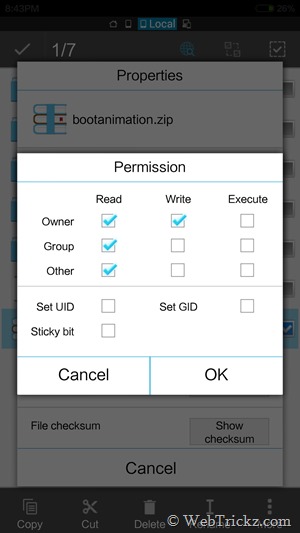
10. Important – Change the Permissions of the ‘bootanimation.zip’ file to rw-r—r— as shown in the image below and select Ok.
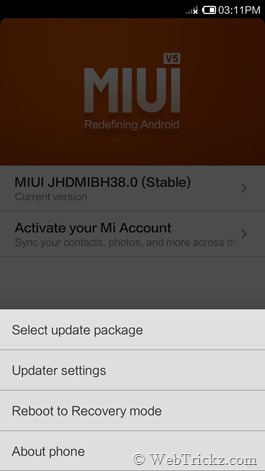
11. Reboot the phone. You’ll now be presented with the latest Lollipop boot animation!
To switch back anytime, just delete the custom bootanimation.zip file and rename the original file (bootanimation.zip1) back to bootanimation.zip. That’s it!
Tip – If you unroot your phone after switching to custom animation then your changes won’t be lost and the Lollipop animation will stay intact.








Great article! Thank you! Neatly laid out steps. Keep up the good work man!
I have the problem, i have that boot animation, but my phone wont turn on, i litterally wait for the whole night, but the google boot animation is on and on and on, i don\’t know what to do, how to delete that from the screen and make my phone to work normaly again