


Windows 7 and Vista has a hidden but useful feature, which I think most of you are not aware of. This cool feature provides the ability to tick and choose particular files and folders only. This can be done using a checkbox, as you have seen in Gmail.
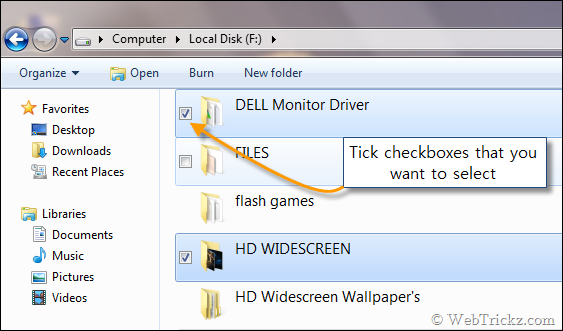
These checkboxes are only visible when one hovers the mouse click over an item. You’ll just need to select the checkbox shown before a file or folder to select those elements.
This is really useful for a newbie who doesn’t know the trick of keeping the ‘Ctrl’ key pressed and selecting the required components using the mouse. It’s also helpful as the checkbox selected doesn’t get vanished unlike in the Ctrl trick.
To enable the check boxes feature, just go Organize > Folder and Search options > View tab. Then check the option “Use check boxes to select items” and select OK.
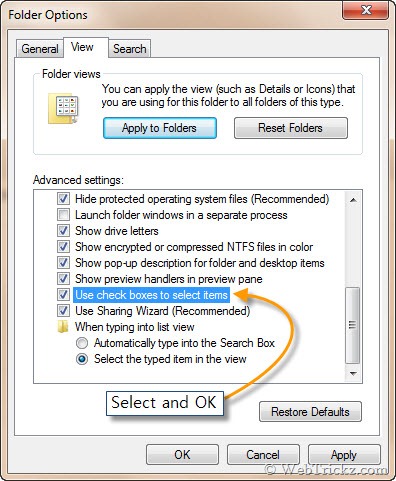
That’s it. You’ll now see check boxes in front of files, folders, and drives. Now you can cut, copy or delete a no. of selected items at the same time.
Shared via [ JKwebtalks ]









Interesting feature! Thanks for sharing.