


This guide is for users who want to install their favorite Winterboard themes on iPhone, iPod touch, or iPad via USB cable connection on Windows and Mac. Check the below tutorial on how to install Winterboard themes on iPhone without using Cydia.
Requirements:
- Jailbroken iPhone, iPod touch, or iPad – See our iPhone & iPad section for the latest working Jailbreaking tools for iOS 4/4.0.1 and previous firmware.
- Winterboard App – To install the Winterboard app, open Cydia and search for “winterboard”. Install the app.
- iTunes 9 or later
- iPhone Explorer (Free for Windows & Mac) – Download and Install this program.
Installing Themes on iPhone using Computer via USB – Before continuing, make sure you’ve completed all the above requirements.
1. Connect your iOS device to Windows/Mac via USB cable.
2. Run iPhone Explorer. Navigate to Root Directory/Library/Themes
3. Download and extract your Winterboard theme. Then ‘Drag and Drop’ the theme folder to the Themes section on iPhone Explorer.
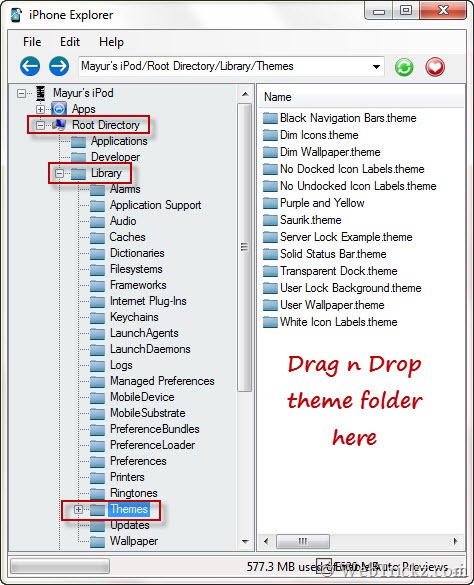
4. After transferring, the Winterboard theme will be installed on your device.
To Apply the theme, pick up your device and launch the WinterBoard app. Click ‘Select Themes’ and select the theme you want to apply.

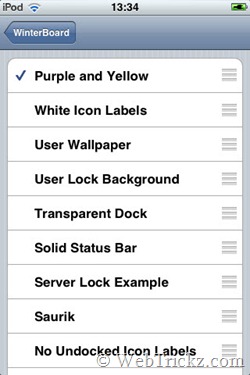
Now tap the ‘Home button’ and let the Springboard restart. See the theme running!







thanks for the screenshots. it’s always easier to follow.
Can’t find the root folder. I’ve got a 3GS on iOS 4.1 jailbroken with Limerain and with Winterboard installed…
Help please!
same as hans
Hey hans and kaunghtet18. The reason you cant see the root folder is because you need a little package from Cydia called, afc2add. This allows you to access this folder. Its a tiny little package in Cydia. Just search it and download it. This should solve your problems 🙂
It won’t let me drag