

WebTrickz
TRENDING
  • Complete list of 1337x Proxy and Mirror Sites
No Result
View All Result
  • Reviews
  • Editorials
  • Social Media
    • Facebook
    • Twitter
    • YouTube
    • Messenger
    • Instagram
    • Snapchat
    • WhatsApp
    • TikTok
  • Apps
  • How To’s
  • Apple
  • iPhone
  • Google
  • Android
  • Mac
  • Security
  • About Us
    • About Us
    • Contact Us
    • Privacy Policy
  • Reviews
  • Editorials
  • Social Media
    • Facebook
    • Twitter
    • YouTube
    • Messenger
    • Instagram
    • Snapchat
    • WhatsApp
    • TikTok
  • Apps
  • How To’s
  • Apple
  • iPhone
  • Google
  • Android
  • Mac
  • Security
  • About Us
    • About Us
    • Contact Us
    • Privacy Policy
No Result
View All Result
WebTrickz
No Result
View All Result
Home How To's

How to Move Steam Games to a Different Drive or Disk

Mayur by Mayur
February 27, 2024
in How To's

Steam by Valve is the world’s largest online gaming platform for PC and Mac that offers an incredible gaming experience. Steam has a huge library of popular games from many major publishers and has been connecting gamers worldwide since its inception. Certainly, Steam is immensely popular with over 30 million active user accounts. Hence, here is a handy tip for those serious gamers using Steam.

steam_logo

Steam client from Windows and Mac allows users to browse, purchase, and download their favorite games. Steam installs itself in the C:\Program Files\Steam directory by default and games installed on Steam are stored in the ..\Steam\steamapps\ folder. Perhaps, if your system partition (i.e. C drive) is running out of space or you need to do a clean installation of Windows or you’re moving to a new computer, then it is advisable to Move Steam Installation and Games to a different location on your PC.

This can be easily done and helps you prevent the risk of losing all your large-sized games downloaded via Steam if the worst were to happen. Carefully follow the steps described below to Transfer Steam entirely to a different partition or hard drive. The following instructions will move your Steam installation along with your games:

Important: It is highly recommended that you create a backup of your SteamApps folder before attempting this process.

1. Log out and Exit the Steam client from the system tray in Windows.

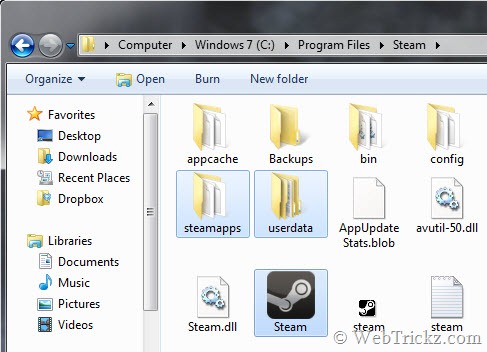
2. Navigate to the folder where Steam is installed (by default: C:\Program Files\Steam\)

3. Just cut and paste the mentioned file and folders (steamapps folder, userdata folder and steam.exe file) to the newly specified location, for example D:\Steam\
steam-directory_Windows-C-drive

4. After the transferring of files is completed, delete the Steam folder from C: drive.

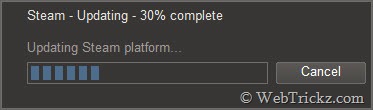
5. Launch Steam.exe, it will update to re-download just the steam files (around 30MB).
steam-updating

Now log into your account and continue using Steam from the new location. Also, all the future game content will be downloaded to the new folder D:\Steam\Steamapps\.

Note: For installed games, you may need to verify your game cache files. To do so,

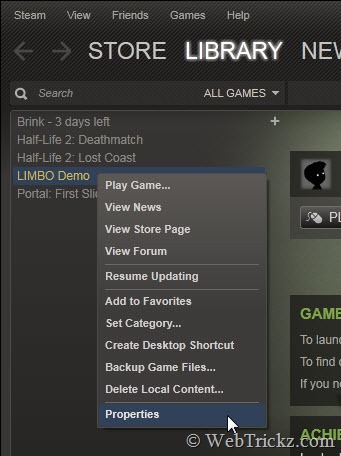
1. Open the Steam client, go to the Library section, right-click on the game, and select Properties from the menu.
steam_library_game-properties

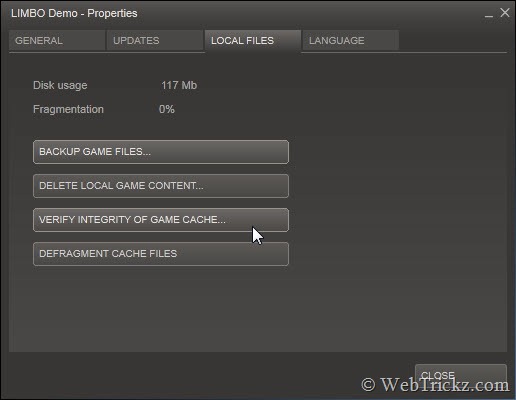
2. Select the ‘Local files’ tab and click the Verify integrity of game cache… button.
Local files_Verify-game-cache

3. Steam will verify the game’s files – this process may take several minutes. Once the process is completed, the Check window will automatically exit. That’s it!

>> Similarly, you can move Steam to any other computer running Windows OS. (You can only be logged into Steam on one computer at a time.)

Tip: “During the installation of Steam, you have the option to install Steam to a location other than the default. Since Steam relies on the game files residing in the SteamApps folder, your game files will go to whatever folder you have Steam installed in.”


Tags: GamesTipsTricksTutorials
ShareTweetSend
Previous Post

Add a Google Plus Customizable Widget to your Site or Blog

Next Post

How to Cancel Amazon Prime Membership to Save $79

Mayur

Mayur

Mayur Agarwal, the founder and editor of WebTrickz, is a tech enthusiast with a Bachelor's degree in Computer Applications and over 15 years of experience in tech writing. His passion for technology and gadgets drives him to create insightful how-to articles and troubleshooting guides.

Next Post

How to Cancel Amazon Prime Membership to Save $79

Leave a Reply Cancel reply

Your email address will not be published. Required fields are marked *

Latest Stories

microsoft edge new logo

How to Turn Off Notifications in Microsoft Edge (2026 Guide)

June 8, 2026
chatgpt logo

How to Clear or Delete ChatGPT Memory on PC and Mobile

June 5, 2026
1337x logo

1337x Proxy List 2026: Working Proxy & Mirror Sites

June 2, 2026

How to Find Saved Reels on Facebook App & Desktop (2026)

June 8, 2026
microsoft edge browser

How to Restore or Reopen Closed Tabs in Microsoft Edge

March 26, 2026
Facebook app on iPhone

How to See Recently Watched Reels on Facebook (2026 Guide)

June 5, 2026
microsoft edge new logo

Download Microsoft Edge Offline Installer [Latest Version]

March 16, 2026

Trending Stories

  • microsoft family safety settings

    How to Turn Off Microsoft Family Safety on Windows 11 & 10

  • 1337x Proxy List 2026: Working Proxy & Mirror Sites

  • How to Turn Off Microsoft Edge Game Assist in Windows 11

  • How to See Recently Watched Reels on Facebook (2026 Guide)

  • How to Turn Off Fn Lock or Fn Key on Windows 11/10 Laptop

  • About Us
  • Contact Us
  • Privacy Policy
  • Advertise

© 2026 WebTrickz. All Rights Reserved.

No Result
View All Result
  • Reviews
  • Apps
  • How To’s
  • Android
  • Google
  • iPhone
  • Mac
  • About Us
  • Contact Us
  • Privacy Policy

© 2026 WebTrickz. All Rights Reserved.





