


USB flash devices such as pen drives are an essential and most common way to carry along the data on the go. This could include the private and confidential files that you might want to secure to prevent them from unauthorized access, in case you lose the pen drive or someone at your workplace analyzes it while you’re away. Fortunately, such activity can be simply prevented by locking the flash drive using USB Safeguard.

USB Safeguard is a free, smart, and effective tool to encrypt and protect data with a
password on your removable pen drive using the AES 256 bits encryption. It is a portable program offering novice and expert users the ability to easily password protect the pen drive, thus protecting the valuable data stored on the flash drives and prevent data theft. It sets a password for the entire pen drive and not just for a certain file or folder. Once the drive is locked, one cannot read nor write any data to it without the correct password. Supports FAT16, FAT32 & NTFS file system, requires no installation.
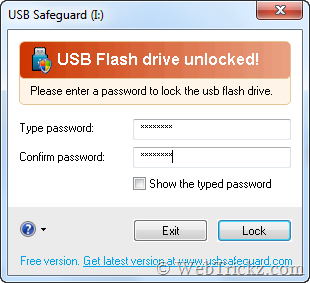
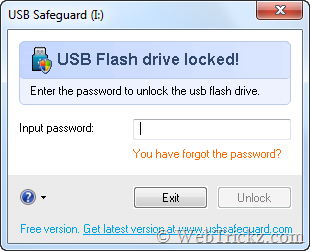
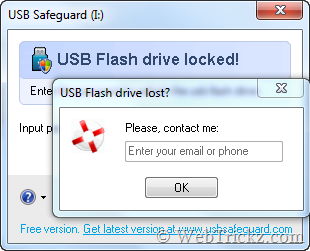
How to Password Protect a Pen Drive – Download USB Safeguard, then copy the file “usbsafeguard.exe” to the root of your pen drive and run it. Agree to the software license agreement, Set your password, and press the Lock button to lock the pen drive. To unlock, launch the program from pen drive. Input the password and hit Unlock to access the entire data stored on the drive. You can click on the help icon (?) to set your contact details (email or phone) in case you lose the pen drive.
Note: The free version works only with a USB Flash drive of size max 2 GB. This seems fine as the tool is really very nifty and useful.








if anyone forget the password.
Then the last measure would be to format the drive.
Thanks, but I have a 16gb USB Flash drive 🙁
This is really great tool. Just keep password remember.