


Since Internet Explorer is the default browser on all Windows systems, it is used by the majority of users. If you are experiencing issues with IE8 on Windows 7, such as being unable to access sites, slow web browsing, or frequent crashes, then you must troubleshoot IE.
You can easily fix Internet Explorer problems with the built-in troubleshooter, which can automatically find and fix some common problems with IE.
To troubleshoot Internet Explorer 8 in Windows 7, follow these steps:
- Go to the Start menu, then Control Panel, and select ‘Troubleshooting’ (you may need to select ‘view by’ as large icons first in the control panel).
- In the Troubleshooting window, click View all in the left pane.
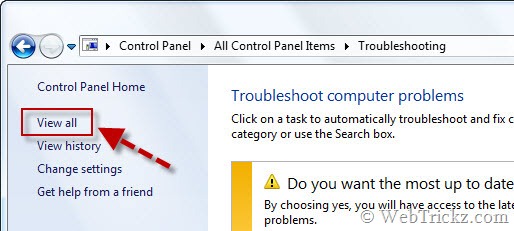
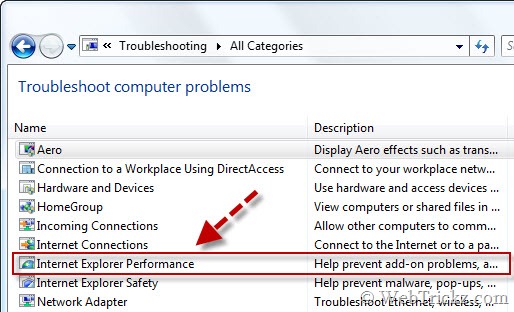
- Click “Internet Explorer Performance” from the All Categories window.
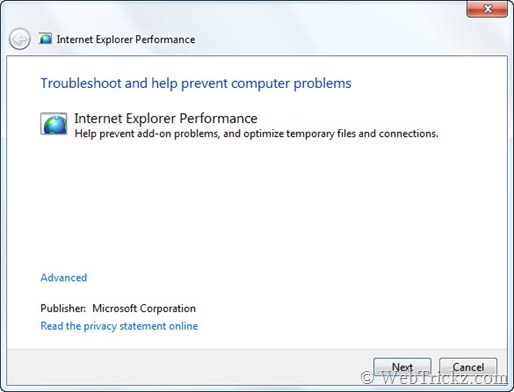
- The Internet Explorer Performance troubleshooter will open. Click the Next button, and it will automatically start checking IE for defects and hopefully fix them.
- Upon completion, close the troubleshooter or view the troubleshooting report.
Now open IE, and it should run fine. If Internet Explorer is still having problems, try to disable all add-ons or reset Internet Explorer settings.
Disable Add-ons on IE8
Third-party add-ons and toolbars can sometimes cause compatibility issues with IE8.
To disable add-ons, go to Tools > Manage Add-ons. Select an add-on that may be causing the problem, and then click the “Disable” button at the bottom-right corner of the window. After disabling them, close all IE8 windows and reopen the browser to apply the changes.
Reset Internet Explorer
Resetting Internet Explorer settings is a powerful troubleshooting step that can resolve various issues with the browser. When you reset IE8 settings, it restores the browser to its default state, removing any customizations, settings changes, and temporary data.
Note that resetting will also remove any saved passwords, form data, browsing history, and cookies.
To reset IE8 to its default settings, go to Tools > Internet Options > Advanced tab. Scroll down to the “Reset Internet Explorer settings” section and click on the “Reset…” button. Then follow the prompts to reset the browser. Restart your PC to apply changes.
ALSO READ: How to fix ‘Open in New Tab/Window’ problem in IE8









Great tips and post! I am sure many Internet Explorer users will find this very helpful!
You should join the community of IE users on Facebook, I am sure they could benefit from your IE knowledge:
http://www.facebook.com/internetexplorer
Cheers,
Bryn
IE Outreach team
Thanks bryn for the appreciation. I’m glad that you liked my tips and post. I’m now a part of IE community on Facebook. 😀
No problem! Great to see you in the community and thanks for the tweet :)!
Keep up the posts!
Best,
Bryn
IE Outreach Team