


Looking for the exact date and time of a phone call you made or received on your iPhone? Or trying to find all calls made to and from a specific contact?
Until now, the Phone app only showed a limited list of recent calls, without any option to view the complete call history for individual contacts. That changes with iOS 26.
iOS 26 Brings Unlimited Call History to iPhone
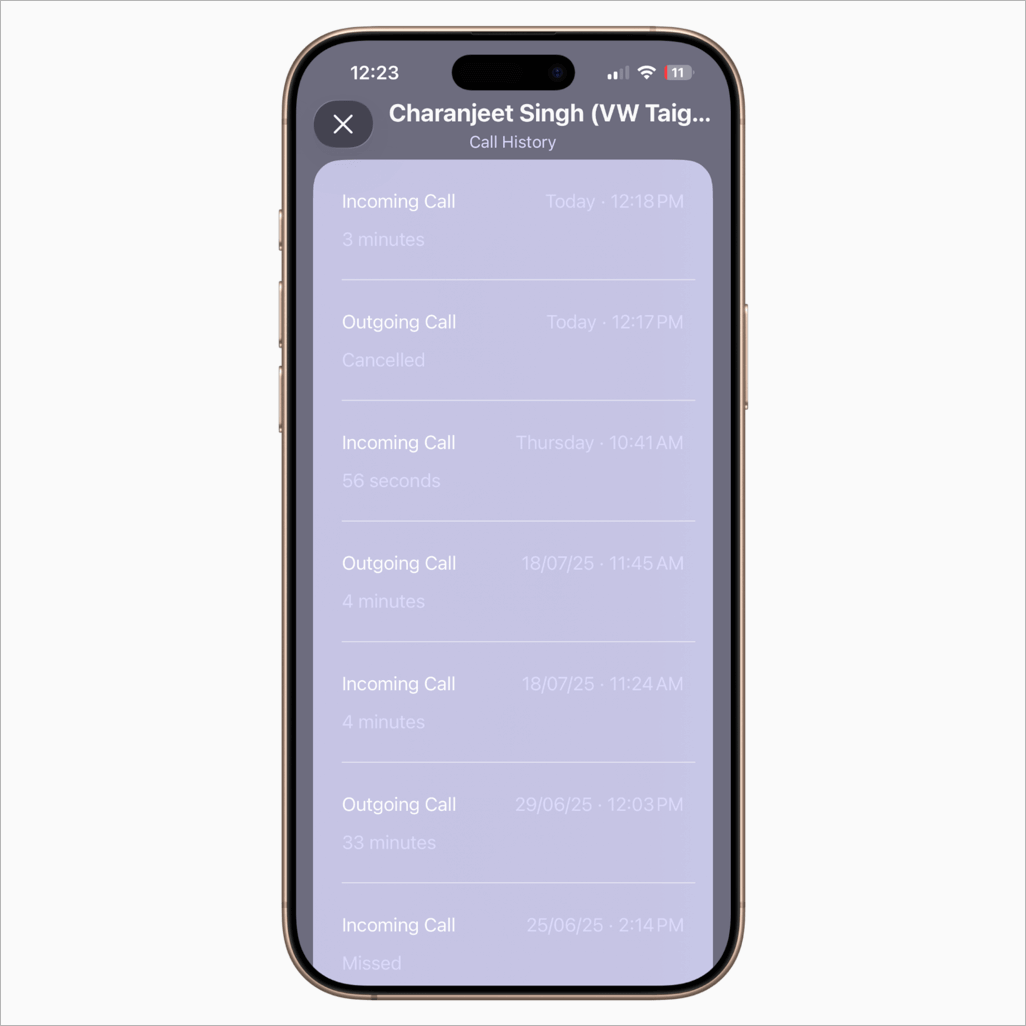
Apple has finally addressed a major shortcoming with the Phone app. With iOS 26, you can now see all call history, including older call logs that Apple stored all along but didn’t make accessible to users.
This long-awaited, small yet useful addition makes it possible to view call history on your iPhone from a month ago or even a year ago. This comes in handy when you need to manage or review your iPhone call log history.
Now, you can easily see call history for a particular number or contact on your iPhone, right from the Phone app. The new Call History feature in iOS 26 provides detailed info for calls, including the timestamp, call type, call status, and call duration (for completed calls).
Let’s see how you can view old call history on your iPhone.
This guide works across all iOS 26-supported devices, including the iPhone 11, iPhone 12, iPhone 13, iPhone 14, iPhone 15, and iPhone 16.
Note: iOS 26 is currently available in beta and will be released to the public later this fall.
How to See Call History for a Particular Number on iPhone (iOS 26)
Follow these steps to view detailed call history with a specific contact or person in iOS 26 on iPhone:
- Make sure your device is updated to iOS 26.
- Open the Phone app.
- Tap on the Calls tab or go to Calls > Recents (if using the new Unified interface).
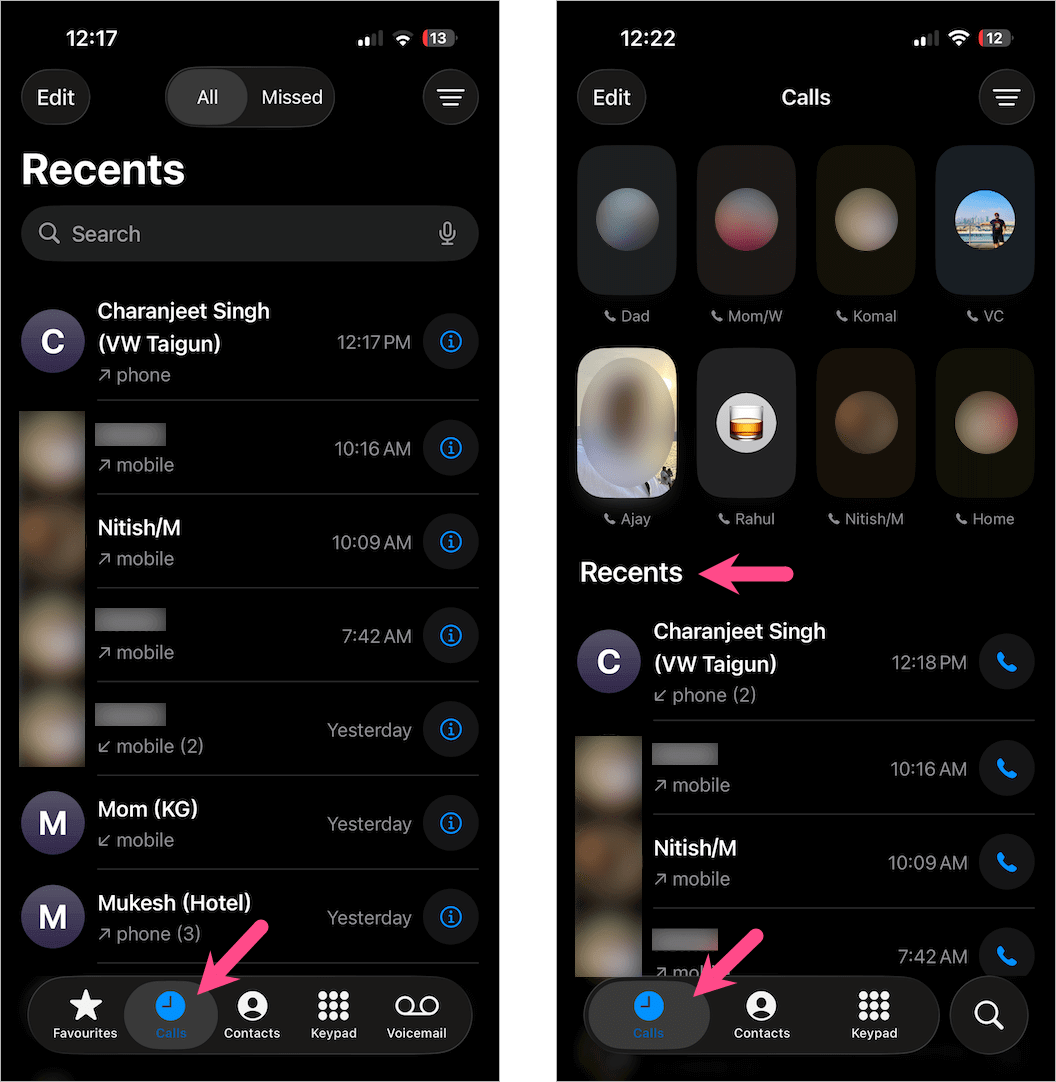
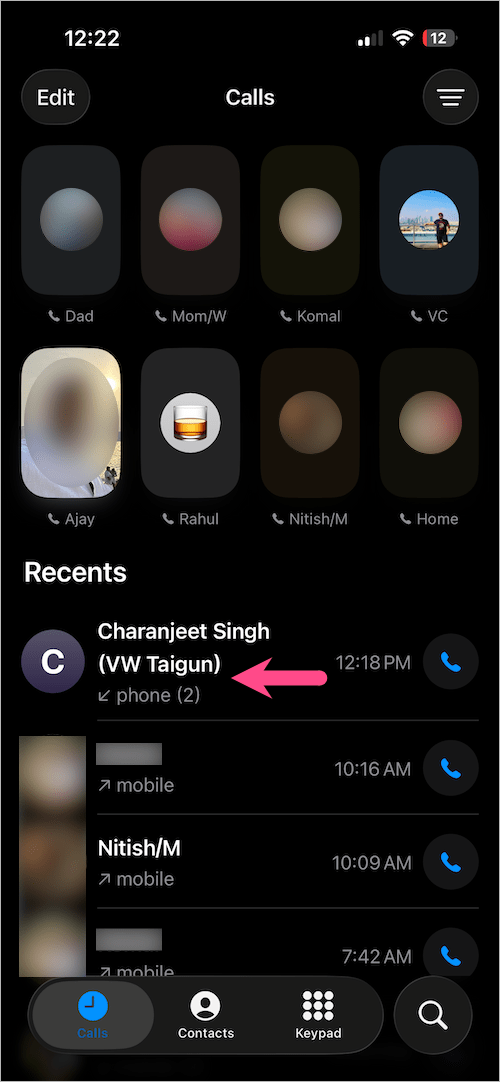
Classic vs. Unified Layout in Phone App - Tap the contact name or number whose call history you want to view. You can also search for the specific contact.
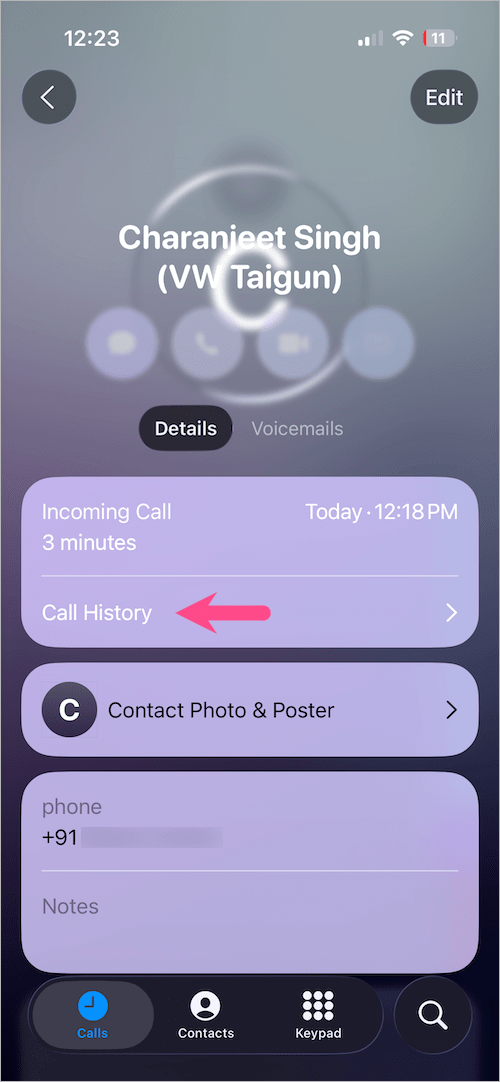
- On the Contact Info screen, tap the new ‘Call History’ option.
You’ll now see a complete call log for that person, including:
- Incoming and outgoing calls
- Missed and declined calls
- FaceTime Audio or Video calls
- Date, time, and duration of each call
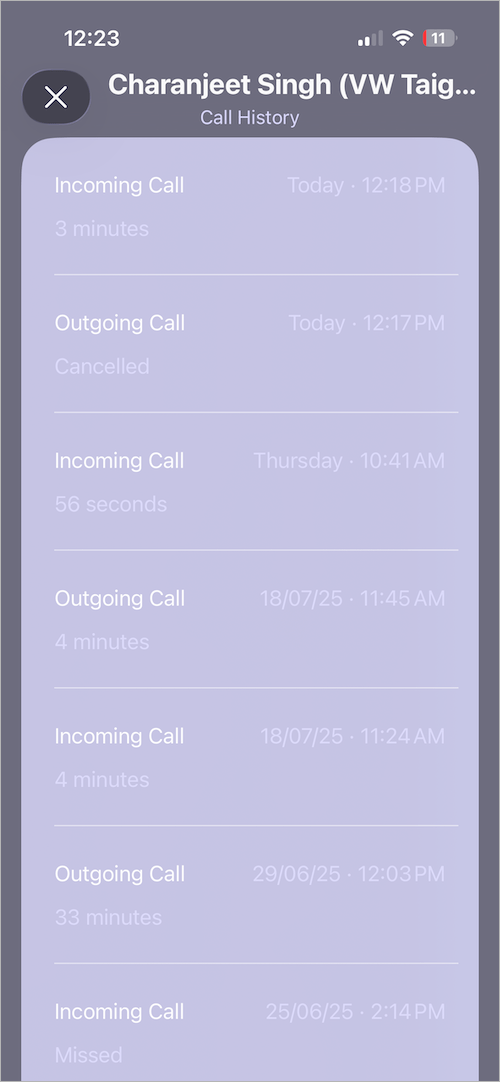
The call log details make it easy to track conversations or review important past calls without needing to scroll through your Recents tab endlessly.
Call Log History Not Showing on iPhone?
If you don’t see the Call History option for a contact, ensure:
- Your iPhone is updated to iOS 26
- You’ve had a call interaction with the contact
- You’re using the built-in Phone app to check history, not a third-party dialer
Thoughts
With iOS 26, Apple has finally made it easy to see full call history on your iPhone, something users have wanted for years. Whether you’re checking the call log for a particular contact, reviewing past communication history, or looking for a specific date and time of a call, this feature is a major upgrade.
ALSO READ:









Hi Mayur, I’m using iOS 26 beta 9 on my iPhone 15 Plus. When I receive a call from a contact with multiple phone numbers, the call history does not clearly show which specific number was used to call me. Why? How to fix this issue?