


The Moto E ships with an unlocked bootloader which interested users can unlock as Motorola officially permits the unlocking of bootloader on devices like Moto X, Moto G, and Moto E. The bootloader unlocking process on Moto E is pretty similar to that on HTC smartphones, and unfortunately, it isn’t a single command task unlike on Nexus devices. Unlocking the bootloader is necessary if you want to root your Moto E and optionally flash a custom recovery on it. We are presenting step-by-step instructions to accomplish the required task on Windows and without the need to download and install the hefty Android SDK package.
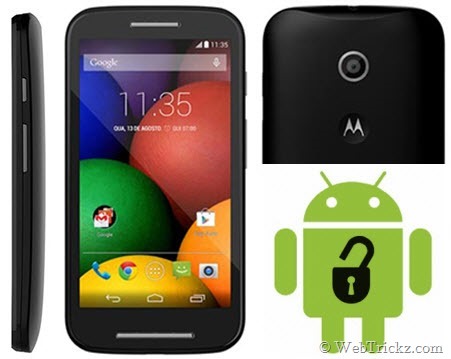
Disclaimer: Unlocking the bootloader voids your device warranty. Proceed at your own risk!
NOTE: Unlocking the bootloader will Wipe/ factory reset your device, and will delete all personal data from your device such as apps, photos, messages, and settings.
Tutorial – Unlocking Moto E Bootloader on Windows
1. Make sure to take a backup of your entire device data.
2. Download the file ADB and Fastboot.rar and extract it to a folder.
3. Install the latest Motorola USB Drivers on your desktop. (Download here)
4. Put your device in Fastboot mode. To do so, power off the phone. Then press the Volume Down key for 2-3 seconds then the Power key then release.
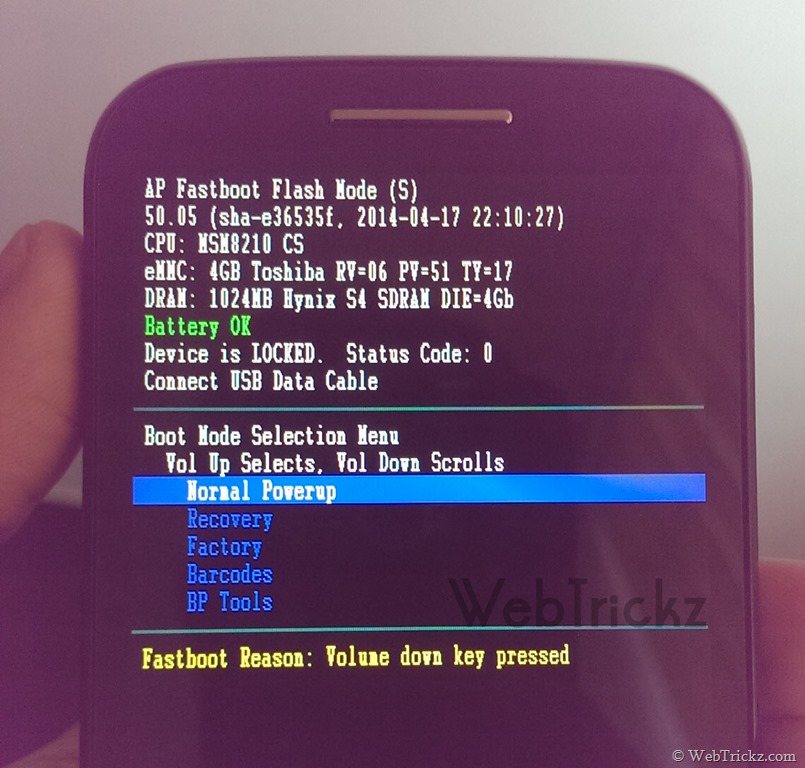
5. Connect the device to your computer via a USB cable.
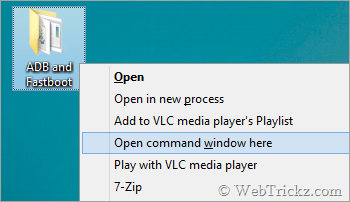
6. Now right-click on the ‘ADB and Fastboot’ folder while holding down the ‘Shift’ key in Windows. Click on the option ‘Open command window here’.
7. In the Command Prompt (CMD) window, type: fastboot oem get_unlock_data
8. You will get a return string that will be used to retrieve your unlock key.
To copy the string from CMD, right-click in CMD and choose the ‘Mark’ option. Then highlight the generated string and just press the right-click button on your mouse to copy the text.
9. Now paste the string into a notepad. Then copy all the numbers from the string without any words like bootloader or white spaces.
10. Go to the Motorola site. Sign in using your Google account or Motorola ID. Scroll down the page and paste the copied string in the field at step #6. Then click on ‘Can my device be unlocked?’, after which a “REQUEST UNLOCK KEY” button will appear at the bottom of the page.
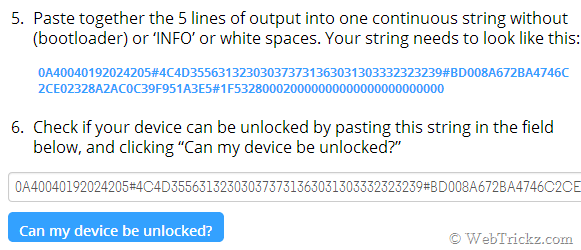
To get your unlock key, select the ‘I Agree’ option. Note: You will receive an email with your Unlock Key at the email address you used to log in there.
11. Important – Copy the 20-character key that Motorola sent you via email. Make sure your device is connected.
Then in CMD type:fastboot devices (To check your device is connected)
Then type: fastboot oem unlock UNIQUE_KEY
NOTE: In the above command, replace the word ‘UNIQUE_KEY’ with the unlock code that you got via email. Then hit enter and the unlocking process should begin. Wait for a while and soon you’ll see a ‘Bootloader Unlocked’ warning on your Moto E.
That’s it! Hope you found this guide useful. 🙂








Hi,
instruction doesn’t work for Moto E (2020) XT2052DL
Seems to be a very hard locked cell phone model.