WebTrickz
TRENDING
  • Turn Off Copilot Search in Bing (Official Extension)
No Result
View All Result
  • Reviews
  • Editorials
  • Social Media
    • Facebook
    • Twitter
    • YouTube
    • Messenger
    • Instagram
    • Snapchat
    • WhatsApp
    • TikTok
  • Apps
  • How To’s
  • Apple
  • iPhone
  • Google
  • Android
  • Mac
  • Security
  • About Us
    • About Us
    • Contact Us
    • Privacy Policy
  • Reviews
  • Editorials
  • Social Media
    • Facebook
    • Twitter
    • YouTube
    • Messenger
    • Instagram
    • Snapchat
    • WhatsApp
    • TikTok
  • Apps
  • How To’s
  • Apple
  • iPhone
  • Google
  • Android
  • Mac
  • Security
  • About Us
    • About Us
    • Contact Us
    • Privacy Policy
No Result
View All Result
WebTrickz
No Result
View All Result
Home Android

How to Setup Cloudflare 1.1.1.1 DNS on iOS and Android

Mayur Agarwal by Mayur Agarwal
December 27, 2021
in Android, How To's, iPhone

cloudflare dns 1.1.1.1

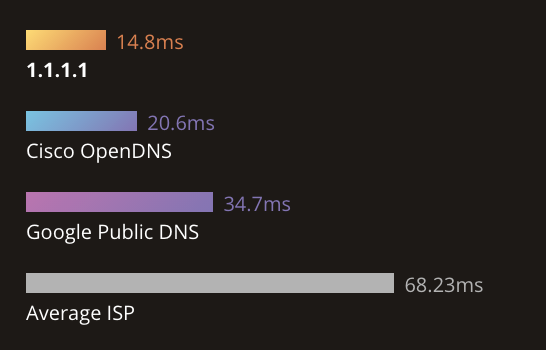
Cloudflare has announced its own DNS service 1.1.1.1, claiming it to be the fastest and privacy-first consumer DNS service. Though alternatives like Google DNS and Open DNS already exist, Cloudflare is mainly focussing on the privacy problem. Built with a partnership between Cloudflare and APNIC, the 1.1.1.1 DNS resolver supports both DNS-over-TLS and DNS-over-HTTPS for enhanced security. Cloudflare’s DNS currently ranks fastest with a global response time of 14ms, compared to 20ms for Open DNS and 34ms for Google DNS. You can read detailed info on the announcement blog post and the official 1.1.1.1 site.
Cloudflare DNS uses 1.1.1.1 and 1.0.0.1 for IPv4 and 2606:4700:4700::1111 and 2606:4700:4700::1001 for IPv6 connections. Perhaps, if you wish to switch from your default ISP DNS or any other custom DNS to Cloudflare then you can do so across different platforms. Let’s see how to do so on iOS and Android.

How to add Cloudflare DNS on iPhone & iPad

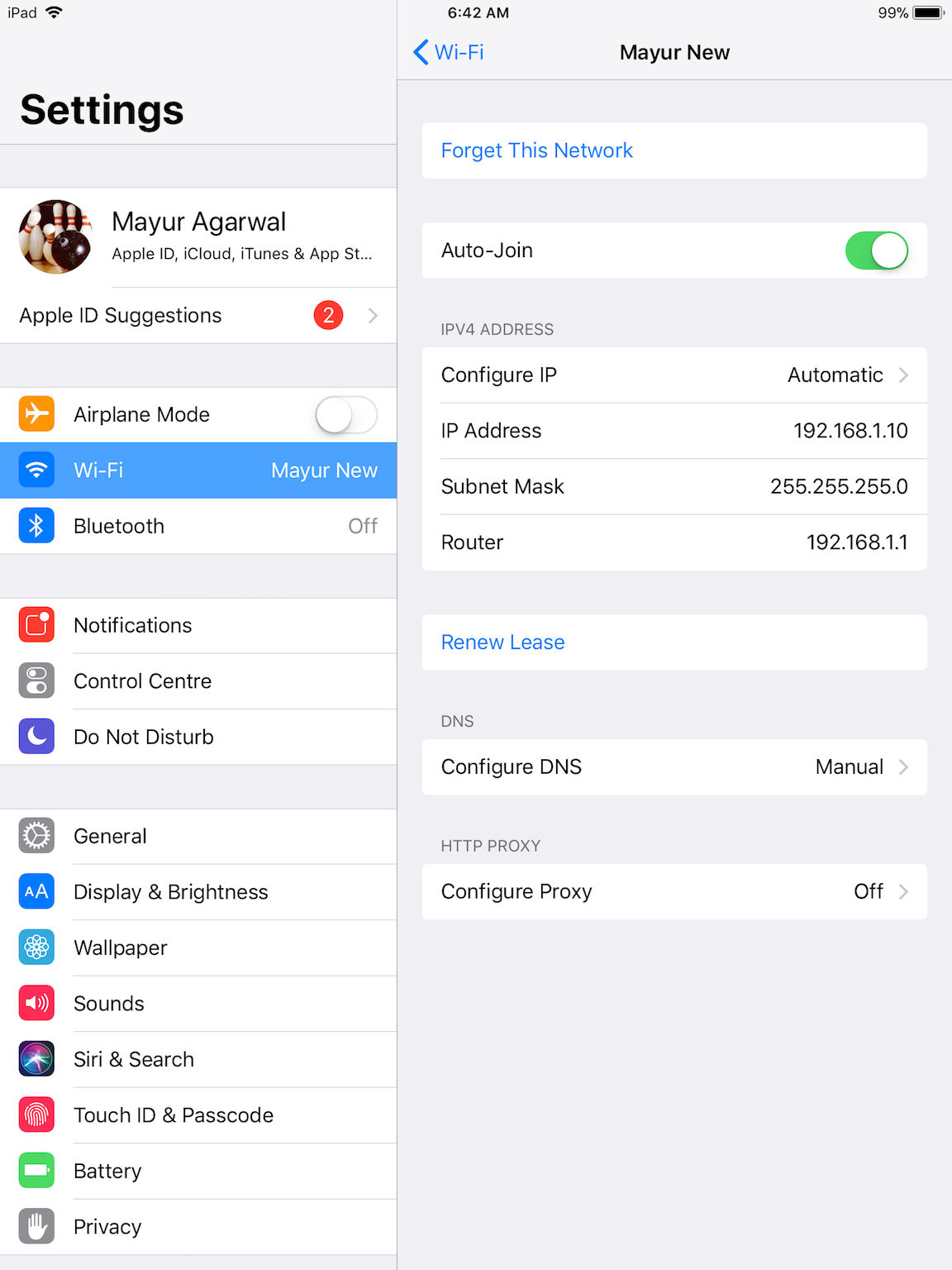
  1. Go to Settings > Wi-Fi and tap on the preferred Wi-Fi network.
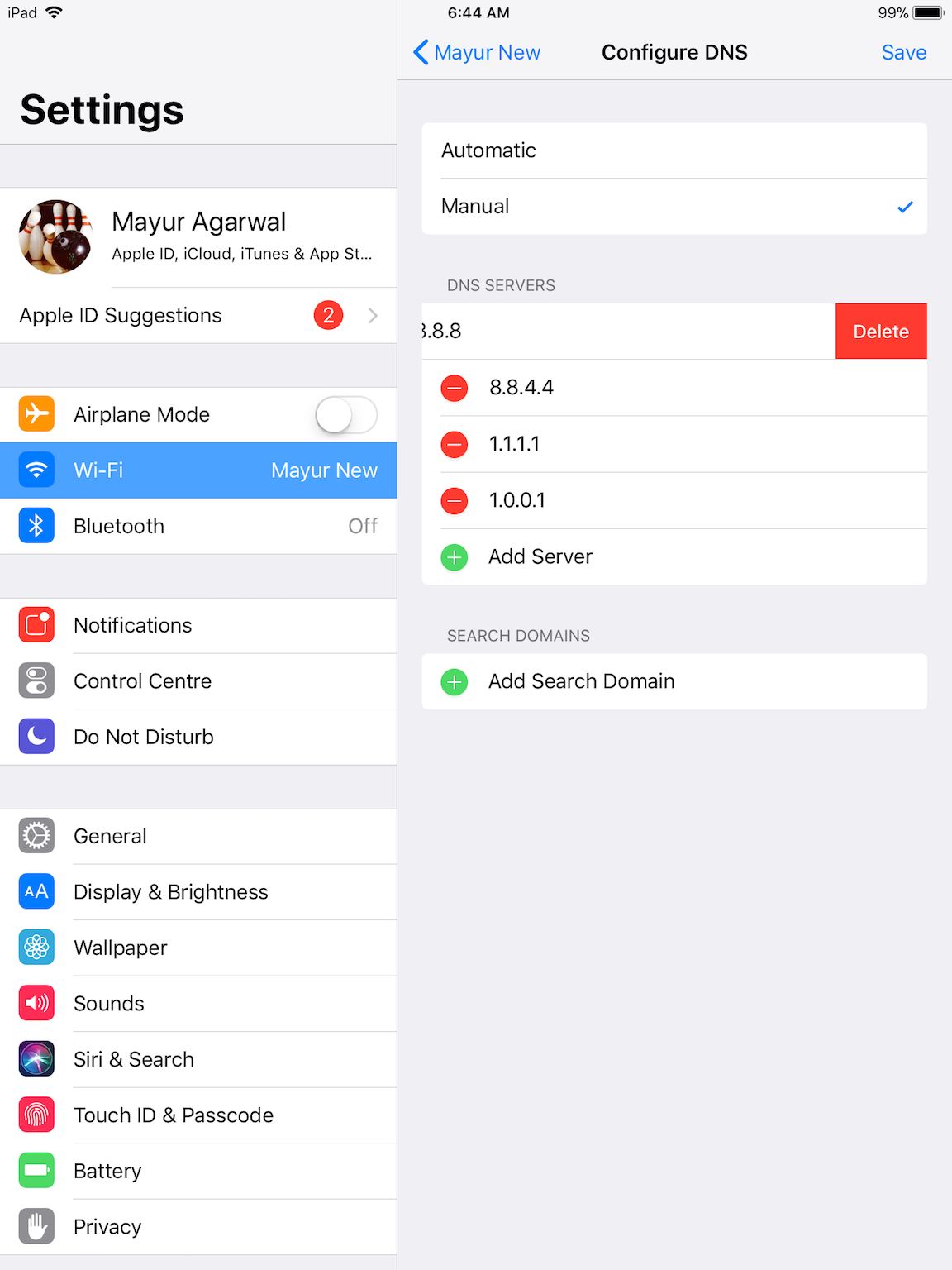
  2. Tap on Configure DNS and select Manual.
  3. Under DNS Servers, delete any existing entries if any by tapping the red minus button.
  4. Tap on Add Server and type 1.1.1.1.
  5. Tap on Add Server again and type 1.0.0.1.
  6. Tap the Save button on the top right.
Add Cloudflare DNS on Android

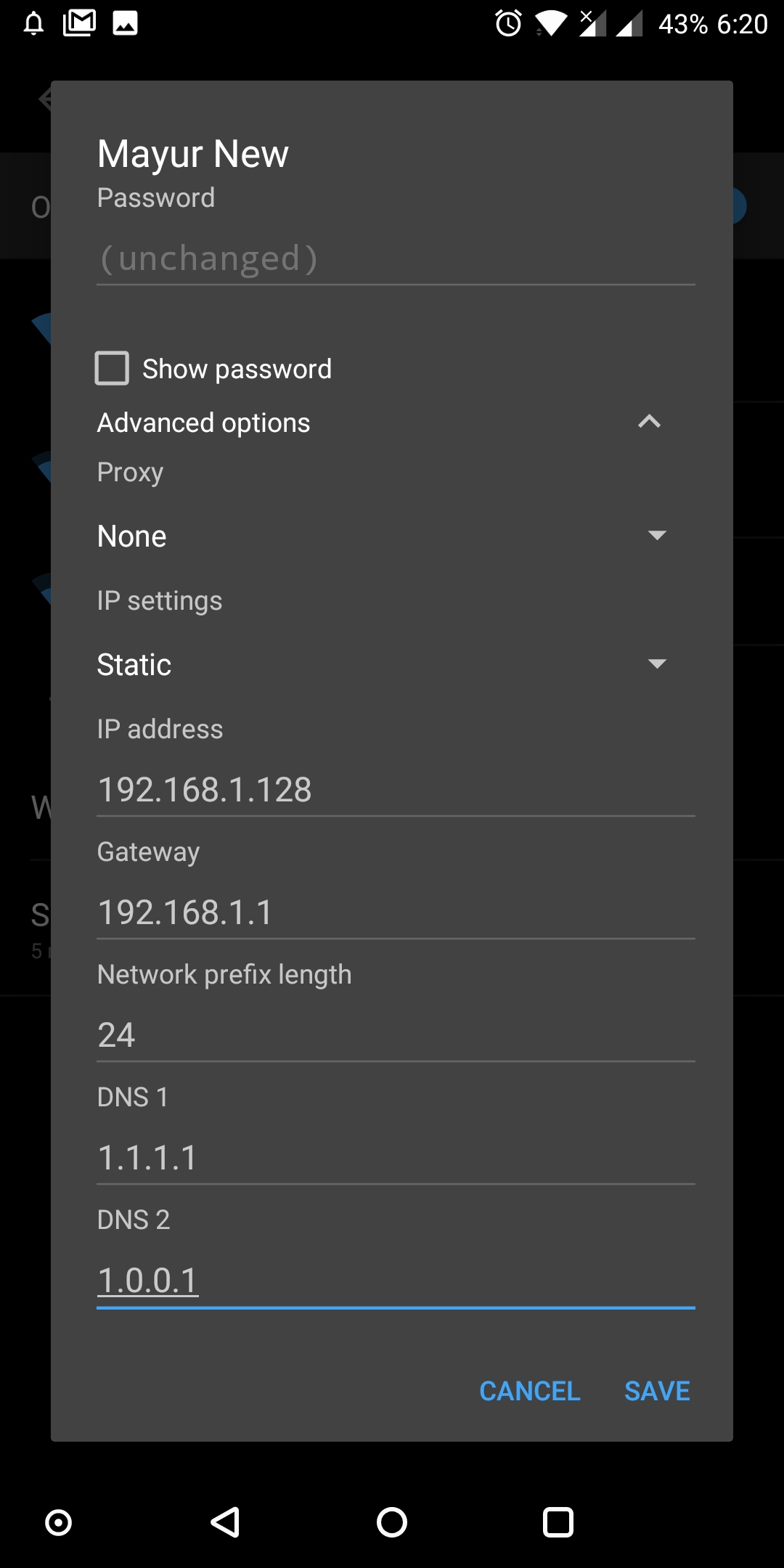
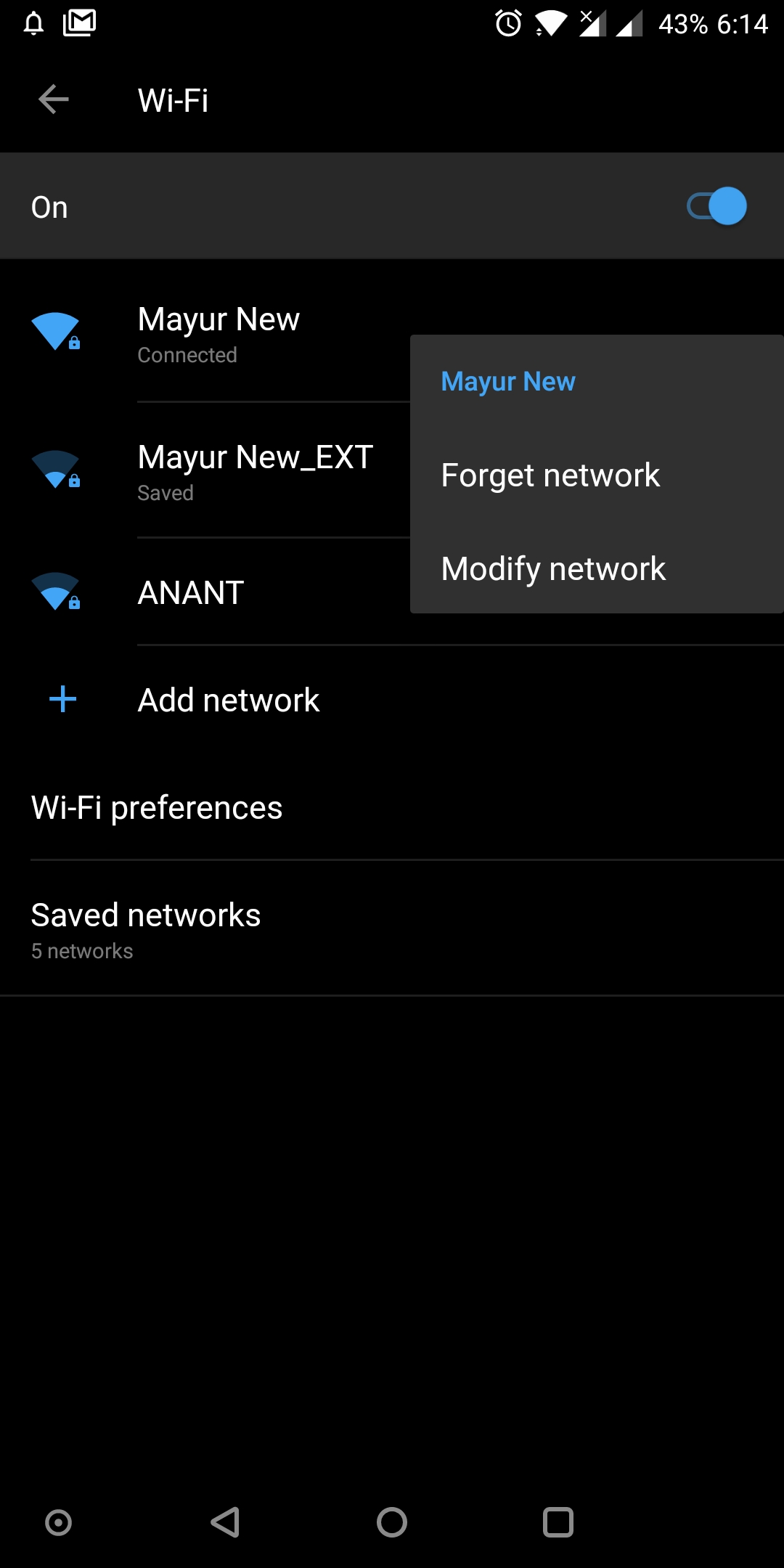
  1. Go to Settings > Wi-Fi and long tap on the connected network.
  2. Select Modify network.
  3. Tap on Advanced options and change IP settings to Static.
  4. Scroll down and type 1.1.1.1 in DNS 1 and 1.0.0.1 in DNS 2 tab. Tap Save.
That’s it! You’ve switched to Cloudflare DNS on your mobile device. Now enjoy faster and more private DNS servers. Do note that the changes apply only to the specific Wi-Fi connection and not to other wireless connections that you might be using. You have to manually add the DNS for all the desired Wi-Fi networks in that case. Moreover, the DNS will be active only for Wi-Fi connections and not while accessing the Internet over 3G or 4G LTE.

Alternatively, you can rather configure your router’s DNS to make sure all the connected devices on that network run on Cloudflare DNS. This way you don’t have to manually configure the DNS for all the devices individually.

Tags: AndroidDNSiOSiPadiPhoneTips
Share12TweetSend
Previous Post

How to Upload Photos directly from Web to Google Photos in Chrome

Next Post

How to Disable Incognito Mode in Google Chrome for Android

Mayur Agarwal

Mayur Agarwal

Mayur Agarwal, the founder and editor of WebTrickz, is a tech enthusiast with a Bachelor's degree in Computer Applications and over 15 years of experience in tech writing. His passion for technology and gadgets drives him to create insightful how-to articles and troubleshooting guides.

Next Post

How to Disable Incognito Mode in Google Chrome for Android

Comments 7

  1. Saqlain says:
    8 years ago

    Wow, thanks for nice tips to change DNS server. Now I easily change my android DNS server and I used Cloudflare DNS. It gives me more secure with private. Thanks, Mayur.

    Reply
  2. siva says:
    8 years ago

    Thanks for your simple steps. Finally, I added Cloudflare DNS to my Android Device. I feel that internet speed is increased than previous.

    Reply
  3. Fawad khan says:
    8 years ago

    Great Post, I Have successful setup using this post.Thanks, the buddy for such a great content.It’s also improvement in speed

    Reply
  4. Avinash says:
    8 years ago

    good post bro, now I\’m going to try this

    Reply
  5. Harsha says:
    8 years ago

    Thanks for the detailed one. It is very easy to follow. 🙂

    Reply
  6. Blue says:
    8 years ago

    I was forced to add a little ip and gateway address then I could save. After that I had no internet connection. It didn\’t work.

    Reply
  7. aLI miRzA says:
    6 years ago

    HELLO,
    tHANKS FOR great article, I have applied this method on my Android device working Fit, thanks buddy keep it up updating the useful article,,Regards

    Reply

Leave a Reply Cancel reply

Your email address will not be published. Required fields are marked *

Latest Stories

copilot logo

How to Turn Off Copilot Search in Bing on Edge & Chrome

June 10, 2026
microsoft edge new logo

How to Turn Off Notifications in Microsoft Edge (2026 Guide)

June 8, 2026
chatgpt logo

How to Clear or Delete ChatGPT Memory on PC and Mobile

June 5, 2026
1337x logo

1337x Proxy List 2026: Working Proxy & Mirror Sites

June 2, 2026

How to Find Saved Reels on Facebook App & Desktop (2026)

June 8, 2026
microsoft edge browser

How to Restore or Reopen Closed Tabs in Microsoft Edge

June 9, 2026
Facebook app on iPhone

How to See Recently Watched Reels on Facebook (2026 Guide)

June 5, 2026

Trending Stories

  • microsoft family safety settings

    How to Turn Off Microsoft Family Safety on Windows 11 & 10

  • 1337x Proxy List 2026: Working Proxy & Mirror Sites

  • How to Turn Off Microsoft Edge Game Assist in Windows 11

  • How to See Recently Watched Reels on Facebook (2026 Guide)

  • How to Turn Off Fn Lock or Fn Key on Windows 11/10 Laptop

  • About Us
  • Contact Us
  • Privacy Policy
  • Advertise

© 2026 WebTrickz. All Rights Reserved.

No Result
View All Result
  • Reviews
  • Apps
  • How To’s
  • Android
  • Google
  • iPhone
  • Mac
  • About Us
  • Contact Us
  • Privacy Policy

© 2026 WebTrickz. All Rights Reserved.