


Those who have recently upgraded to WordPress 5.1.1 might have noticed a brand new editor. The new block editor introduced with WordPress 5.0 replaces the good old classic editor. The new block editor (also known as Gutenberg editor) is a block-based editor with a completely new and modern interface. I personally found the block aka Gutenberg editor complex to use and would anytime prefer the classic editor over it. Thankfully, it is possible to revert to the old editor in WordPress without much trouble. In this article, we will guide you on how to disable the block editor and get back to the previous classic editor.
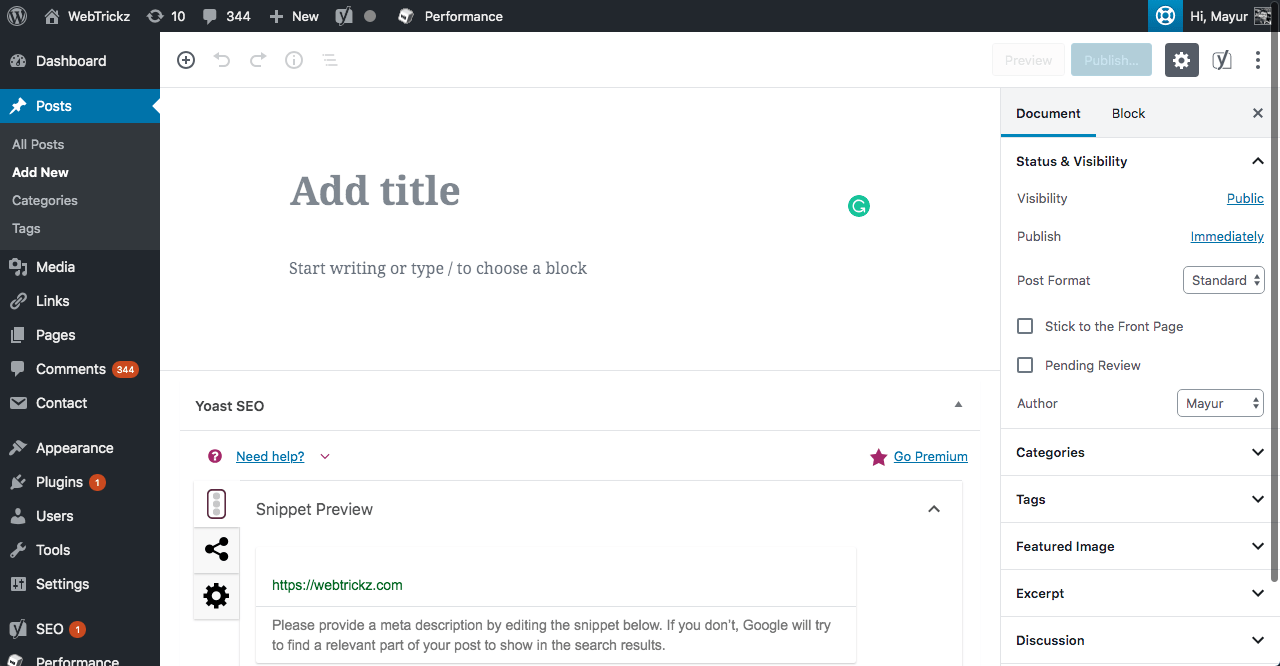
How to switch from block editor to classic editor in WordPress
The ability to revert is officially provided by WordPress so that interested publishers can switch to the familiar classic editor. You, however, need to install a plugin to get it working because the block editor is now the default editor. To do so, follow the steps below.
- Log in to your WordPress site as an administrator.
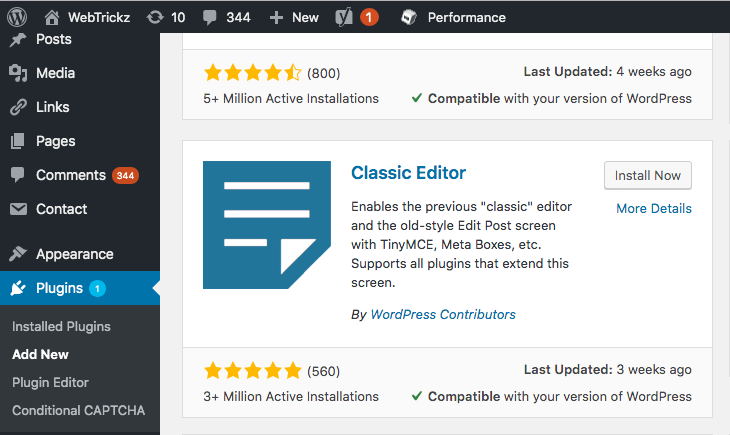
- Go to Plugins > Add New and look for the “Classic Editor” plugin. This plugin is developed and maintained by the core WordPress contributors.
- Simply install the plugin and activate it.
- That’s it! Upon activation, the new block editor will be automatically disabled.
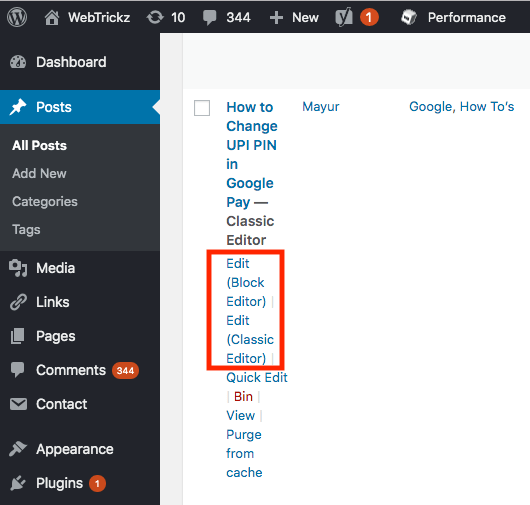
Now clicking “Add New” under the Posts section will open up the classic editor. Moreover, you will be able to edit your older posts using the classic editor as well as the block editor. Simply choose either of the two options while editing posts through the Posts > All Posts page.
Switching between Classic Editor and Block Editor in WordPress
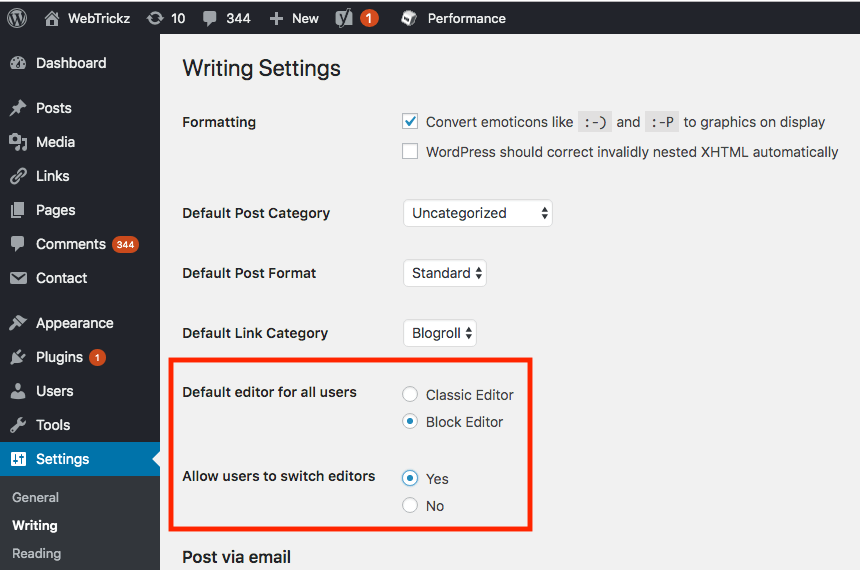
The Classic Editor plugin also provides an option to easily switch between the old classic editor and the new block editor. To switch between the two editors, go to Settings > Writing and select your preferred choice under the “Default editor for all users” option. Then click on the Save Changes button at the bottom. Additionally, there is an option to allow users to switch editors on the same page.
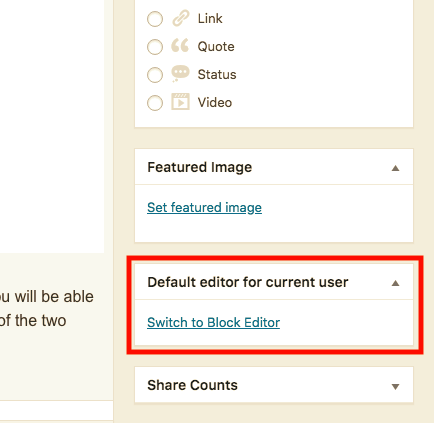
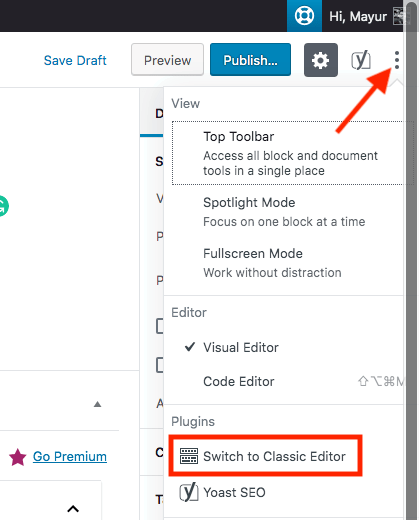
At the same time, if you want to create a new post using block editor while having classic editor enabled or vice-versa then that’s possible too. To do so, add a new post from the Posts section and click on the “Switch to Block Editor” option shown in the right sidebar under the heading “Default editor for current user”. Similarly, you can switch to the classic editor while drafting a post in the block editor. To do so, click on the more tools and options button (3 dots) in the top right and select “Switch to Classic editor” under Plugins.
According to the WordPress team, the support for the Classic Editor plugin will continue through 2021. In the meantime, it would be good to take your time and get accustomed to the Gutenberg editor.











Thank you for this! Please keep the Classic Editor maintained. Most themes render a flashy editor redundant and just get in the way. Certainly with Flatsome and its block editor the new Guttenberg editor just confused things and I couldn\’t even save a page in it without a whirring circle.
Thank you sooooooo much for this info. \”If it ain\’t broke, don\’t fix it.\” I wish WordPress would live by these words and leave good enough alone.
Thank You! I HATED the block editor. I am usually fine with change but that change was bad.
I never expected that the new guttenberg editor broke my text align on an old themes that created by some folks. It\’s really annoying to be honest, but what can I do. I want to keep the themes, but seems I need to change it anyway :\'(
this option is not available to me in the writing settings. No “default editor” option shows at all 🙁