WebTrickz
TRENDING
  • Complete list of 1337x Proxy and Mirror Sites
No Result
View All Result
  • Reviews
  • Editorials
  • Social Media
    • Facebook
    • Twitter
    • YouTube
    • Messenger
    • Instagram
    • Snapchat
    • WhatsApp
    • TikTok
  • Apps
  • How To’s
  • Apple
  • iPhone
  • Google
  • Android
  • Mac
  • Security
  • About Us
    • About Us
    • Contact Us
    • Privacy Policy
  • Reviews
  • Editorials
  • Social Media
    • Facebook
    • Twitter
    • YouTube
    • Messenger
    • Instagram
    • Snapchat
    • WhatsApp
    • TikTok
  • Apps
  • How To’s
  • Apple
  • iPhone
  • Google
  • Android
  • Mac
  • Security
  • About Us
    • About Us
    • Contact Us
    • Privacy Policy
No Result
View All Result
WebTrickz
No Result
View All Result
Home Android

TIP: Turn your Android phone into a Wireless Speaker

Taigun by Taigun
February 20, 2024
in Android, Tips 'n' Tricks

Are your PC speakers or headset out of work and you somehow still wish to listen to music? Practically, that sounds impossible but with an Android phone, everything is usually possible. You can now turn your PC into a media server and listen to songs stored on your computer using your Android device speaker, that too wirelessly!

This tip can come pretty handy, for instance, if you want to watch a movie on your PC (or TV acting as an external display) and want to enjoy it quietly right from the comfort of your bed or couch that is placed far away, hence unreachable for a wired headset.

‘SoundWire’, a free and easy-to-use app makes this possible by pairing the PC with your Android phone over a wireless network. You can use any music player on your PC or laptop like WMP, Grooveshark, Spotify, YouTube, or iTunes, and feed the live sound directly to your Android device.

The program has low latency (audio delay), excellent sound quality (44.1 / 48 kHz stereo 16-bit, PCM, or Opus compression), plus offers the option to record the audio on PC to an MP3 or WAV file. Users also have the option to choose ‘audio buffer size’ from the settings menu, large buffer size gives smoother audio whereas small buffer sizes give lower latency (shorter audio delay).

Note: Make sure your PC and phone are connected over the same Wi-Fi network.

How to Setup SoundWire

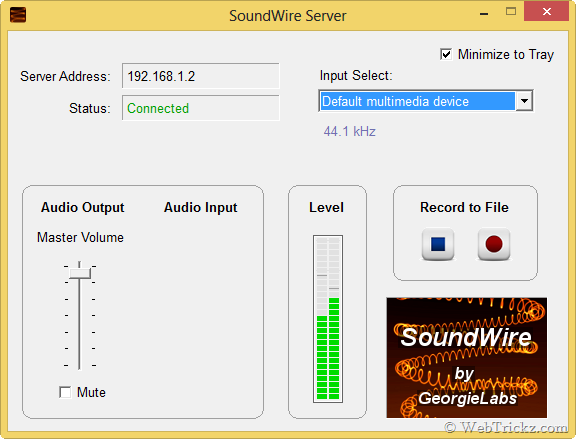
1. Download and install Soundwire Server on your system. (Windows / Linux)
22-12-2012 01-32-06

2. Install Soundwire (free version) on your Android device. [Link: Google Play]

3. Run the Soundwire Server on your computer and start the Soundwire app on Android too.

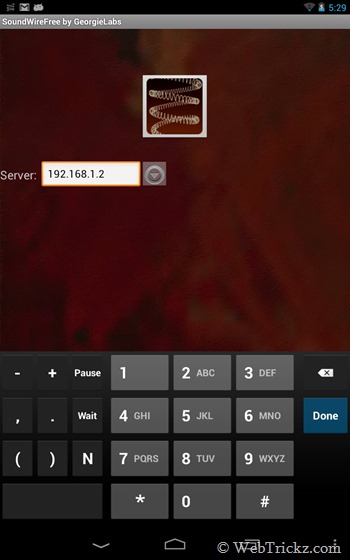
4. Then enter the server address (IP) shown on the upper left of the SoundWire Server window, in the SoundWire Android app. Press the “Connect” button (coiled wire icon) to connect to the server and begin listening. The status on the PC should be connected now.
2012-12-21 17.29.09

Now play the music on your PC and enjoy it magically from the speakers of your Android phone or tablet. You can prefer to turn down the volume of PC speakers to 0% and plug a headphone into the device for a better experience while watching movies.

Tags: AndroidMusicTips
ShareTweetSend
Previous Post

Guide to Install Ubuntu 13.04 on Nexus 7 using a Windows PC

Next Post

Use your Android phone as a Wireless Mouse or Keyboard

Taigun

Taigun

Mayur Agarwal, the founder and editor of WebTrickz, is a tech enthusiast with a Bachelor's degree in Computer Applications and over 15 years of experience in tech writing. His passion for technology and gadgets drives him to create insightful how-to articles and troubleshooting guides.

Next Post

Use your Android phone as a Wireless Mouse or Keyboard

Comments 3

  1. Pratyush says:
    13 years ago

    Brilliant Tip bro. Had been searching something similar for a long time.

    I take it to the next level. I connect my Android to speakers, located at distant corner of the room, while stream the music from computer to them.

    Thus I don’t need to carry the laptop near the speakers, and have a wireless experience :).

    Thanks.

    Reply
    • Mayur says:
      13 years ago

      Thanks bro. It’s pretty good for listening music but you might notice a bit lag with audio while watching a movie.

      Reply
  2. Sergio says:
    10 years ago

    Man, you are god-send! That Monitor selection from drop-down just solved my issue.

    Thanks very much You\’re cool as f*ck!

    From Brazil

    Reply

Leave a Reply Cancel reply

Your email address will not be published. Required fields are marked *

Latest Stories

1337x logo

1337x Proxy List 2026: Working Proxy & Mirror Sites

June 2, 2026

How to Find Saved Reels on Facebook App & Desktop (2026)

April 1, 2026
microsoft edge browser

How to Restore or Reopen Closed Tabs in Microsoft Edge

March 26, 2026
Facebook app on iPhone

How to See Recently Watched Reels on Facebook (2026 Guide)

April 3, 2026
microsoft edge new logo

Download Microsoft Edge Offline Installer [Latest Version]

March 16, 2026

How to Turn Off Bing SafeSearch in Microsoft Edge

March 12, 2026
google chrome logo

Download Google Chrome Offline Installer [Latest Version]

June 3, 2026

Trending Stories

  • microsoft family safety settings

    How to Turn Off Microsoft Family Safety on Windows 11 & 10

  • How to Turn Off Fn Lock or Fn Key on Windows 11/10 Laptop

  • How to Turn Off Microsoft Edge Game Assist in Windows 11

  • How to See Recently Watched Reels on Facebook (2026 Guide)

  • How to Restore or Reopen Closed Tabs in Microsoft Edge

  • About Us
  • Contact Us
  • Privacy Policy
  • Advertise

© 2026 WebTrickz. All Rights Reserved.

No Result
View All Result
  • Reviews
  • Apps
  • How To’s
  • Android
  • Google
  • iPhone
  • Mac
  • About Us
  • Contact Us
  • Privacy Policy

© 2026 WebTrickz. All Rights Reserved.