

WebTrickz
TRENDING
  • Complete list of 1337x Proxy and Mirror Sites
No Result
View All Result
  • Reviews
  • Editorials
  • Social Media
    • Facebook
    • Twitter
    • YouTube
    • Messenger
    • Instagram
    • Snapchat
    • WhatsApp
    • TikTok
  • Apps
  • How To’s
  • Apple
  • iPhone
  • Google
  • Android
  • Mac
  • Security
  • About Us
    • About Us
    • Contact Us
    • Privacy Policy
  • Reviews
  • Editorials
  • Social Media
    • Facebook
    • Twitter
    • YouTube
    • Messenger
    • Instagram
    • Snapchat
    • WhatsApp
    • TikTok
  • Apps
  • How To’s
  • Apple
  • iPhone
  • Google
  • Android
  • Mac
  • Security
  • About Us
    • About Us
    • Contact Us
    • Privacy Policy
No Result
View All Result
WebTrickz
No Result
View All Result
Home Android

How to Install and Run Android 4.0 Ice Cream Sandwich Emulator on Windows

Taigun by Taigun
February 20, 2024
in Android, How To's

Android 4.0 aka Ice Cream Sandwich, the latest and most advanced version of Android OS introduces a refined, beautiful, and unified UI for phones and tablets. Besides the smart new design, ICS offers a variety of innovative features for users and developers. Some of the newly added key features in ICS include – easy multitasking, rich notifications, customizable home screens, resizable widgets, native screenshot capture support, an improved browser, improved text input and spell-checking, a redesigned Gallery with photo editor, and a lot more. See the Android 4.0 Platform Highlights.

ics-android

Apparently, Galaxy Nexus is the first device pre-loaded with Android 4.0 to offer a pure Google experience. ICS is going to be officially available for several other high-end Android smartphones but that won’t happen anytime soon. The Android 4.0 platform is available as a downloadable component on the Android SDK, allowing developers to create and test their applications on Android 4.0 with the Android emulator. Interested users can also test drive and experience the awesome interface and features of ICS, simply by installing the official Android 4.0 emulator on their computer.

Steps to Install Android 4.0 Ice Cream Sandwich Emulator on Windows –

1. Download the Android SDK. (choose the .zip file for Windows)

2. Extract the contents of the Zip file to a folder on your desktop.
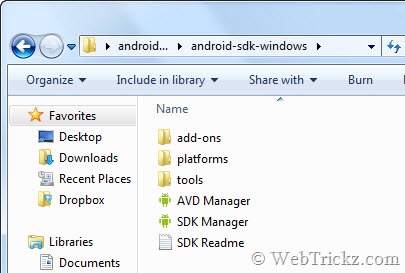
Android SDK

3. Run ‘SDK Manager.exe’ from the folder. Tick mark the package ‘Android 4.0 (API 14)’ and click on ‘Install Packages’.
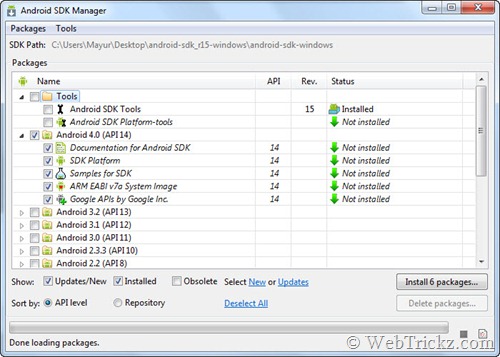
Android SDK Manager

Wait until all the package components are downloaded. (Requires Internet and may take quite long depending on your connection speed.) A new window will appear, just choose Accept and click Install.

4. Upon installation of all the packages, a window will pop up asking to restart ADB. Just click Yes.
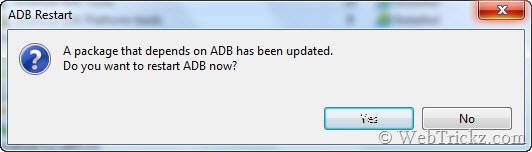
restart ADB

5. Now run ‘AVD Manager.exe’ from the directory mentioned in step 2. Click on ‘New’ to create a new AVD. Give AVD a name, select the target as Android 4.0, select a desired skin, and Create AVD. (We chose HVGA, the device RAM size can be specified too.)
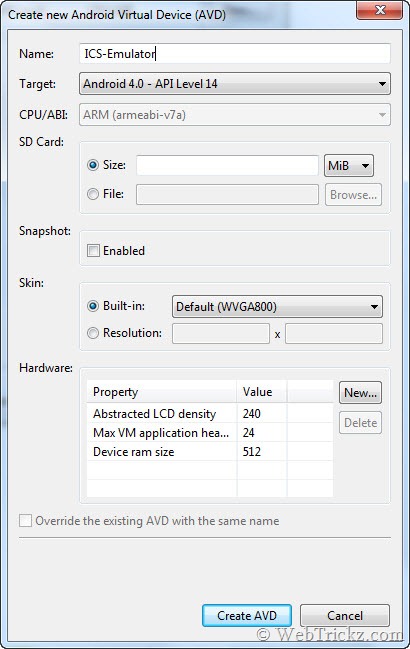
create AVD

Note: The emulator consumes high CPU resources, so set higher parameters only if you have a powerful system.

6. Select your AVD from the AVD Manager and click on Start. Then Launch it.
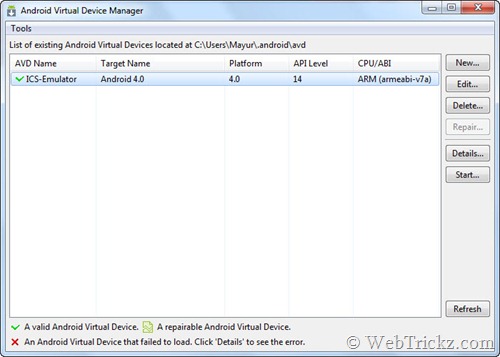
AVD Manager

That’s it. Android 4.0 emulator will now boot up and present the ICS home screen.
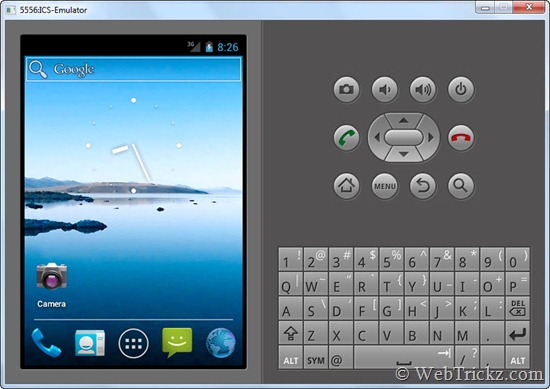
Android 4.0 ICS Emulator

The emulator can be controlled using both a mouse and a keyboard. It might act a bit sluggish as it’s a memory-intensive program. ICS emulator has a set of virtual buttons and a keyboard to operate it like a phone. Explore the various functions, settings, and menus of ICS via this emulator to quickly taste most of the cool stuff!


Tags: AndroidTipsTutorials
ShareTweetSend
Previous Post

List of Hidden Chat emoticons in Google+ Chat

Next Post

Retain High Speed Bandwidth on Airtel Broadband after crossing FUP limit with Smartbytes

Taigun

Taigun

Mayur Agarwal, the founder and editor of WebTrickz, is a tech enthusiast with a Bachelor's degree in Computer Applications and over 15 years of experience in tech writing. His passion for technology and gadgets drives him to create insightful how-to articles and troubleshooting guides.

Next Post

Retain High Speed Bandwidth on Airtel Broadband after crossing FUP limit with Smartbytes

Leave a Reply Cancel reply

Your email address will not be published. Required fields are marked *

Latest Stories

1337x logo

1337x Proxy List 2026: Working Proxy & Mirror Sites

June 2, 2026

How to Find Saved Reels on Facebook App & Desktop (2026)

April 1, 2026
microsoft edge browser

How to Restore or Reopen Closed Tabs in Microsoft Edge

March 26, 2026
Facebook app on iPhone

How to See Recently Watched Reels on Facebook (2026 Guide)

April 3, 2026
microsoft edge new logo

Download Microsoft Edge Offline Installer [Latest Version]

March 16, 2026

How to Turn Off Bing SafeSearch in Microsoft Edge

March 12, 2026
google chrome logo

Download Google Chrome Offline Installer [Latest Version]

June 3, 2026

Trending Stories

  • microsoft family safety settings

    How to Turn Off Microsoft Family Safety on Windows 11 & 10

  • How to Turn Off Fn Lock or Fn Key on Windows 11/10 Laptop

  • How to Turn Off Microsoft Edge Game Assist in Windows 11

  • How to See Recently Watched Reels on Facebook (2026 Guide)

  • How to Restore or Reopen Closed Tabs in Microsoft Edge

  • About Us
  • Contact Us
  • Privacy Policy
  • Advertise

© 2026 WebTrickz. All Rights Reserved.

No Result
View All Result
  • Reviews
  • Apps
  • How To’s
  • Android
  • Google
  • iPhone
  • Mac
  • About Us
  • Contact Us
  • Privacy Policy

© 2026 WebTrickz. All Rights Reserved.






