Microsoft Family Safety is a useful feature designed to help parents monitor and manage their child’s device usage. It lets you set screen time limits, block certain apps or websites, and track online activity across devices.
While it’s helpful for families, it can be annoying if you’re not actually part of a family group or if the feature was enabled by mistake. You might see constant pop-ups like “Ask a parent to use this app” or “Request more screen time,” especially when trying to use browsers like Google Chrome instead of Microsoft Edge.
If you don’t want to deal with these restrictions, you can manually turn off Microsoft Family Safety features on your Windows PC. This quick guide shows a simple way to stop or remove Family Safety controls from a Windows 11 or Windows 10 PC, if you have admin access.
How to Turn Off or Disable Microsoft Family Safety Mode in Windows
If you don’t want to manage family safety settings or you’re getting constant permission pop-ups, you can stop Family Safety locally by disabling its background service. This can be done through the Windows Services Manager.
Note: You need to be signed in as an administrator to enable or disable Windows services.
Follow these steps to stop or completely disable Microsoft Family Safety (Parental Controls) service in Windows 11 or Windows 10:
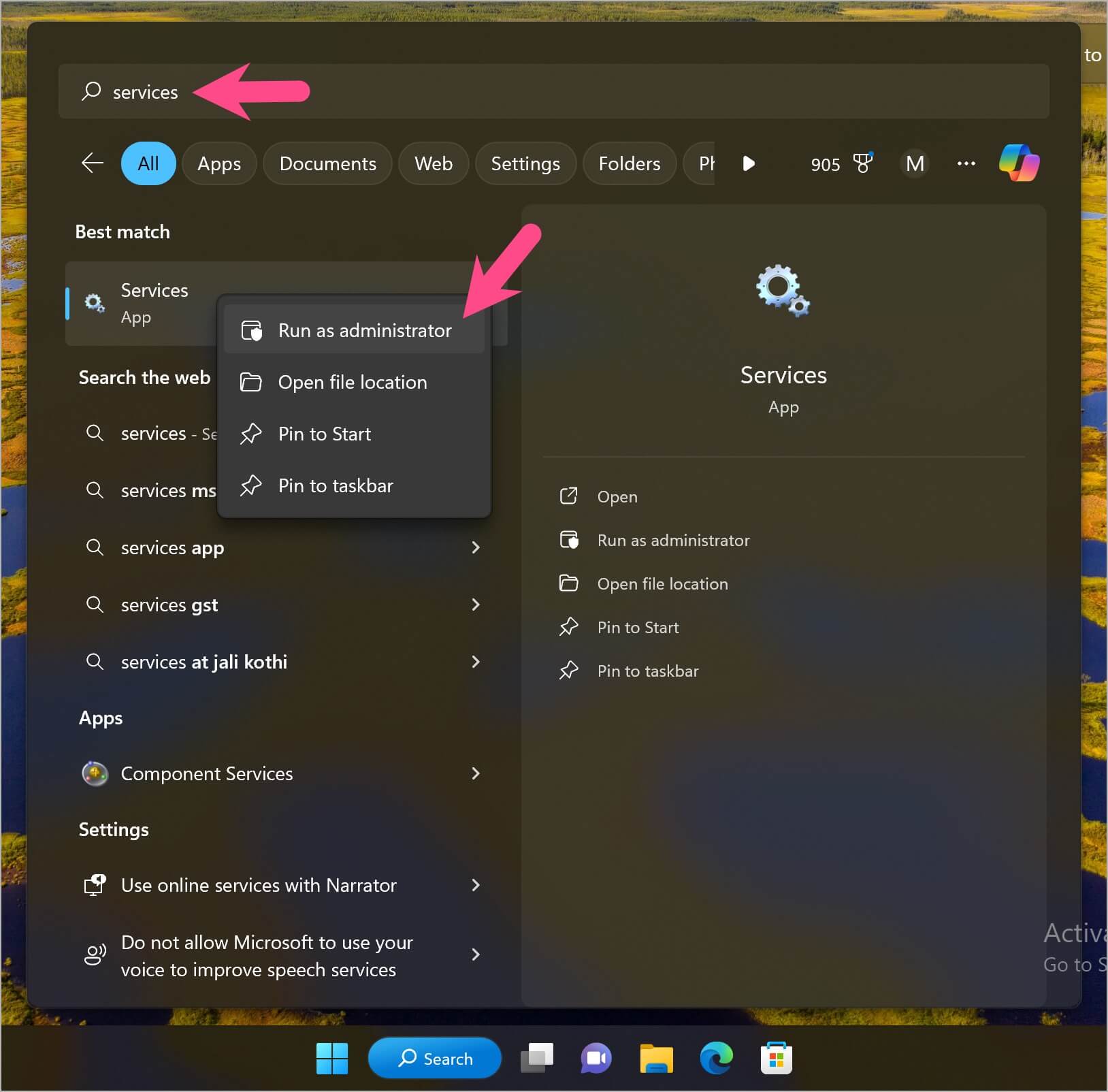
- Open the Start menu and search for services.
- Right-click the Services app and select “Run as administrator“.

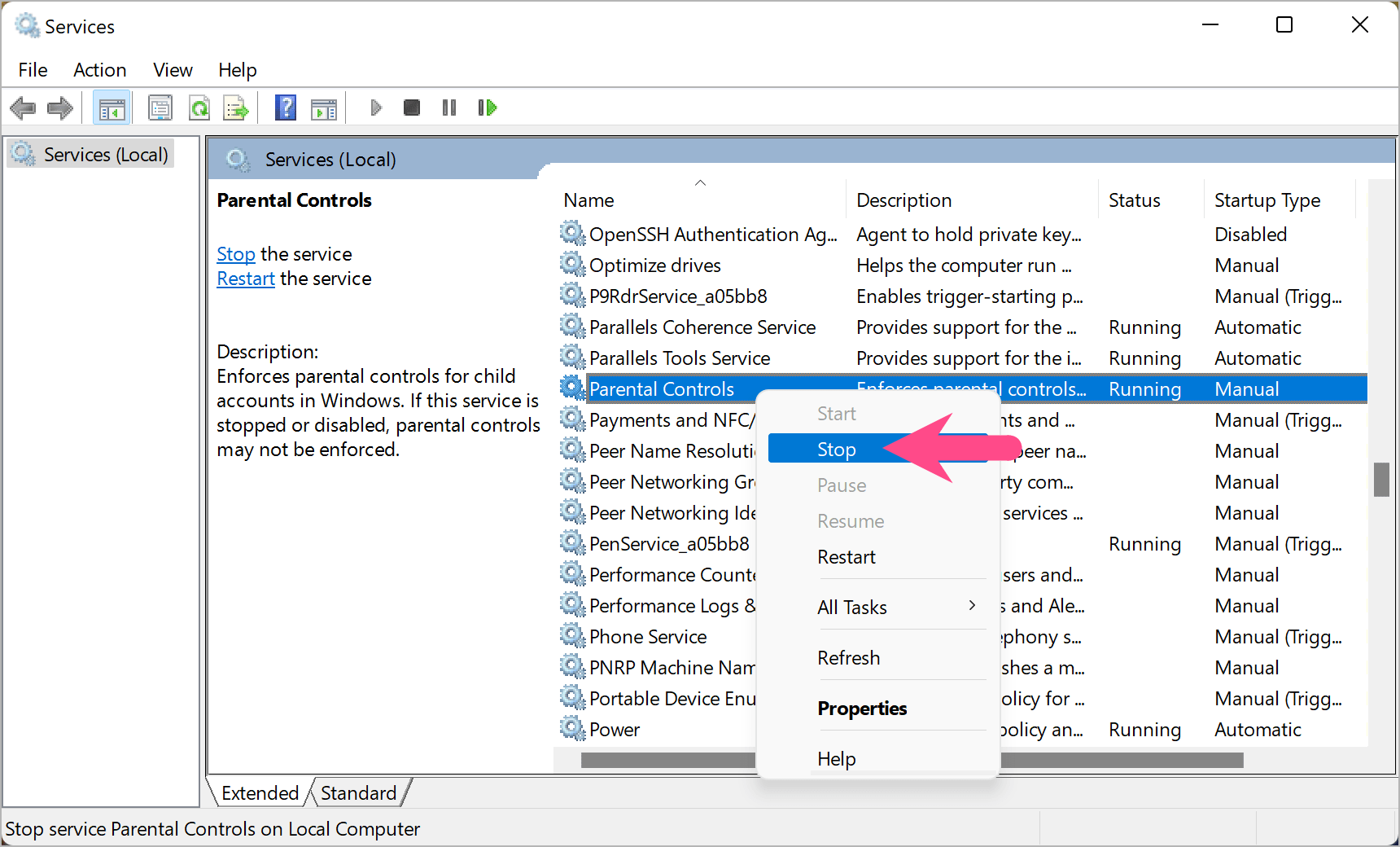
- Scroll through the list and look for Parental Controls.
- To temporarily stop parental controls for child accounts, right-click the “Parental Controls” service and select “Stop“.

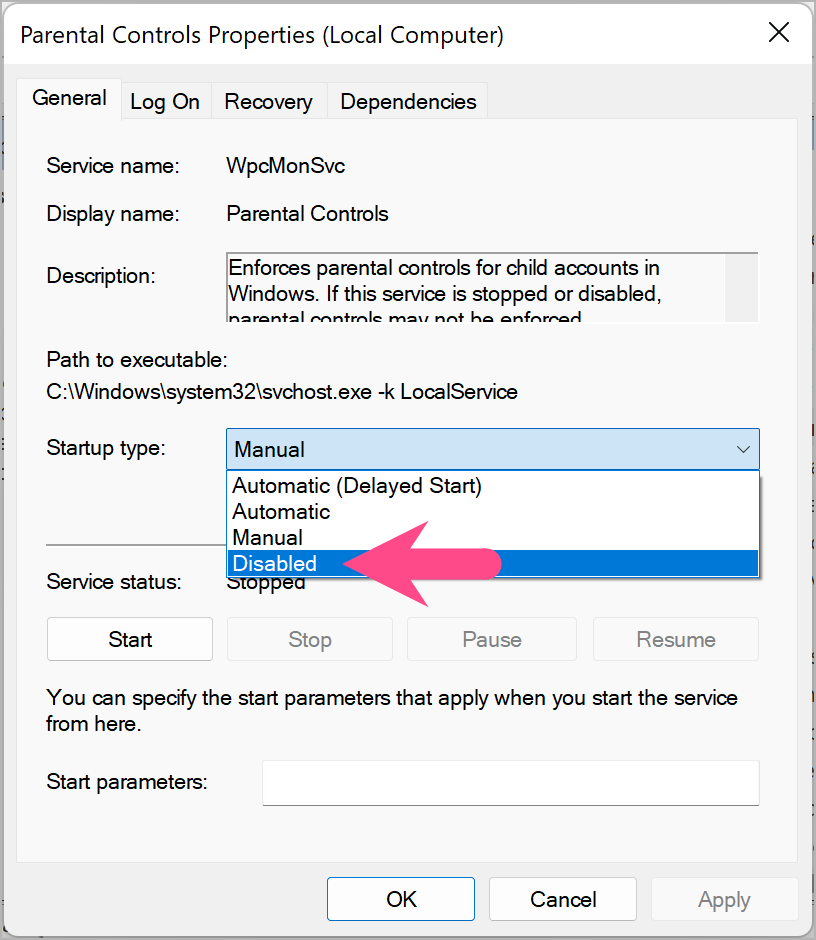
- To stop parental controls from starting automatically, right-click Parental Controls and choose Properties.
- In the Properties window, click the dropdown menu next to Startup type and select “Disabled“.

- Click Apply, then OK, and restart your PC to save the changes.
Once disabled, Windows will no longer enforce most local Microsoft Family Safety restrictions on that device. However, some account-based settings may still apply if the Microsoft account remains in a Family group.
Important Notes About Microsoft Family Safety Restrictions
Disabling the Microsoft Family Safety (Parental Controls-related) service on Windows only affects the local device. It does not remove account-based restrictions that are tied to your Microsoft account.
If your account is still part of a Microsoft Family group, certain settings such as screen time limits, app approvals, and content filters may continue to apply when you sign in on the same or another device.
In some cases, changes may also take time to sync across devices, especially if the account is signed in on multiple Windows PCs, Xbox, or mobile devices.
To completely stop Family Safety restrictions, ensure the following:
- Your Microsoft account is not part of a Family group
- You are using an adult (unrestricted) account where applicable
- You have signed out and back into Windows after making changes
These factors often determine whether Family Safety restrictions persist even after the service is disabled on Windows.
Note: Use this method only on your own computer, as bypassing parental controls on someone else’s account without permission isn’t recommended.
What Is Microsoft Family Safety?
Microsoft Family Safety is a parental control and family management service that helps parents create a safer digital environment for children. It allows organizers in a Microsoft Family group to monitor device usage, manage screen time, restrict apps and games, filter inappropriate websites, and receive activity reports.
Family Safety works across Windows 11, Windows 10, Xbox consoles, Android devices, and iPhones. The service is linked to your Microsoft account, which means restrictions can follow your account across supported devices.
If you’re seeing Family Safety notifications, blocked apps, or browsing restrictions, your Microsoft account may be part of a Microsoft Family group with active parental controls.
Microsoft also offers the Family Safety app for Android and iPhone, which lets family organizers manage screen time, monitor activity, and adjust parental controls remotely.
How to Manage Microsoft Family Safety Settings
Before turning off Microsoft Family Safety completely, you may want to adjust its settings. In some cases, changing specific controls like screen time limits, app restrictions, or content filters may resolve the issue without disabling the service entirely.
Microsoft Family Safety settings are managed through your Microsoft account dashboard. To manage them:
- Visit account.microsoft.com/family and sign in to your Microsoft account.
- Open the Your family section.
- Select the family member (click profile avatar) whose settings you want to manage.

- Adjust controls such as Screen Time, Content Filters, or Activity Reporting.

- Save your changes and allow them to sync across devices.
If you still want to fully disable Microsoft Family Safety, follow the steps in the main section above.
Why Does Microsoft Family Safety Keep Popping Up?
There are several reasons why Microsoft Family Safety pop-ups may continue to appear on your computer even when you are not actively using it.
Common causes include:
- Your account is part of a Microsoft Family group.
- Screen time limits have been configured.
- Web filtering or SafeSearch restrictions are enabled.

- Certain apps or games require organizer approval.
- Activity reporting is turned on for the account.
In many cases, disabling the Parental Controls service on Windows removes local restrictions. However, account-based restrictions may continue if the Microsoft account remains connected to a Family group.
Disable Family Safety Service vs Leave Family Group
Disabling the Parental Controls service and leaving a Microsoft Family group are two different actions. The table below explains how each option affects Microsoft Family Safety restrictions.
| Method | What it Does |
|---|---|
| Disable Parental Controls Service | Turns off Family Safety functionality on the current Windows PC. |
| Leave Microsoft Family Group | Removes the account from family management and parental controls. |
| Turn Off Screen Time Limits | Removes device usage schedules but keeps the account in the Family group. |
| Adjust or disable Content Filters | Reduces website and app restrictions depending on family organizer settings. |
If restrictions continue after disabling the service, your Microsoft account may still be part of a Family group.
How to Stop Microsoft Family Safety Notifications
Microsoft Family Safety notifications appear when activity reporting, screen time limits, or content restrictions are enabled for a Microsoft account in a family group. These alerts are sent to keep organizers informed about device usage and account activity.
To reduce or stop these notifications, you can adjust both Family Safety settings and Windows notification preferences.
Follow these steps to turn off Microsoft family notifications:
- Sign in to your Microsoft account and open the Family Safety dashboard.
- Select the family member whose notifications you want to manage.

- Turn off or reduce activity reporting and other alert-based features.

- On your Windows PC, go to Settings > System > Notifications.
- Disable or customize notifications for Family Safety or related Microsoft services.
If your account remains in a Microsoft family group, some notifications may still appear based on organizer settings. In that case, only the family organizer can fully control or disable those alerts.
How to Turn Off Screen Time Limits
Screen time limits are one of the most commonly used features of Microsoft Family Safety. If device usage restrictions are causing problems, you can disable them separately.
To turn off screen time limits in Microsoft Family Safety:
- Sign in to your Microsoft Family account.
- Open the Screen Time section.
- Select the affected family member.
- Disable the schedule or remove all time limits.
- Save the changes.
The user should then regain unrestricted access to their device during all hours.
Can You Uninstall Microsoft Family Safety?
Microsoft Family Safety is integrated with Microsoft account services and Windows family features, so there is no standalone uninstall option in most cases.
Instead of uninstalling it, users can:
- Disable the Parental Controls service.
- Leave the Microsoft Family group.

- Remove screen time limits.
- Turn off content filtering and activity reporting.
These actions effectively stop Family Safety from enforcing restrictions on the account or device.
Frequently Asked Questions (FAQ)
How do I turn off Microsoft Family Safety pop-ups?
Family Safety pop-ups usually appear when screen time limits, app restrictions, or parental approval requirements are enabled. Disabling the Parental Controls service on Windows can stop most local Family Safety prompts. If the pop-ups continue, check whether your Microsoft account is still part of a Family group.
Does disabling Microsoft Family Safety affect other devices?
Disabling the Parental Controls service only affects the current Windows device. Family Safety settings linked to your Microsoft account may continue to apply on other devices that are part of the same Microsoft Family group.
Can I remove myself from a Microsoft Family group?
Yes. Adult members can leave a Microsoft Family group through the Family management portal. Child accounts must be removed by the family organizer.
Can Microsoft Family Safety block apps and websites?
Yes. Family Safety can restrict access to apps, games, and websites based on the rules configured by the family organizer. These restrictions are commonly used for parental control purposes.
What is the Microsoft Family Safety app?
The Microsoft Family Safety app is a companion app for Android and iPhone that allows family organizers to manage screen time, monitor activity, adjust parental controls, and review family settings remotely. It works alongside Microsoft Family Safety on Windows, Xbox, and other supported devices.
Is Microsoft Family Safety available on Windows 10 and Windows 11?
Yes. Microsoft Family Safety is supported on both Windows 10 and Windows 11 and can also be used with Xbox, Android, and iPhone devices.
Wrapping Up
Microsoft Family Safety is useful for parents, but it can feel restrictive if it’s enabled on an adult account or set up by mistake. Disabling the Parental Controls (Family Safety-related) service through Windows Services is a quick way to reduce pop-ups and regain normal app access on your PC.
However, Family Safety is also linked to your Microsoft account. This means some restrictions, such as screen time limits, app approvals, or content filters, may still apply if your account remains part of a Microsoft Family group.
For complete control, you may also need to review your Family Safety settings online or adjust your account’s family group status. In most cases, combining local changes with account-level adjustments ensures the best results and helps fully stop Microsoft Family Safety restrictions on your device.
ALSO READ:


this was very helpful and I appreciate the advice,
my kid cant do fun things that he asked if he could do
It works, thank you for your guide, I thought I cannot stop the Microsoft family issue in my laptop anymore