


If you want to turn off Microsoft Edge Game Assist in Windows 11, you can close it temporarily or uninstall it completely. This guide shows how to stop the Game Assist widget from opening in the Game Bar or remove it permanently.
What Is Microsoft Edge Game Assist?

Microsoft Edge Game Assist is an optional feature available in Microsoft Edge that integrates Edge with the Windows Game Bar. It lets you browse guides, walkthroughs, and other web content without leaving your game. The feature appears as a Game Bar widget and isn’t required for Microsoft Edge or Windows to work normally.
Note: On supported Windows 11 PCs, Microsoft Edge Game Assist may be installed automatically when you update Microsoft Edge.
Why Remove or Close Game Assist?
Although Game Assist can be useful while gaming, many users prefer not to keep it installed. You might want to remove or close Game Assist if:
- It keeps opening when you launch the Game Bar.
- You never use the widget while gaming.
- You prefer a cleaner Game Bar without extra widgets.
- You don’t want another Microsoft Edge component running on your PC.
If you only want to stop using Game Assist temporarily, simply close the widget. If you don’t plan to use it at all, uninstalling it is the better option.
How to Turn Off or Close Microsoft Edge Game Assist
Microsoft Edge doesn’t currently include a dedicated option to permanently disable Game Assist. However, you can either close the widget for the current session or uninstall it from Windows 11 so it no longer appears in Game Bar.
Close the Game Assist Widget
If you only want to hide Game Assist while gaming, simply close its widget from the Game Bar.
- Press Win + G to open the Game Bar.
- Locate the Game Assist widget.
- Click the X (Close) button in the widget’s title bar.
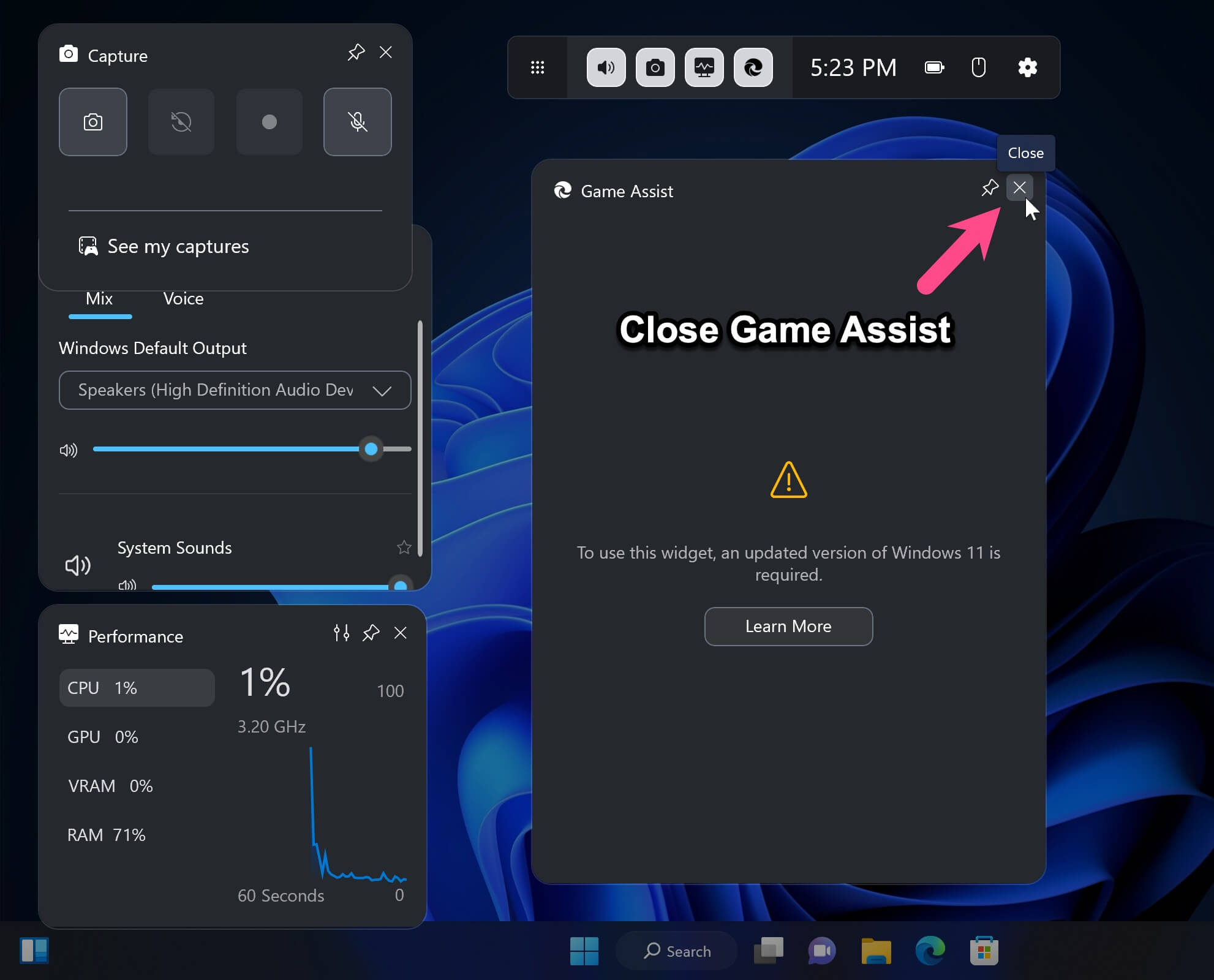
This closes the Game Assist widget only for the current gaming session. If Game Assist is installed, it can appear again the next time you open the Game Bar.
Uninstall Game Assist from Windows Settings
If you don’t use Game Assist, uninstalling it removes the widget completely from your PC.
- Press Win + I to open Settings.
- Go to Apps > Installed apps (or Apps & features).
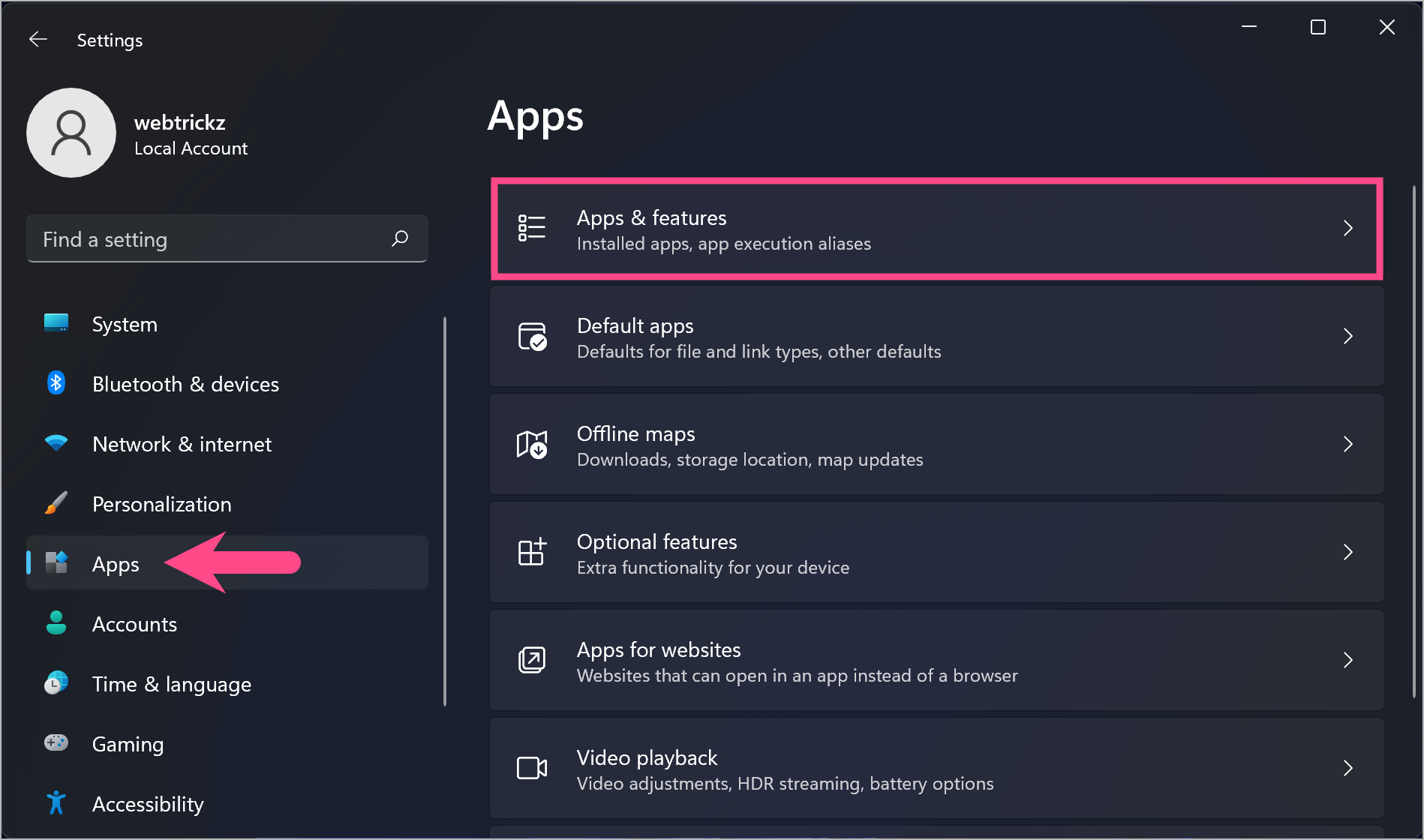
- Find Game Assist in the list of installed apps.
- Click the three-dot menu next to Game Assist and select Uninstall.
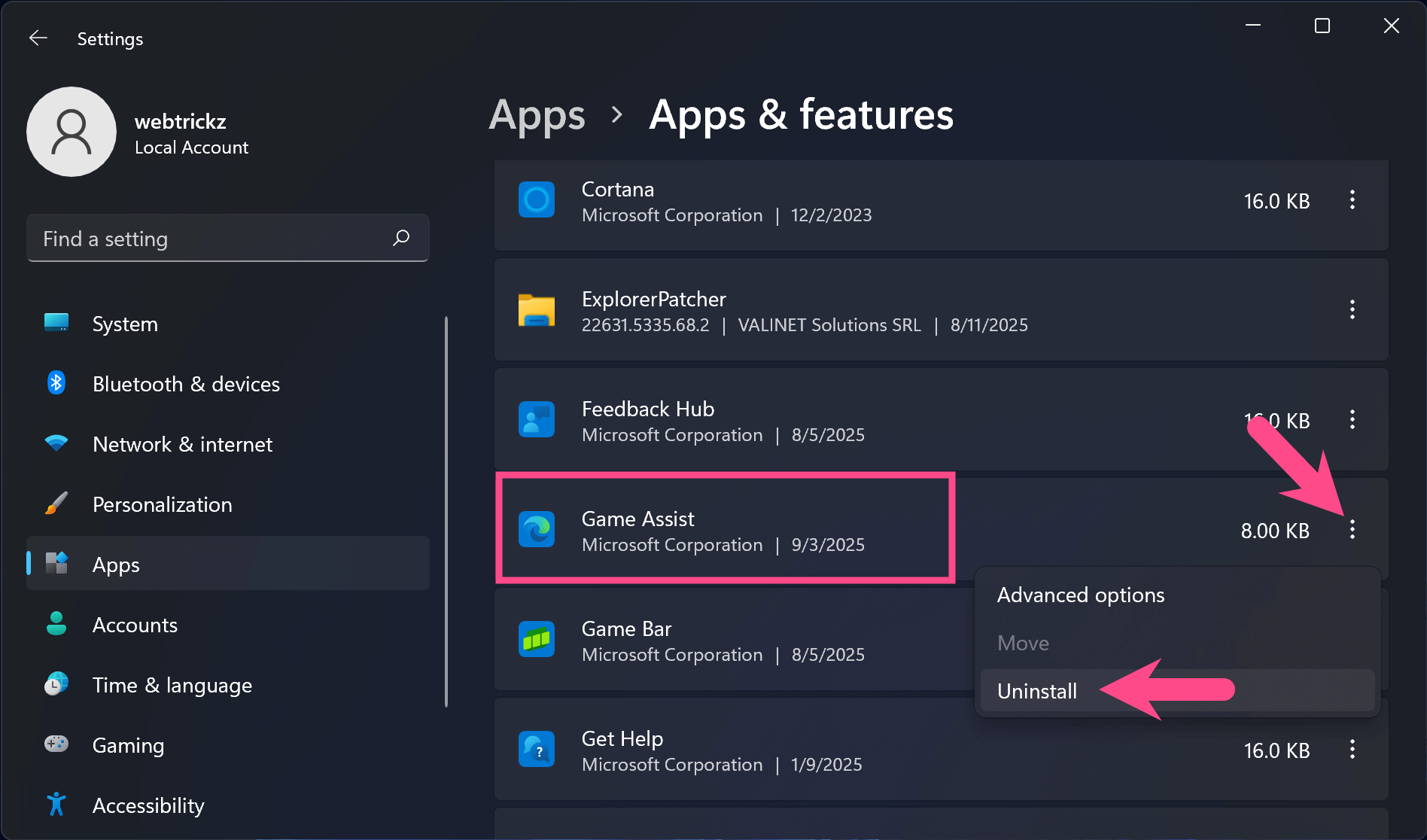
- Confirm when prompted.
Once uninstalled, Game Assist won’t appear in the Game Bar unless you install it again.
Uninstall Game Assist from the Game Bar Widget Store
If you usually access Game Assist through the Game Bar, you can also uninstall it directly from the Widget Store.
- Press Win + G to open the Game Bar.
- Open the Widget Menu and select Widget Store.
- Switch to the Installed tab and locate Microsoft Edge Game Assist.
- Click the three-dot menu (…) next to Game Assist and select Uninstall.
- Click Yes, I’m sure to confirm.
This is the quickest way to remove Game Assist if you normally launch it from the Game Bar.
Why Does Game Assist Keep Opening?
Game Assist is integrated with the Windows Game Bar. If it’s installed, the widget remains available every time you open the Game Bar with the Win + G keyboard shortcut.
Closing the widget only hides it for the current gaming session. The next time you launch the Game Bar, Game Assist may appear again if it was previously opened or pinned.
If you don’t want to see it again, uninstalling Game Assist is currently the only permanent solution.
Can’t Remove Game Assist?
If you don’t see the option to uninstall Game Assist, make sure you’re running the latest version of Microsoft Edge and Windows 11. On some systems, the feature may still be rolling out or may not be installed yet.
If you’re troubleshooting the edgegameassist.exe process in Task Manager, uninstalling Game Assist removes the associated component and prevents it from loading through the Game Bar.
Frequently Asked Questions
Can I Disable Game Assist Without Uninstalling It?
No. Microsoft doesn’t currently provide a permanent option to turn off Game Assist without uninstalling it. You can close the widget from the Game Bar, but it may appear again the next time you open the Game Bar.
Is It Safe to Uninstall Microsoft Edge Game Assist?
Yes. Game Assist is an optional Microsoft Edge feature. Removing it doesn’t affect Microsoft Edge, Windows 11, or the Xbox Game Bar.
Will Uninstalling Game Assist Improve Gaming Performance?
Removing Game Assist may reduce unnecessary background activity, but you shouldn’t expect a noticeable improvement in game performance on most modern PCs.
Can I Reinstall Game Assist Later?
Yes. Open Microsoft Edge and go to Settings. Search for Game Assist, then click Install widget to reinstall it.
Why Don’t I See Game Assist on My PC?
Game Assist requires Microsoft Edge version 137 or later, Windows 11 version 22H2 or newer, and the latest Game Bar updates. If your device doesn’t meet these requirements, the feature won’t appear.
How Do I Unpin Game Assist?
If Game Assist is pinned in the Game Bar, simply close the widget or unpin it from the Game Bar interface. If you don’t use it at all, uninstalling Game Assist prevents it from appearing again.
Related Guides
- How to Turn Off Microsoft Family Safety on Windows 11 and 10
- How to Disable OneDrive Permanently on Windows 11 or 10
- How to Turn Off Microsoft Copilot in Microsoft Edge








