


Accidentally closed a tab or an entire browser window in Microsoft Edge? You can quickly reopen a closed tab, restore a closed window, or recover your previous browsing session using a keyboard shortcut, the History menu, or the Recently Closed list. Here’s how to reopen closed tabs in Microsoft Edge on Windows and Mac.
Ways to reopen closed tabs in Microsoft Edge
There are several ways to reopen or restore recently closed tabs in Microsoft Edge. Choose the one that’s most convenient for you.
Method 1: Use the keyboard shortcut (Fastest)
The quickest way to reopen the last closed tab is with a keyboard shortcut.
- Windows:
Ctrl + Shift + T - Mac:
Command + Shift + T
Tip: Press the shortcut multiple times to reopen previously closed tabs one by one, starting with the most recently closed tab.
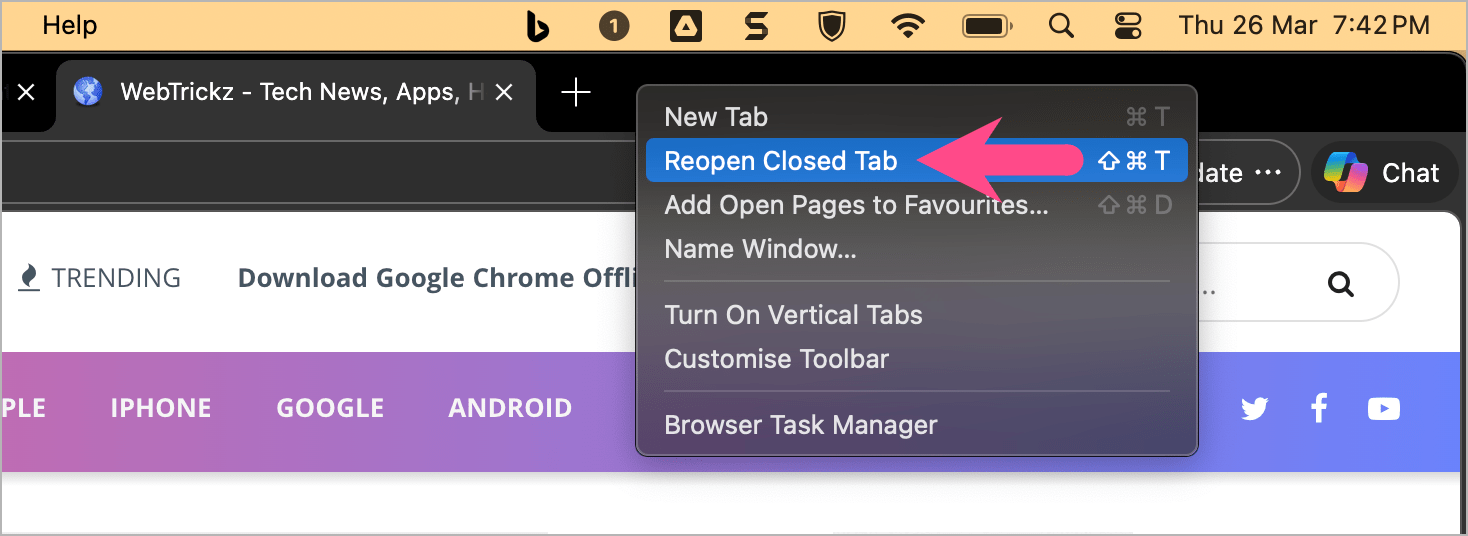
Method 2: Reopen a closed tab from the tab bar
If you prefer using the mouse:
- Right-click any open tab or an empty area on the tab bar.
- Select Reopen Closed Tab.
Method 3: Restore tabs from History
If the tab wasn’t the last one you closed, you can restore it from your browsing history.
- Click the three-dot menu in the top-right corner.
- Select History.
- Under Recently Closed, choose the tab or window you want to restore.
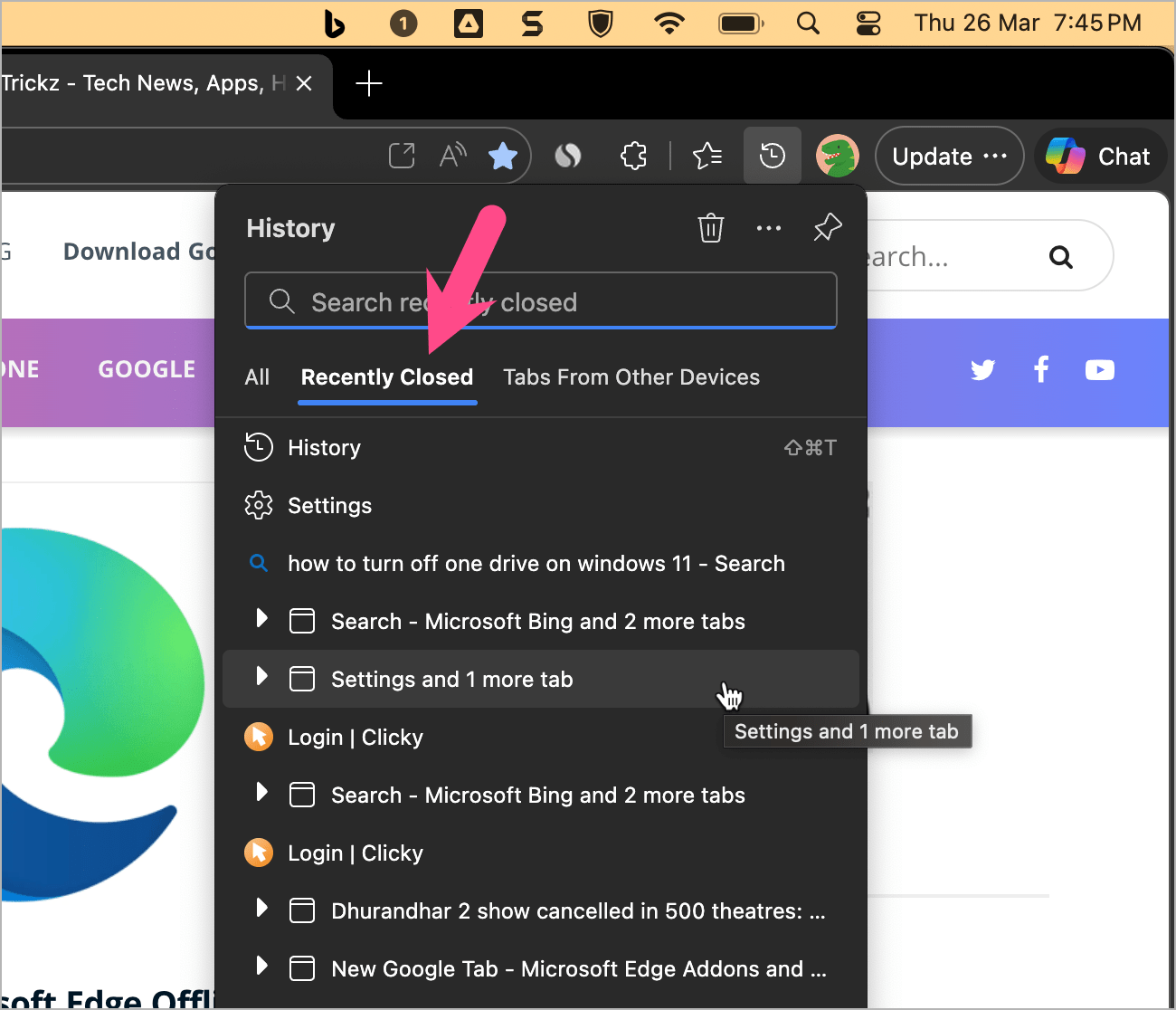
You can also open History directly by pressing Ctrl + H (Windows) or Command + Y (Mac), then look under Recently Closed.
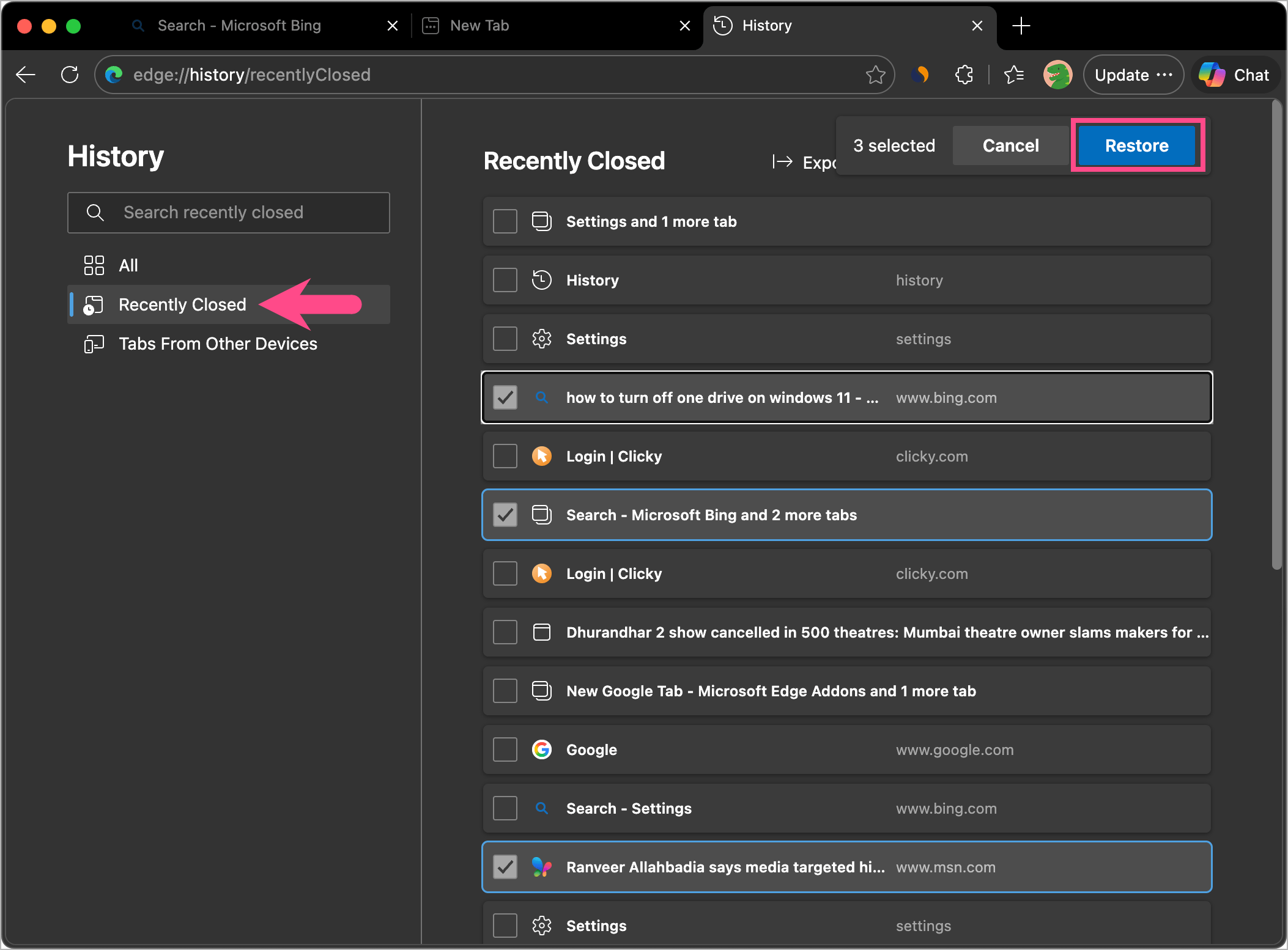
Note: Recently closed windows also appear in History, allowing you to restore multiple tabs at once.
How to reopen all closed tabs in Edge
If you accidentally closed an entire browser window, you can usually restore all its tabs at once.
- Reopen Microsoft Edge if it’s closed.
- Press Ctrl + Shift + T (Windows) or Command + Shift + T (Mac).
- If the closed browser window was the last thing you closed, Edge restores the entire window with all its tabs.
You can also restore an entire browser window from History > Recently Closed.
Why did my tabs disappear in Microsoft Edge?
If your tabs aren’t available after reopening Edge, one of these situations may apply:
- You closed the browser without enabling Open tabs from the previous session.
- Edge was restarted after an update or crash and the previous session couldn’t be restored.
- You’re using a different Edge profile than the one where the tabs were open.
- Your browsing history was cleared, removing recently closed tabs from History.
Automatically reopen tabs when Edge starts
If you want Microsoft Edge to reopen your last browsing session every time you launch the browser:
- Open Microsoft Edge.
- Click the three-dot menu and select Settings.
- Go to Start, home, and new tab page.
- Under On start-up, choose Open tabs from the previous session.
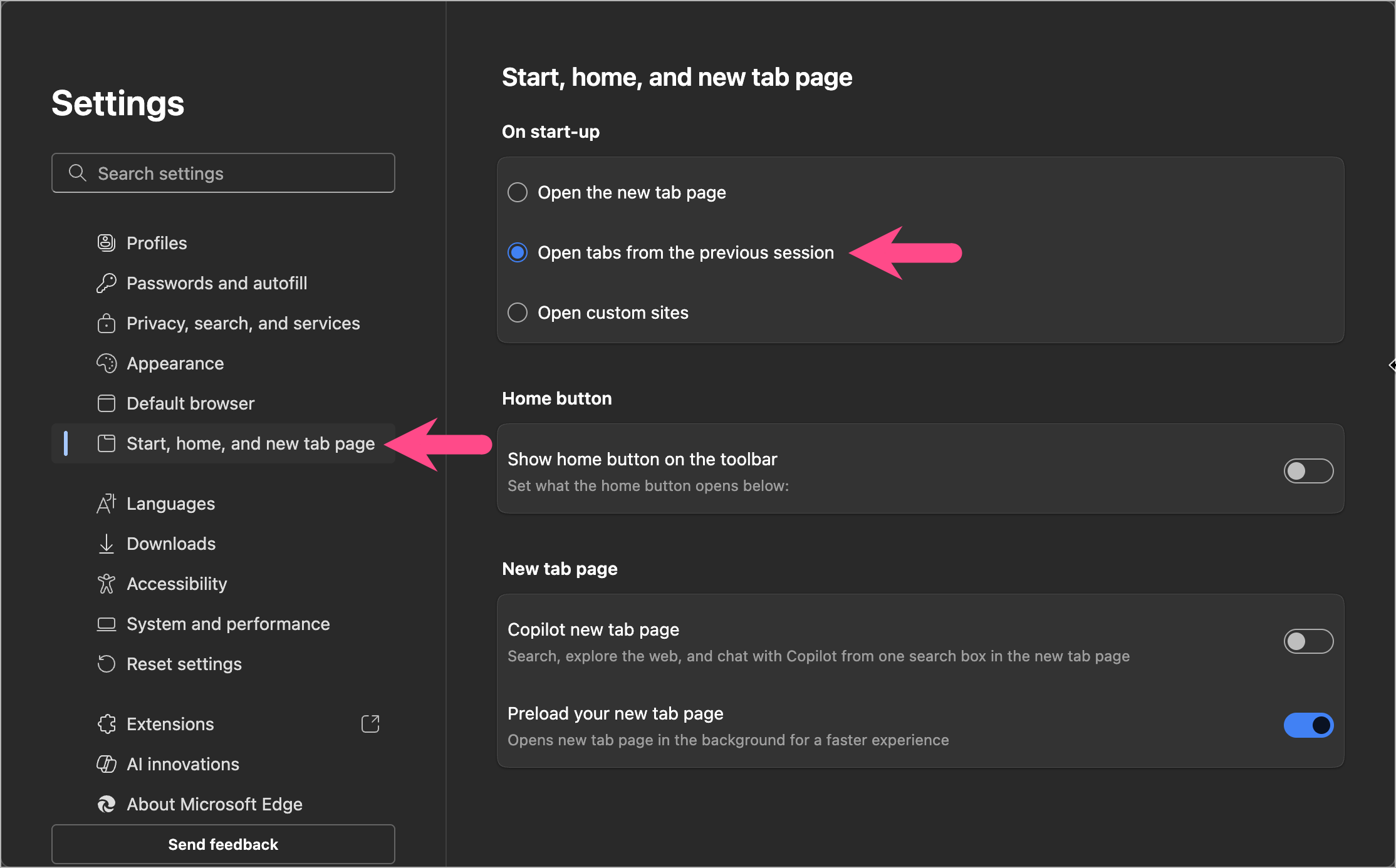
Once enabled, Edge automatically restores all your previously open tabs every time you start the browser.
FAQs
How do I reopen a closed tab in Microsoft Edge?
Press Ctrl + Shift + T on Windows or Command + Shift + T on Mac. You can also right-click the tab bar and choose Reopen Closed Tab, or restore tabs from History.
How do I restore a previous browsing session in Edge?
Enable Open tabs from the previous session under Settings > Start, home, and new tab page > On start-up. You can also restore a recently closed browser window from History if it’s still available.
Why didn’t Microsoft Edge restore my tabs after restarting?
This usually happens because Edge wasn’t configured to reopen the previous session, you switched to another Edge profile, or the previous session couldn’t be recovered after a crash or update.
Can I reopen multiple closed tabs?
Yes. Press Ctrl + Shift + T (Windows) or Command + Shift + T (Mac) repeatedly to reopen multiple recently closed tabs in reverse order. If you closed an entire browser window, the same shortcut restores all its tabs at once.
Related Microsoft Edge Guides:
- How to Show Favorites Bar in Microsoft Edge on Windows & Mac (2026)
- How to Export Bookmarks (Favorites) in Microsoft Edge








