


Microsoft Edge comes pre-installed on Windows 11 and Windows 10, with Microsoft Bing set as the default search engine. Bing includes a built-in SafeSearch feature that filters inappropriate or explicit content from search results.
By default, SafeSearch filters explicit images and videos to provide safer browsing, especially for shared or family computers. However, if you want to see unrestricted search results, you can easily turn off Bing SafeSearch.
This quick guide shows how to turn off SafeSearch in Microsoft Edge and change Bing SafeSearch settings on desktop and mobile.
What is SafeSearch in Bing?
Bing SafeSearch is a content filtering feature that helps block explicit material from search results. It is enabled by default in Bing searches.
SafeSearch has three levels of filtering:
- Strict – Filters explicit text, images, and videos from search results.
- Moderate (Default) – Filters explicit images and videos but allows explicit text.
- Off – Disables filtering and shows all results, including explicit content.
Most users have Moderate filtering enabled by default, but you can change this setting anytime.
How to Turn Off SafeSearch in Bing on Microsoft Edge
Looking to disable SafeSearch in the Edge browser? Here’s how you can access Microsoft Edge SafeSearch settings and turn off safe browsing in Edge:
- Open Microsoft Edge on your computer.
- Go to bing.com.
- Click the Menu icon (three horizontal lines) in the top-right corner.
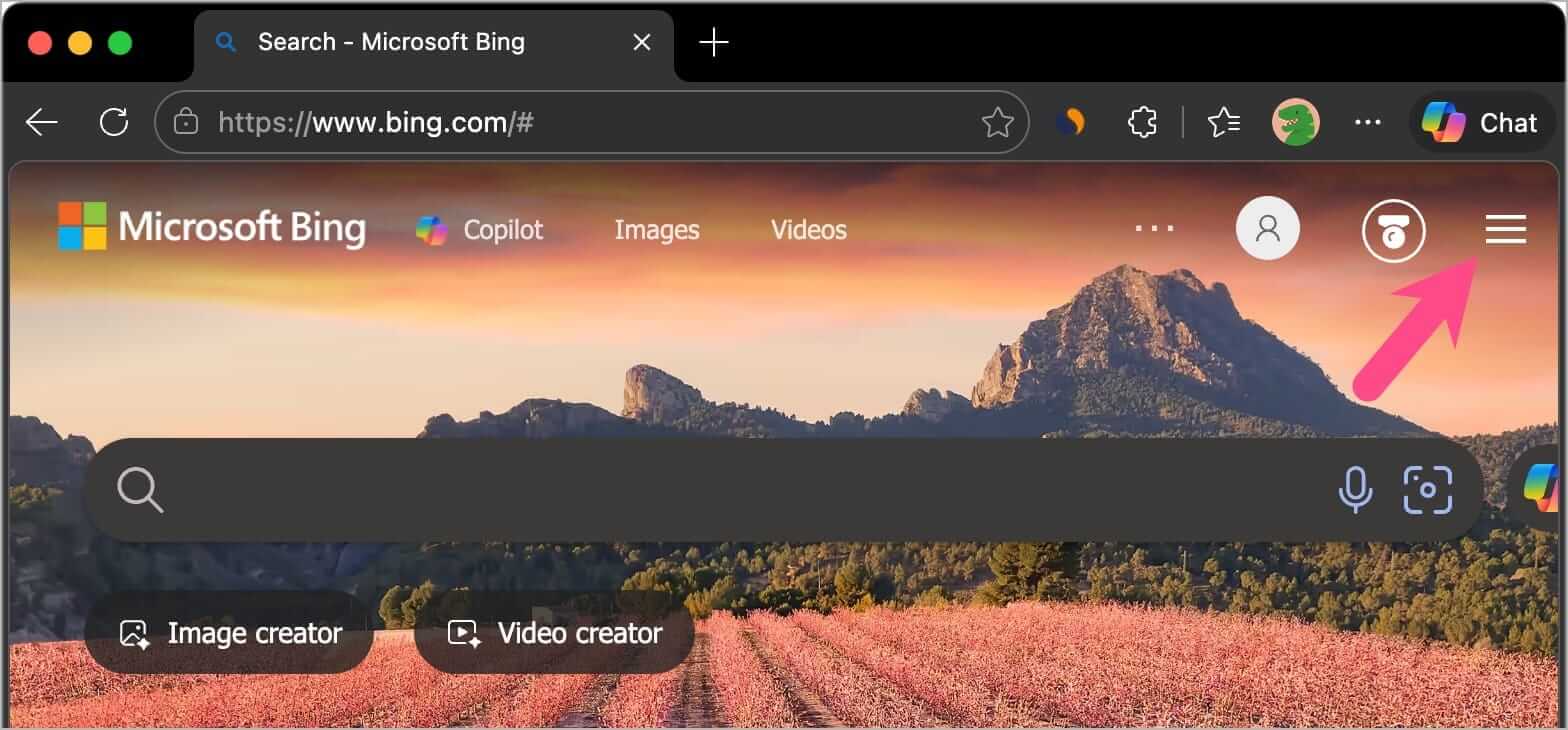
- Select SafeSearch from the menu.

- Under the SafeSearch filter section, choose Off.
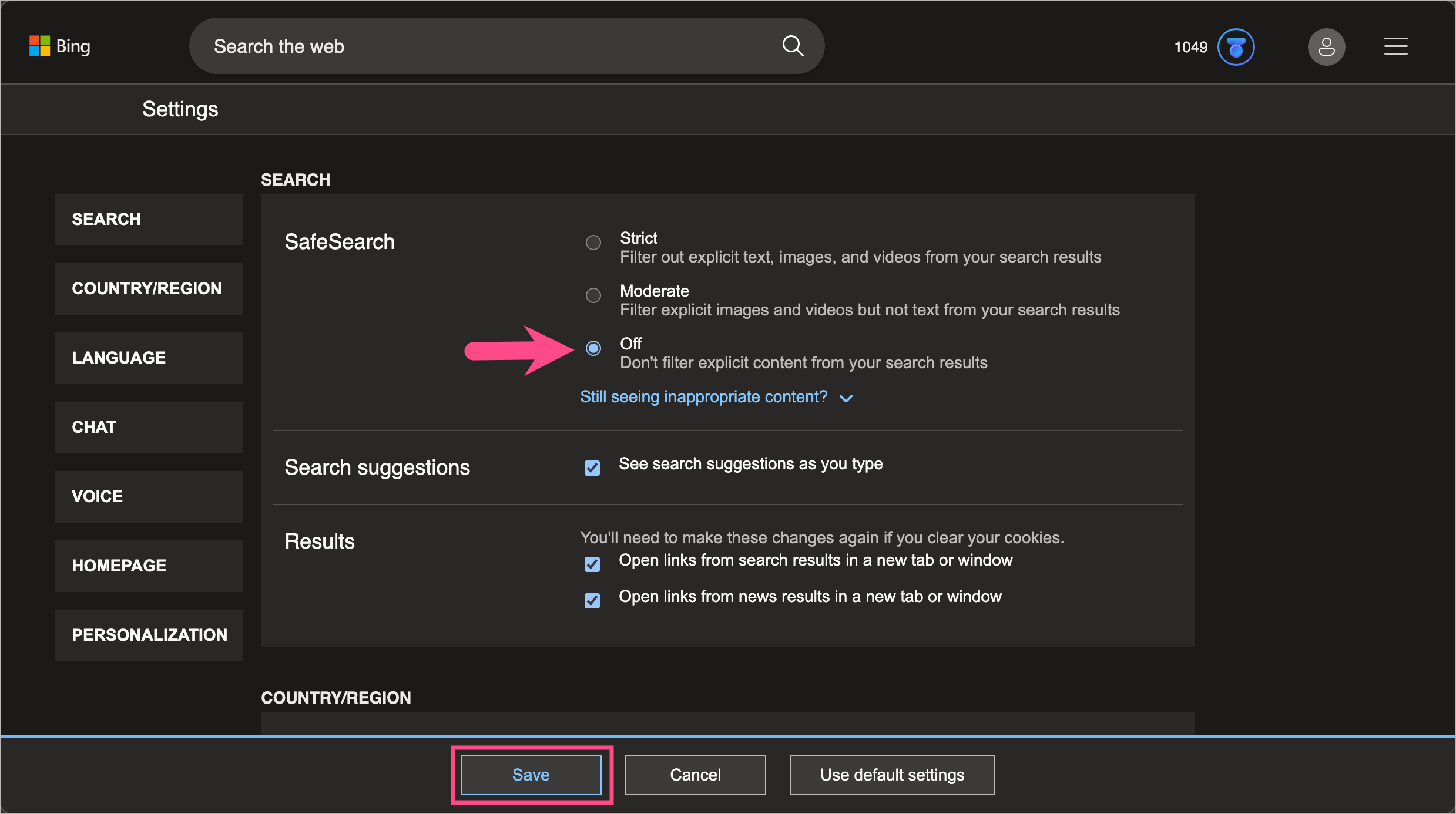
- Scroll down and click Save to apply the changes.
- Click Agree to confirm and turn SafeSearch off.
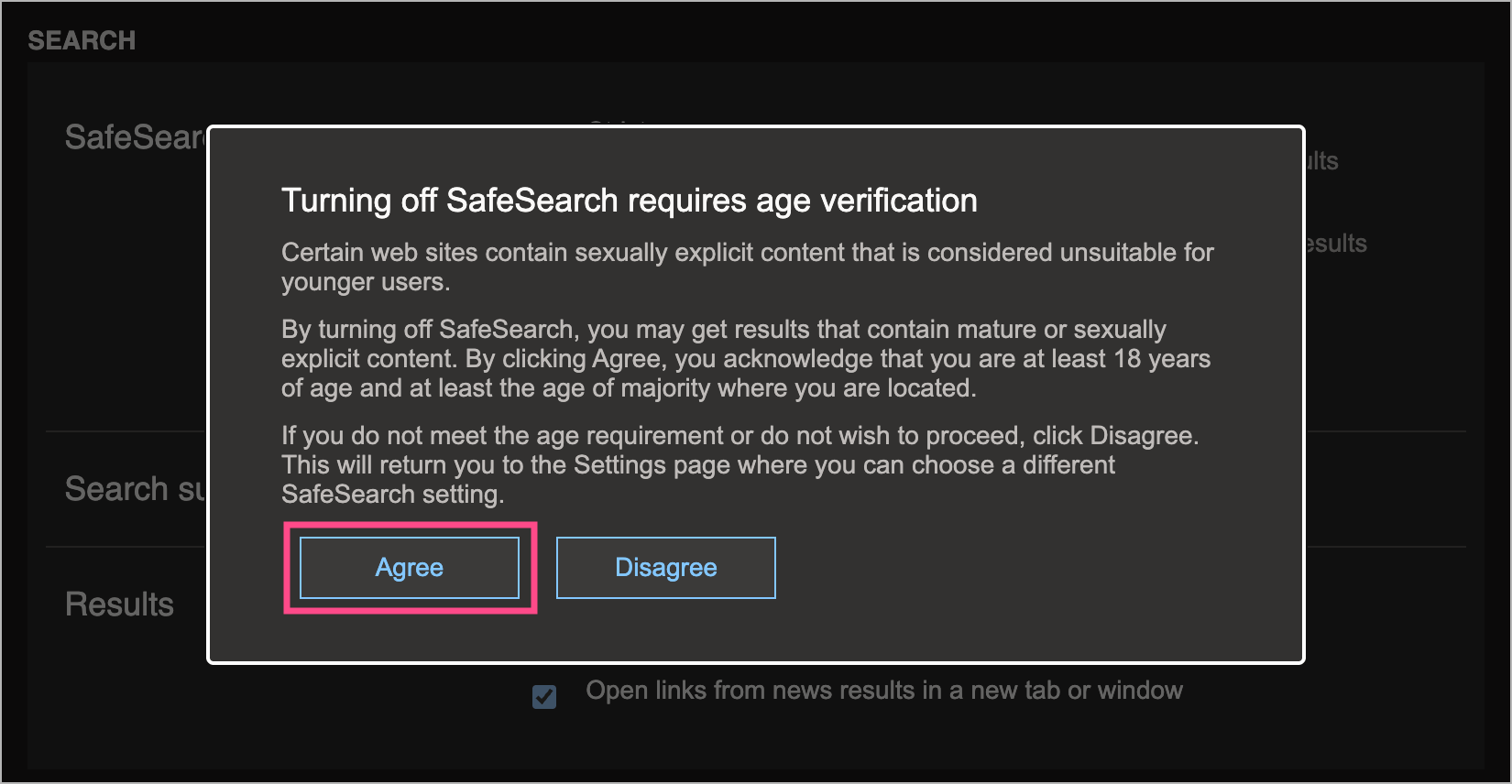
Once disabled, Bing will stop filtering explicit images and videos from search results. As a result, some results may contain mature or sexually explicit content.
Tip: Turn Off SafeSearch Temporarily from a Bing Search
You can also quickly change SafeSearch while searching:
- Search for anything on Microsoft Bing.
- Click the Off option next to SafeSearch at the top of the search results page.
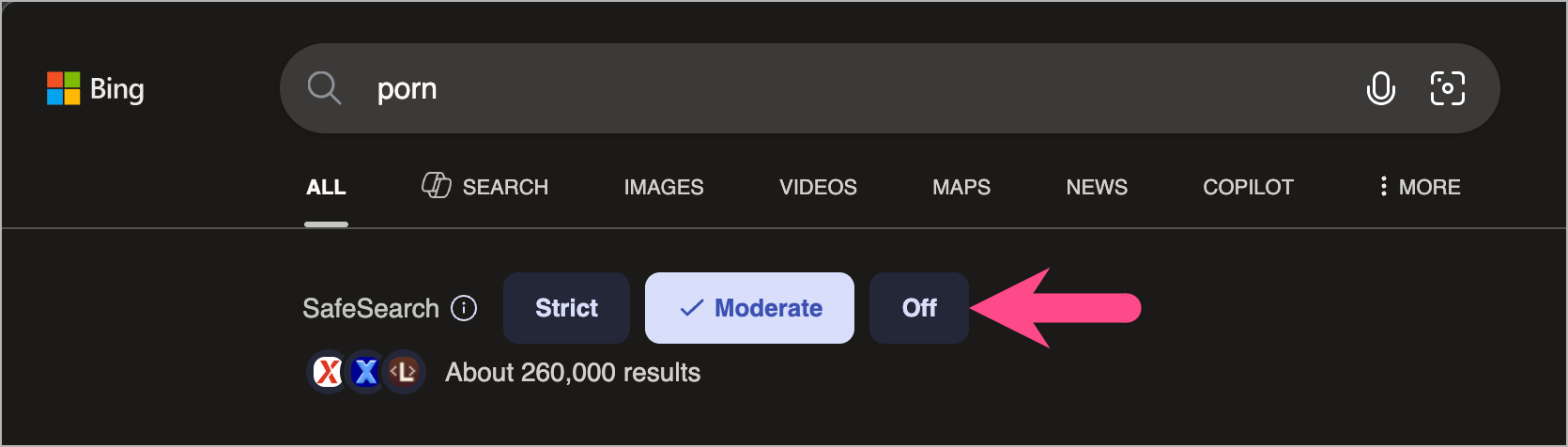
- The search page will reload to show unfiltered results.
This method is useful if you want to disable SafeSearch in Bing temporarily.
How to Change SafeSearch Settings in Microsoft Bing
If you want to modify or disable Bing SafeSearch filters permanently, follow these steps:
- Open Microsoft Edge and visit bing.com.
- Click the Menu icon in the top-right corner.
- Select Settings.
- Click More and open SafeSearch.
- Choose one of the following options:
- Strict
- Moderate
- Off
- Scroll down and click Save.
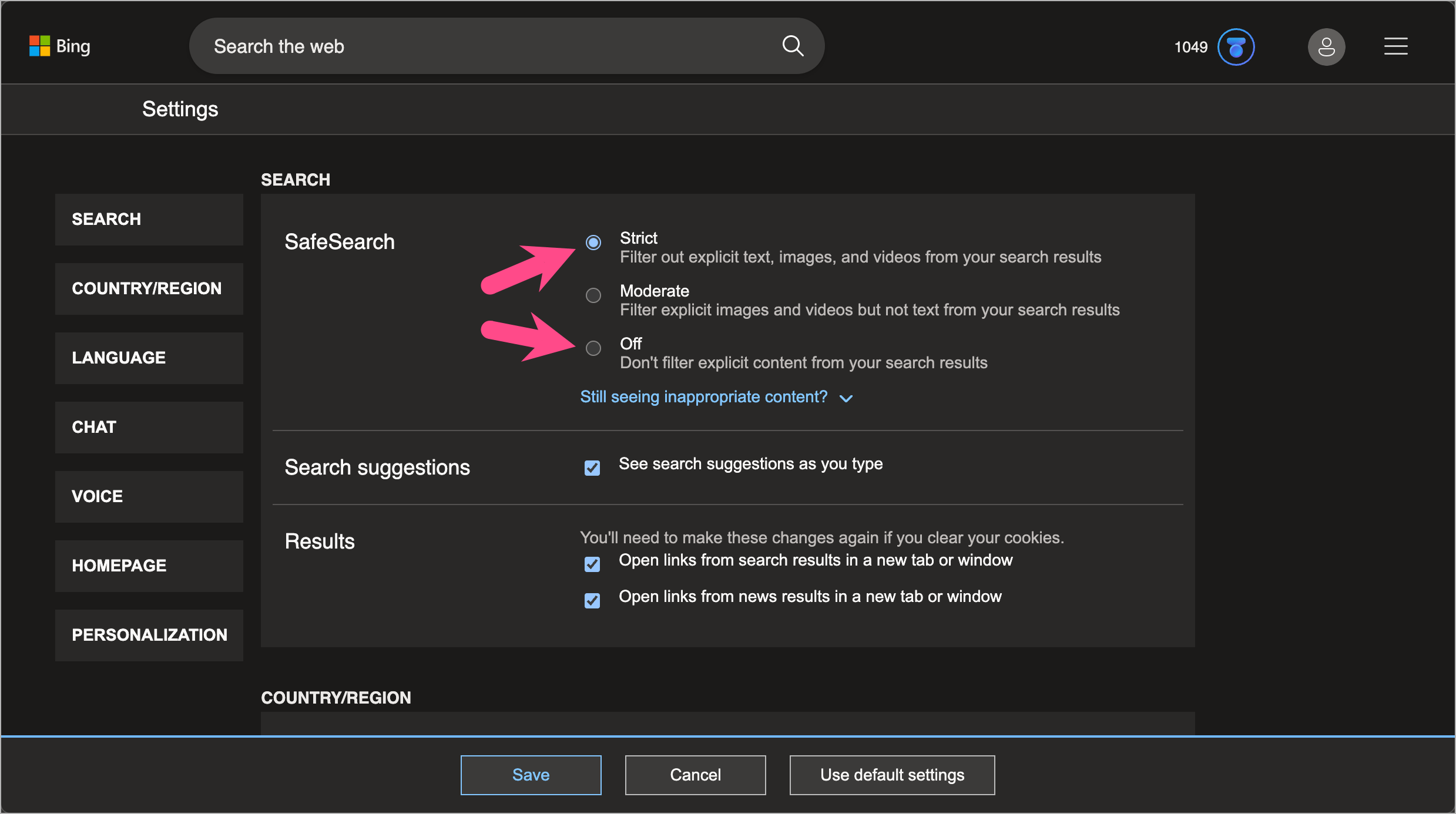
Your SafeSearch preference will now apply to all future Bing searches.
Note: If SafeSearch cannot be changed, it may be locked by parental controls, school networks, or Microsoft Family Safety settings.
How to Disable Bing SafeSearch on Mobile
If you use Bing in a browser on your phone or tablet, you can disable SafeSearch in a similar way.
- Open any browser such as Edge, Google Chrome, or Safari.
- Go to bing.com.
- Tap the Menu icon.
- Select SafeSearch.
- Choose Off under the SafeSearch filter options.
- Tap Save.
After this, Bing will display unrestricted search results on your mobile device.
RELATED: How to Disable Safe Search and Unblur NSFW Content on Reddit








