


If you have to press the Fn key every time you want to adjust the volume or brightness, Fn Lock (Function Lock) is probably enabled on your laptop.
When Fn Lock is enabled, the function keys (F1-F12) behave like standard function keys, so you’ll need to press Fn + key to adjust brightness, volume, or other shortcuts. When Fn Lock is disabled, the top-row keys control system functions (brightness, volume, airplane mode, and more) directly.
If pressing the volume or brightness keys performs their standard F-key functions instead, changing the Fn Lock setting will restore the default behavior.
In this guide, you’ll learn how to turn off Fn Lock, turn it back on if needed, and change your laptop’s function key settings on Windows laptops from HP, Dell, Lenovo, Acer, Samsung, ASUS, and other brands.
What is the Fn Key on a Keyboard?
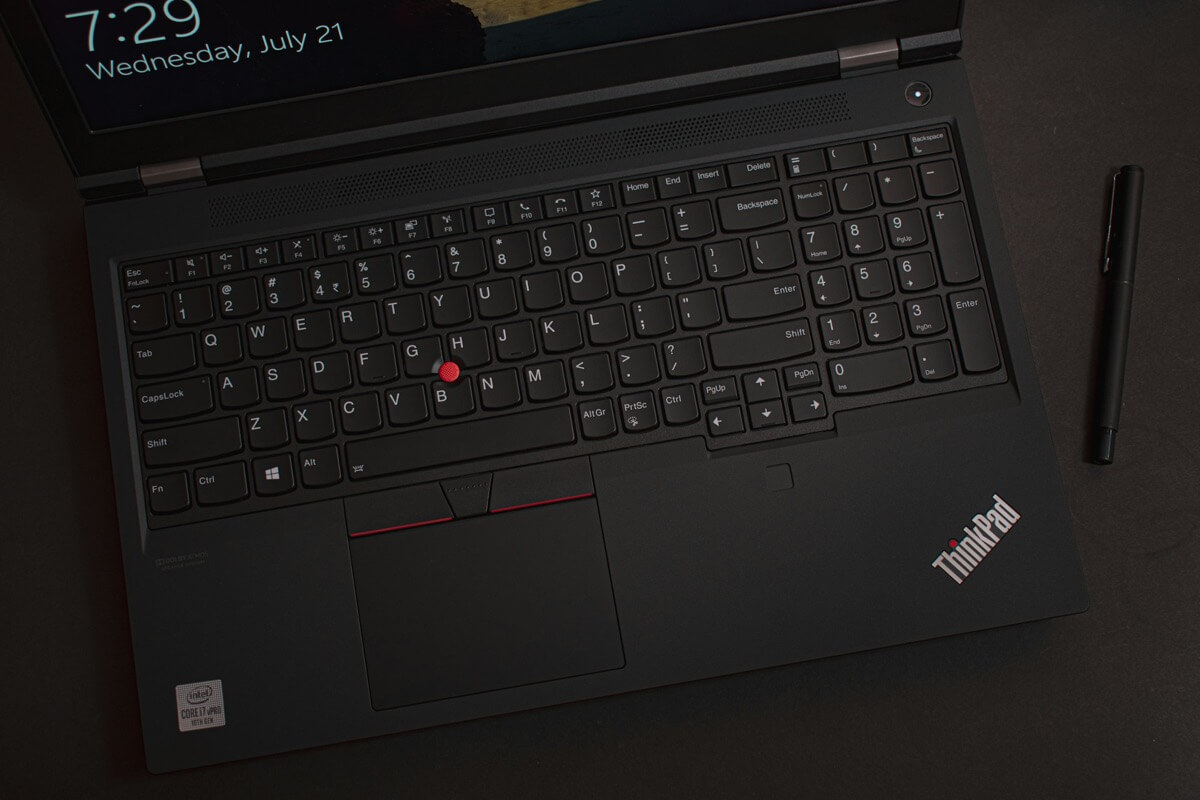
The Fn key (short for Function key) is found on most modern laptop keyboards. It works as a modifier key, similar to Shift or Ctrl, and lets the top row of keys (F1-F12) perform two different actions:
- Default functions (system controls): Brightness, volume, keyboard backlight, airplane mode, media controls, and more.
- Standard functions: F1 for Help, F2 for Rename, F5 for Refresh, and other application shortcuts.
The Fn Lock setting determines which of these two modes is active by default.
- Fn Lock ON – You must press Fn + (F1-F12) to use system controls such as brightness or volume.
- Fn Lock OFF – You can use system controls directly, while pressing Fn + key performs the standard F1-F12 functions.
What Happens When You Turn Off Fn Lock?
Turning off Fn Lock means your F1-F12 keys will work as system control keys without requiring the Fn key. For example:
- F2 – Lowers the volume instead of renaming a file.
- F3 – Adjusts the brightness instead of performing its standard F3 function.
If your function keys aren’t working, it’s likely because Fn Lock is enabled. Once you turn it off on Windows 11 or Windows 10, you’ll be able to adjust brightness, volume, and other hardware controls without holding the Fn key.
How to Turn Off Fn Lock Using Keyboard Shortcuts
The keyboard shortcut for Fn Lock varies by laptop manufacturer. Use the method below that matches your laptop brand.
1. HP EliteBook, HP ProBook
- Press and hold the Fn key, then press the left Shift key.
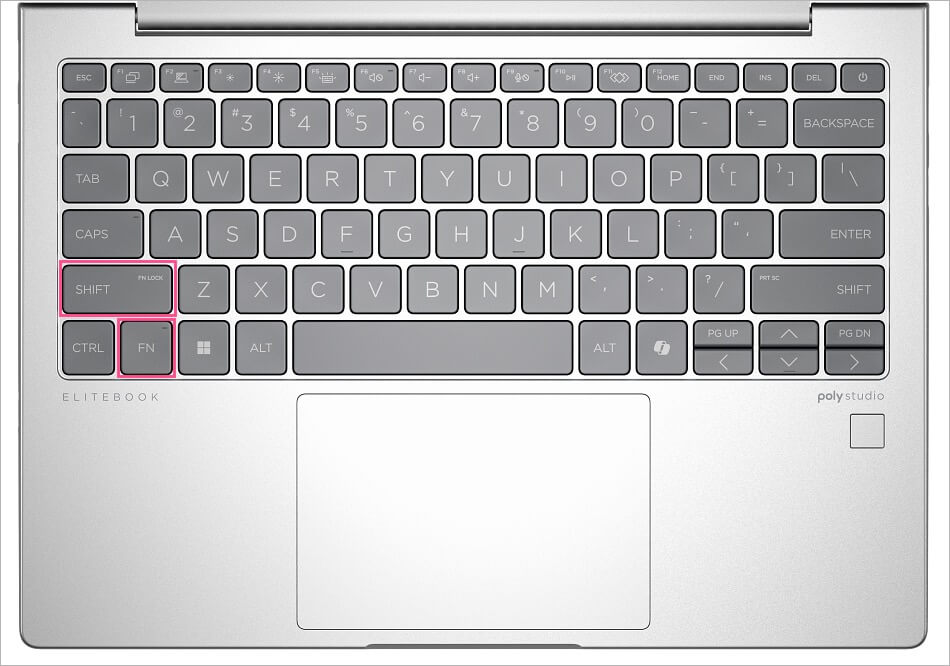
Press Fn + Shift to disable Fn Lock - If your keyboard has an indicator light on the Fn key, it will turn off when Fn Lock is disabled.

Fn key indicator light on an HP EliteBook - You can now use the volume and brightness keys directly without holding Fn.
2. Dell Inspiron, HP Victus, Lenovo ThinkPad & IdeaPad
- Press and hold the Fn key, then press the Esc key.

Press Fn + Esc to toggle Fn Lock - On some laptops, you’ll see a small lock icon or FnLock printed on the Esc key. This indicates the Fn Lock shortcut.
- Press the same key combination again to enable Fn Lock.
3. Acer, ASUS, Samsung, and Other Windows Laptops
- The Fn Lock shortcut varies by manufacturer. Common key combinations include:
- Fn + Esc
- Fn + Shift
- Fn + Caps Lock
- Look for a padlock icon (sometimes with Fn inside) on the keyboard. It usually indicates the correct key combination.
Tip: If none of these shortcuts work, your laptop may not support toggling Fn Lock from the keyboard. In that case, change the setting in BIOS/UEFI mode instead.
Change Function Key Settings in BIOS/UEFI (Alternate Method)
If the keyboard shortcuts don’t work, you can change the function key settings from your BIOS/UEFI menu to modify the default behavior of the Fn key.
- Restart your laptop.
- Press F2, F10, or Del (depending on your laptop brand) to enter BIOS.
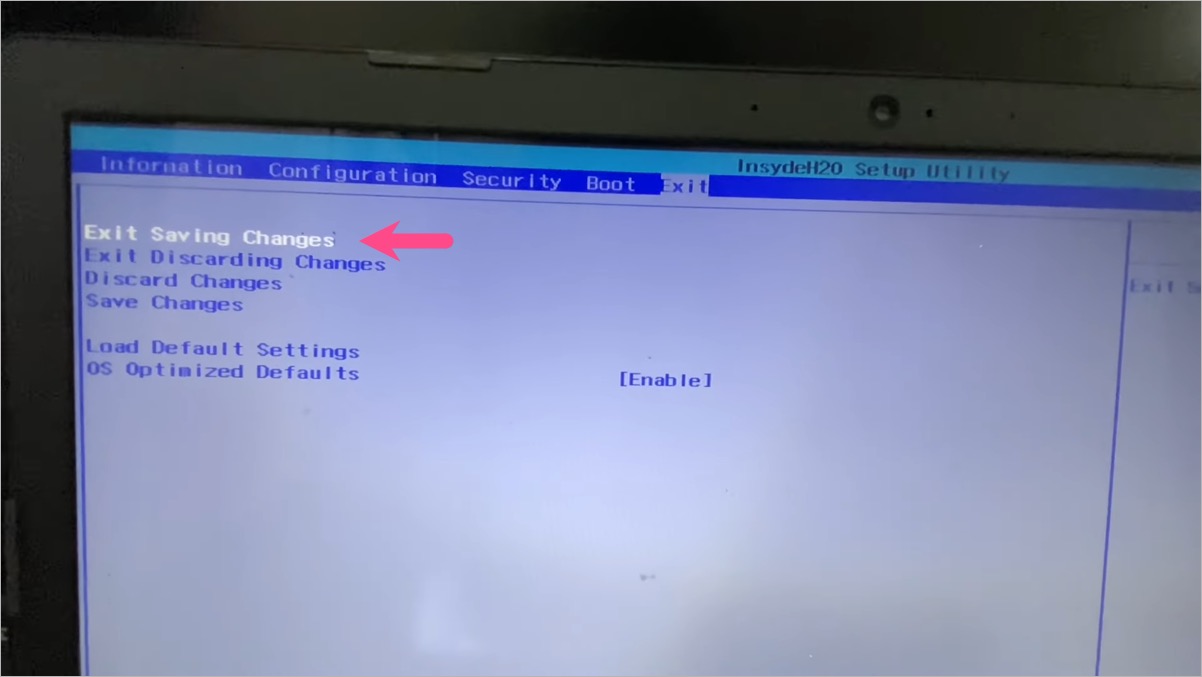
- Under the Configuration or Advanced tab, look for an option such as Action Keys Mode, Hotkey Mode, or Function Key Behavior. The name varies by manufacturer.
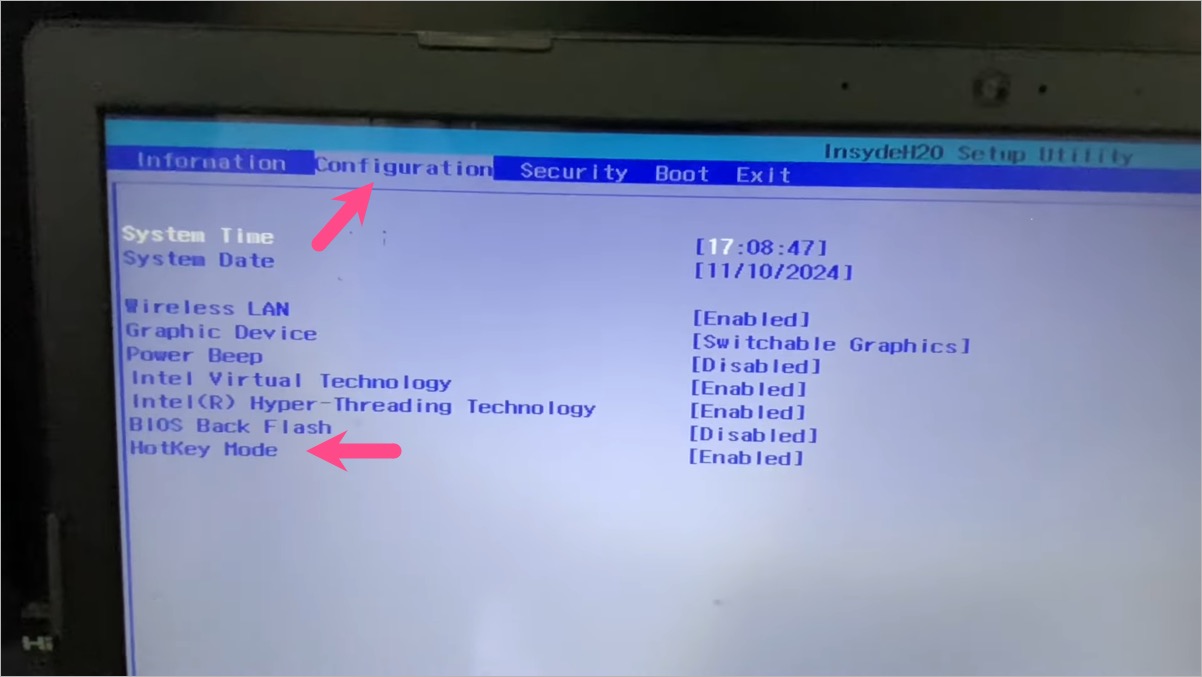
Change function key settings in BIOS/UEFI - Switch between:
- Enabled – Function keys work as system controls (brightness, volume, etc.).
- Disabled – Function keys work as standard F1-F12 keys, requiring Fn for system controls.
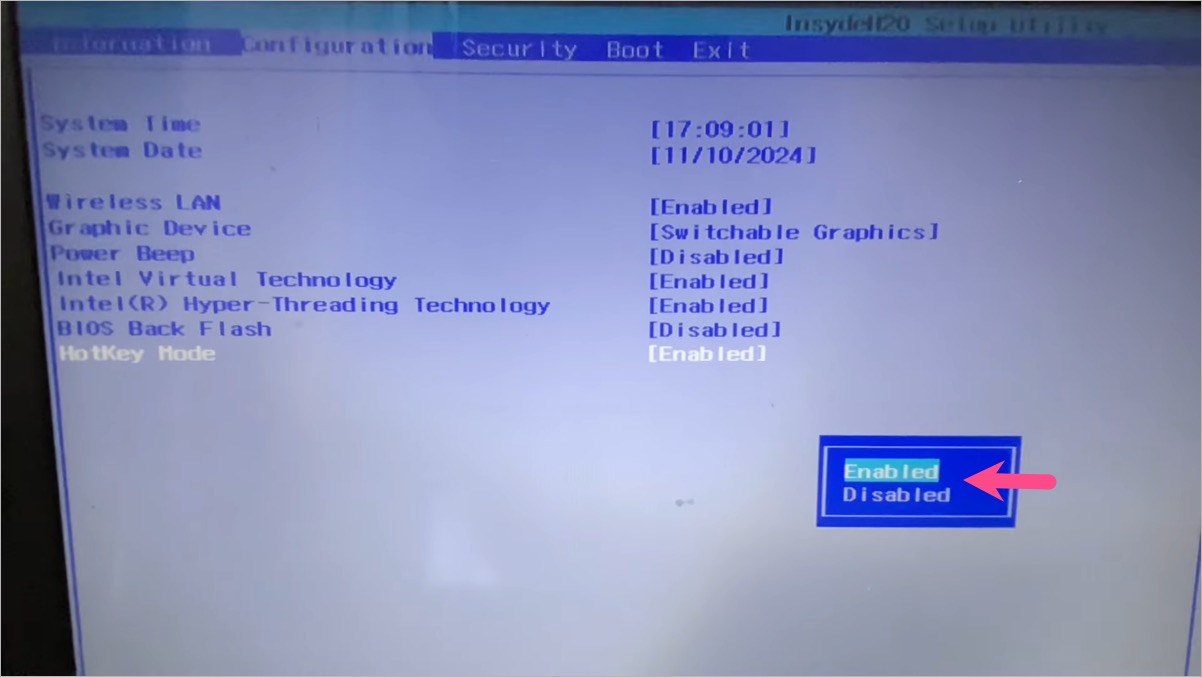
- Save your changes and restart your laptop. The new function key settings will take effect after Windows starts.
FAQs
How do I turn off Fn Lock in Windows 11?
Press Fn + Esc or Fn + Shift, depending on your laptop brand. If that doesn’t work, open your BIOS/UEFI settings and disable Action Keys Mode or Hotkey Mode.
How do I turn off the Fn key completely?
You cannot disable the Fn key itself, but you can change its default behavior by toggling Fn Lock or adjusting the BIOS/UEFI settings. For more information about Fn, F Lock, and alternate command keys, see Microsoft’s guide.
Why are my function keys not working on Windows 11?
Fn Lock is probably enabled. Disable it using Fn + Esc or, on many HP laptops, Fn + left Shift.
How do I unlock function keys on Lenovo or Dell laptops?
Press Fn + Esc together. If your keyboard has a small lock icon on the Esc key, that’s the shortcut for toggling Fn Lock.
Can I turn off the Fn key light on my keyboard?
Yes. On HP EliteBook models and some other laptops, disabling Fn Lock (using Fn + Shift) also turns off the indicator light on the Fn key.
How do I enable Fn Lock again?
Use the same Fn + Esc or Fn + Shift keyboard shortcut to turn Fn Lock back on, or change the setting in your BIOS/UEFI menu.
RELATED:
- How to Turn On the Keyboard Light on a Dell Laptop
- How to Manually Set Time and Time Zone in Windows 11 and 10









Thank you! Solved the problem immediately!
thank you it was very helpful
Maybe just put the solution at the top so people dont have to spend 5 minutes finding the one second solution.
thank you – that was actually helpful differentiating the brands and feature of each.