


Saved a Facebook Reel but can’t find it again? Facebook stores your saved Reels in the Saved section, where you can view them again or remove Reels you no longer want to keep.
Here’s how to find saved Reels on Facebook using the iPhone or Android app and the desktop website.
Where Are Saved Reels on Facebook?
When you save a Reel on Facebook, it’s added to your private Saved section so you can easily find and watch it again later. Your saved Reels are only visible to you and don’t appear publicly on your profile. You can view or unsave them at any time.
How to Find Saved Reels on Facebook App
To find your saved Reels in the Facebook app on iPhone or Android:
- Tap the Reels tab from the navigation bar at the bottom (iPhone) or top (Android).
- Tap the three-dot button (or profile icon) in the upper-right corner.
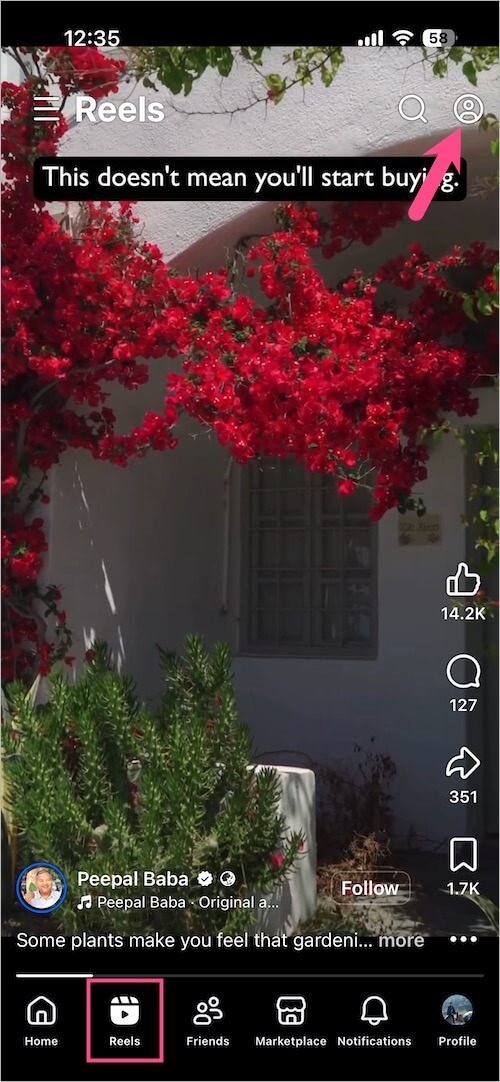
- Tap Saved (newer versions) or See all next to Recently saved reels (older versions).
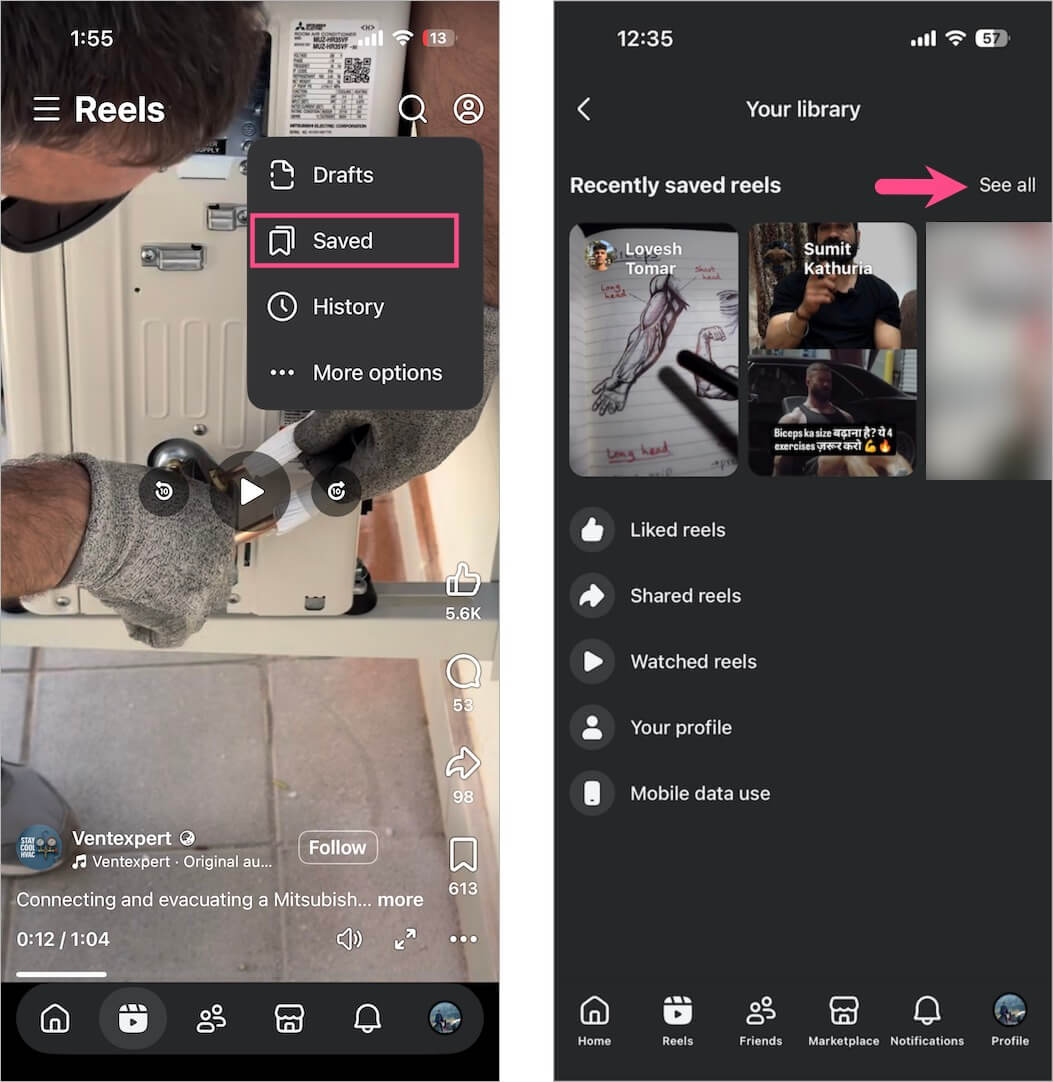
You’ll now see your saved Facebook Reels.
Tip: Long-press a Reel in the Saved list and tap Unsave to remove it from your saved items.
Related: Can’t find a Reel because you didn’t save it? See how to find recently watched Reels on Facebook.
Another Way to Find Saved Reels
You can also access your saved Reels through the main Saved section:
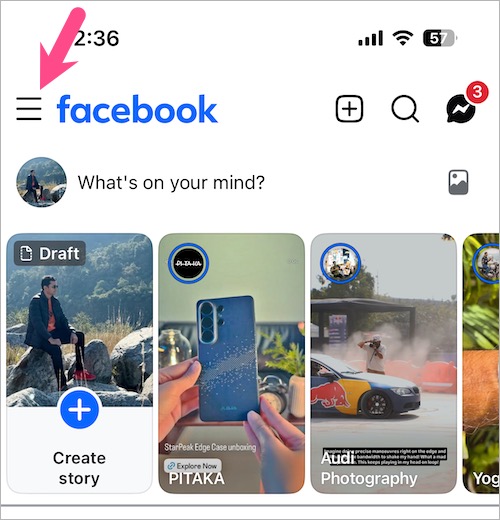
- Open the Facebook app.
- Tap the Menu icon.
- Go to Saved. Tap See more first if you don’t see the Saved option.
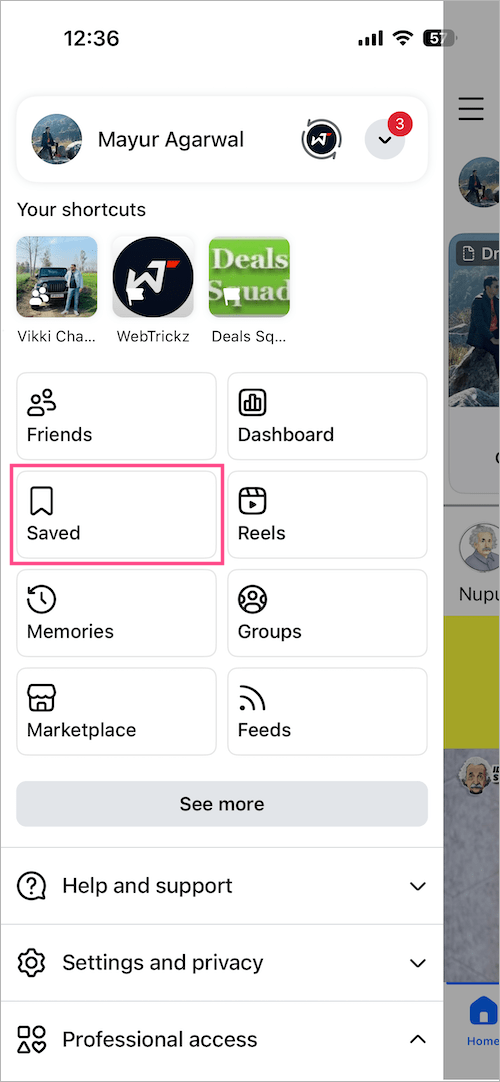
- Open the Reels tab.
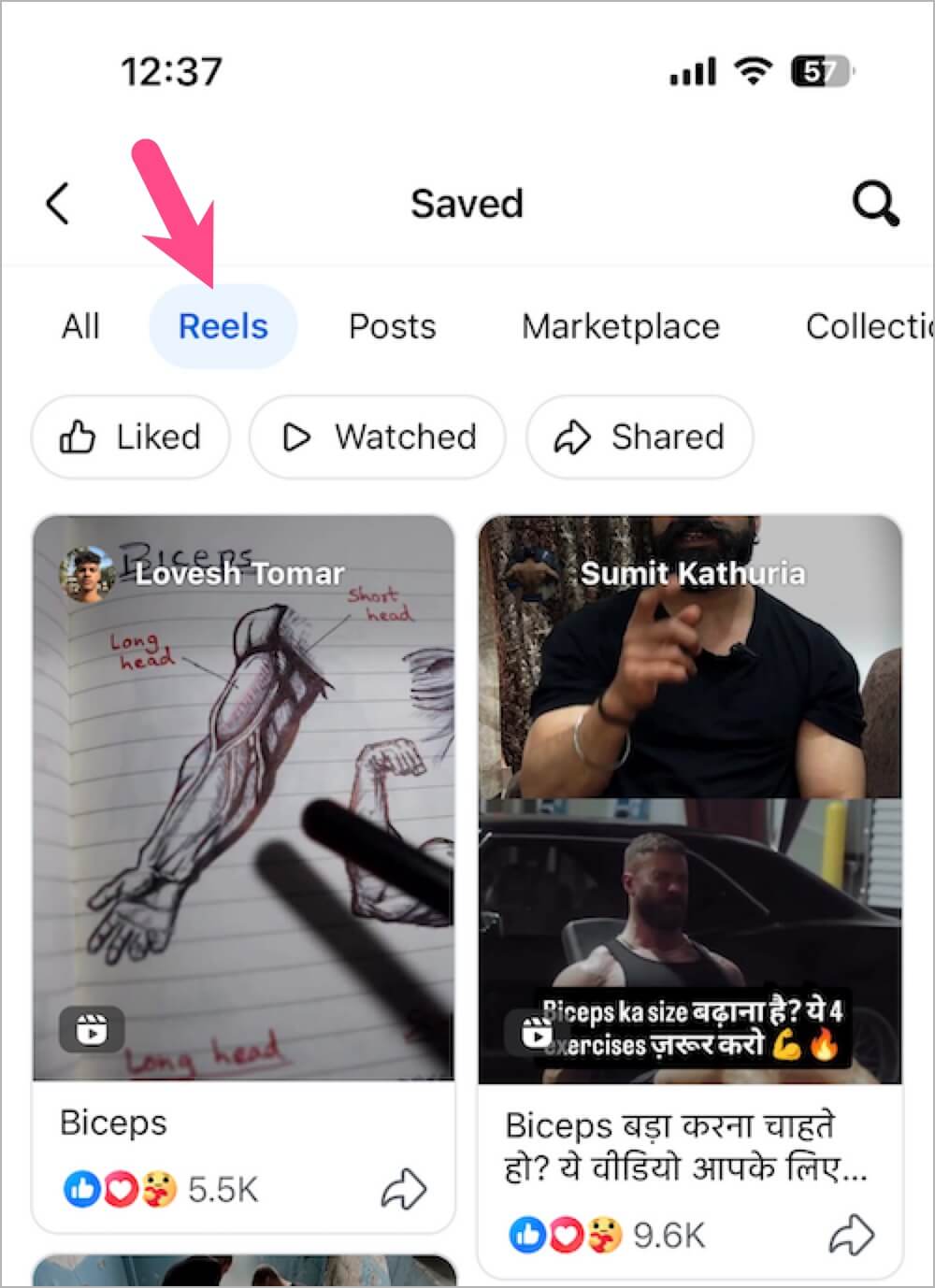
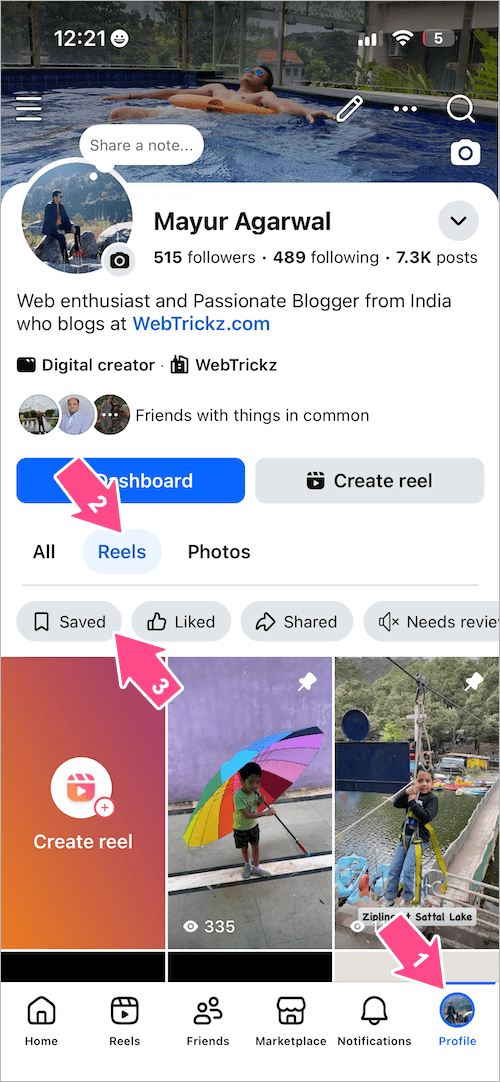
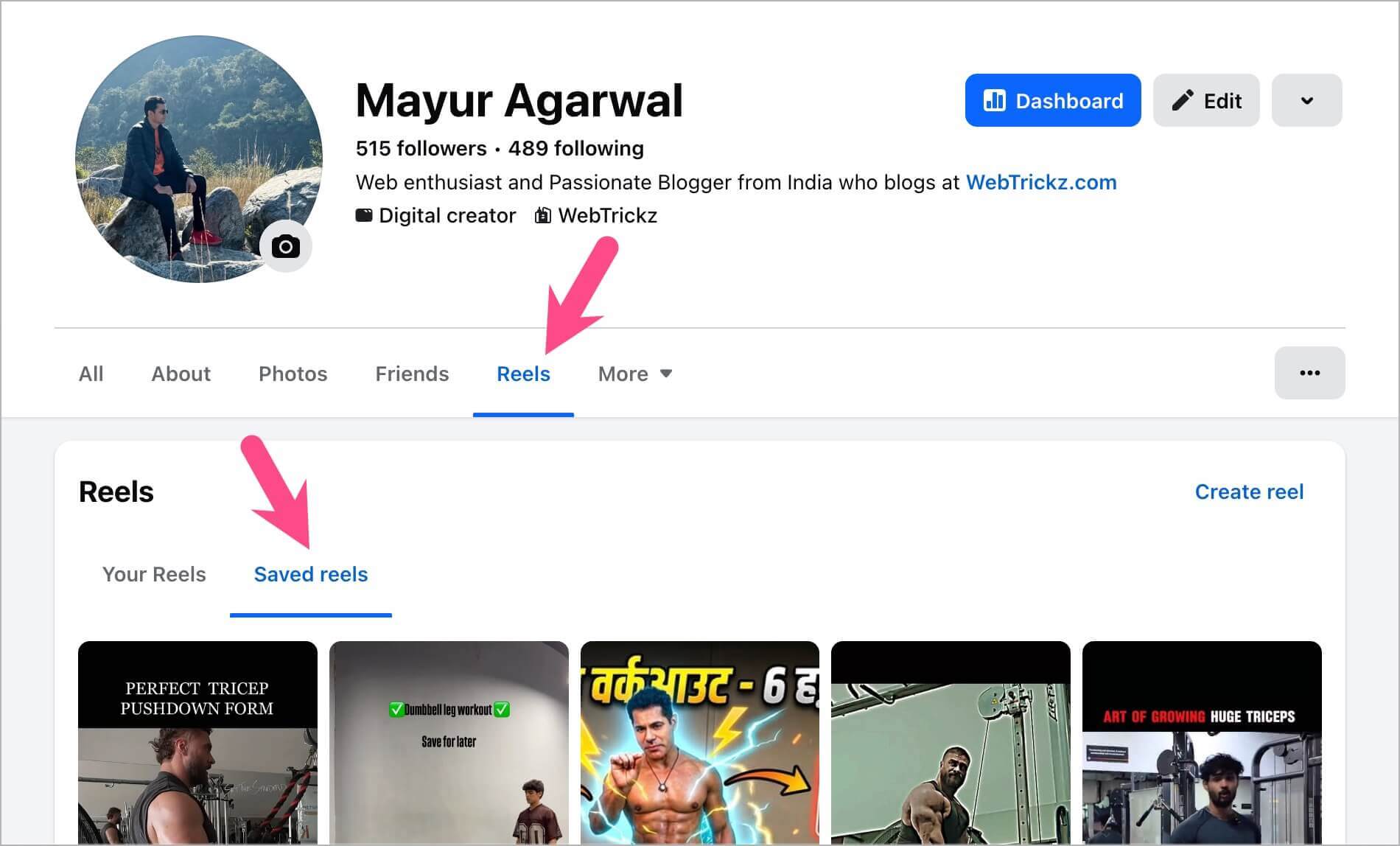
Tip: You can also go to your profile, tap Reels, and select Saved to view your saved Reels.
How to Find Saved Reels on Facebook Desktop
To access your saved Reels on Facebook using a PC or Mac:
- Open facebook.com in a web browser and sign in to your account.
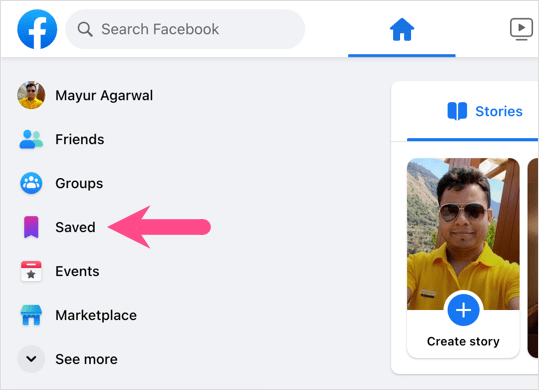
- Go to Saved from the left sidebar. Click See more if you don’t see the Saved option.
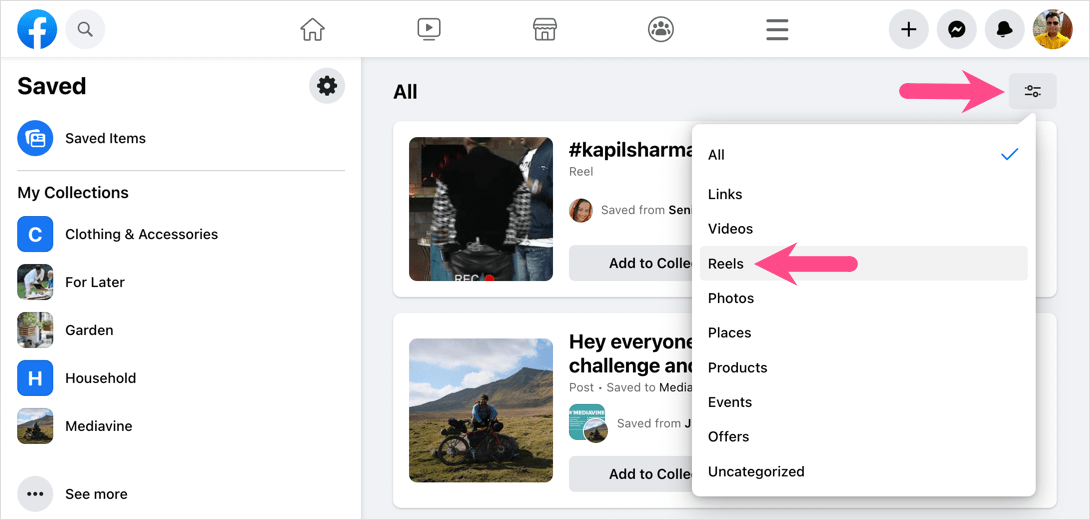
- Click the More (Filter) button in the upper-right corner.
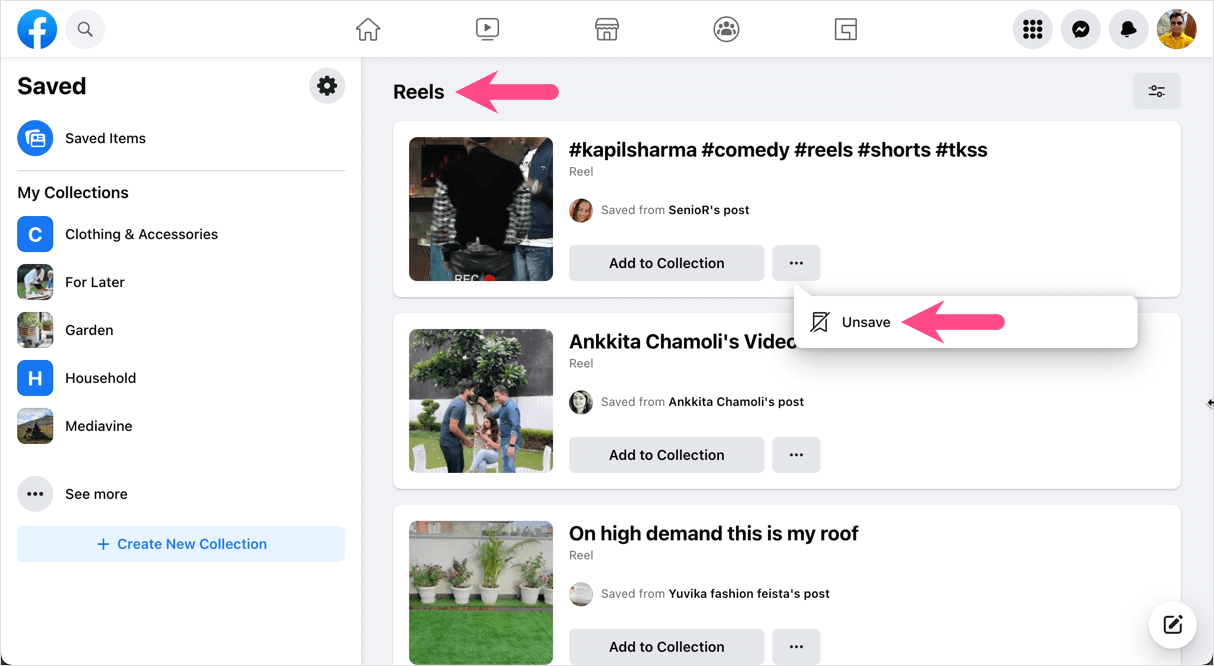
- Select Reels to display only your saved Reels.
- Click a Reel to play it.
To remove a Reel from your Saved collection, click the three-dot button next to it and select Unsave.
Tip: You can also open your Saved page directly by visiting facebook.com/saved.
Another Way to Find Saved Reels on Desktop
You can also access saved Reels directly from your Facebook profile:
- Open facebook.com and go to your profile.
- Click the Reels tab below your cover photo.
- Select Saved reels.
Related Facebook Reels Guides
- How to Find Your Liked Reels on Facebook
- How to Find Facebook Reels You’ve Watched
- How to Delete Watched Reels on Facebook








