Need the latest Google Chrome offline installer? Download the official standalone setup for Windows, Mac, and Linux using the direct links below. Unlike the web installer, the offline setup includes everything needed to install Chrome without downloading additional files during installation.
This guide also explains how to download the standalone installer directly from Google’s official website, install Chrome on Windows, Mac, and Linux, and find older Chrome versions if needed.
Download Google Chrome Offline Installer
Google provides official standalone installers for Chrome that work on Windows, macOS, and Linux.
Below are the direct download links to the latest stable builds of Google Chrome.
Windows
The Windows installer is available for 64-bit, 32-bit, and ARM64 systems. Choose the version that matches your device architecture.
- Recommended for Windows 11 and Windows 10 users.
- Version: 150 | File size: 148 MB
- For older PCs running 32-bit versions of Windows.
- Version: 150 | File size: 134 MB
- For Windows devices powered by ARM processors, such as select Snapdragon-powered laptops.
- Version: 150 | File size: 134 MB
Tip: Not sure which installer to download? Most Windows 10 and Windows 11 PCs use the 64-bit version. Choose the ARM64 installer only if your PC has an ARM-based processor, such as a Snapdragon-powered Copilot+ PC.
Mac
The Mac installer supports both Intel-based Macs and Apple Silicon (M-series) devices through a universal package.
Download Chrome Offline Installer for Mac
- Requires macOS 12 or later (Universal Installer)
- Version: 150 | File size: 260 MB
Linux
Google Chrome is available for Linux as DEB and RPM packages, making installation easy on most major distributions.
Download Chrome 64-bit .deb Package
- For Ubuntu, Debian, Linux Mint, and other Debian-based distributions.
- File size: 124 MB
Download Chrome 64-bit .rpm Package
- For Fedora, CentOS, RHEL, openSUSE, and other RPM-based distributions.
- File size: 133.6 MB
What is Google Chrome Offline Installer?
A Chrome offline installer, also known as a Chrome standalone offline installer, is a complete installation package that contains all the files required to install Google Chrome.
Unlike the standard web installer, which downloads files during installation, the offline setup of Chrome works independently after it has been downloaded.
Benefits of Using the Offline Installer
You can use the Chrome full standalone offline installer to:
- Install Chrome on a PC without internet access
- Install Chrome on multiple computers using the same installer
- Avoid installation failures caused by unstable internet connections
- Save bandwidth when deploying Chrome across multiple devices
- Ideal for IT administrators and technicians
How to Download the Official Google Chrome Standalone Installer
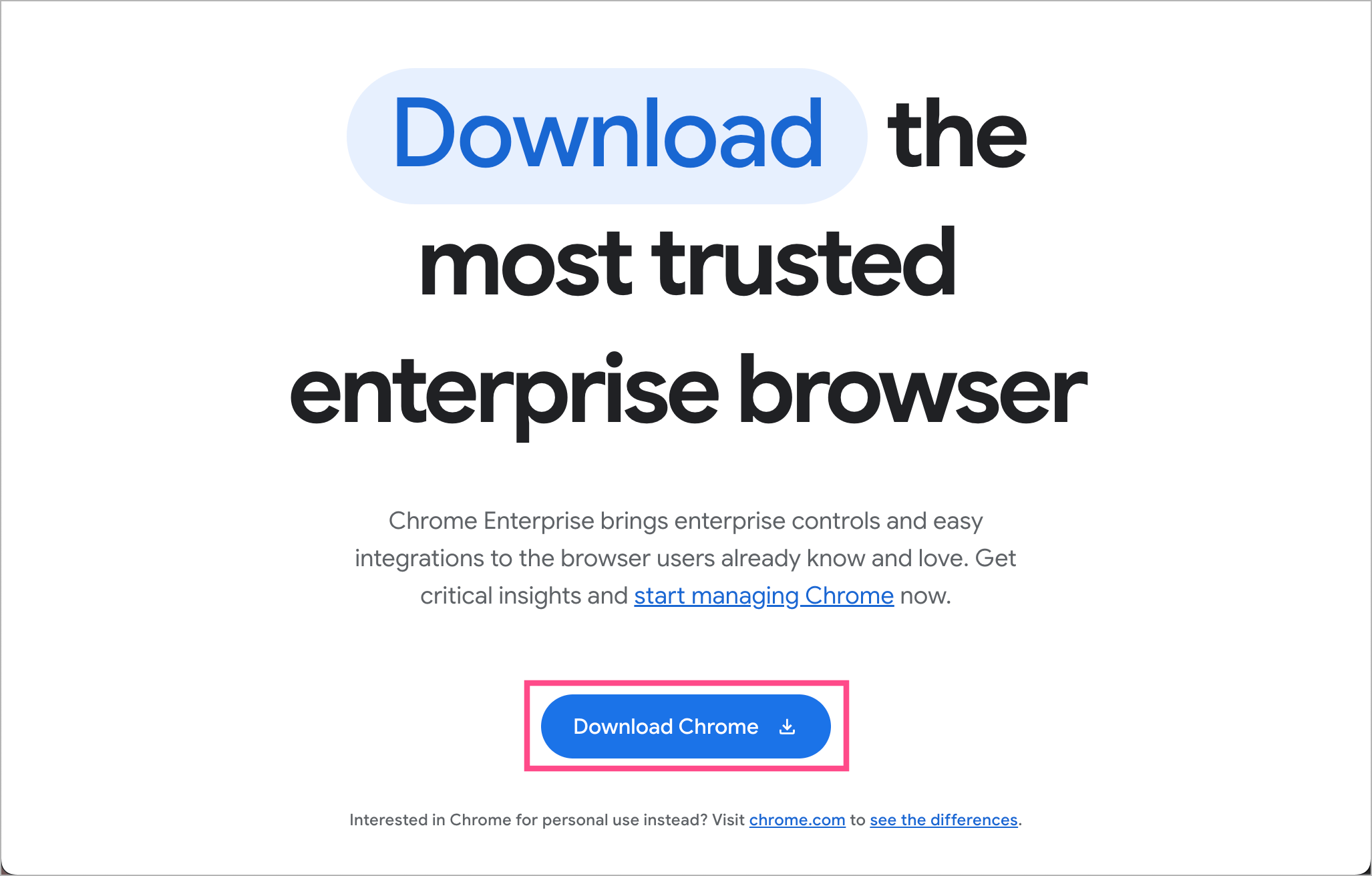
If you prefer to download the Google Chrome installer directly from Google’s official site, you can do so from the Chrome Enterprise download page.
Follow these steps to download Chrome full offline installer using the official method:
- Visit the Chrome Enterprise Download Page.
- Click the Download Chrome button.
- Choose your preferred operating system: Windows or Mac.
- Select the desired channel: Stable or Beta.
- Choose the file type:
- MSI for Windows
- PKG or DMG for Mac
- For Windows, select your system architecture:
- 64-bit (x64)
- ARM64
- 32-bit (x86)
- Click Accept and Download to begin downloading the standalone installer.

Tip: You can see the Chrome version number and estimated file size before downloading.
Once downloaded, you can use the MSI installer to install Chrome offline across multiple Windows PCs quickly and efficiently.
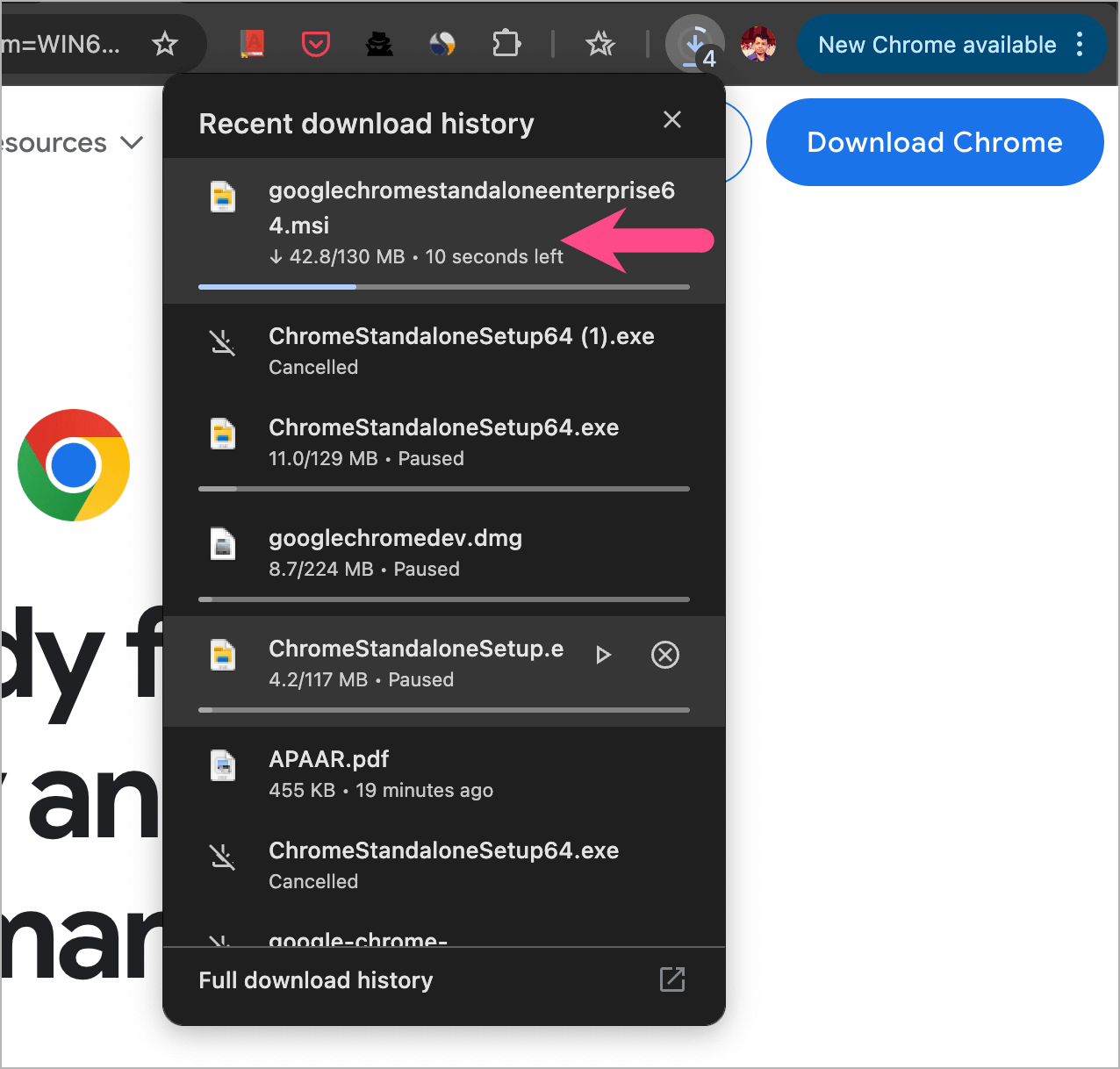
How to Install Chrome Using the Offline Setup
Follow the relevant steps below to install Google Chrome offline using the standalone setup.
On Windows
- Download the Chrome installer package.
- Double-click the Chrome setup file.
- Approve the User Account Control prompt if requested.
- Wait for Chrome to install.
- Launch Google Chrome from the Start menu or desktop shortcut.
On macOS
- Download the Chrome DMG installer.
- Open the downloaded DMG file.
- Drag Chrome into the Applications folder.
- Launch Chrome from Applications.
On Linux
- Download the appropriate DEB or RPM package.
- Open the package with your package manager.
- Complete the installation process.
- Launch Chrome from the applications menu.
Offline Installer for Chrome Developer Build
If you want early access to upcoming Chrome features, Google also provides standalone installers for Chrome Dev. This version is intended for developers, testers, and advanced users.
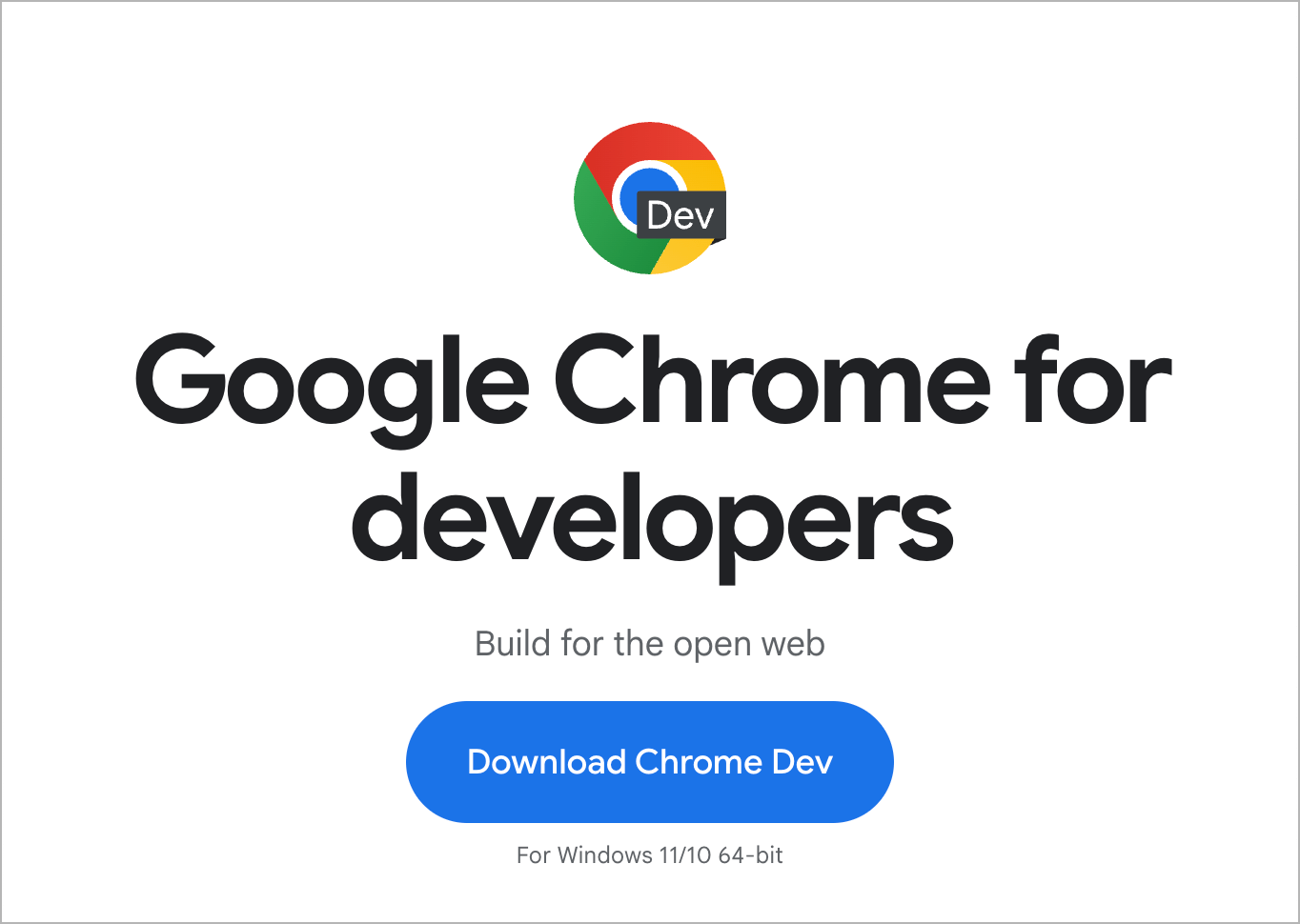
Download Chrome Dev Offline Setup for Windows and Mac
Available installer options include:
Keep in mind that Developer builds may contain experimental features and occasional bugs. This makes them less suitable for everyday browsing than the Stable version.
Downloading Older Versions of Google Chrome
Google has discontinued support for several older operating systems. However, archived or frozen Chrome versions may still be available for compatibility testing, legacy software requirements, or historical purposes.
Supported Older Systems
Older Chrome releases may be available for:
- Windows XP
- Windows Vista
- Windows 7
- Windows 8
- Windows 8.1 (32-bit and 64-bit)
- macOS 10.6 through macOS 11
Steps to Download Chrome for Older Operating Systems
- Visit the Google Chrome Standalone Download page.
- Scroll to the bottom of the page and locate the Chrome Family section.
- Select Other Platforms

- Choose your operating system and the version you need.
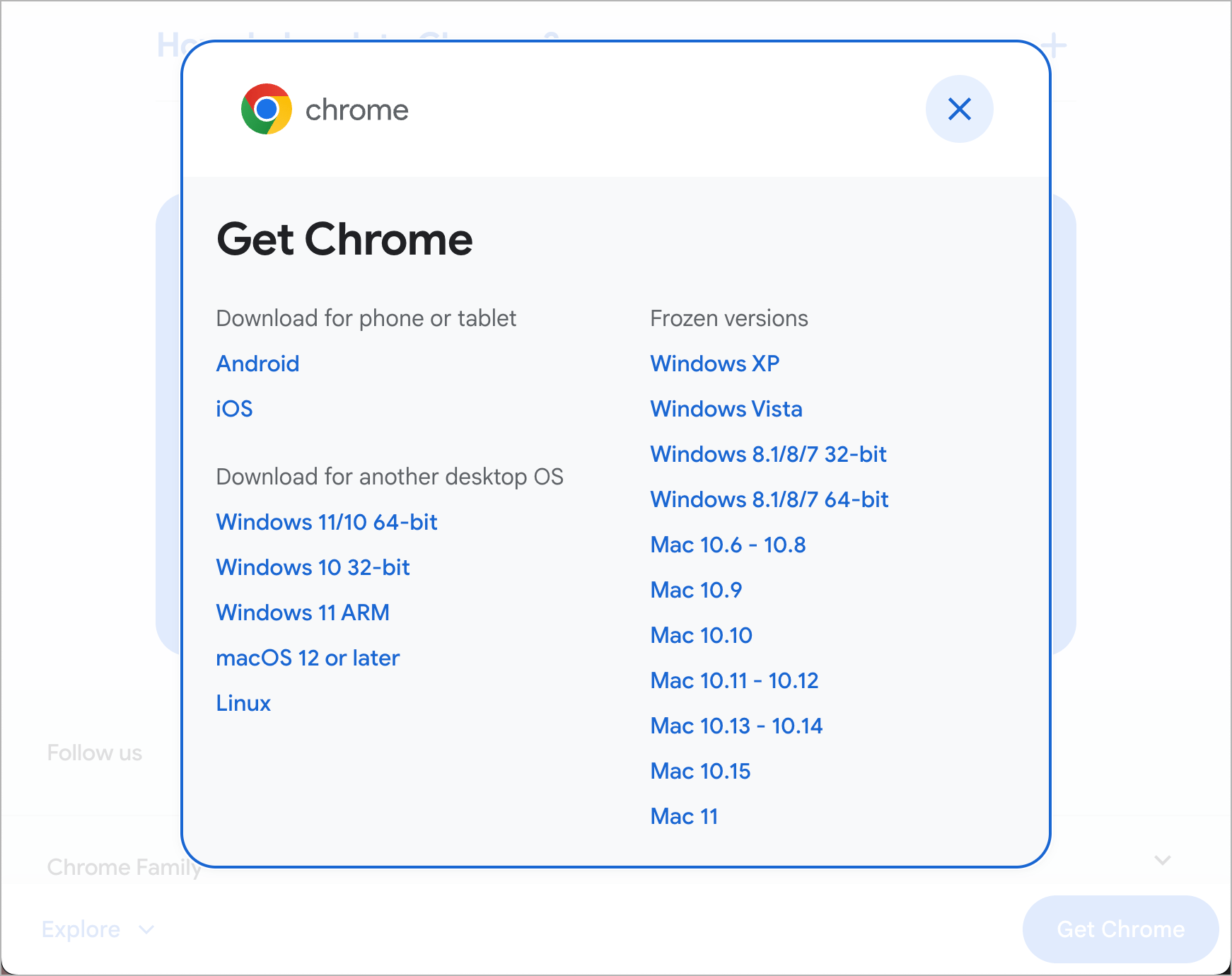
- Click Download Chrome to download the offline setup file.
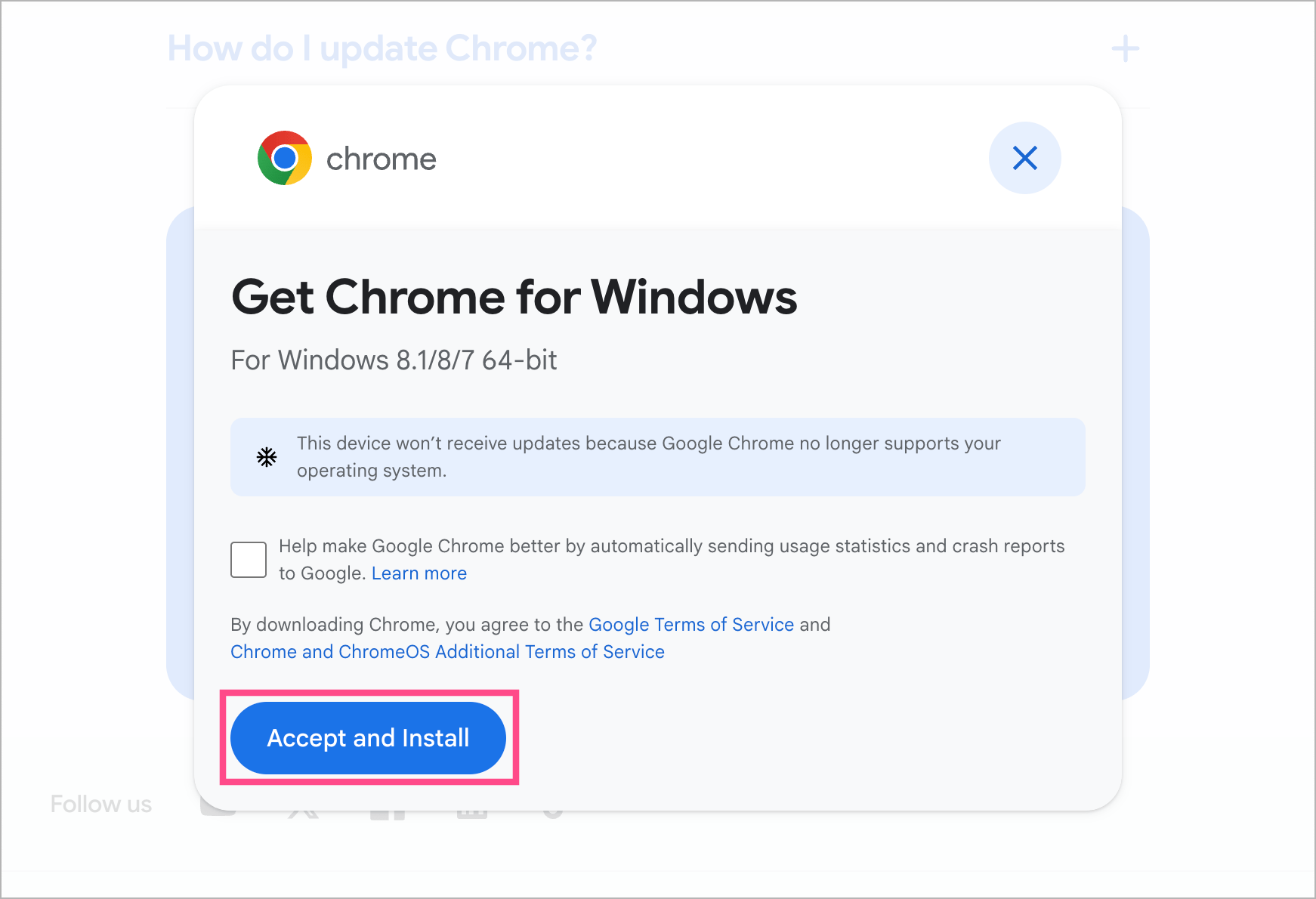
- Move the installer to the target computer and install it.
Important Note About Older Chrome Versions
Chrome versions for unsupported operating systems no longer receive:
- Security updates
- Bug fixes
- Feature updates
- Compatibility improvements
Use these versions only when absolutely necessary, as they may expose your system to security risks.
Tip: For the latest security patches and browser features, always download the newest Chrome release from Google’s official download pages.
Is the Chrome Offline Installer Safe?
Yes. It is safe to download Chrome offline, provided you download it from Google’s official sources.
When downloading Chrome installers:
- Use official Google download pages whenever possible.
- Avoid modified installers from unknown websites.
- Verify the installer is digitally signed by Google.
- Keep Chrome updated after installation.
Using official installers helps protect your system from malware and tampered software.
Chrome Online Installer vs Offline Installer
| Feature | Web Installer | Standalone Installer |
|---|---|---|
| Internet required during installation | Yes | No |
| File size | Small | Larger |
| Can be reused on multiple PCs | No | Yes |
| Suitable for USB installation | No | Yes |
| Works in restricted networks | Limited | Yes |
| Ideal for IT deployments | No | Yes |
How to Update Chrome After Installing Offline
Installing Chrome offline does not disable updates.
Once Chrome is connected to the internet, it will continue receiving automatic updates through Google’s update service.
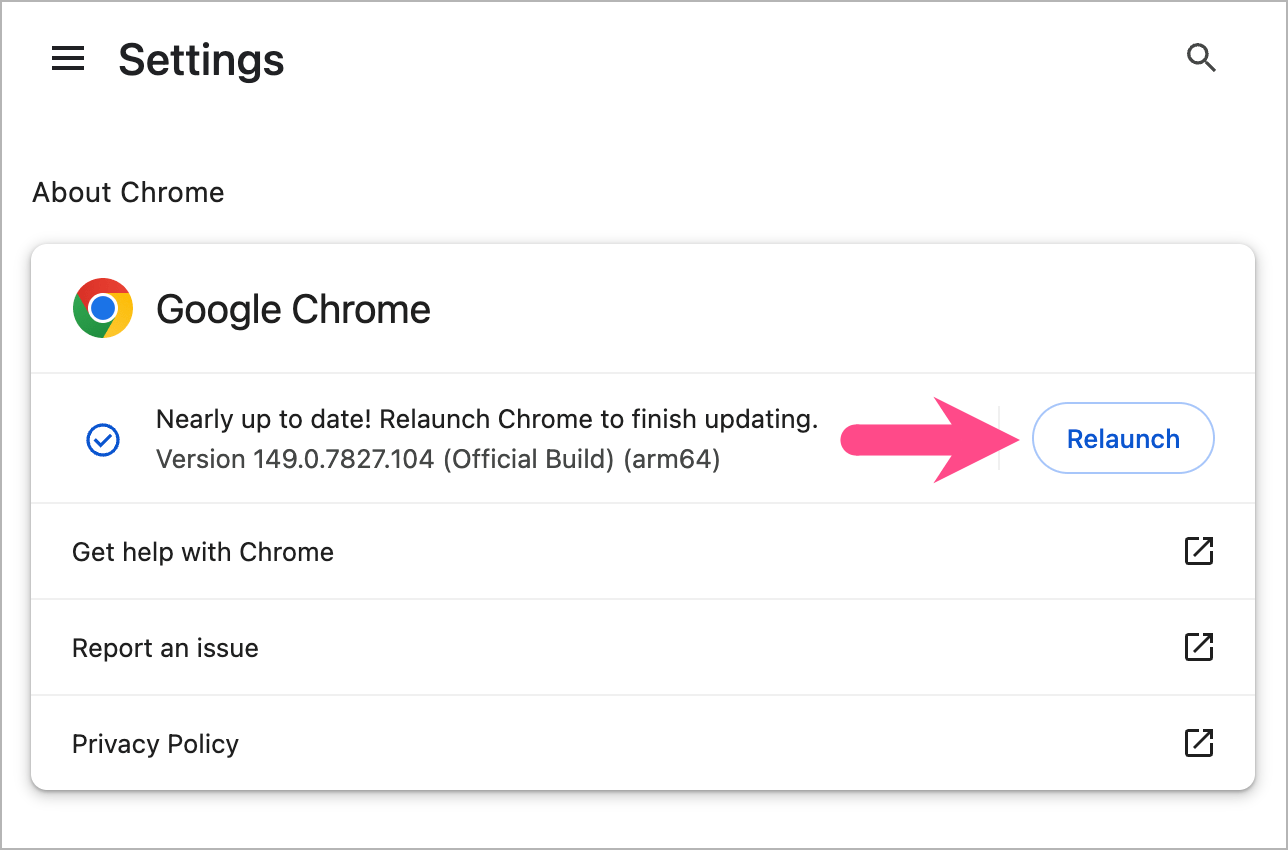
To manually check for updates:
- Open Chrome.
- Click the three-dot menu at the top-right corner.
- Go to Help > About Google Chrome.
- Chrome will automatically check for available updates.
- Relaunch Chrome to install the update.
Frequently Asked Questions
Can I use the Chrome offline installer on multiple computers?
Yes. You can save the installer to a USB drive and use it to install Chrome on multiple PCs without downloading the setup file again.
Does the offline installer automatically update Chrome?
No. The offline installer only installs Chrome. After installation, Chrome’s built-in update system handles future browser updates when internet access is available.
Is Chrome Developer Build different from Chrome Stable?
Yes. Chrome Developer Build includes experimental features and updates before they reach the Stable channel. It is primarily intended for developers, testers, and advanced users.
Related Articles
- Download Microsoft Edge Offline Installer
- Download Adobe Acrobat Reader Offline Installer (Latest Version)
- Download Mozilla Firefox Offline Installer for Windows, Mac & Linux