


Backlit keyboards are a convenient feature, especially for people who work at night without turning on additional lights. Dell laptops offer a backlit keyboard but unlike the MacBook Pro, they do not have an ambient light sensor to automatically activate or adjust the backlit keyboard in dim light. Instead, users need to manually enable the keyboard light when needed.
Does my Dell laptop have a backlit keyboard?
Most modern Dell laptops such as Inspiron, XPS, Latitude, and Vostro models come with a backlit keyboard. However, if you have an older model then you should first check if your laptop supports this feature or not.
To determine if your Dell laptop has a backlit keyboard, look for the illumination icon on the function keys row at the top of the keyboard. It should be on either the F5 key, F6 key, F10 key, or the right arrow key (present in the lower right corner). If none of these keys have the illumination icon printed on them, then your laptop does not have a backlit keyboard.

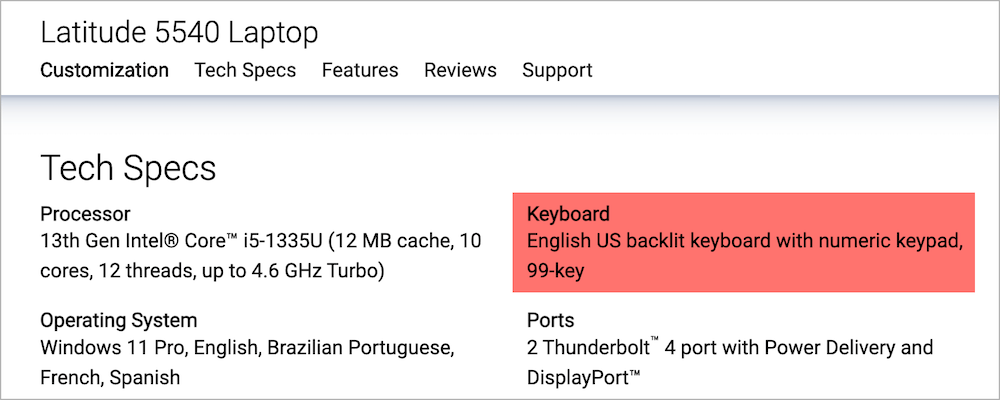
Alternatively, visit your laptop’s official product page and check the technical specifications.
How to turn on keyboard light on a Dell laptop
To turn on the backlit keyboard in Dell laptops, simply hold down the Fn key and press the backlit key (with the illumination symbol) from the functions row at the top. This action will illuminate all the symbols on the keys. Using the same hotkey, you can toggle between three keyboard backlighting modes: 100% brightness, 50% brightness, and Off.
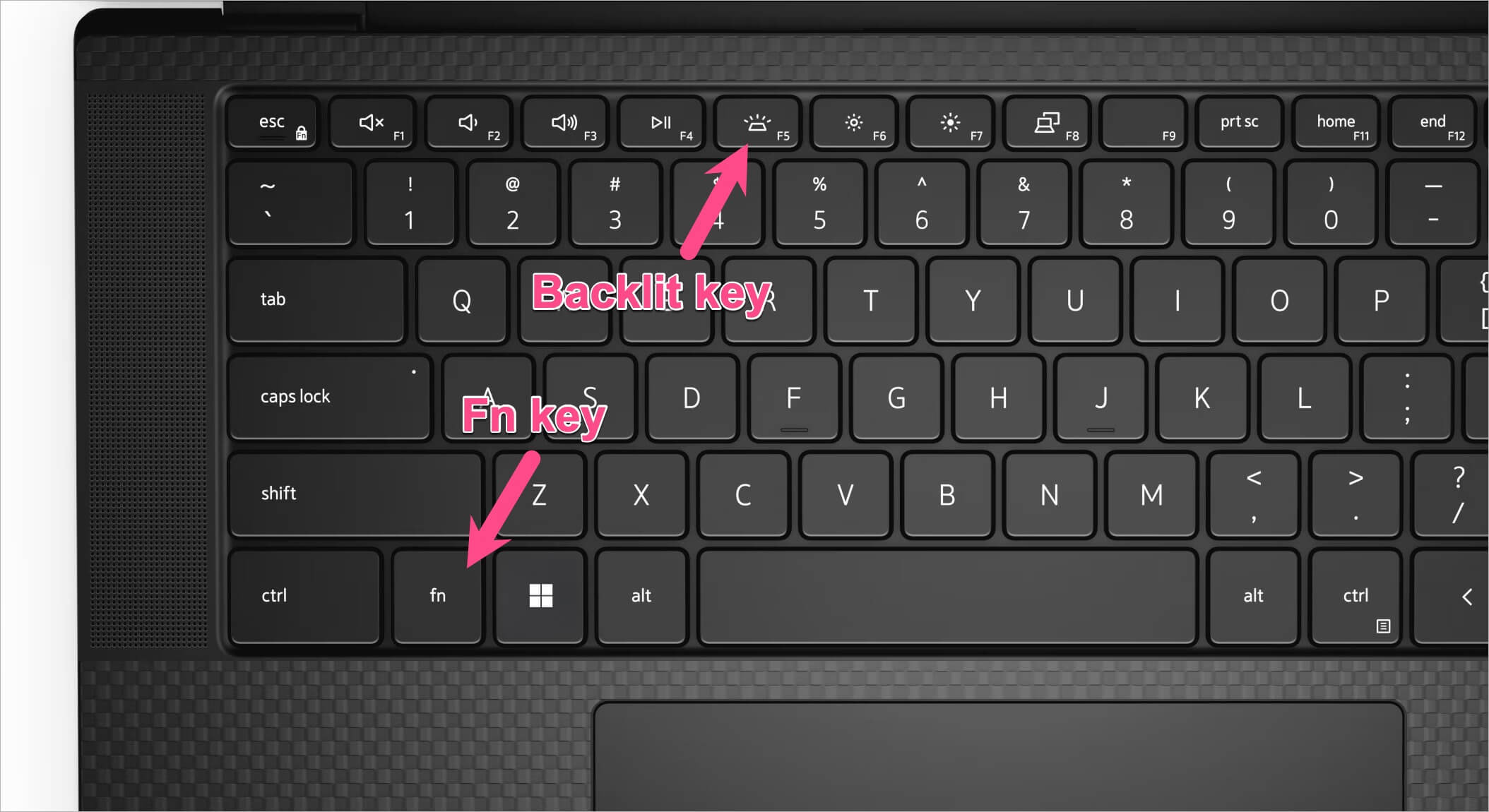
Depending on the model of your laptop, the backlit key could be present on either of the function keys (F5, F6, or F10).
To toggle the keyboard light on or off on your Dell laptop, use the relevant backlit keyboard shortcut.
- Press Fn + F5 key: Inspiron 14, Inspiron 15, Inspiron 16, Inspiron 16 Plus, XPS 15, XPS 17, Vostro 16, Vostro 3520, Latitude 3540, Latitude 5400, Latitude 5540, Latitude 7420.
- Press Fn + F6 key: Dell Studio 15, XPS 13
- Press Fn + F10 key: Inspiron 14 7000, Inspiron 15 5000, Inspiron 2016, Inspiron 17 5000 series, XPS 2016, Latitude E5550, Latitude E7450, Latitude E7470
- Hold Fn and press the Right Arrow key: On older models
Alternate Method
Disable the Function Lock if you prefer to turn the keyboard backlight on or off without holding the Fn key.
To turn off Fn Lock on a Dell laptop, press and hold the Fn key (on the bottom row alongside the Windows key) and then press the Esc key (on the top left corner of the keyboard).
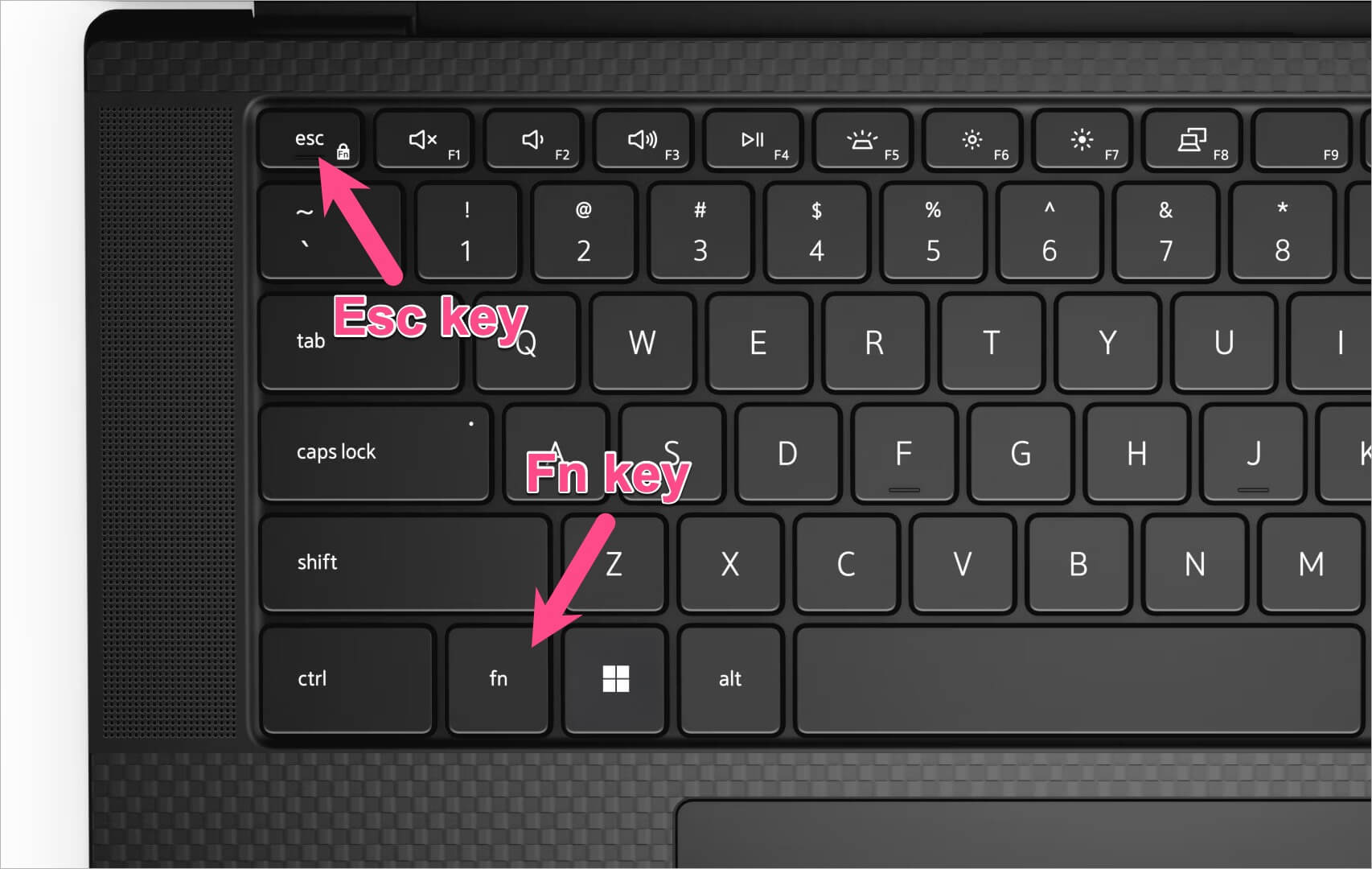
Once the Fn lock is disabled, simply press the F5, F6, or F10 keys to enable or disable the keyboard backlight.
How to adjust backlit keyboard brightness
To manually adjust the brightness of the keyboard backlight on your Dell laptop, try these shortcut keys:
- Hold the Fn key (or Alt key) and press the F5/F6/F10 key three times to toggle between the Off, Dim, and Bright keyboard illumination settings.
- If Fn Lock is disabled, then press the F5/F6/F10 key to increase or decrease the brightness level of the keyboard’s backlight.
This will help you improve your typing experience in low-light conditions.
RELATED: How to adjust keyboard brightness on MacBook Air M1









It actually depends on your Dell notebook model. On my Dell Studio 15, I need to use Fn + F6 keys to enable backlit.
Thank you! I am a bit too sleep deprived to think or read a manual, so you saved me much befuddlement, IntoWindows. Cheers!
Does dell vostro 3400 has backlit option??
thank you very much….its working now.
luv ya
IT WORKED!
HOW TO ENABLE IT IN DELL INSPIRON 15 ,PLZ HELP
To enable It on a dell inspiron 15 5000 series (5000 series im guessing) you need to hold FN and click F10 at the same time. It should range from Bright, to Medium, to off.
Thanks man! gaming became easier! cheers!
Thank you!!!!!
Thank you!!!!!
is this feature available for dell inspiron 15 3000 series (3558)..
tried seeing all comments..
but noo.. 🙁
i thinki have an option but cant find it. because… caps lock button gets light when pressed
Hiiii
..my laptop 3558 keypad light not glow …what what press button …plz tell
Your caps lock button stays lit when pressed because it is indicating that your caps lock function is currently activated. Have you noticed when it is lit up that every letter you type is a capitol one? Try pressing it again and the light will turn off. Its quite magical.
For me also same problem
My keyboard light comes on but goes off after like 30 seconds. Any way to keep it on?
Thank you!
It worked!!!! Thank you so much!!!!
i bought dell inspiron 5567 bt its backlight is not working what should i do?
it still does not work for me plz help mine is also Inspiratio 12 5000 series but still does not work plz help
15 5000 series i meant
none of the tips given are working for me either.
i bought dell inspiron 5567 bt its backlight is not working what should i do?
I was purchase dell laptop but issues is manual keyboard not workings
use ctrl +f10 to activate keyboard light on latitude 5567
Please please tell me how to enable the back light keyboard on dell latitude /E6400 . I am using windows 7 now and mobility centre doesn\\’t seem to have it.
THANK U VERY MUCH….ITS WORKING
Thanks , done
Please help me ..how to enable backlight in Dell inspiron 15 3567 laptop
Thank you for your instructions – just bought a new dell and it wasn’t working. I appreciate the help.
ya did it dude thanks so much is working now
Thank you very much for the article, in meantime i was about to conclude my lap has a problem But you really helped me to get there- Back light ON now and it is actually facilitating a lot of my job, thanks and keep updating.
Regards.
How about to open this keyboard light on dell Inspiron 14 7447?
Thank u soo much
hi
I have a inspiron 5000 a 5558.
keybord lithing goes out after 10 sec.
how do I ajust it to keep it light all the time ?
I have the same laptop and I cant figure out how to turn the keyboard light on at all. could you tell me how to do it.
Need help turning the keyboard light on a laptop Inspiron 17 bb5000 Series.
Very helpful…. i thought something went wrong with my Laptop… but then i read this article
does this work on a dell inspiron 14Z?
Holding down Alt Then F10 worked on my Dell Inspiron 2016 Model
Thanks
Thank you!
Yes that worked Lulu…Thanks
worked
Alt + F10 worked on my dell inspiron 17 5000 series . Hit the keys 3 times. One for off, one for fully lit and once more for medium lit.
already checked but not keybad lighting
Alt+F10 worked for me on My Inspirion 15.. Now that it is on, I can see the key looks like a rising sun, just left of the F11 (dim screen)
thanks for the info , its works for me
none of the listed helps work for me.. it just quit when I turned it on today it isn\’t working.. it has worked for 3 years.. any new tips????
thank you for your help!
Thank you
ALT + function + F6 worked for me, function and F6 alone wouldn\’t work for some reason until i added the ALT, however since doing it this way it will now turn off and on with just Fn+F6
Please please tell me how to enable the back light keyboard on dell insprion 15 7559. I am using windows 10 now and mobility centre doesn\’t seem to have it.
I tried both Fn+ and Fn+F6, nothing happened with my Latitude E5570. Anything else works?
I have a new XPS15 but none of these solutions work for me. Does anybody have an alternative please?
I have a new xps13 if u press f10 it should light up
i have the same but for some reason it will not let me
Thanks, at 81 you sure make my life easier with answers even I can understand. Now where did I put my #2 yellow pencil I have to erase some things on my Dell.
I am so happy right now, i can give u my first born if you want.
How about the inspiron 11 3000 series?
How do you activate the back light for the Dell Inspiron 15 5000 series? Does it even have one? Thanks.
Just hit F10, Or Go to windows mobility center (for windows 10 laptop right click on battery icon, select windows mobility center). on the bottom left side click on the keyboard icon, click on the drop-down select your desire!, then click ok.
Do you know what about Dell Inspiron 11, 3000 Series ? How to put the keyboard light ?
i cant find keyboard icon on it.i have only 5 options there
Same solution needed for Dell E7470. Already tried all the suggestions on this feed.
My wife\’s Dell Inspiron 14 7000 series back lit keyboard is not readable in the daytime, The settings are on maximum, but the white transparent letters make it impossible to read, you have to move your head a foot to the left or right and hope the sun(office lights) briefly give you a bit of relief if you wave your hand over each key stroke. It\’s a great looking Dell, but she hates it more than any other laptop she\’s had.
same laptop with mine!! omg during the day i cant see a single letter!!!! did you guys found out how to make the light in the keyboard glow even more??
Thanks, it worked in Dell Latitude E5550 by pressing \”Fn\” and \”F10\”
please help..my dell inspiron 7559 7000 series backlit keyboard doesn\’t work..anyone here know how to turn it on?
Thank you…Thank you… Thank you… Finally the Hot Keys that work…ALT F10….
Everywhere else said to press Fn right Arrow…does NOT work. So thanks for sharing.
This worked, but it does NOT help me keep the lights on all the time. They go off after a few seconds. Thoughts on how to set them \’on?\’
How do you activate the back light for the Dell Inspiron 15 5000 series? Does it even have one? Thanks
Hi am usind dell inspiron 15 5000 windows 10 ,plese help me to enable keyboard backlight
I have the same model Dell as you and I don\’t think It comes with a backlit keyboard. I haven\’t found any evidence of it yet. Support doesn\’t respond to the question
It doesn\’t work
thank you for your very helpful comment that alt f-10 turned on the keyboards lights for me on my new dell inspiron
hi. i am using dell vestro 1550,how enable keyboard backlight
how about to open keyboard light in dell 5559 series. please reply sooner. Fn + right arrow key is not working.
does a Inspiron 15 3000 series have the option for a backlit keyboard? The F10 key has not symbol on it, so probably does not. Cheap laptop, fine in many ways but I guess I cant expect everything
we have the same problem
how can i enable key board back light in dell vostro 3450. i tried fn+f6 , alt+f10 but not worked.when i press fn+f3 then orange light below the key board only on.
THERE IS NO WAY I CAN EXPRESS HOW GRATEFUL AM I IN WORDS THAN JUST A BIG THANKS.
mine dell latitude e6400 WORKED PERFECTLY
None of the above hints work on my computer! They worked up until today? I didn\’t do anything to change it. Just plugged it in and turned it on and noticed the lights aren\’t working to light up all the keys on the keyboard.
On my Dell Latitude E7450:
Fn + F10 toggles the keyboard back lighting through Off-Medium-Full
Yes, it also works on my Latitude E7470. Fn +F10 toggles the keyboard back light: medium, full, off
Thank you!!
Is there one in dell inspiron i3 3558
how can I enable key board back light in dell vostro 5470??
THERE IS NO BACKLIGHT IN VOSTRO 5470 LOL
have a dell XPS model year 2016.
too simple really. Just hit one button, the F10 button, you know the one that shows a rising sun on it, lol.
same with me. I feel dumb for not working it out sooner haha
For a DELL Inspiron 15 5000 series try Ctrl on the right side of spacebar + F10
Thanks so much , it\’s working now
How to light up my dell latitude 3440 key board or the screen pad.
How to light up my laptop screen in the night
How to light up my dell E7454 latitude
Its really works CTRL+F10… thanks alot
Thanks bro….it\’s work.
Hi there – I purchased a backlit keyboard for a 3542, Installed mobility center, hooked it up, lite comes on for a moment when first installing and then goes dim. Keyboard keys have no effect (fn+F10).
Mobility center has the ambient light sensor greyed out, and changing the keyboard brightness in the UI has no effect. Any suggestions? I would be eternally in debt to you 🙂
Hi
I have Dell E4300 with same issue with back light.
Please advice.
Dell Inspiron 15 5000 Series, use the F10 key to toggle on/off. If the feature is installed
alt & f10 key for my inspiron 7000 worked for me
Mine has the light up option (while you are typing) and the right arrow key DOES have the keypad light up symbol but when you press the FN + right arrow, the keyboard lights up but fades back to dark after a couple seconds. I want it to stay on and even the IT guys that gave me the laptop say that should work. Most of the F keys have no FN symbols so I don\’t want to randomly press them.
How can I turn on keyboard backlight on my dell inpiron 15 3552
my laptop Dell Vostro 15 3000 Series How To keypad light On …plz tell Me…..
hi, how to light up Dell inspiron 13 5000 5368
How to on the back lit keyboard on Dell inspiron 5567
I have the same thing. can anyone help us?
Plzz help me to enable keboard back light in windows 7 on my dell N 5010 ..
How to turn keyboard back light to turn on in Dell latitude, i tried using fn+f10 even though its not working.
how to on the keyboard light dell 5000, i3, 13.3 screen size,
I am using inspiron 14 3000 series. How can I set my keyboard light? Please tell me anybody.
Backlit keyboard remains of after performing the the instruction of Fn and the right arrow.
How about for Inspiron 13 5000?
How to lightup keyboard of Dell Vostro 15 3000 Series
i bought dell inspiron 5566 bt its backlight is not working what should i do?
How to lightup keyboard of Dell inspiron 5566 Series
I have dell 5559 i3 laptop and also have same problem… Fn+10 and Fn+H keys are not working for keyboard backlight
How do I turn on the keypad light using Dell Inspiron 13Z 5323? Thanks one and all.
How to turn on the backlight for Dell Inspiron N7110, all function listed did not work. can anyone indicate, Thanks
How to turn on the backlight for Dell Inspiron N7110, Thanks
for Latitude E7470, Alt and F10 worked for me; thanks for sharing
pls tell dell INS 3162 Keypad light on
Press Function (Fn) + F10 on Dell Latitude to turn on the keyboard light
thank you so much!! you helped me 🙂
Just purchased two new Dell Inspiron 3162 laptops. I am a Linux user. I am unable to get the keyboards to light up. Is there a trick/ something I am missing here. Both laptops are now running Linux Mint 18.1. Ran all of the updates and upgrades.. Still no joy.. My current Dell laptops have no problem. Any help here would be nice. Thanks
I have had my Inspiron 5558 signature edition. I bought it over a year ago and I was used to the backlit keyboard on my previous Dell, where you could turn it on, and change it to different levels of brightness.
Long-story-short, after I had the laptop for a few days, I had one BIG complaint and nothing I could do would fix it: the 5558\’s keyboard light kept turning off after 10 sec AND there are only a couple brightness levels and they\’re controlled with the F10 key and you go from Off, to bright, to low, to Off, etc. NOTHING that I did, though, would keep the lights on any longer. They\’d come back on only I would either touch a key or \”hover\” my hand over the middle of the alphabet part of the keyboard. Unlike my older Dell, there was NO way to make the light stay on.
It pissed me off when I was typing something in a low-light situation, and took 15 seconds to get a sip of water or try to think what I was typing, looking something up, etc and NO DAMNED lights on my keyboard. So, I called Dell (this was when the thing had been in my house for only a week). I got a lady who tried to walk me through stuff and she was stymied too as to why I couldn\’t make it work right. She suggested a total \”reset\” and I told her that I\’d spent a couple days getting the stuff from my previous Dell laptop onto it and I \”suffered\” the whole time, so that wasn\’t an option. So, she said she\’d get a specialist and this guy came on the line with us, and he tried the same things, said the same \”reset to factory-new\” conditions and I told him I wasn\’t gonna do THAT.
He asked me to hold and after 10 min or so, came back on the phone and told me that he had to talk to \”people over him,\” and they said that the machine was behaving as it was supposed to. …that if there was no keyboard activity for 10 seconds, and the backlit feature was \”ON,\” to save the battery, it would automatically shut off and come back on with a keystroke or a \”hand-hover\” maneuver.
This made me a little more \”steamed\” (NOT at them, but the programmers, etc) and I told them that had I not gone through the transfer of files, etc, etc from my old Dell to this one, I\’d be sending it back to the seller and look to HP or Lenovo or ANYONE else.
I ended by telling this guy that NO one is going to be happy with this \”feature\” and that I\’d bet I was speaking for everyone that they needed to do a driver update…whatEVER…and then include it in an update. So, here it is, a year later and I still occasionally get mad at this anti-feature, and I\’ve updated my system each time Dell \”flags\” it to me and it still is NOT working as well as my old Dell did…OH, the \”save the battery\” thing: after only 6 mon or so, the battery got to where it would run down after on 30-40 minutes with the backlit autoshutoff \”feature\” turned on. I\’m betting that the tiny little (expensive) battery is the reason that they did this after all – I canNOT imagine it staying ON all the time—but HERE\’S a thought—Dell needs to make this \”battery-saving\” feature go away when the thing is running on AC.
Does anyone have ANYthing new to add-maybe you\’ve called or chatted with Dell since I did last year.
This was 2 years ago for you and the same exact thing is happening with the Dell 5584 I bought a few months ago. This computer is not good . . . so unhappy with it. Did you ever find a solution like with the battery or something. I will go to the store I got it from and see what else I can do besides send it back to the factory. Very sad . . . too much time spent on this problem.
fn + f10 worked instantly for my dell inspiron 5000 series
just push F10 then the light will turn on and if pushed again then it grow a bit lighter
Yes! Thank you.
HELLO HOW DO I TURN ON MY KEYBOARD LIGHTS IN DELL-5559 MODEL. PLEASE HELP ME.
Hari? Did you figure it out? I just got a Dell Inspiron 15 i5559-8680SLV and I have no idea. I\’ve tried FN -> and FN F10 and ALT F10 and CTRL F10 and nadda.
I used ALT + F10 to toggle between the 2 levels of brightness plus off.
how do I turn the light on my dell key pad
@Tom Griffith
I hope you have found a solution to this problem already.
If not, I feel your pain!
I have a Dell Dimension 15 9550 with the same problem.
I was able to improve the situation by installing the Dell Feature Enhancement Pack from:
After installing, open Control Panel and click the Dell Keyboard Backlight Settings option.
This lets you change the timeout period up to 5 minutes.
A big improvement, but not a real fix like I would prefer…
Good luck!
Hi, how do you do it on E7270?
thankyou very much you saved me from my parents
how to turn on keypad lights on dell vostro 15 i5 processor plzzzz help me
how to turn on keypad light on dell vostro v131 pls help
How to turn on backlit keyboard for dell inspiron 14 7000. i\’ve tried to hold FN key and press the right arrow keys but it did not work at all. Please assist for the same.
try ALT + F10
My backlighting just stopped. I panicked, tried various other things, and then I say your ALT + F10 tip – and it worked! Thank you, thank you, thank you!
I just removed the battery,then reinstalled it-backlites worked!
thanks
Damn!! how could i miss this. thank you so much it works on lattitude e6320
I have a Dell 11- 3162 – Does this even offer a backlit keyboard? I have tried it all and nothing works
Thanks!
nothings working and I have sealed battery … has anybody figured this out?
Hi all,
I have bought Dell 5767 i7 and it has iluminted keybord and I can\’t figure it out how do I turn it on…does anybody know?
thank you
Ho 4 all have dellvostro 3500 without battery an want update bios ao7 to A12 for backlite keys that is installed . please anyone help me? I improve force it metod but a12 driver installation want same the battery charged at 10 % min. Thank you for answer Luc
how do I turn on my backlight keys dell latitude 5580
Alt – F10 works for me on a Dell Inspiron Laptop. Toggles backlight on – off.
Cheers
Thank you so much…Worked for me. The directions was very good and I tried it once and it worked perfectly. Very happy.
my dell insparian 3000 in not working keyboard backlight plz help me to solve it
Alt F-10 worked
MY dell amd a10 keyboard light wont light it use to. I tried what you suggested fn key and right arrow nothing happens
thanks alt f10 worked to turn my backlight on
Hi all,
I have DELL inspiron 11 3000 series, how to enable the keyboard backlight >
Can anyone help please ?
alt + f10 worked for me too!
i have dell inc-latitude E5550 how do enable key board lights on
can someone assist me please
I\’ve bought dell inspiron 5567 i can\’t on my backlight in keyboard please help me, thank you
Thanks, It Really work
I have a dell inspiron 17 5000 series and no keyboard backlight works (Alt +F10) or FN +F10 or FN and right arrow key. Any help welcomed.
I have dell inspiron 15 5000 series.. i have tried ALT+F10 CTRL+F10 but backlight is not enabled.. please help me
I bought dell vostro 3546 it\’s keyboard light isn\’t working .please help me
I have dell inspiration 5570 core i5 8th gen I cant turn on my keyboard
backlit light plz help me……
I have DELL vostro 1014, how to enable the keyboard backlight ?
I’m trying to figure out how to turn on the keyboard light on a Dell 115 3000, model 3542. I’ve tried the Fn and F10 button. Nothing happens so I’m guessing this laptop model doesn’t have that function possibility?
For Dell XPS15 is ALT+F10 (in my experience it works)
thanks
I have a dell Vostro 5471 and the keys were lighting up fine and then I did an update and now the wont come back on. I tried all the steps above like fn+f10 but nothing seems to be working, can anyone help me out?
Any way for dell inspiron 7572 ?
I have DELL Inspiron 13 5000 series. I have tried ALT+F10, CTRL+F10, FN+F10 but backlight is not enabled. Please help me.
keyboard light not working
There was an update that was performed, and now the backlight no longer works.
Thank you! fn=f10 worked!
Thank you, but my keybowrd light is not working
Vostor 3510 keyboard light key is not working
I just spent $1700.00 on a Dell Inspiron 17 7000 2-in-1 0 I can\’t get the keyboard to light up!! HELP FRUSTRATED.
Look for an icon on a key that has a small rounded rectangle and beams coming up off of it. On mine, it\’s the F10 key. It\’s a toggle. On/Off. No Control/Alt/Shift or anything else necessary.
its amazing. Now my Laptop key backlight working. Hold ALT + F10 key working here.
Thank you so much. webtrickz.com
Dell 5570 lighted keyboard is controlled by F10. cycle goes, If presently off, push once to turn on, push again to make brighter, again will turn it offf
Thank you! I have been going around in circles on the \”settings\” for my Dell, but could not find any answer. Such a simple fix!
I have dell latitude E6540 and i am failing to switch on backlight
I Have New Purchase INSPIRON 5570 I Trying Fn + Right Arrow Key
Not Working Backlit Keyboard
This did not work. It just immediately scrolled to the bottom of the page
BY JOVE! Magic DOES exist!!!
Having bought this E6430 and argued with the thing for two days,I was about to return it,when I came across this article and read it,tried it as described for the Latitude E6430 [fn + right shift] and HEY,PRESTO! I think I love you!!! Thanks,muchly,bro!
good
I just bought Dell latitude 5590 how can I get the backlight enable because f10 did not work and the logo of keyboard back light was is not on any key. I need help on it please
F10 key worked for me.
On my Dell Inspiron 15 I tried the Fn+F10 and the backlight did nothing. I tried the Ctrl+F10 and it worked
THX!! That worked for me.
I bought Dell inspiron 5570 i7 and the bacl light turns on since i push the power button and when i try to turn it off via (fn+F10) i can choos the off mode for back light but nothing change and thr back light stay on.
Please find me a solution it drives me craaazyyyy.
If I depress the control + F10 on my XPS it turns on the back lit keys, if I continue to hold the control key down and press the F10 key again it makes the back light brighter one notch and if I continue to hold the control key and depress the F10 key once more it shuts off, if that helps.
Ron – the F10 and Ctrl F10 works for my Inspiron 15 7000 2in1. Thanks!
guys its Alt F10 key….Fn with right arrow doesn\’t work
dell latitute e5450 not work keyboard back light please help
This Worked for my Dell Inspiron 15 5000 Series. Alt+F10. Great Thank You
cant get keyboard to light , just bought my computer
I have a Dell Inspiration 3580. How do I turn the keyboard backlight on?
I have a Dell inspiration 5775 the black light on the key board is not working.
can anyone help. I have tried all of the above mentioned.
how we can on keyboard light in dell latitude E6430 model
My 15 5000 to turn off the backlit keyboard you have to press and hold the CTRL to the right of the SPACEBAR and click the F5 key (has a keyboard with light symbols over it).
Isn’t it strange at how the same model different keys work to tun the keyboard backlit on and off?
i toiled over users’ instruction until I tried all of the keys and found the correct combination.
THANK YOU, THANK YOU, THANK YOU!
Thank you!!!
its dell Vostro how to on and off keyboard light please tell me
is this feature available for dell VOSTRO 15 3000 series … tried seeing all comments..
but noo.. ?
Just as a note for anyone with a Dell Latitude 5400, press F5 and you should be able to toggle between three settings (off, low setting, high setting).Hope this helps any other night owls.
please am using core i3 dell and i do not know what i press and the keyboard light went off have tried using Fn and f10 but is not working please i need help
Thanks it worked
Latitude 7400, Alt-F6. Has a different icon for the keyboard but turns on just fine. 3 settings, Off, Medium, Full.
how to enable it in vostro 15 3000
It doesn’t work. The keyboard light is not coming on.
Lighting on lighted keyboard has stopped working on my Dell Inspiron 15 5000 Series.
How can I turn it on?
my dell latitude 3550 not work keyboard illumination after reinstolation
please help
I have dell vostro 14 3491. any clue how to enable keyboard backlight
DID NOT WORK!!!!!!
For my new Dell laptop (2020) Alt + F5 worked
backlit light for precision 7550, how turn on/off?
Inspiron 5000, I think, no Service Tag. Mmmm. But there is a cute little icon on the F5 key and it alone toggles the keyboard from off, to on low, to on bright, to off again.
How to turn on keyboard backlit in dell intel core i3 7th gen.?
Tried this but still no back light.
how to turn on keyboard on Dell Inspiron 15 3505?
Fantastic,it worked.
I bought DELL VOSTRO 3405 R5-3500u backlight is not working please help me.
Thank u
Thank you …
sir,
my pc is 15 3000 not working key back light.
You are awesome! It worked!!!
is backlit keyboard available for dell 3502
vostro 15 3000 not working
How can I turn on my backlit of Inspiron 13 3593? Please help me???????
Dell inspiron 1440 key board light?????
Plz
Dell Latitude 7420 –> turn on Back light on –>alt+F5
thank you..
Thanks it works like a magic
Idk how to make the keyboard lightup.
Pls how do I turn on latitude 3350 touch screen keyboard light?
how can I enable key board back light in dell E5470??
i will try all method but not working so please help
How do you activate it on Dell latitude 3580
For me it works Fn+F10
Dell Latitude 5420, hold ctrl and press F5. There are three options, off dim light, bright light.