WebTrickz
TRENDING
  • Claude vs ChatGPT: Which Is Better in 2026?
No Result
View All Result
  • Reviews
  • Editorials
  • Social Media
    • Facebook
    • Twitter
    • YouTube
    • Messenger
    • Instagram
    • Snapchat
    • WhatsApp
    • TikTok
  • Apps
  • How To’s
  • Apple
  • iPhone
  • Google
  • Android
  • Mac
  • Security
  • About Us
    • About Us
    • Contact Us
    • Privacy Policy
  • Reviews
  • Editorials
  • Social Media
    • Facebook
    • Twitter
    • YouTube
    • Messenger
    • Instagram
    • Snapchat
    • WhatsApp
    • TikTok
  • Apps
  • How To’s
  • Apple
  • iPhone
  • Google
  • Android
  • Mac
  • Security
  • About Us
    • About Us
    • Contact Us
    • Privacy Policy
No Result
View All Result
WebTrickz
No Result
View All Result
Home iPhone

iOS 26: How to Get AutoMix in Apple Music on iPhone

Mayur Agarwal by Mayur Agarwal
June 18, 2025
in How To's, iPhone

With iOS 26, Apple Music has introduced an exciting new feature called AutoMix, which enhances how users enjoy continuous playback of playlists. AutoMix in Apple Music uses artificial intelligence to offer a DJ-like listening experience by adding unique transitions between songs and mixing them seamlessly.

What is AutoMix in Apple Music?

AutoMix is an AI tool for Apple Music that uses time stretching and beat matching to mix one song into the next, much like a DJ set. Similar to the crossfade function, AutoMix eliminates awkward pauses between tracks and makes for a smooth and immersive listening experience.

How to Enable AutoMix in Apple Music on iPhone (iOS 26)

Follow these simple steps to turn on DJ mode on Apple Music in iOS 26:

1. Update to iOS 26

AutoMix is a new feature only available in iOS 26 or later. Hence, make sure your iPhone is updated to iOS 26 (currently in developer beta). For this,

  • Go to Settings > General > Software Update
  • Tap ‘Beta Updates’ and select ‘iOS 26 Developer Beta’
  • Download and install iOS 26 if it’s available
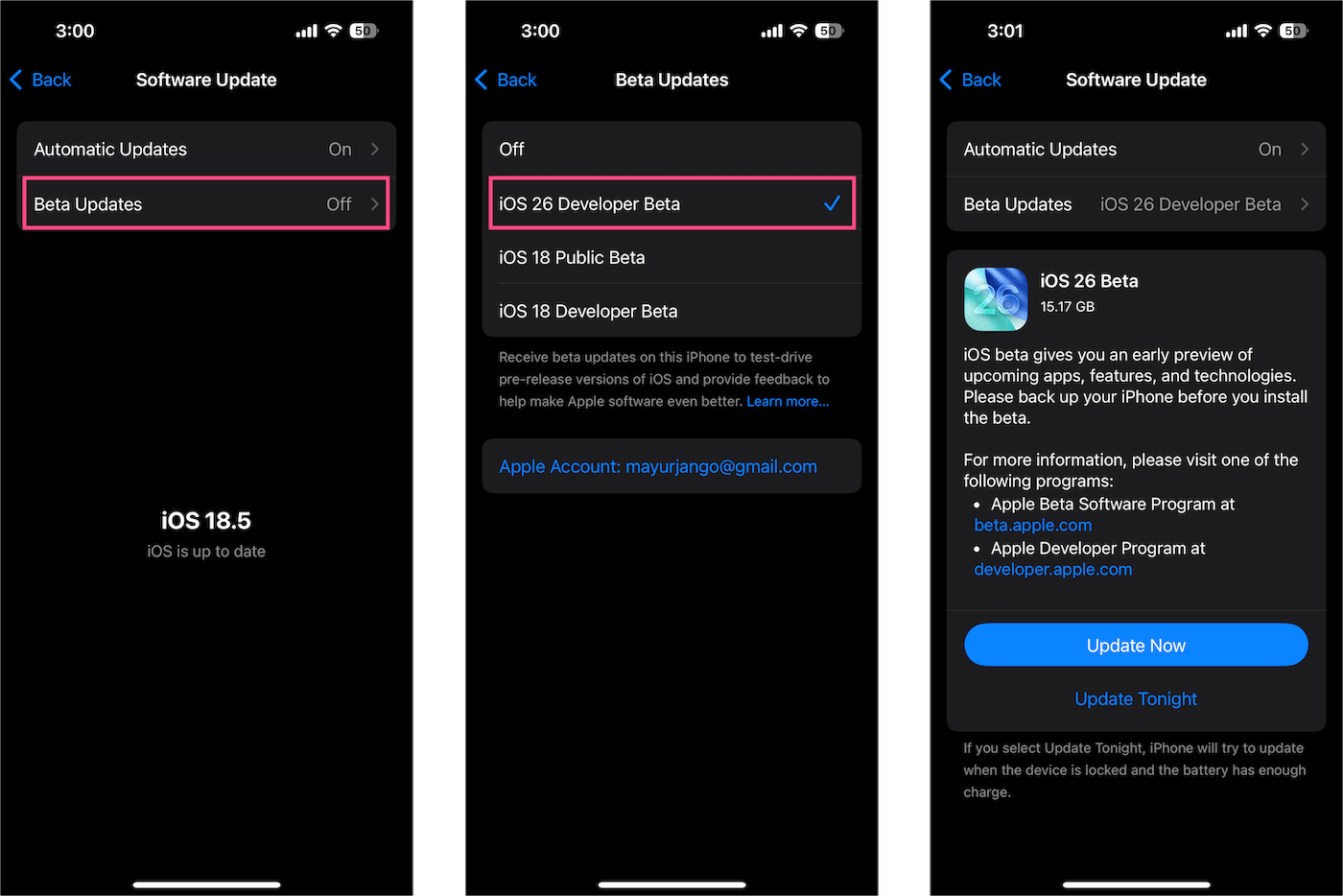
how to install ios 26 beta on your iphone

It’s also worth noting that AutoMix isn’t an Apple Intelligence feature. Therefore, it will work on all iPhones that support iOS 26, including the iPhone 11 and newer.

2. Subscribe to Apple Music

Apple Music subscription is required for AutoMix. So, ensure you have an active subscription to get AutoMix working.
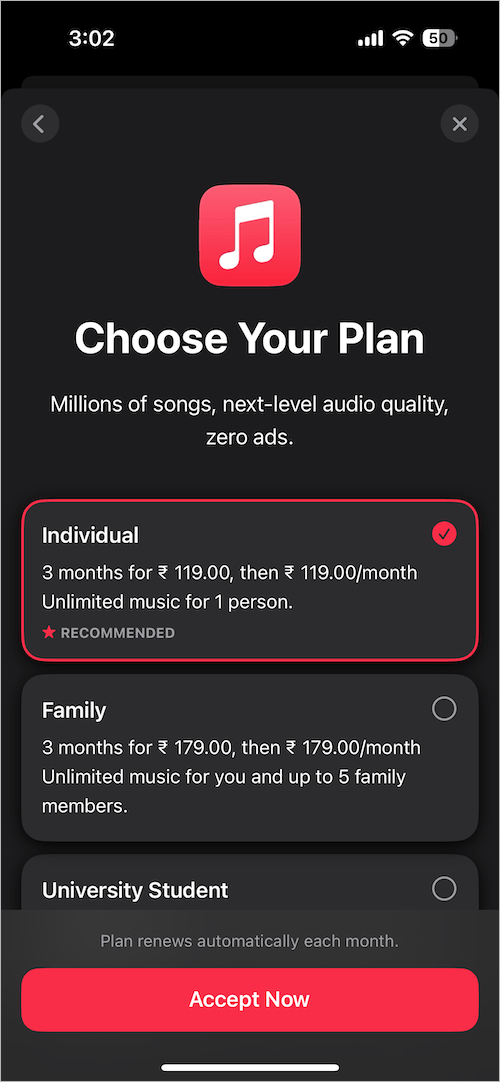
get apple music subscription

3. Turn on AutoMix in Apple Music

Though AutoMix is enabled by default in iOS 26, you can manually enable it if it’s not working. To turn on AutoMix transition style in the Apple Music app, follow the steps below:

  1. Open the Settings app.
  2. Scroll down to the bottom and tap ‘Apps‘. Then select ‘Music‘. how to get automix on apple music in ios 26
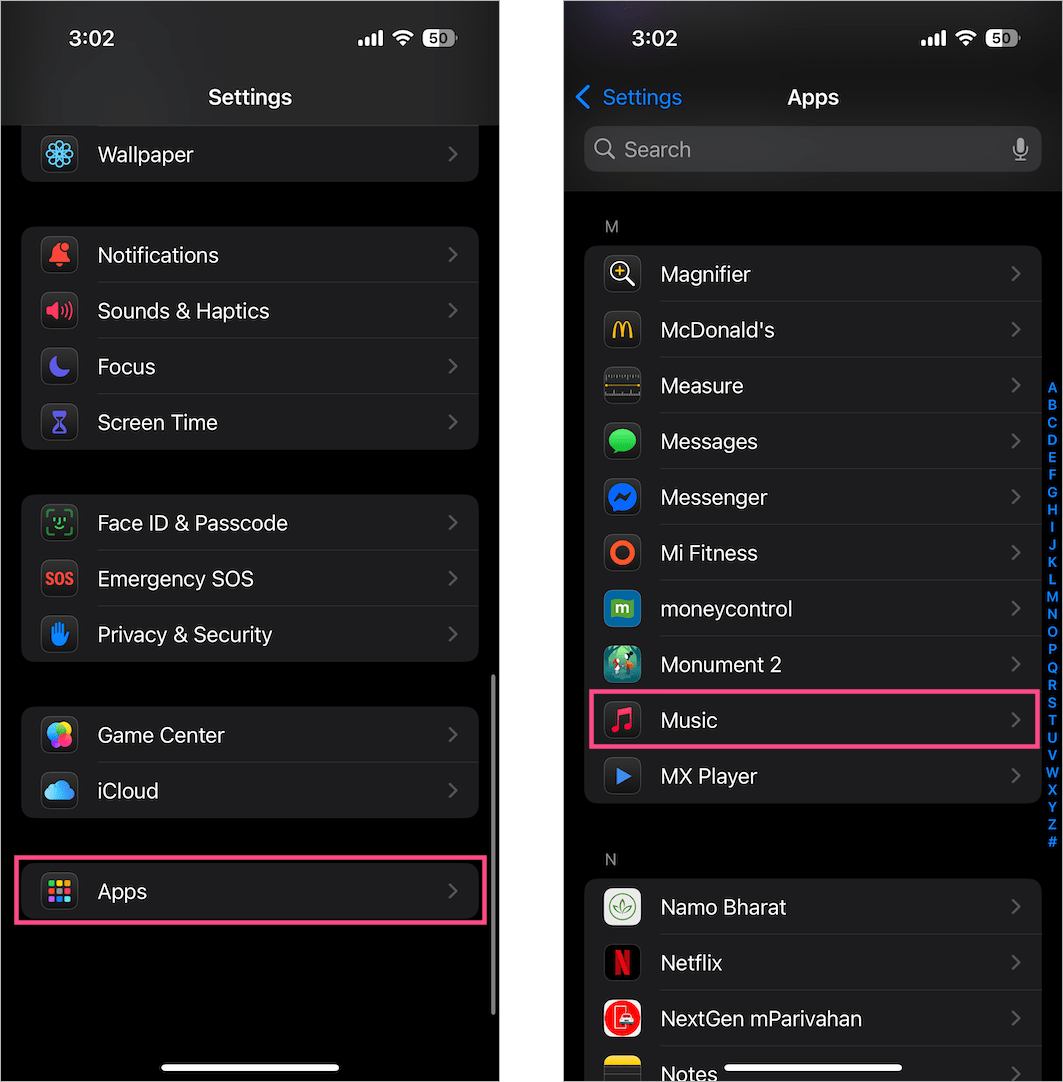
  3. Under the Audio section, tap the ‘Song Transitions‘ option.
  4. Turn on the toggle for ‘Song Transitions’ if it ain’t enabled already.
  5. Select ‘AutoMix‘ to turn DJ mode on Apple Music. how to turn on automix apple music on iphone
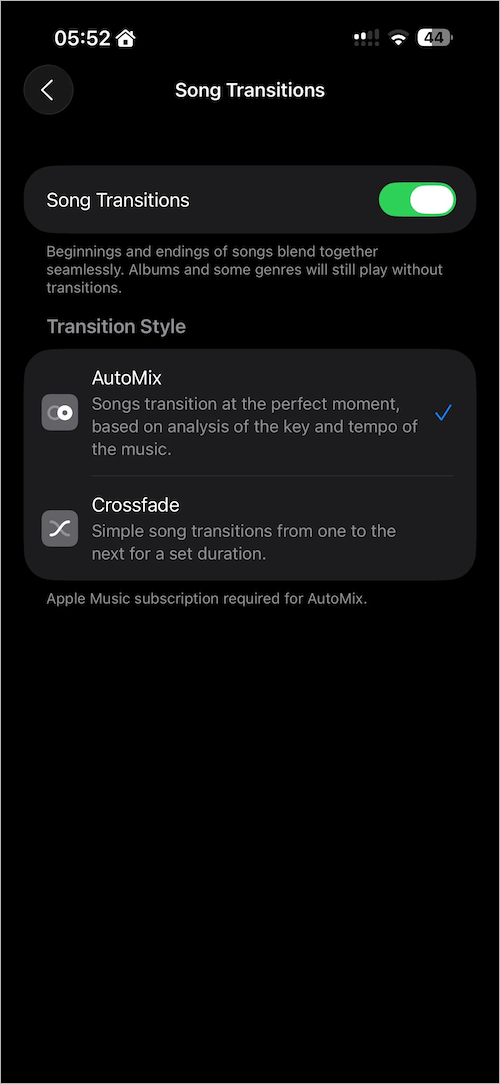
Next, launch the Music app and navigate to a playlist or DJ mix that supports AutoMix.

To confirm whether AutoMix is working or not, look for a small “Mixing” animation below the seek bar on the Now Playing screen. This animation appears whenever a transition kicks in between tracks.
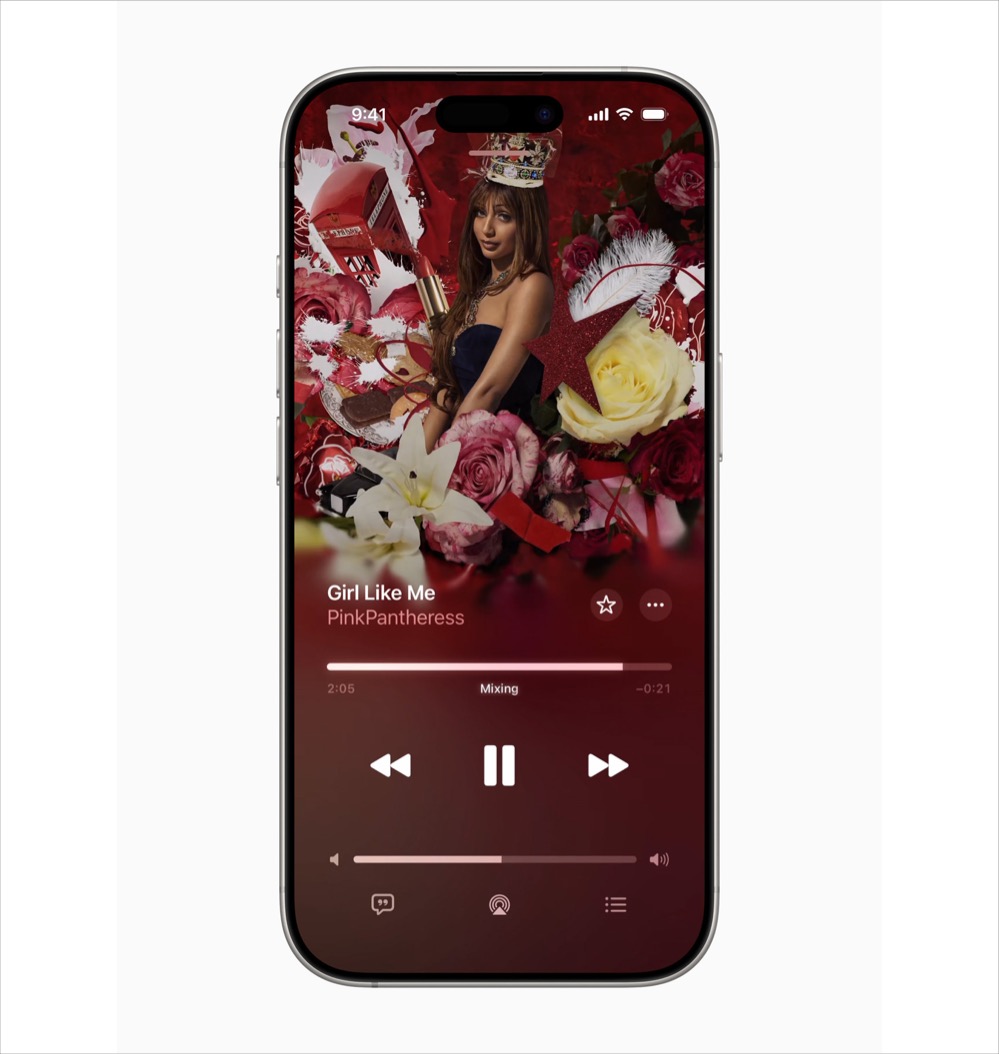
automix working in apple music
AutoMix in action on Apple Music

Tips for a Better AutoMix Experience

  • Use Headphones for a better audio transition experience
  • Try Apple Music’s DJ Mixes, Fitness+ playlists, or Electronic genre mixes that are designed for AutoMix
  • Turn off Shuffle to let AutoMix work in the intended order

Final Thoughts

AutoMix for Apple Music is perfect for listeners who love uninterrupted music playback with professional transitions. Whether you’re working out, relaxing, or hosting a party, this feature keeps the music flowing effortlessly. Just update your iPhone and enable the setting to experience it live.

Add WebTrickz as a preferred source on Google
Tags: iOS 26iPhoneMusicTips
ShareTweetSend
Previous Post

How to Add Screen Recording to Control Center on iPhone

Next Post

How to Link Spotify to Instagram Notes (2025 Guide)

Mayur Agarwal

Mayur Agarwal

Mayur Agarwal, the founder and editor of WebTrickz, is a tech enthusiast with a Bachelor's degree in Computer Applications and over 15 years of experience in tech writing. His passion for technology and gadgets drives him to create insightful how-to articles and troubleshooting guides.

Next Post
Spotify logo

How to Link Spotify to Instagram Notes (2025 Guide)

Leave a Reply Cancel reply

Your email address will not be published. Required fields are marked *

Latest Stories

Closing Apps on iPhone 18 Pro and 18 Pro Max

How to Close Apps on iPhone 18 Pro and 18 Pro Max

September 19, 2026

How to Screen Record on iPhone 18 Pro and 18 Pro Max

September 19, 2026
iPhone 18 Pro and 18 Pro Max

How to Take a Screenshot on iPhone 18 Pro or 18 Pro Max

September 23, 2026
silent mode popup in dynamic island

How to Put iPhone 18 Pro on Silent or Vibrate Mode

September 18, 2026
Closing Apps on iPhone 18 Pro and 18 Pro Max

How to Restart or Force Restart iPhone 18 Pro and 18 Pro Max

September 23, 2026
iPhone 18 Pro and 18 Pro Max

How to Turn Off iPhone 18 Pro or 18 Pro Max

September 23, 2026
instagram logo

How to Find Scheduled Posts on Instagram

July 29, 2026

Trending Stories

  • Photo by Jeff Hardi on Unsplash

    How to Turn Off Fn Lock on a Windows Laptop

  • Easiest Way to Change Galaxy Nexus from Yakjuxw (Non-Yakju) to Android 4.2 Yakju/Takju and Get future Updates from Google

  • How to Turn Off Microsoft Edge Game Assist in Windows 11

  • How to Turn Off Microsoft Family Safety on Windows 11 & 10

  • How to Put iPhone 18 Pro on Silent or Vibrate Mode

  • About Us
  • Contact Us
  • Privacy Policy
  • Advertise

© 2026 WebTrickz. All Rights Reserved.

No Result
View All Result
  • Reviews
  • Apps
  • How To’s
  • Android
  • Google
  • iPhone
  • Mac
  • About Us
  • Contact Us
  • Privacy Policy

© 2026 WebTrickz. All Rights Reserved.