


This guide tells you ‘How to dual boot Windows 7 and Windows XP’ with Windows 7 installed first. This case is applicable for users who have Windows 7 pre-installed on ‘C’ and want to install XP on their ‘D’ partition.
The process for this is the same as we did for Windows XP & Vista. Follow the simple steps below to install XP after Windows 7.
1) Perform a clean install of Windows XP on the ‘D’ partition of your hard drive. Assuming, Windows 7 is installed on the ‘C’ partition.
2) After restarting the system, you will directly boot into Windows XP. That’s because XP writes its bootloader over Windows 7. So, we need to restore the Win 7 bootloader.
3) To restore 7, you need to Boot from the Windows 7 DVD and “Repair your computer”. Check this article “How to Perform a Startup Repair in Windows 7” to perform the repair.
4) After repairing, your system will restart and boot into Windows 7.
5) Download and Install EasyBCD on your Windows 7 to add a boot entry for XP.
6) Launch the program and select ‘Add New Entry’. Under “Operating Systems” open the Windows tab, select the Type as “Windows NT/2k/XP/2k3” and click on ‘Add Entry’.
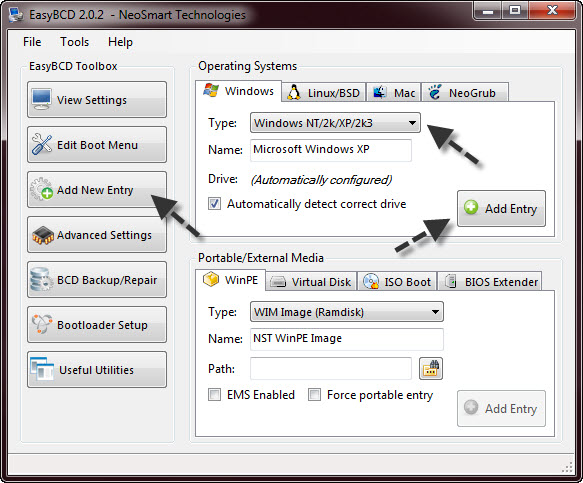
The entry for Windows XP would be added instantly. You can choose the default OS to boot and modify the boot menu time-out from the “Edit Boot Menu” option.
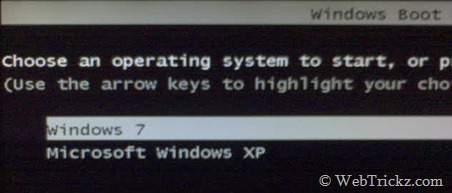
That’s it. Now restart your PC and you’ll be presented with two options, Windows 7 and Windows XP. 😀 Select the OS you want to work on.








thx a ton, it worked here, i made a clean install of xp after having a dual boot with xp and 7 thinking that it wouldn’t mess up with the dual boot… how wrong i was 😛
anyway it’s fixed now, just as a side note, in step 3 i had to do it 3 times before finally boot win 7, the first two times while it said it was repaired it would always boot xp instead
I have lot of experience with formatting pcs.As Kebrus says theres no need to repeat step 3 , 3 times.wt you have 2 do is wait untill boot from cd goes to end ……. like that. Dont press any keys.
I have a dual boot PC with 7 and xp. I do not have a choice at startup to choice . How can I have the choice show up at start up??? Thanks
i love you
Very useful tips
Thanks alot
Interesting. Just pulled up your blog post doing a search for XP repair.
I like XP but it can be tough to fix sometimes. (But it is still easier for me to understand than NT!)
Thanks for posting.
hi any body have xp driver fo r1440 dell lap
How can i install xp when windows 7 is all ready running on my p.c?
I pop the xp disk in, and restart my computer! Then i boot from the xp disk and it goes through until it says (LOADING WINDOWS FILES) and i get blue screened! WTF! I already have my HD D: partition. Can anyone out there help? I need XP for my music programs!
Hi Zackary,
I was having the same problem, but I later found out that it was because of my hard drives which were on a raid 0 configuration. If this is your situation too, then go to your motherboard website and download raid (or SATA) drivers (make sure it’s 32-bit if your os is going to be 32-bit; or 64-bit if you’re installing a 64-bit xp).
First of all, you want to go to computer management (right click on computer and select ‘manage’). There is a partition listed before the c partition. this partition has no drive letter. right click and select ‘change drive letter/path’ accept the first drive letter offered. Now you can proceed.
when you download the drives they’re usually in 2 folders. open the corresponding folder (32-bit or 64-bit), there is another folder (driver), open this folder and copy the contents, paste in a floppy disk (if you save it with the folder, window will not be able to access it during installation. That’s why you need to save the files without the folder) You’ll obviously need a floppy drive. As soon as the xp disk boots, you get a message on the white bar (bottom screen) to pres F6 for blah blah blah. Press F6 and wait. At some point it will tell you to press ‘s’ if you want to blah blah blah. Press ‘s’ and it will list a number of files. Select the one that is already highlighted and press enter. You get the message that windows already has that file, and to either press ‘s’ to use the one on the floppy or ‘continue’ to use the one on windows xp disk. You have to press s to use the one on the floppy. Go on with normal installation of windows.
Hope this helps
Hi Chidiebere,
I have the same issue. In steps that you mentioned I have couple to questions ….
1. I have an HP pavilion laptop, so where do get the info about which motherboard I am using …
2. I have a usb floppy drive and my guess is that wont work here .. so any other alternative apart from using a floppy.
Please do reply.. Thanks
Hi,
I’ve read what you posted and I think I understand a bit more but I still have many questions about this.
1. How do I check what configurations my new laptop has? I have this laptop that I bought from Best Buy )
2. Can I install Windows XP Pro 32-bit? (Even if my OS right now is Windows 7 Home Premium 64-bit)
3. Where do I find the Drivers I need for Windows XP Pro 32-bit? (or 64-bit if I can’t get 32-bit)
4. Do I have a floppy drive on this laptop? I’m not sure how I can connect a floppy disk to this laptop. If not, is there any other method?
hi…
i follwed ur steps properly….
but wen the windows 7 repair process starts its showing error…
i couldn repair my windows 7 installed
HELP********** PLEASE . Did all you said But when i finally add an entry in EASY BCD it says It cannot detect the Files For booting into XP @
Uh I’m NOT A GENIOUS BUT THOSE FOLLOWING THESE INSTRUCTION ADD THIS INST as 5a Inbetween 5 and 6 🙂
AFter You Do STEP 5 , Go to Start , Right click My Computer , And Press manage
Then Go to disk management and then there will be an Empty Drive without a drive letter . Give a drive letter to this by right clicking and after you have done that Proceed to step 6 🙂 Works fine now
thanks [email protected] got this from your comment above :))
I can’t assign a drive letter to the hidden partition. The option is greyed out and it won’t let me select it. I also do not have a floppy drive. Looking for help. thank you.
thanx thanx thanx i dont know what to tell u becz i searching for this thing many times and now i found it thanx
dear sir i have windows 7 preinstalled on my pc, i like windows 7 a lot but i cant seem to play most of my games even when using compatibility trouble shooter, ive found out about dual booting with windows xp so i can play my games on xp , anyway i boot from windows xp disk everthings fine it says setup is loading files, then when it gets tosetup is starting windows, i get blue screen of death, before this i also created a partition in windows 7 for when i install xp, please help and try make it simple as im a beginner in computers regards martin
can you do this with windows 7 installed with upgrade disc clean install
i do the above procedure but when trying boot xp a message error apeare saying:
“Windows could not start because the following file is missing or corrupt.
Windows root\system32\hal.dll.
Please re-install a copy of the above file. ”
i try install a copy of file from another computer but the same case with no change!
can i have a help plz?
Simple question…..how can i carry out step 3 (you need to Boot from the Windows 7 DVD and “Repair your computer”) when windows 7 is pre-installed and i don’t have a OS DVD?
Any ideas anyone?
cheers,
Mark :o)
if you dont’t have oem DVD then you can simply create a system repair disk
go to start and
then write system repair disk and you willl have a disk to carry out steps.
Hi all,
Being that I only have the recovery image CD’s from IBM (I have a ThinkPad) instead of a dedicated XP OS disk, I had to borrow one from a buddy (XP Pro). I also want to state that my main drive is the Intel X-25M 80GB SSD, which works just great with Windows 7.
I then followed the simple steps and it will let me install XP, but when the installation completed, and upon restart, it attempts to boot into XP and the XP logo with the light blue progress bar underneath is there, but after 2 seconds it’s BSOD time (blue screen). Tried Safe Mode, same difference.
I then successfully repaired the Windows 7 boot record using the start-up repair disk that I had created in Windows 7. After booting into 7, I used EasyBCD 1.7.2 in order to add XP to the mix. This was successful and after restarting, sure enough, it now gave me choice to either boot into Win 7 (which works fine every time), or XP, but every time I try to boot into XP, the blue screen issue is still there!
So now I get another disc from another friend, this time XP Home Edition lol…This time, after it loads all the drivers, as the aforementioned XP Pro installation also does, but it didn’t even let me try to install anything. It said it “couldn’t find a hard drive” to install itself on, so I’m guessing it can’t see the Intel SSD.
So this is where I am stuck. How would I load the driver for the Intel SSD for the purpose of installing XP Home and where would I find it? And how come XP Pro was able to “find” the SSD? As I’m typing this, I recall that my first friend who gave me his XP Pro CD said that someone had loaded some Intel SATA drivers onto the CD!?!?? How can I identify which ones they are, and why does it blue screen on me after, according to XP Pro, a successfully completed and full installation? Could that have to do with the SSD as well?
Thanks for any help! 🙂
A million thanks! You’ve saved my life!
dang. i just keep hitting a wall.
i’ve got a toshiba satellite L450.
When I boot up with the xp installation cd it loads the files and then gives me a blue screen saying something like ‘setup can’t continue … if you get this message again you may have a virus … check your hard drive…’
All of my ducks are in order with the D: partition, etc. Perhaps its my SATA drivers ??? I can’t seem to find them for my laptop model anywhere on the internet but is that the issue? It wasn’t specified in the blue screen.
I looked into the “slipsreaming” with nlite but I don’t even know where to get the right drivers to ‘slip’ in.
Any help would be appreciated.
thanks a billion!
Hi,
Everything worked fine until the EasyBCD step came.
After i add the entry, it just says cannot find NTLDR and NTDETECT.COM. because of this xp doesnt boot even wehn select it from the list at startup.
any ideas?
Hi,
I did all the step and they all work fine except when i reach the EasyBCD step.
I added the entry as the instructions say but when i click the enter the entry it says NTLDR and NTDETECT.com cannot be found and because of this XP doesn’t boot from the list at startup.
any ideas?
Thanx. It worked very well. However I had to repair the startup recovery three times (dont know why) but after third time the system recovered and eveerything is fine.
Arya
Man you are a wonderful guy thanks for the help mY frnd..
thanx friend its working……..
that was greats. thank u so much lovely boy.
hi
am yassin from south asia. i did instal windows 7,32 bit on my system but now i wanna instal windows xp.how to instal windows xp?and what are the procedure?please help me
okay
1. Can I install Windows XP Pro 32-bit? (Even if my OS right now is Windows 7 Home Premium 64-bit)
2. Where do I find the Drivers I need for Windows XP Pro 32-bit? (or 64-bit if I can’t get 32-bit)
3. Do I have a floppy drive on this laptop? I’m not sure how I can connect a floppy disk to this laptop. If not, is there any other method?
Reply
pls make clear how to install xp after windows7
hi guys
right now windows 7 is install on my sony laptop. and i want
too install xp too. but the problem is :
“3) To restore 7, you need to Boot from the Windows 7 DVD and “Repair your computer”.”
i dont have a windows 7 dvd!! when i buy my laptop there was no windows 7 dvd! and win 7 64bit was installed on my laptop. so.. in step 3, i need win dvd!
help me
sorry for bad eng
Don’t worry! You can download Windows 7 System Recovery Disc here: http://neosmart.net/blog/2009/windows-7-system-repair-discs/
Hi All, I DONT have a floppy drive! (Who DOES these days?!) How on earth do i install the SATA drivers without?
Cheers!
nice trick man it helped.Thanks
sir i purchased dell vostro 1014 with default windows 7 home basic and now i just wants to install xp so how i can install sir please send me the details sir.
Thank you
will this erase all my previous files?
format the c drive by using windows vista seven or xp3 and then restart ur pc and after restarting ur pc install the windows xp as regular u install it works….
i have also same laptop,you got the solution of your problem or not means you installed xp successfuly on your lap….or not,if yes then please send me the steps you follwed.
rajesh bhatt
sir i purchased lenova B450 with default windows 7 and now i just wants to install xp so how i can install sir please send me the details sir.
when i preform startup repais it cant find any versions of windows to repair , and then it says that there is nthng to fix ….and when i restart keeps going onto xp , can you please tell me what im doing wrong
sir i purchased sonyvaio vpceb12en with default windows 7 and now i just wants to install xp so how i can install sir please send me the details sir.
sir pls tel m hw to instal windows xp inside windows7 ultimate…..
sir i am not able to find video card driver for w7 compatible to my motherboard(p5sd2-vm).my video stutters and i can not play games.
plz help.
sir/madam
How to install windows xp professional into the windows 7 home basic pl give me detail about my expectation as mentioned above
Thank you,
Ramesh
hi sir
I have acer 4332 laptop.I have installed w.xp by disabling achi option in setup.now after installing xp audio is working,in device manager audio driver installed but there is no sound.if I try to reinstall the audio driver from cd it doesnt work and give error that “there is no audio device found”
plz tell me any solution
with great thanks
thanks a lot
hi recently i bought dell inspiron n 5010 .where i have installed windows 2008 server R2 for oracle application..for this i have partision C (drive for 30gb) D(drive 250 gb where i have installed oracle) and i have 220 gb free in E drive…now i want install other operating system like windows 7 or windows xp..can i install or not if i can how to do ?
to solve the blue screen error problem, go and read what is written in the following link
http://shewe.yolasite.com/unable–to-install-win-xp-over-win-7.php
but for those, who are having problems with restoring their pc with windows 7 dvd, this page have enough information about it.
“http://pcsupport.about.com/od/toolsofthetrade/ss/windows-7-startup-repair.htm”
if you don’t have the original win 7 dvd, you can create your own Windows 7 System Recovery Disc by clicking start and type system repair disk in the search box and follow up the screen. remember to put the cd into the cd rom.
Thank;s
It’s work
everything works, but I always must change SATA mote to ATA when I will load winXP ant change to AHCI mode, when I will load win7 🙁 How can I fix this problem?
computer: DELL Latitude E6410
Dear sir.
Pls tell me dual bool softwares name??
Thank you!!!
hey . i m having a problem installing windows xp , when i already have windows 7 (professional) it says the windows i m installing is lower than the 1 i have. please
help…
thanx a lot..
Nice guide. Thanks.
Its more than Great….
I use this and is werry good……
Hi…
This is quite interesting to see & i think my problem will solve to install windows XP on windows 7…
So for that i will try that steps & then I can comment more on that….
Hi, my laptop installed with windows7 (on C drive) i want to install windows Xp on drive D. but I am unable to install. When i run the XP bootable CD., it shows one GUI with “option Install Windows XP” and “compatibility check option” . But both the options were disabled and unble to click on.
I also tried booting the windows XP cd at the start up power boot the cd extracting the the files for some time and in few minutes im getting a blue screen wit som memory error at example location: 0x67676978
how to fix this issue i wan to install XP. Please help
Can any one give me solution on this like what coul be the problem
Jst disable sata native mode from bios or change sata native mode from ata to ahci
I can’t find anything close to sata native mode, ata, or ahci from the bios.
Phoenix – AwardBIOS CMOS Setup Utility V2.0
Please help.
Awesome..works perfectly!! 🙂
Hi Arman,
Could u please tell me how u did the process ….
Does it work for 64 editions of XP and 7?
Works Great Dude Thanks !!
i tjink window m is the best in the world .
who will tell any think they r n
I have an HP DV9030 laptop… The Greatest Ever..
originally preinstalled with XP home edition
Later i wiped XP and Freshly installed windows 7
computer works like a charm with windows 7 home premium
200GB 2G ram
cannot use the xp mode due to my processor.
my jobs server uses a Whale Metaframe Server that only works with XP there is no update .
The question is I have been looking for a way to get XP on a partition
I have the windows 7 disc but the XP disc are only a System Recover from HP which has XP pre-installed on them. The problem is when i follow your steps and want to insert the system recovery disc from HP they want to format my drive. I have no selection on which partion to use. It says it will restore the PC to factor defaults
Should i let it wipe my windows 7 and install XP over everything,
then re-install windows 7 in a partion?????
really need to get this working
Well, u wld have to create partition on your W7; this u can achieve by getting to Shrink Volume of C (go to start, then type into “search programs and files” partition or disk management), point to C, right-click to shrink volume, follow the other steps.
Hi, I am trying to install XP on my pc which was windows 7 installed on to use oracle. i have placed the install disk in the pc and will not let me install xp. Can you help
Many Thanks
Shaheen
Thanks alot for this useful post !!! works like a charm !!!!
I have sony laptop window 7(64 bit) and i want to install xp in it. what can i do and tell me procedure for installing xp himself
I have sony,acer,lenovo,samsung,compaq laptop window7 and i want to install xo on them. can i do this plz tell me the process of it.
Hi.
I followed your instruction.When I click on windows xp it says that it is corrupt and run repair…then i select windows 7 and it was running…i want to know that if i run the repair then would xp and 7 both will run or only xp.
Thanks
Hello every one,
Now this problem is solved. Follow these instructions.
1. Unplug all USB devices.
2. Open Computer Setup at startup.
3. In Computer Setup find SATA NATIVE and disable it.
4. Insert your XP cd/dvd in cd/dvd room and boot from cd/dvd.
Your windows XP will install successfully.
Well-written, useful article indeed, congratulations! Am yet to repair Windows 7, will report after I do that.
BTW, EasyBCD is into version 2.0.2 now – may not be a good idea giving a named-version-number link to it. A mere link stating “Click to download Latest Version of EasyBCD” should do just as well, since EasyBCD seems to be subject to quick revisions…
Best of Luck Mayur!
perfect tool and very simple to use…thanks a lot……..
Hi,
The steps you mentioned are applicable to Windows XP 32 bit or 64 bit?
Or will it work for Both?
is it possible to install windows xp over windows 7 the install easyBCD on windows xp and do it from there because i do not have my windows 7 install disk?
How can you remove WinXP in dual boot with Win7 where the first installed was Win7 on “C” partition and the second was WinXP, on the “D” partition so that I will remain only with Win7 on “C” partition?!
Awaiting for a pertinent reply, please.
You can simply do that using EasyBCD. Firstly, download EasyBCD 2.0.2 and install it on Windows 7. Now run it, open ‘Edit Boot Menu’ option, select the Win XP entry and delete it. Then Save settings and reboot your system. Your PC should now directly load Win 7. 😀 Later on you can format/delete the Win XP (D partition) easily using the format option (in drive properties) in Windows Explorer.
what if there is no SATA NATIVE in BIOS?
I’m just starting the xp 64 bit install. I ll come back for the feed back
I just built my computer w/ penom black quad core and already installed windows 7 64 bit. I hope this works as I have programs that don’t work on my vista laptop. But when I installed 7 it dosen’t show a C or a D drive. Can I make a partion w/o messing up what I’ve already installed?
Yes, you can easily create a new partition D by splitting the C Windows 7 system partition using “Free EASEUS Partition Master Home Edition”. Check this guide: http://www.partition-tool.com/easeus-partition-manager/split-partition.htm
hi
i tried my best to install xp on my system which running windows 7 already, but i could not be successful. when i tried, there comes error named CHKDSK /F.
can you tell me what to do now…….
how can i install xp on my system in different drive?
i have same problem with (suresh) , it gave me blue screen with errors when i tried to boot window xp from a laptop window 7. It doesnt let me boot my win xp cd, anyone know how can we fix this problem?
so after this is when I install Ubutu?
This has not worked for me! 1st: I couldn’t just install to D, no option given when attemping to install XP. I got a msg saying that because I had a newer windows running I cannot install. 2nd I can’t find computer set up at start up. However the Easeus Partition tool worked like a dream. What am I doing wrong? I’m about to give up on it.
@tom & suresh
try going to bios and disable SATA mode.save and restart.now try to install xp .hope this helps.
Hi,
I tried installing xp on my packard bell tj61 xp cd wouldnt boot even when i selected ‘boot through cd/dvd’
and goes straight to loading win 7
I would like to mention that the last version of EasyBCD EasyBCD 2.0.2 has changed the configuration of the opening page and I suggest that you change your screen capture in your tutorial to the new one as not to mislead the user.
Claude – Paris -France
Yes, I got to know about it. Will update the article with new steps.
i already follow instruction until finish install easybcd and i input the entry .then i restart the computer . but i only can boot to win 7 and my my xp was broken . the computer ask me to repair the xp to input cd xp again . i reinstall again but the same result . what should i do ?or anything i can do to fix the xp boot-loader . help me
hi, i installed windows7 in xp2 directly….but pc didn’t show multiple boot system…directly boot into windows7 why should i do……….?
if i have a windows7 home basic will it work on it..
and do i have to create a backup before installing xp
will the present data be lost if i “repair your computer”
hi how to install Windows XP .from Windows 7 ? please help
i want format my pc with windows xp but i cant caus windows 7 home pre installed in my dell laptop. i cant run my and newly installed hardware in windows 7 so i need to install xp service pack -3 i did all bios settings but when i reach agreement section and press f8 further process not coming.
there no need to use the softwares like EasyBCD
just install the fresh copy of windows xp over windows 7 as mentioned there
after this done insert the windows 7 disc and repair the startup using windows 7
.
great dude.)))))))))))))))
it’s really work thankz a lot and keep it up…….
and if anybody had still problem can contact me i hve another simple way to make it easy…….my contact no. iz 9720000837…….
vooo .. cool software thanks dude . working fine for me . :>
ya, its really good, Thanx
in step 3 which i need to repair win 7 i do not have os DVD but i do have a back up file on my drive and i have acroins true image CD i can recover my system with , will that work fine ?
i just wanna say that …
thankyou very very very much…
i have had this problem for many days …
hi
i tried my best to install xp on my system which running windows 7 already, but i could not be successful. it gave me blue screen with errors when i tried to boot window xp from a laptop window 7. It doesnt let me boot my win xp cd, anyone know how can we fix this problem?
hi
Iam using laptop with windows 7 operating system.I want to use windows xp operating system also.can any one know that shall we install windows xp if yes
please how to install windows xp.
WoW… you are a James bond man. Thanx a million..
sir..I am currently using windows 7 ultimate edition 64 bit and i want to install a windows xp 32 bit on it..is it possible? can someone teach me how to do it..thanks in advance
I tried to install window xp over the window 7 that already installed so how can install window xp because when i try the blue screen apeare and message over that blue screen
someone help me plz
i’ve installed xp over 7 on the same driver ( c: )
it worked but when im trying to install some programs like sound driver or even adobe reader..xp can’t read them..most of the .exe file are not working after installing xp
wat is wrong ??
btw..i’ve installed xp two times from diffrent cd’s..i thought it might work but nothing worked…wat should i do???????????
plz plz plz plz help me
THIS Is most beautifull. I do this policy and get success.thanks many more
I HAVE WINDOWS 7 IN C DRIVE AND WANT TO INSTALL WINDOWS XP IN D DRIVE.
HOW CAN I INSTALL WINDOWS XP IN D DRIVE, BEFORE ME WAS INSTALLED BUT NOT CAN SEE BOTH WINDOWS IN STARTING, ITS SHOWON ONLY WINDOWS XP
NOT CAN USE WINDOWS 7 THAT TIME
WHAT CAN I DO?
PLZZZZZZ HELP ME
how much it is appreciable to use thridparty softwares for dual booting procedure , hope we have use the microsoft tools for more reliablity , the link mentioned below may be helpful
virtual shyam
Hello,
Im using sony vaio laptop i3 processor, by default it has window 7 OS but some software are not supported in windows 7, So i want to install win XP in my laptop.
1) I tried to install Xp in my laptop but is getting the blue screen error while installing XP.
2) I tried to change bios setting also but in sony Ide and ACHI modes are not avaliable
Please help me on this how to install Xp in my laptop ASAP..
Thanks in Advance
Regards,
Satish Reddy. G
IHi dear,
I have the same problem and helpless.
Do you have any solution.
Regards
Jashim
Try using compatibility option in Bios setting.
how to install xp if they are saying u r already using the upgraded version of windows n u cannot continue………..
THANKS FOR THIS INFORMATION
IT HELP ME TO INSTALL WINDOWS XP,7 AND 8 64-BIT IN MY DELL VOSTRO…
Many Thanks for solving my dilema 😉
If I may add a word of caution
Don’t start getting clever with the options in EasyBCD
if at first it works LEAVE IT ALONE, not like me trying to “improve” what already worked!
Oh! and don’t mess about with 2 Boot Managers at the same time, yeah, that was me again….
Great Article 😉
First be sure that your computer support Windows XP. If it doesn’t support then you can’t install Windows xp. And if it support then first disable(off) SATA mode from BOIS setup and then try to install windows xp. To know more visit : Install Windows XP over Windows 7 easily. Few days ago I follow this tricks and I got success.
Install Windows XP is greyed out on the Welcome to Microsoft Windows Xp window.
What’s the solution?
I have windows 7 home premium 64 bit & want to install windows xp professional 32 bit. Please let me know if somebody tried and succeeded for this configuration.
This works fine with me. But how does EasyBCD recognize that there is an additional OS installed? How does it automatically finds the exact OS to boot into once you have selected it? We’re not redirecting it to point to an application like “winload.exe” or something.
Does it happen automatically?
Thank you it works very well everything is ok.
The instructions were written very well and the dual boot systems works great! Thanks a lot for taking the time to put this together.
Thank you.
Win XP is still important.
Thanks a lot.. guys..
I think that my 7 is gone..
So many important program that should work on XP…
Thank you very much at first i had trouble installing winXP but when i disabled SATA NATIVE it worked wonders. Thanks again
Hola! I’ve been reading your web site for a long time now and finally
got the bravery to go ahead and give you a shout out
from Kingwood Texas! Just wanted to mention keep up the great job!
A ton of thanks from France. I’ve tried a lot to do that, now that it’s done, it seems so simple. I know it wasn’t. I’ll go on installing Ubuntu on E:
Thank you.
For Windows7 Tech Support
contact on 1-800-935-0537
http://www.computertechsupport.us/
http://windowstechnicalsupport.tumblr.com/
happy journey thanks for sharing with us
Thanks for sharing Nice Article!!!
I really like the ideas and very intersting to read so much and Please Update and i would love to read more from your site