WebTrickz
TRENDING
  • Claude vs ChatGPT: Which Is Better in 2026?
No Result
View All Result
  • Reviews
  • Editorials
  • Social Media
    • Facebook
    • Twitter
    • YouTube
    • Messenger
    • Instagram
    • Snapchat
    • WhatsApp
    • TikTok
  • Apps
  • How To’s
  • Apple
  • iPhone
  • Google
  • Android
  • Mac
  • Security
  • About Us
    • About Us
    • Contact Us
    • Privacy Policy
  • Reviews
  • Editorials
  • Social Media
    • Facebook
    • Twitter
    • YouTube
    • Messenger
    • Instagram
    • Snapchat
    • WhatsApp
    • TikTok
  • Apps
  • How To’s
  • Apple
  • iPhone
  • Google
  • Android
  • Mac
  • Security
  • About Us
    • About Us
    • Contact Us
    • Privacy Policy
No Result
View All Result
WebTrickz
No Result
View All Result
Home Tips & Tricks

Remove or Change Shortcut Arrow in Windows 8 and 7

Mayur Agarwal by Mayur Agarwal
February 20, 2024
in Tips & Tricks, Windows 8

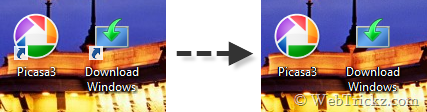
There is a traditional arrow icon overlay on all application shortcuts on a Windows desktop which is meant to differentiate the program shortcut from other files present. Windows offers no option to remove the shortcut arrow but it’s possible to easily get rid of that old boring arrow or change it to a custom one using a small free program.
31-10-2012 23-08-11

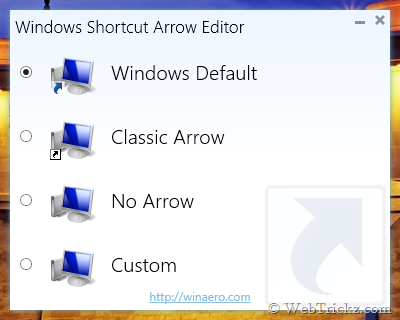
Windows Shortcut Arrow Editor allows you to remove the arrow for shortcut icons in Windows 8, Windows 7, and Windows Vista or set it to a nice custom icon. The program supports both x86 and x64 editions of Windows and does not require to be installed.

Moreover, you don’t need to save any changes, refresh, or restart your Windows to see the changes. They are instantly applied in a flick! The pack includes some cool arrow icons as well that you can set for shortcuts using the Custom option.
31-10-2012 23-02-48

Windows Shortcut Arrow Editor lets you:

  • remove the shortcut arrow with a single click;
  • set classic (XP-like) shortcut arrow with a single click;
  • set ANY icon as a shortcut arrow in a few clicks;
  • reset the shortcut arrow to its default icon.

Supported OS: Windows 8, Windows 7, and Vista [32-bit and 64-bit]

Download Here

Tags: ShortcutTipsWindows 8Windows Vista
ShareTweetSend
Previous Post

Download Windows 8 ISO using your Genuine Product Key

Next Post

How to Transfer the iTunes Library to a new PC running Windows 8?

Mayur Agarwal

Mayur Agarwal

Mayur Agarwal, the founder and editor of WebTrickz, is a tech enthusiast with a Bachelor's degree in Computer Applications and over 15 years of experience in tech writing. His passion for technology and gadgets drives him to create insightful how-to articles and troubleshooting guides.

Next Post

How to Transfer the iTunes Library to a new PC running Windows 8?

Leave a Reply Cancel reply

Your email address will not be published. Required fields are marked *

Latest Stories

difference between chatgpt and claude

Claude vs ChatGPT: Which AI Should You Use in 2026?

June 18, 2026
google chrome logo

Google Chrome Offline Installer: Direct Download Links

June 17, 2026
X logo

How to Remove All Bookmarks on X (Twitter) At Once in 2026

June 15, 2026
X logo

How to Find Bookmarks on X (Twitter) in 2026

June 15, 2026
copilot logo

How to Turn Off Copilot Search in Bing on Edge & Chrome

June 10, 2026
microsoft edge new logo

How to Turn Off Notifications in Microsoft Edge (2026 Guide)

June 8, 2026
chatgpt logo

How to Clear or Delete ChatGPT Memory on PC and Mobile

June 5, 2026

Trending Stories

  • 1337x logo

    1337x Proxy List 2026: Working Proxy & Mirror Sites

  • How to See Recently Watched Reels on Facebook (2026 Guide)

  • How to Turn Off Microsoft Family Safety on Windows 11 & 10

  • How to Turn Off Microsoft Edge Game Assist in Windows 11

  • How to Turn Off Fn Lock or Fn Key on Windows 11/10 Laptop

  • About Us
  • Contact Us
  • Privacy Policy
  • Advertise

© 2026 WebTrickz. All Rights Reserved.

No Result
View All Result
  • Reviews
  • Apps
  • How To’s
  • Android
  • Google
  • iPhone
  • Mac
  • About Us
  • Contact Us
  • Privacy Policy

© 2026 WebTrickz. All Rights Reserved.