WebTrickz
TRENDING
  • Claude vs ChatGPT: Which Is Better in 2026?
No Result
View All Result
  • Reviews
  • Editorials
  • Social Media
    • Facebook
    • Twitter
    • YouTube
    • Messenger
    • Instagram
    • Snapchat
    • WhatsApp
    • TikTok
  • Apps
  • How To’s
  • Apple
  • iPhone
  • Google
  • Android
  • Mac
  • Security
  • About Us
    • About Us
    • Contact Us
    • Privacy Policy
  • Reviews
  • Editorials
  • Social Media
    • Facebook
    • Twitter
    • YouTube
    • Messenger
    • Instagram
    • Snapchat
    • WhatsApp
    • TikTok
  • Apps
  • How To’s
  • Apple
  • iPhone
  • Google
  • Android
  • Mac
  • Security
  • About Us
    • About Us
    • Contact Us
    • Privacy Policy
No Result
View All Result
WebTrickz
No Result
View All Result
Home How To's

How to Close Apps on iPhone 18 Pro and 18 Pro Max

Mayur Agarwal by Mayur Agarwal
September 19, 2026
in How To's, iPhone

Want to close an app on your iPhone 18 Pro? You can return to the Home Screen with a simple swipe or force close an app from the App Switcher if it’s frozen or unresponsive.

Since iPhone 18 Pro and 18 Pro Max don’t have a Home button, you’ll use gestures to navigate between apps. Here’s how to close running apps, force quit an unresponsive app, or close multiple apps at once.

Quick answerTo force close an app on iPhone 18 Pro or 18 Pro Max, swipe up from the bottom of the screen and pause to open the App Switcher. Find the app, then swipe up on its preview to close it.

How to Close Apps on iPhone 18 Pro

To close an app on iPhone 18 Pro or 18 Pro Max and return to the Home Screen, swipe up from the bottom edge of the screen.
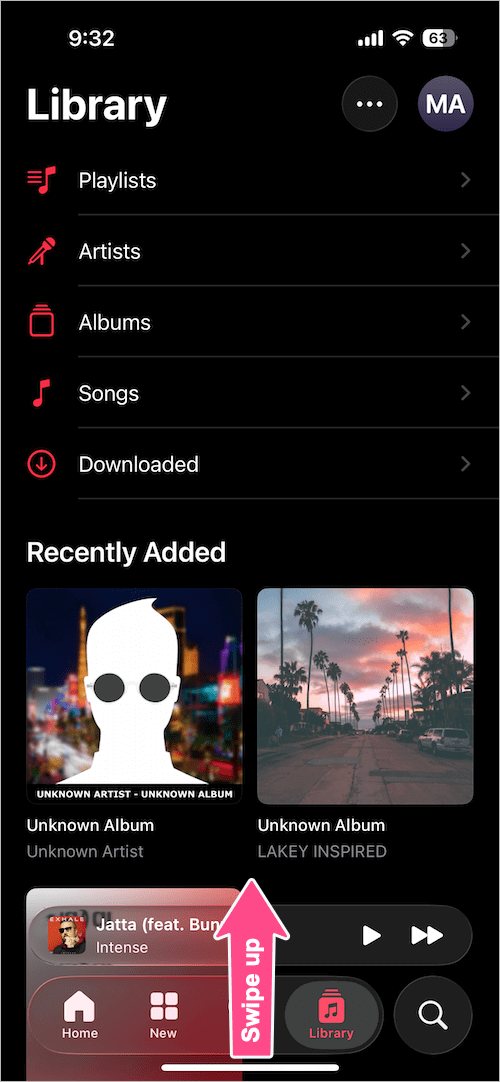
Close apps on iPhone 18 Pro and 18 Pro Max
Closing an app with a swipe-up gesture

The app will close from view, and you’ll return to the Home Screen.

However, this gesture doesn’t force quit the app. iOS may keep it suspended in the background so you can resume where you left off.

How to Force Close Apps on iPhone 18 Pro

If an app freezes, becomes unresponsive, or isn’t working properly, force closing it and reopening it may help.

Here’s how to force close an app on iPhone 18 Pro or 18 Pro Max:

  1. Swipe up from the bottom of the screen and pause in the middle to open the App Switcher.
  2. Swipe left or right to find the app you want to close.
  3. Swipe up on the app preview to force close it.
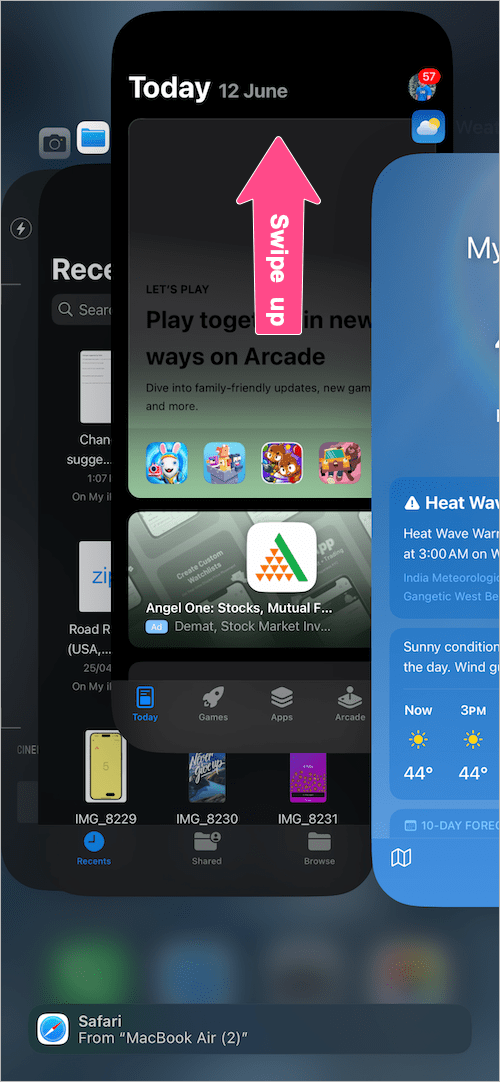
    Force close an app on iPhone 18 Pro
    Force-close an app from App Switcher
  4. Return to the Home Screen and reopen the app.

If the app still freezes after reopening, try restarting your iPhone.

If your iPhone remains unresponsive, see our guide on how to restart or force restart iPhone 18 Pro for the next troubleshooting steps.

Note: You generally don’t need to force close apps that are working normally. iOS manages background apps automatically, and force closing apps unnecessarily doesn’t improve battery life.

How to Close Multiple Apps on iPhone 18 Pro

Although iOS doesn’t have an option to close all apps at once, you can dismiss multiple app previews simultaneously using a multitouch gesture.

To close multiple apps on iPhone 18 Pro or 18 Pro Max:

  1. Open the App Switcher by swiping up from the bottom and pausing in the middle.
  2. Place two or three fingers on separate app previews.
  3. Swipe up with your fingers to close multiple apps at the same time.
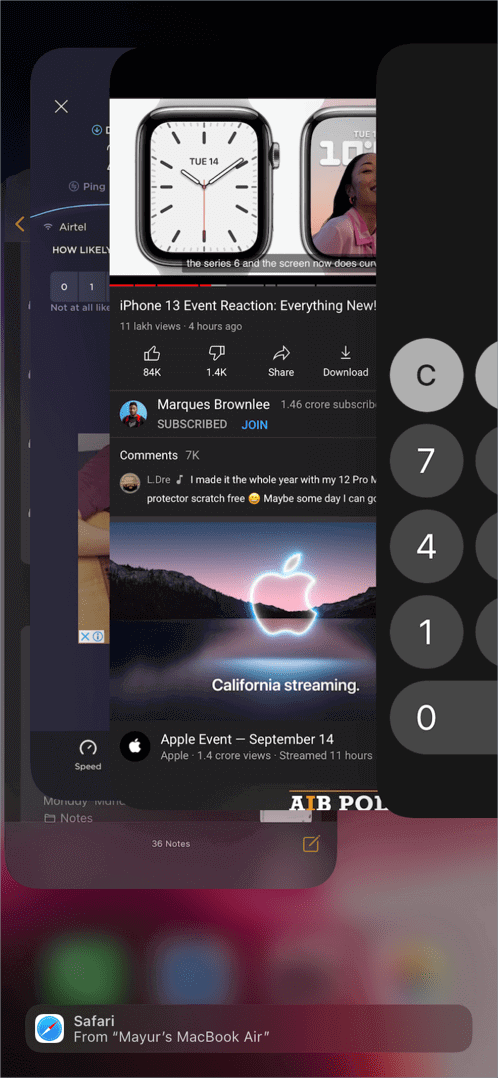
    Close multiple apps on iPhone 18 Pro at once
    Closing multiple apps on iPhone

You can repeat the gesture to close more apps without swiping each preview individually.

Can You Close All Apps on iPhone 18 Pro at Once?

No, iOS doesn’t provide a built-in option to close all apps on iPhone 18 Pro or 18 Pro Max at once. You can, however, swipe up on multiple app previews in the App Switcher to close several apps simultaneously.

How to Quickly Open the App Switcher on iPhone 18 Pro

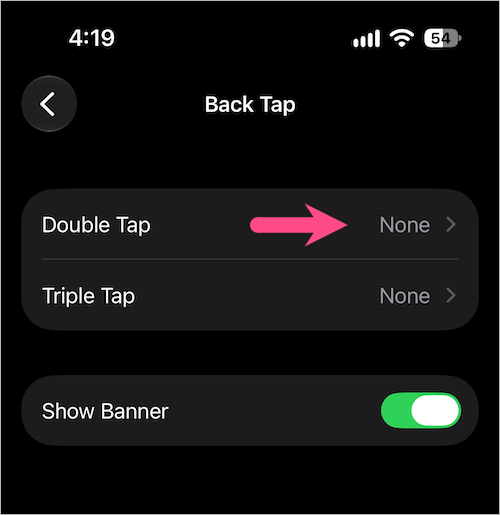
If you frequently switch between apps, you can use Back Tap as a shortcut to open the App Switcher.

To set it up:

  1. Go to Settings > Accessibility > Touch.
  2. Scroll down and tap Back Tap.
  3. Choose Double Tap or Triple Tap. Open App Switcher using Back Tap on iPhone
  4. Tap System and select App Switcher from the list. Open App Switcher using Back Tap on iPhone 18 Pro
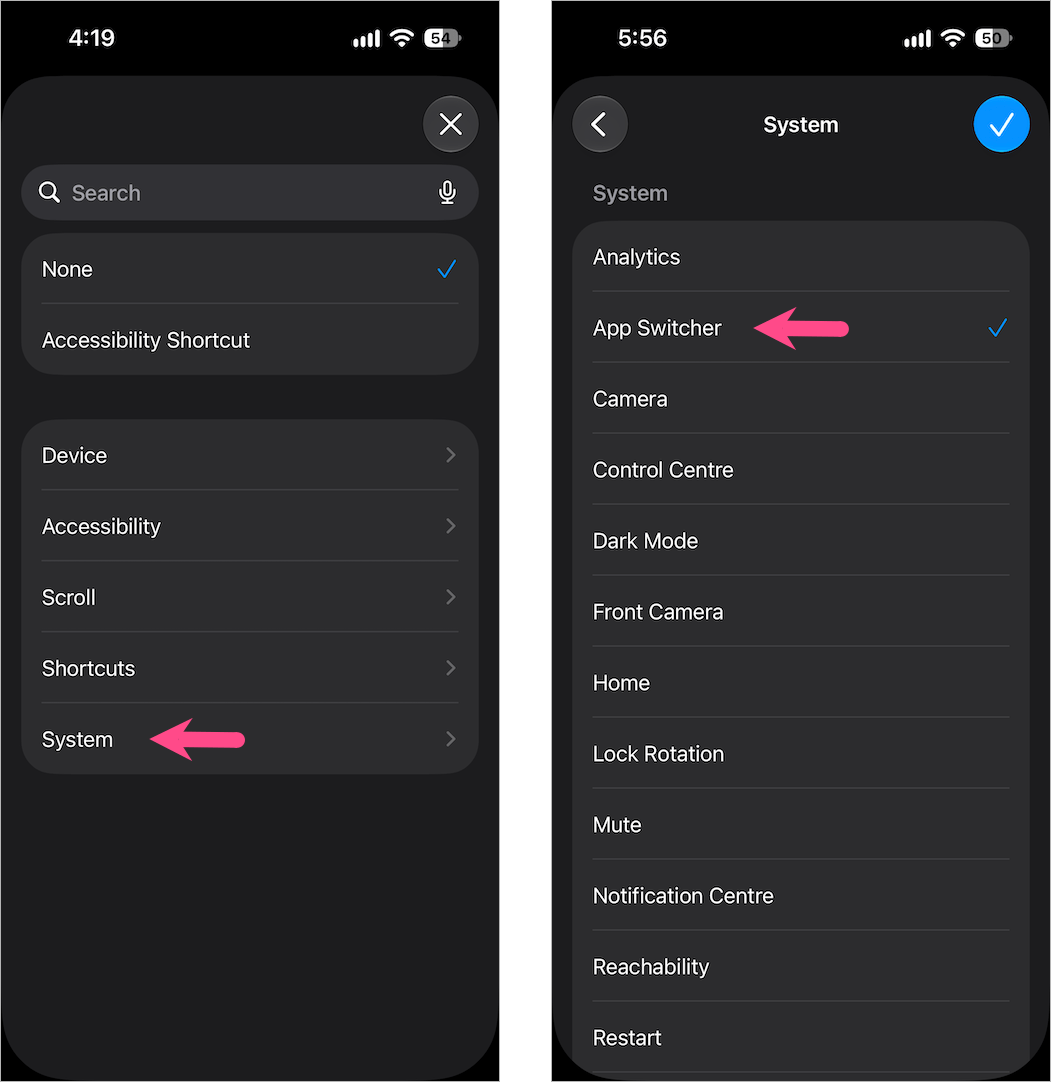
Now, double-tap or triple-tap the back of your iPhone to open the App Switcher without using the swipe-up gesture.

Add WebTrickz as a preferred source on Google
Tags: AppsiOS 27iPhone 18 ProiPhone 18 Pro Max
ShareTweetSend
Previous Post

How to Screen Record on iPhone 18 Pro and 18 Pro Max

Mayur Agarwal

Mayur Agarwal

Mayur Agarwal, the founder and editor of WebTrickz, is a tech enthusiast with a Bachelor's degree in Computer Applications and over 15 years of experience in tech writing. His passion for technology and gadgets drives him to create insightful how-to articles and troubleshooting guides.

Leave a Reply Cancel reply

Your email address will not be published. Required fields are marked *

Latest Stories

Closing Apps on iPhone 18 Pro and 18 Pro Max

How to Close Apps on iPhone 18 Pro and 18 Pro Max

September 19, 2026

How to Screen Record on iPhone 18 Pro and 18 Pro Max

September 19, 2026
iPhone 18 Pro and 18 Pro Max

How to Take a Screenshot on iPhone 18 Pro or 18 Pro Max

September 18, 2026
silent mode popup in dynamic island

How to Put iPhone 18 Pro on Silent or Vibrate Mode

September 18, 2026
Closing Apps on iPhone 18 Pro and 18 Pro Max

How to Restart or Force Restart iPhone 18 Pro and 18 Pro Max

September 11, 2026
iPhone 18 Pro and 18 Pro Max

How to Turn Off iPhone 18 Pro or 18 Pro Max

September 11, 2026
instagram logo

How to Find Scheduled Posts on Instagram

July 29, 2026

Trending Stories

  • Easiest Way to Change Galaxy Nexus from Yakjuxw (Non-Yakju) to Android 4.2 Yakju/Takju and Get future Updates from Google

  • How to Turn Off Fn Lock on a Windows Laptop

  • Guide to Update Galaxy Nexus (YAKJUXW) to Android 4.0.4 YAKJU and Get future Updates from Google

  • How to Turn Off Microsoft Edge Game Assist in Windows 11

  • How to Turn Off Microsoft Family Safety on Windows 11 & 10

  • About Us
  • Contact Us
  • Privacy Policy
  • Advertise

© 2026 WebTrickz. All Rights Reserved.

No Result
View All Result
  • Reviews
  • Apps
  • How To’s
  • Android
  • Google
  • iPhone
  • Mac
  • About Us
  • Contact Us
  • Privacy Policy

© 2026 WebTrickz. All Rights Reserved.