Taking a screenshot on the iPhone 18 Pro or iPhone 18 Pro Max is straightforward. You can use the physical buttons, Back Tap, AssistiveTouch, Siri, or assign a screenshot shortcut to the Action button.
You can also capture an entire webpage or document using the Full Page option instead of taking multiple screenshots.
Here’s how to take a screenshot on your iPhone 18 Pro or 18 Pro Max using these methods.
How to Screenshot on iPhone 18 Pro and 18 Pro Max
The easiest way to take a screenshot is by using the Side and Volume Up buttons.
- Open the screen you want to capture.
- Quickly press and release the Side button and Volume Up button at the same time.
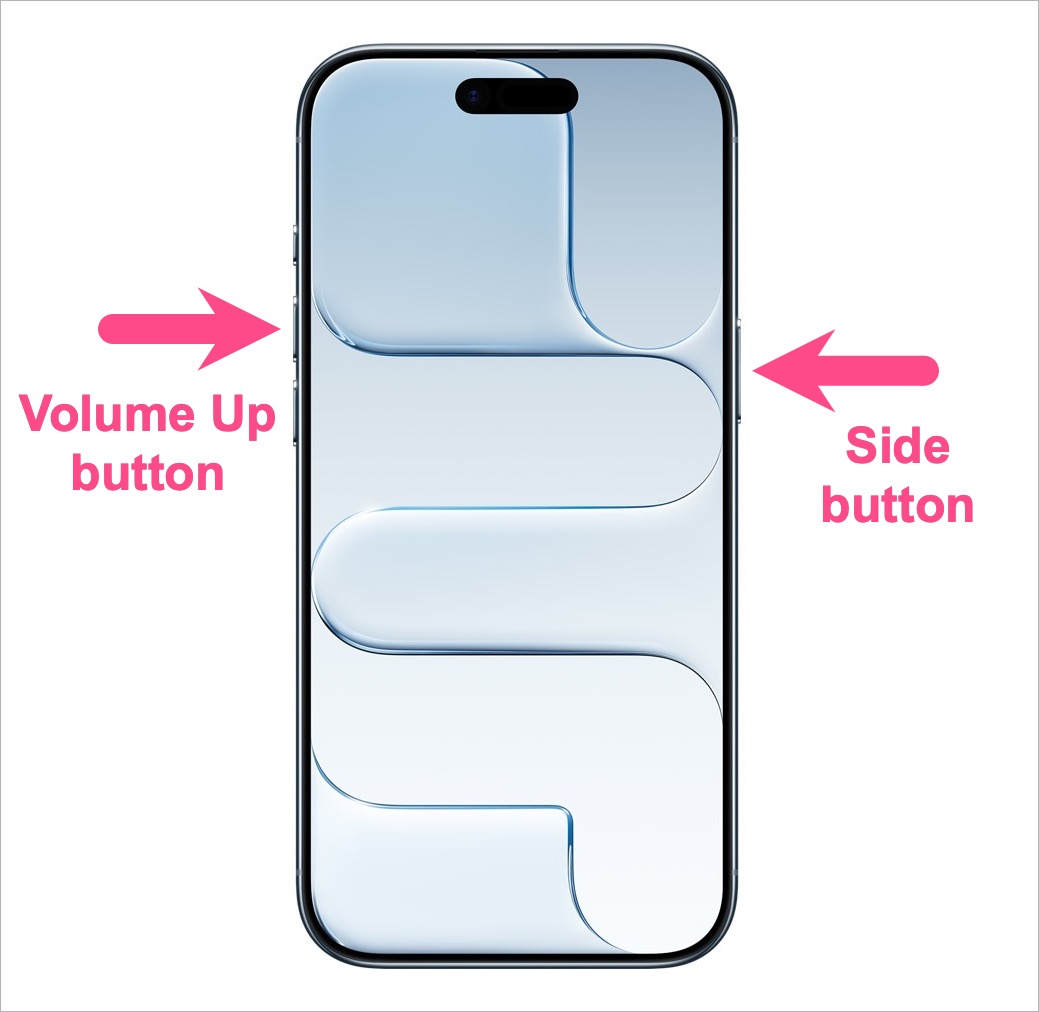
- The screen will flash briefly, indicating that the screenshot has been taken.
- The screenshot will open in a full-screen preview.
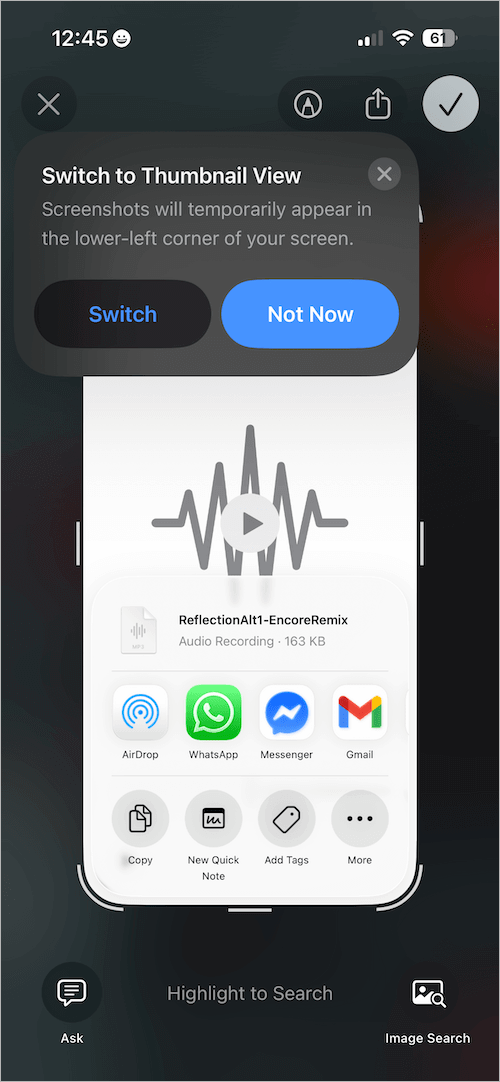
- Edit or annotate the screenshot if needed.
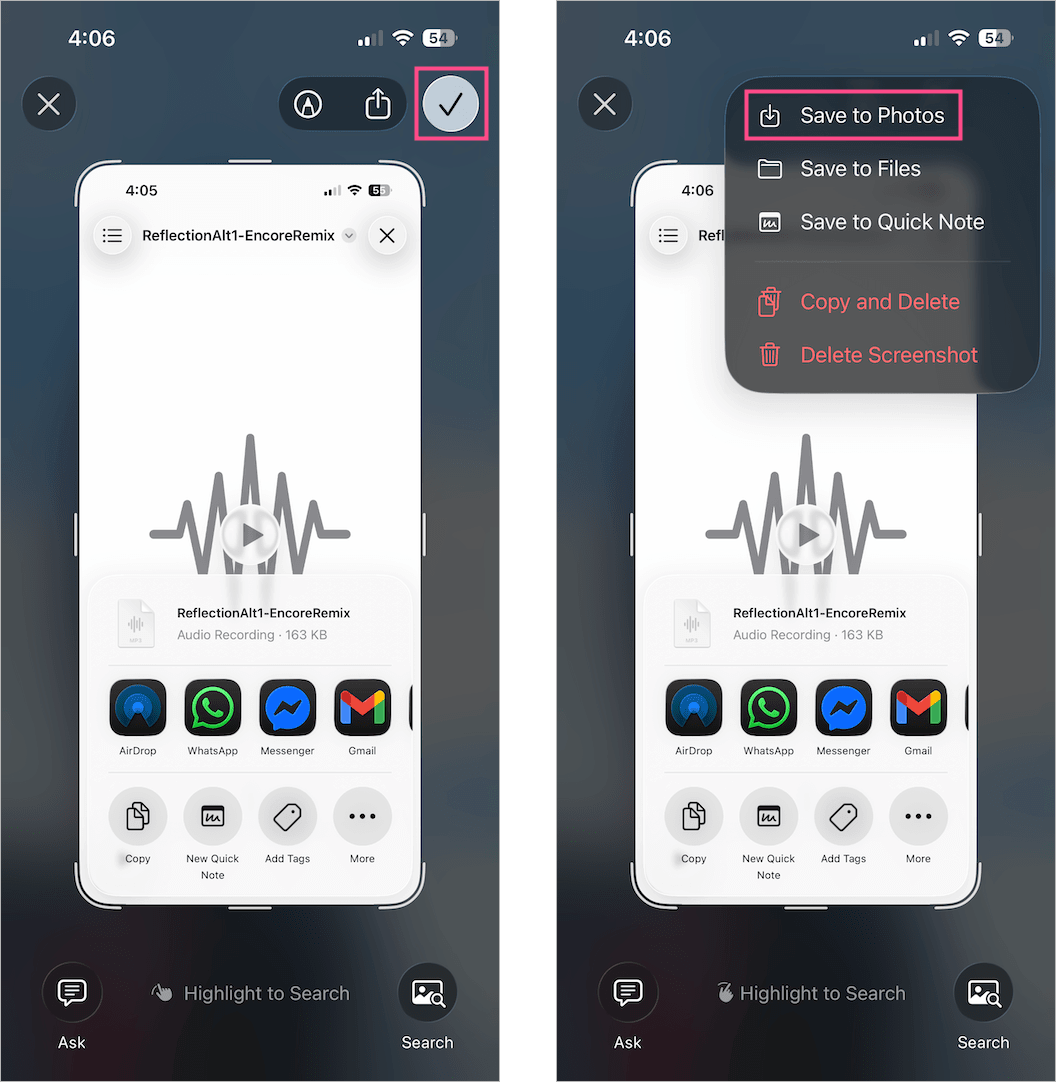
- To save the screenshot to Photos, either swipe up from the bottom of the screen or tap the checkmark in the upper-right corner and select Save to Photos.
Tip: Prefer the thumbnail preview? Learn how to automatically save screenshots to Photos by turning off Full-Screen Previews.
Other Ways to Take a Screenshot
If you don’t want to use the physical buttons, there are several other ways to capture the screen on iPhone 18 Pro.
Using Back Tap
You can set your iPhone to take a screenshot when you double-tap or triple-tap the back of the device.
To set it up:
- Go to Settings > Accessibility > Touch.
- Scroll down and tap Back Tap.
- Choose Double Tap or Triple Tap.
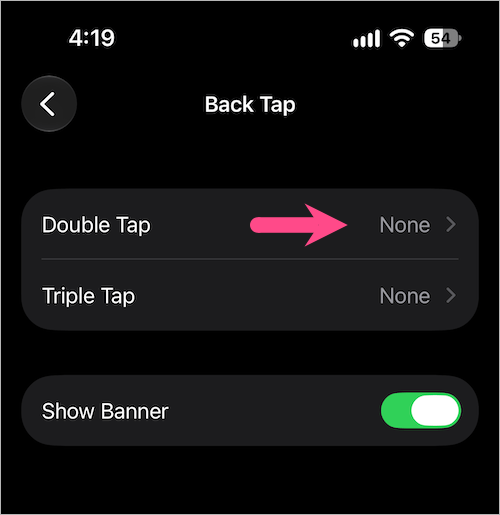
- Tap Device and select Screenshot.
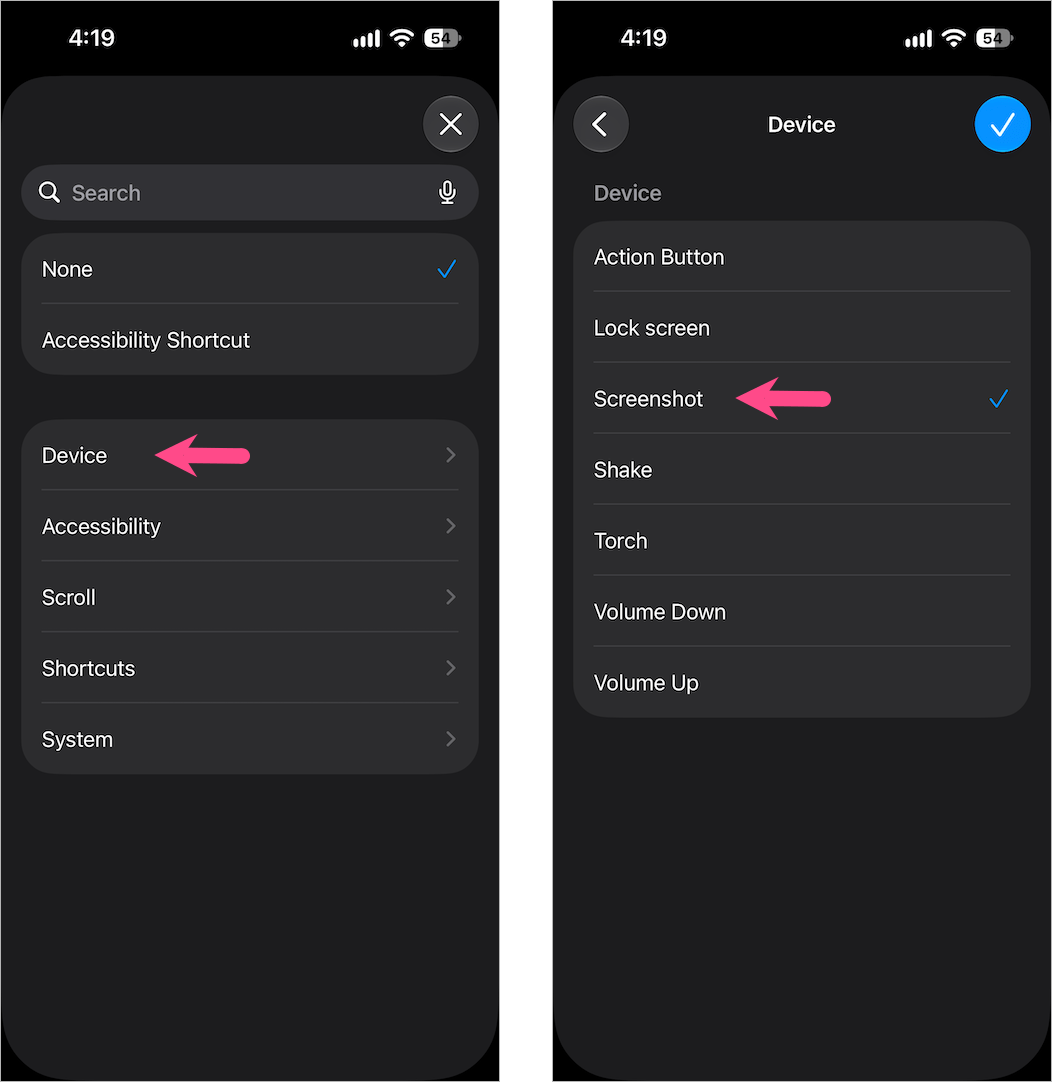
Now double-tap or triple-tap the back of your iPhone to capture the screenshot.
Tip: Back Tap is convenient, but it can occasionally take a screenshot accidentally when you’re handling your iPhone.
Using AssistiveTouch
AssistiveTouch adds a floating button to the screen that provides quick access to actions such as taking a screenshot.
First, enable AssistiveTouch:
- Open Settings > Accessibility > Touch.
- Tap AssistiveTouch.
- Turn on AssistiveTouch.
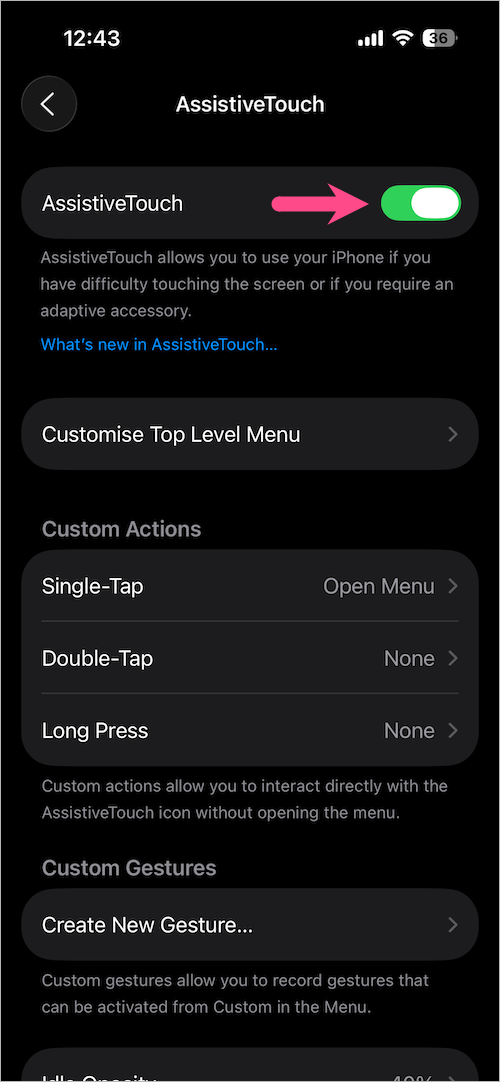
A floating button will now appear on the screen.
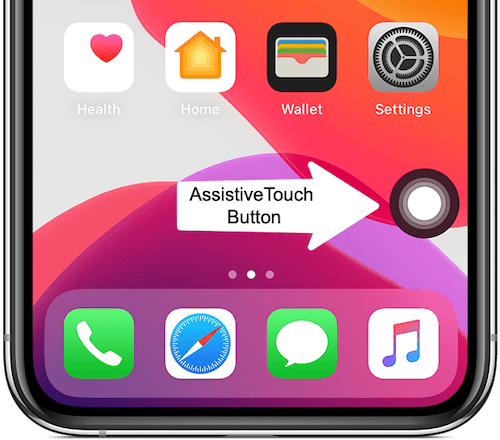
To take a screenshot using AssistiveTouch:
- Tap the AssistiveTouch button.
- Go to Device > More.
- Tap Screenshot.
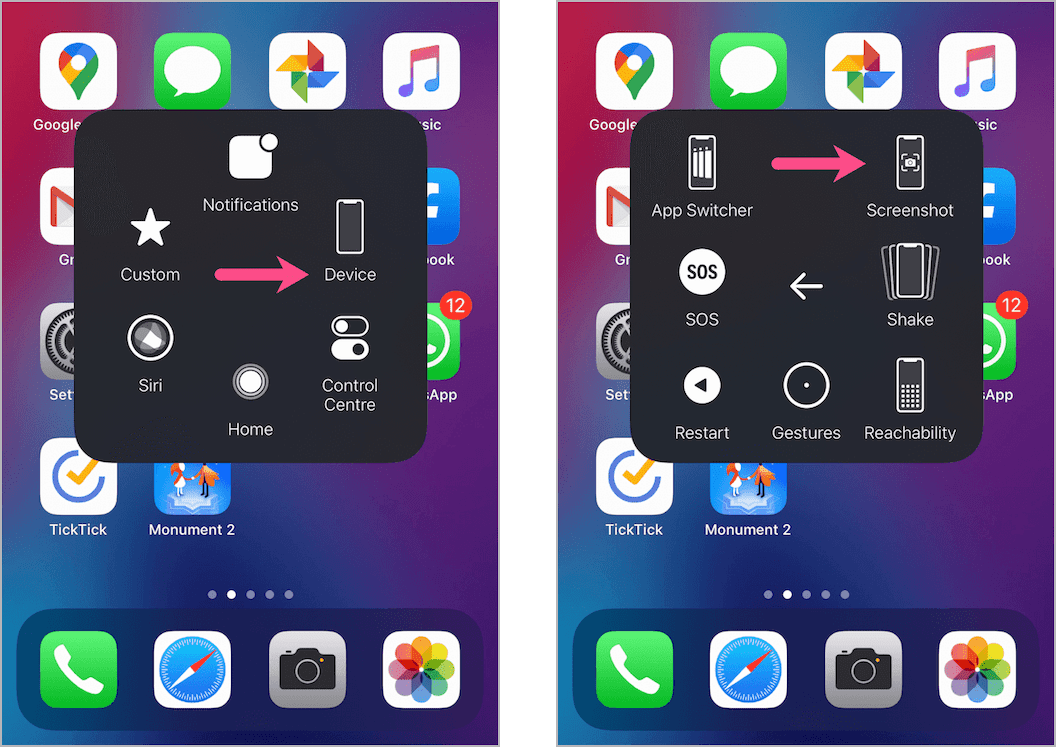
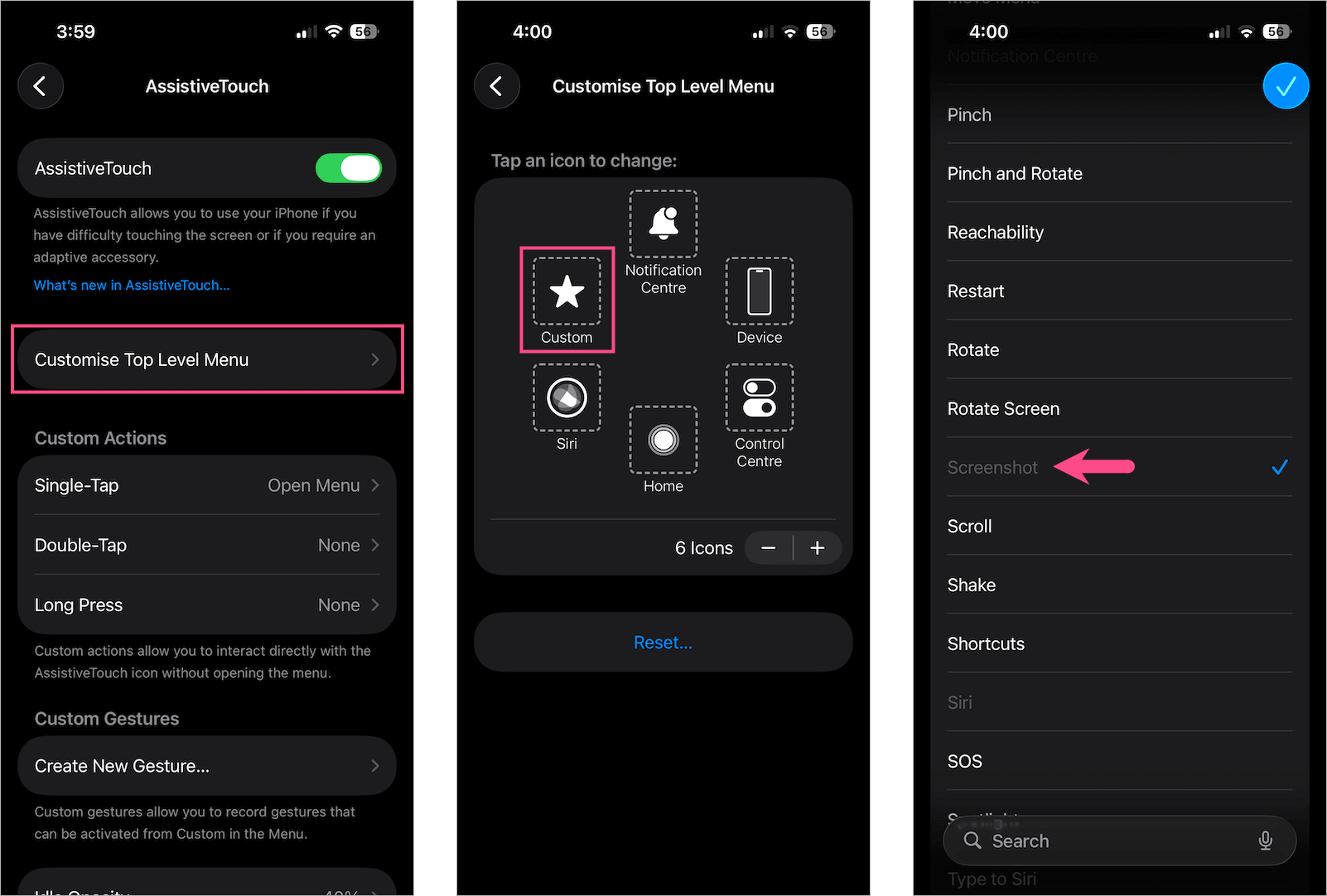
Tip: You can also add Screenshot directly to the main AssistiveTouch menu under Settings > Accessibility > Touch > AssistiveTouch > Customise Top Level Menu.
Ask Siri
You can also use Siri to capture the screen without touching the buttons.
Firstly, make sure “Hey Siri” is enabled in Siri settings. Go to Settings > Siri > Requests, and select “Hey Siri”.
Then say:
“Hey Siri, take a screenshot.”
You can also press and hold the Side button to activate Siri and then give the same command.
Siri will capture the current screen, and the screenshot will be saved to Photos.
Take Screenshots on iPhone 18 Pro using the Action Button
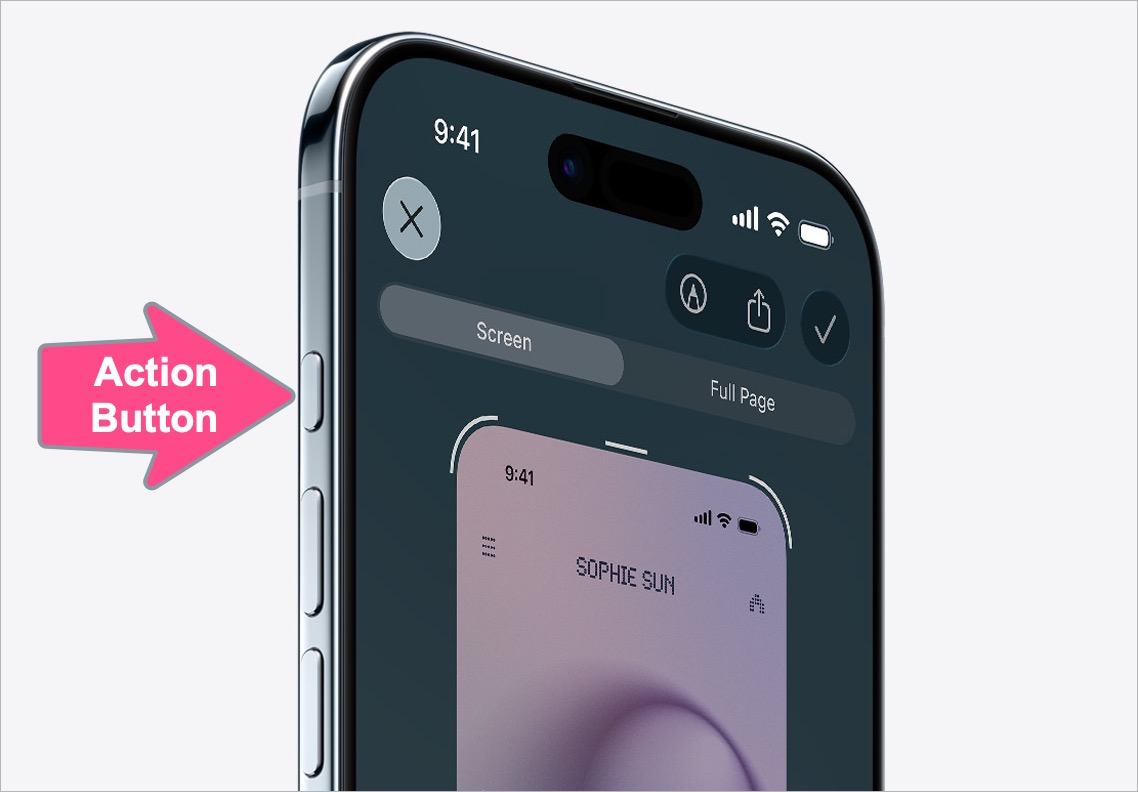
The Action button on the iPhone 18 Pro and 18 Pro Max can also be assigned to take screenshots using a Shortcut.
Create a screenshot shortcut
- Open the Shortcuts app.
- Tap the + button to create a new shortcut.
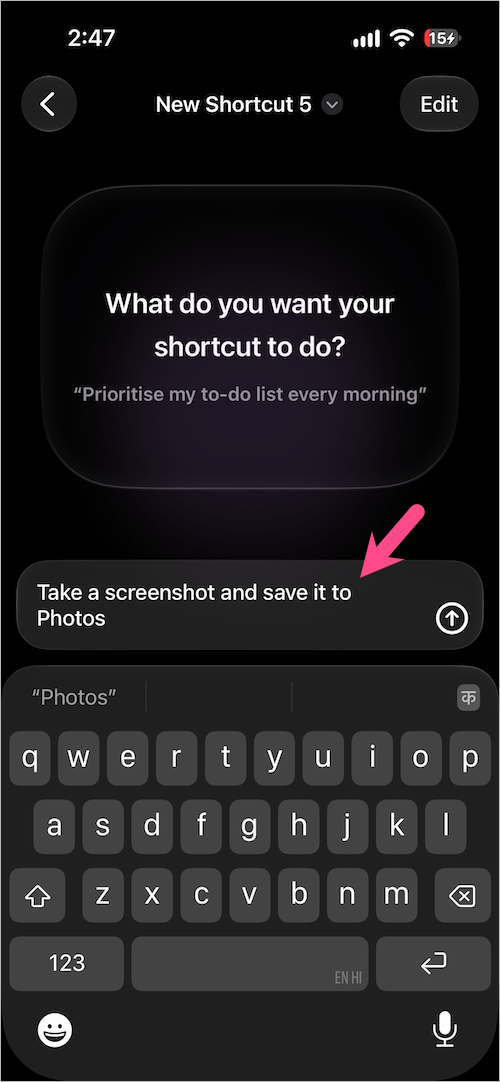
- In the Describe a shortcut field, type “Take a screenshot and save it to Photos“.
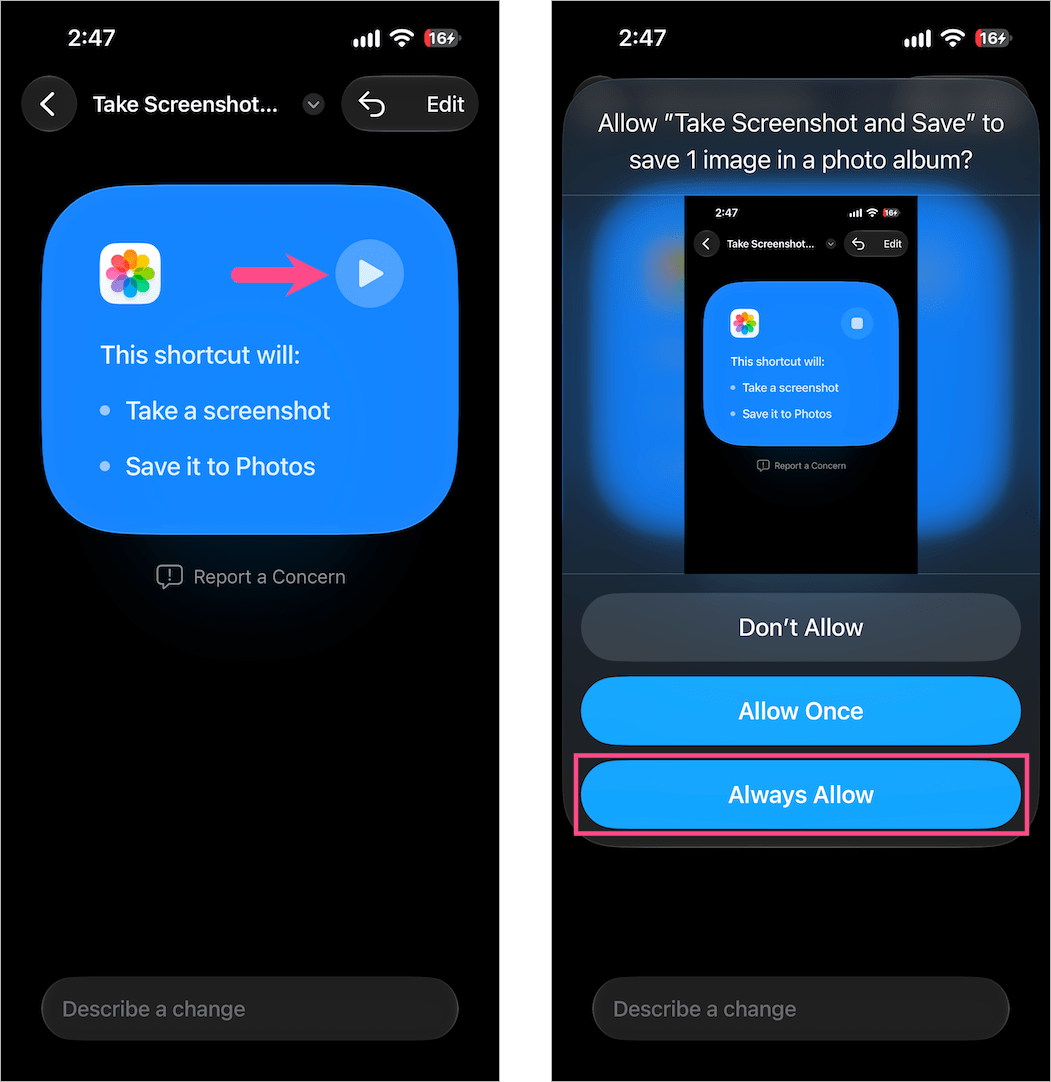
- Once the shortcut is created, tap Run (play icon) and select Always Allow.
Assign the shortcut to the Action Button
- Go to Settings > Action Button.
- Swipe to Shortcut.
- Tap Choose a Shortcut and select the screenshot shortcut you created.
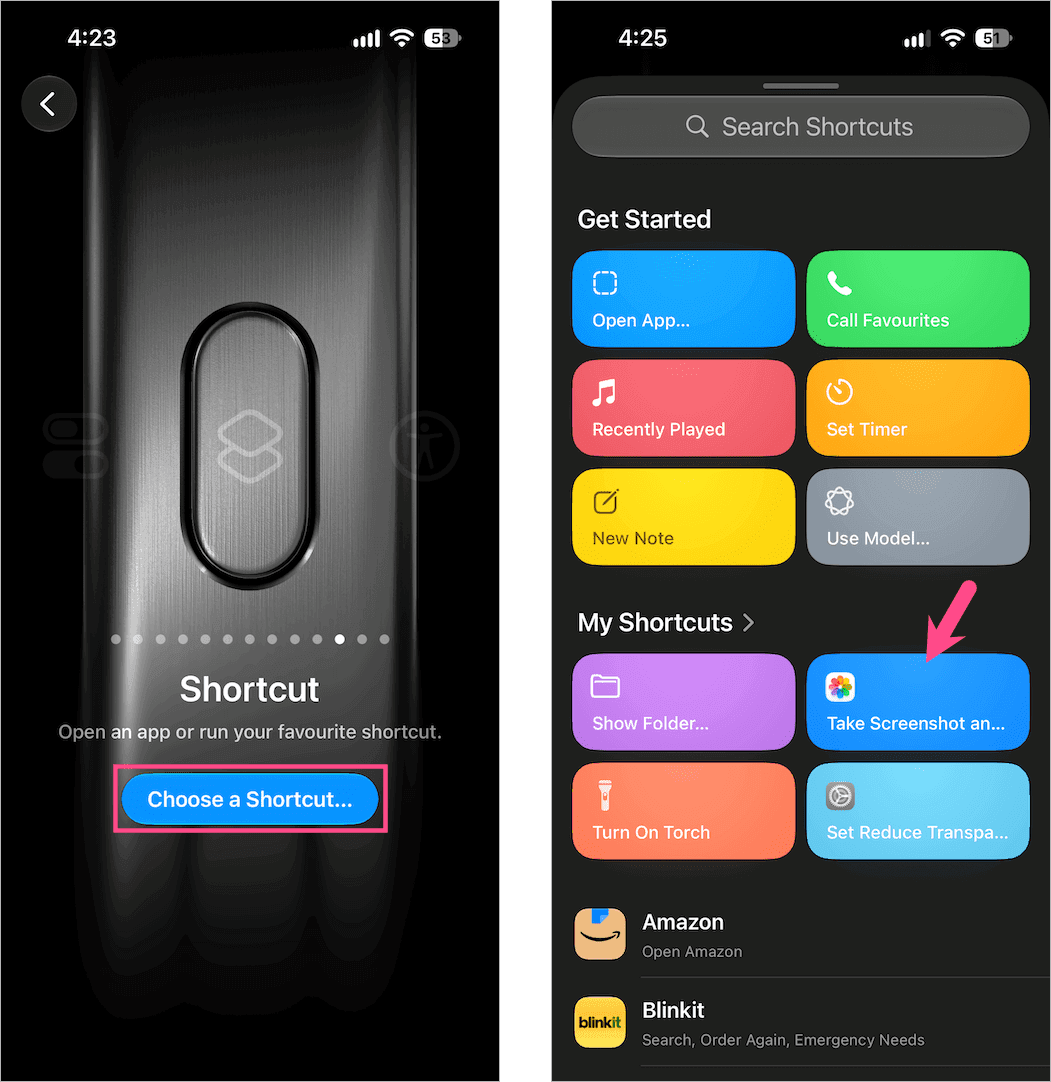
Now press and hold the Action button to take a screenshot.
This method is useful if you prefer not to use the Side and Volume buttons. It also saves the screenshots directly to Photos without showing the screenshot preview.
How to Take a Full-Page Screenshot on iPhone 18 Pro
You can capture an entire webpage or other supported content that extends beyond the iPhone screen using the Full Page option.
- Take a regular screenshot.
- Tap the screenshot preview if it appears in the lower-left corner.
- Tap Full Page at the top.
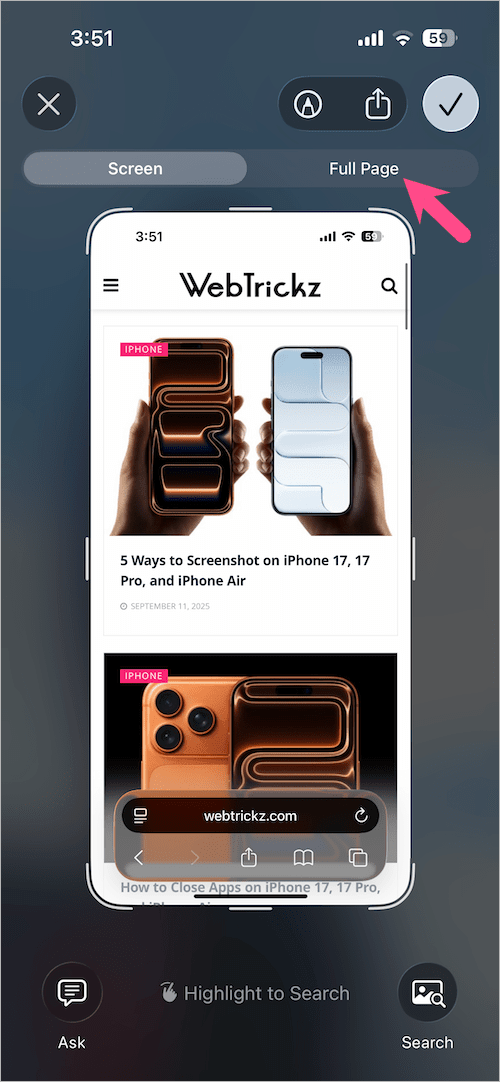
- Scroll through the preview on the right to see the entire captured page.
- Crop the screenshot if needed.
- Tap the checkmark and choose Save to Photos.
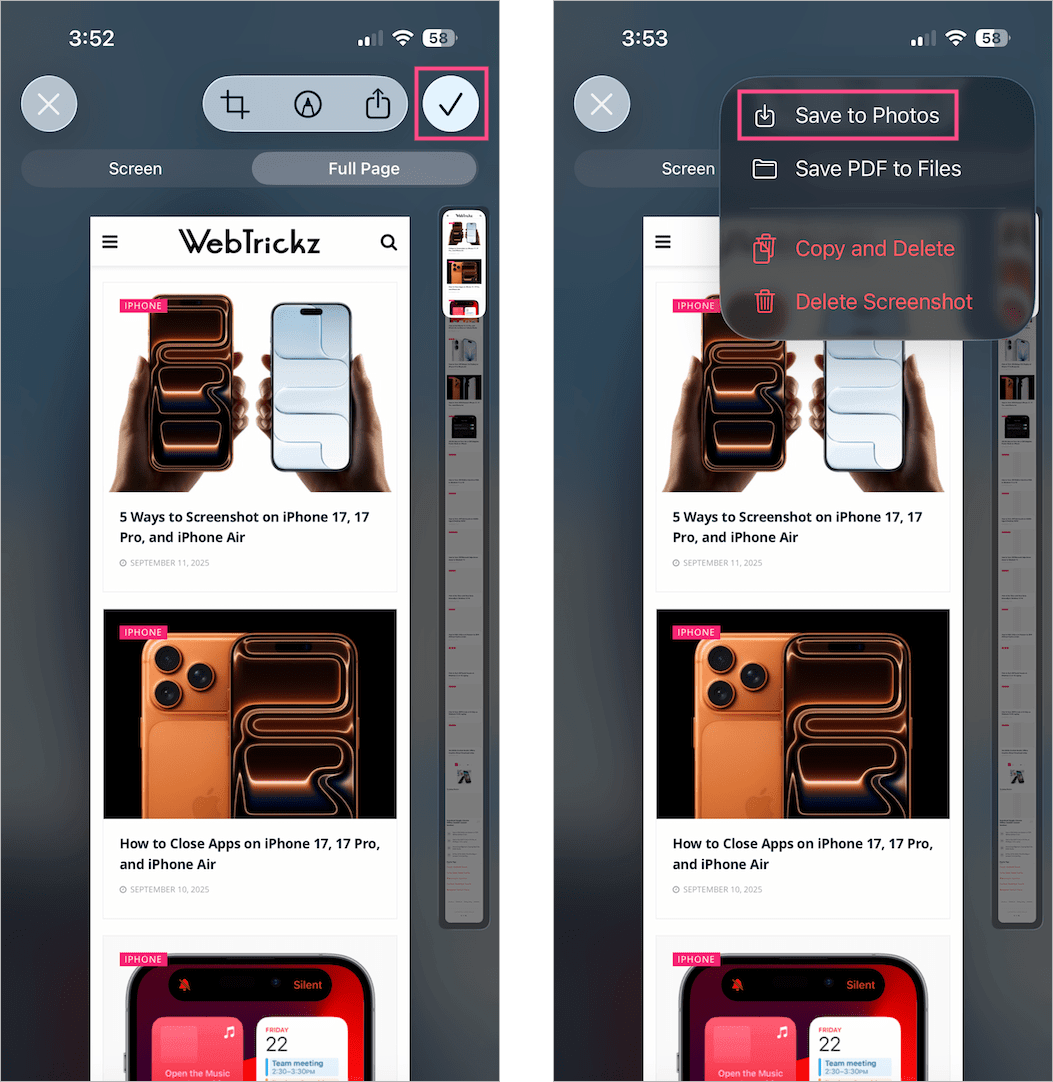
You can also choose Save PDF to Files if you want to save the full-page capture as a PDF instead.
Where Are Screenshots Saved on iPhone 18 Pro?
Screenshots are automatically saved to the Photos app.
To find them:
- Open Photos.
- Tap Collections.
- Scroll down to Media Types.
- Tap Screenshots.
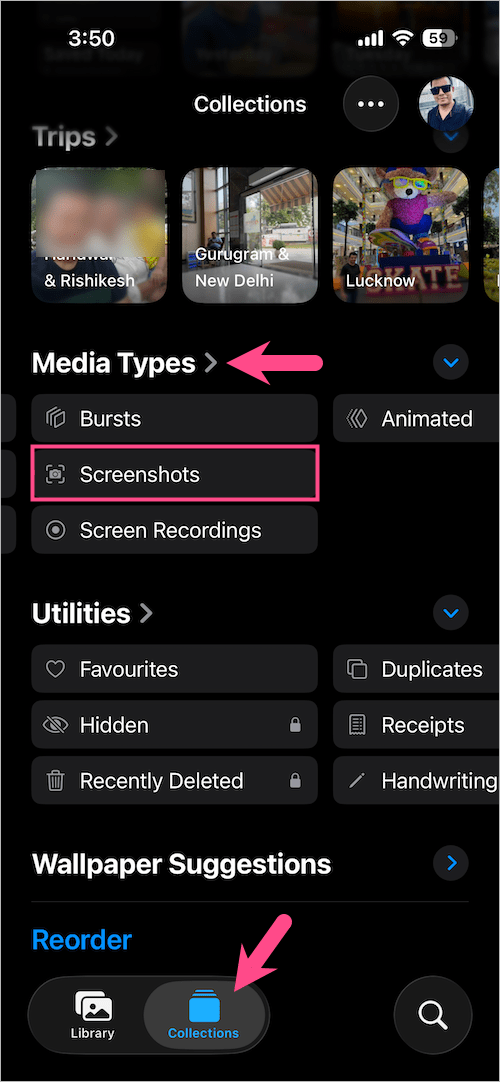
You can also view screenshots in the Library along with your other photos.
Related: How to Turn On Silent Mode on iPhone 18 Pro