Scheduled a post or Reel on Instagram but can’t remember where it’s stored? If you’re wondering how to find scheduled posts on Instagram, you’ll find them all in the dedicated Scheduled content section, where you can review upcoming posts before they’re published.
From there, you can view, edit, reschedule, publish immediately, or delete scheduled posts and Reels. This guide shows how to access your scheduled Instagram content using both the Instagram mobile app and Instagram.com, without relying on third-party tools.
How to find scheduled posts on Instagram app
You can access your scheduled Instagram posts and Reels in two different ways on the Instagram app for iPhone and Android.
Find scheduled posts and Reels from your Instagram profile
- Open the Instagram app and tap the Profile tab.
- Tap the Menu in the upper-right corner.
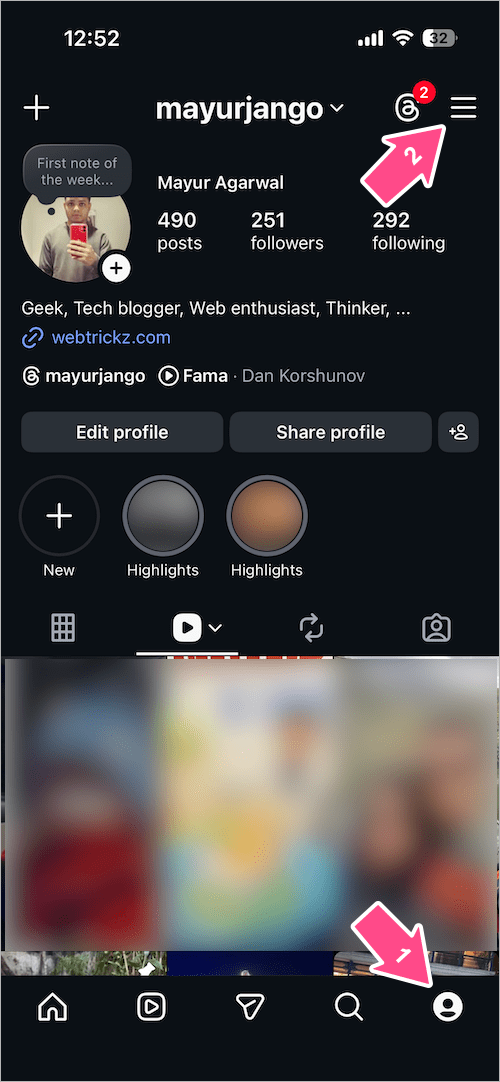
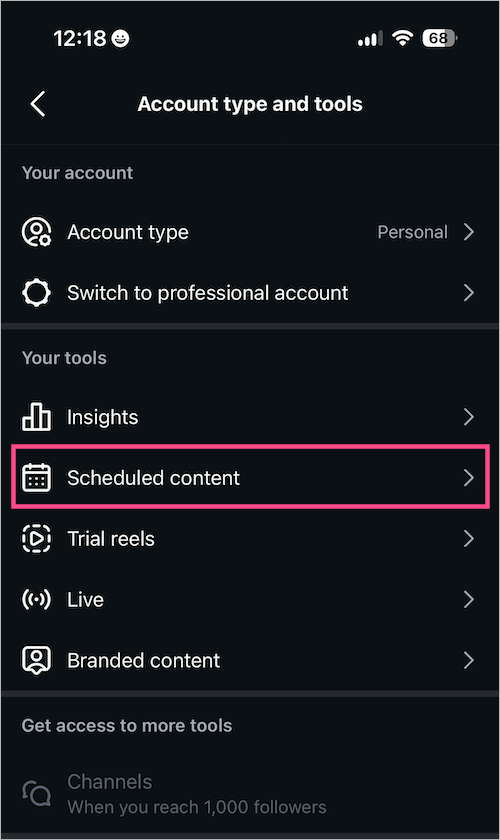
- On the “Settings and activity” page, scroll down to Your insights and tools and tap Account type and tools.

- Under Your tools, tap Scheduled content.
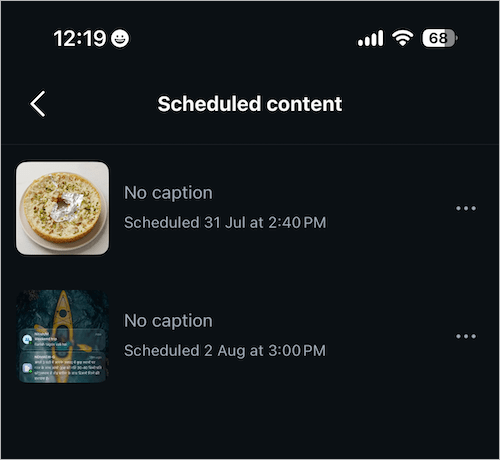
- You’ll now see all your scheduled posts and Reels, along with their scheduled publishing date and time.
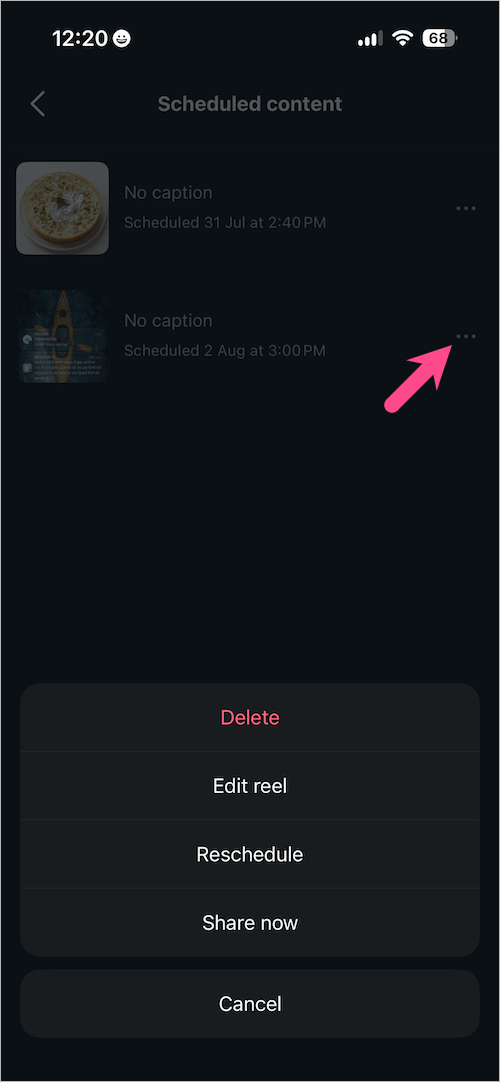
To manage scheduled content, tap the three-dot menu next to a scheduled post or Reel. You can then Edit, Reschedule, Share now, or Delete it.
Find scheduled posts while creating a new post
- Open the Home tab in Instagram.
- Tap the + Create button in the top left or swipe right.
- Tap Post, then tap Scheduled.
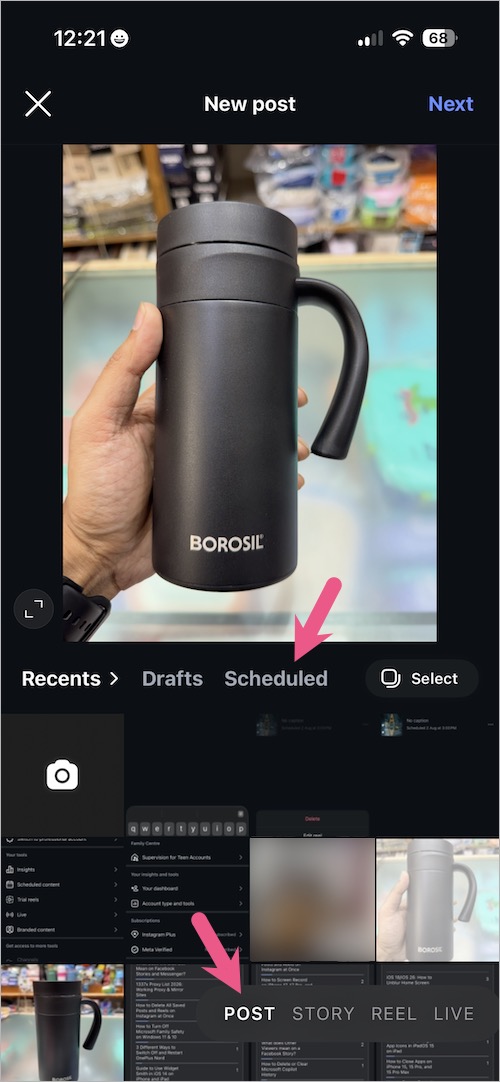
- Select the scheduled post or Reel you want to manage.
- Tap Options (two lines) in the top-right.
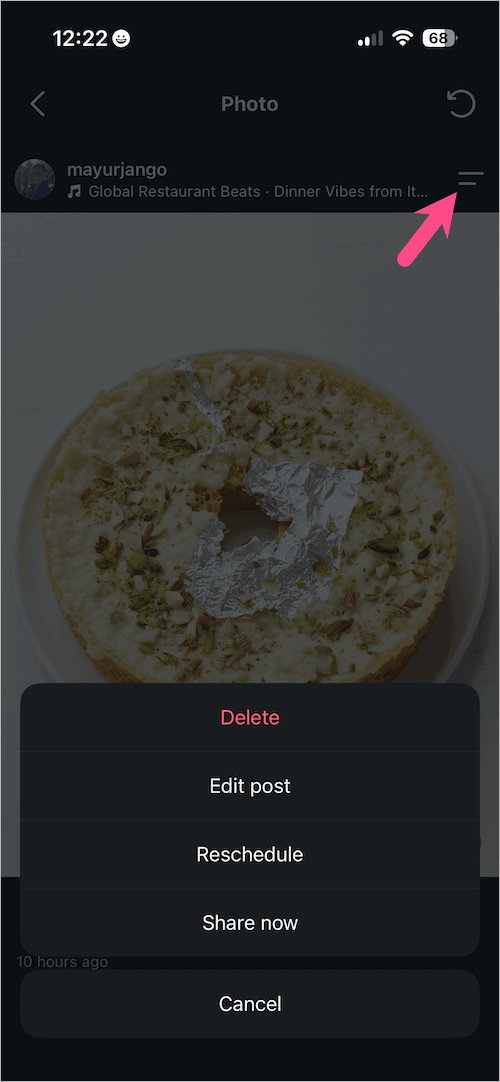
- Select the desired option: Delete, Edit post, Reschedule, or Share now.
How to view scheduled posts on Instagram website
If you use Instagram on a computer, you can also view and manage your scheduled posts and Reels directly from Instagram.com.
- Visit instagram.com and log in to your account if you aren’t already.
- Click the More button (three lines) in the left sidebar.
- Select Scheduled content.
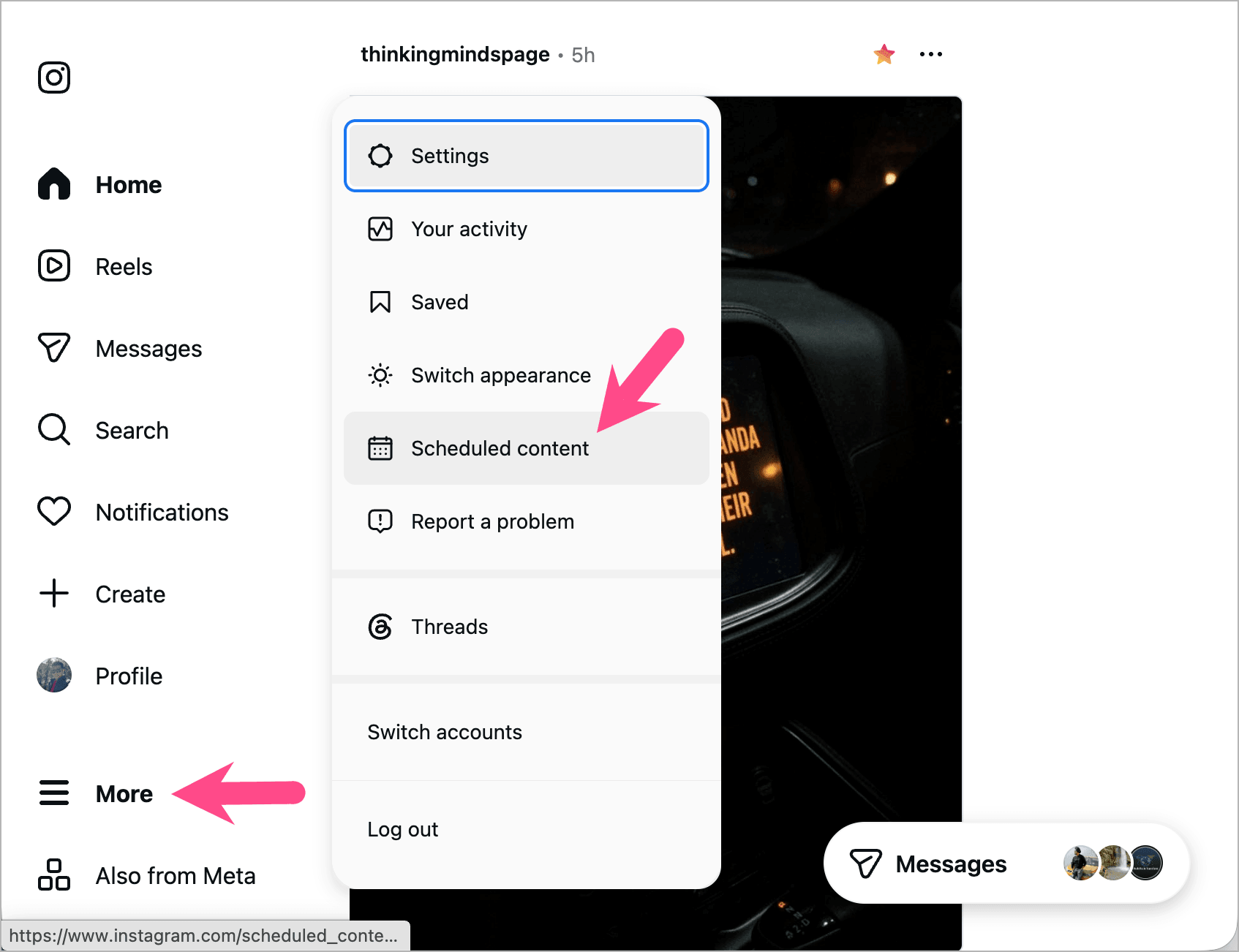
- Here you can see all your scheduled content and even sort it by Weekly or Monthly.
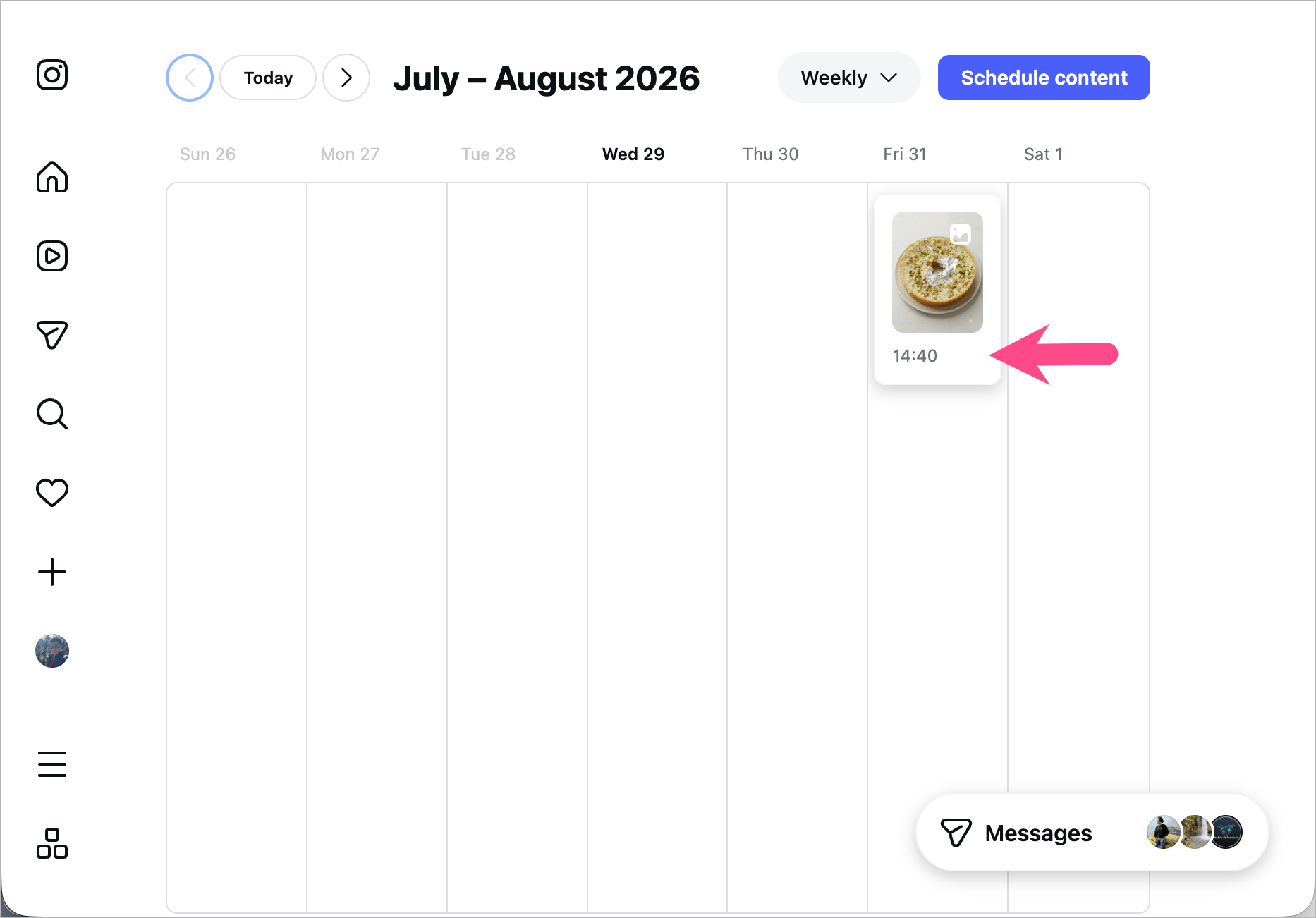
- Select the post or Reel you want to edit.
From here, you can edit the caption, tag people, add a location, invite collaborators, or change the scheduled date and time. Click Save to apply your changes.
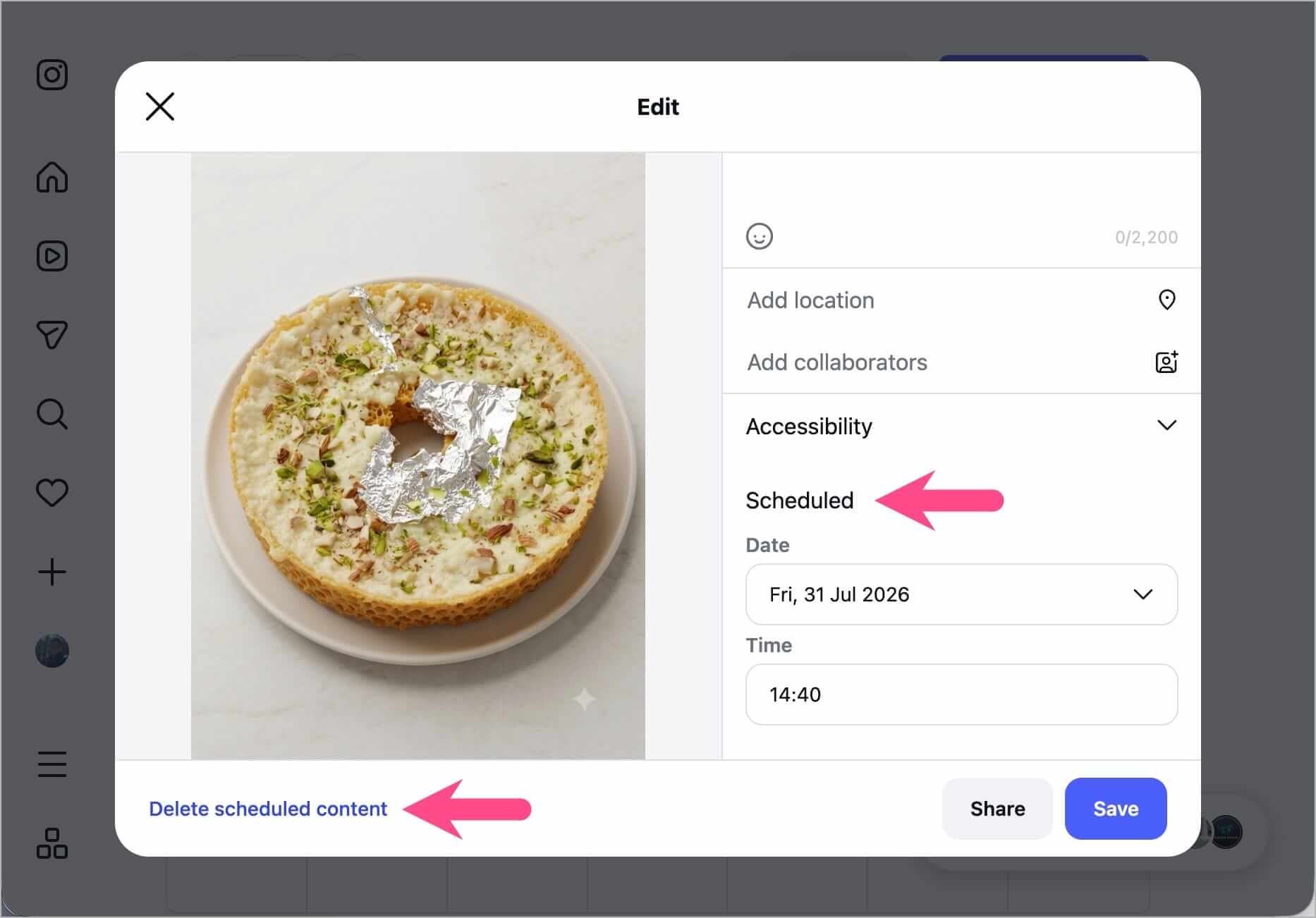
You can also share the scheduled content immediately or delete it if you no longer want it to be published.
What you can do with scheduled posts and Reels
After opening the Scheduled content section, select a scheduled post or Reel to manage it before it’s published. You will then see the following options:
- Edit the caption and other supported details.
- Reschedule the post or Reel for a different date and time.
- Share now to publish the post or Reel immediately.
- Delete the post or Reel if you no longer want it to be shared.
Why can’t I find my scheduled Instagram posts?
If your scheduled posts or Reels don’t appear under Scheduled content, here are a few things to check.
- You’re using a different Instagram account: Only the account that scheduled the content can see it.
- The post has already been published: Published posts automatically disappear from the Scheduled section.
- The post is saved as a draft instead: Drafts and scheduled content are stored separately. If you’re looking for unpublished drafts instead, see how to find Instagram drafts.
- The Scheduled content option isn’t showing: Depending on your Instagram version, you may still be able to access scheduled content from the post creation screen. Updating the app may also restore the menu entry.
- You’re using an older Instagram version: Update Instagram to the latest version and check again.