WebTrickz
TRENDING
  • Claude vs ChatGPT: Which Is Better in 2026?
No Result
View All Result
  • Reviews
  • Editorials
  • Social Media
    • Facebook
    • Twitter
    • YouTube
    • Messenger
    • Instagram
    • Snapchat
    • WhatsApp
    • TikTok
  • Apps
  • How To’s
  • Apple
  • iPhone
  • Google
  • Android
  • Mac
  • Security
  • About Us
    • About Us
    • Contact Us
    • Privacy Policy
  • Reviews
  • Editorials
  • Social Media
    • Facebook
    • Twitter
    • YouTube
    • Messenger
    • Instagram
    • Snapchat
    • WhatsApp
    • TikTok
  • Apps
  • How To’s
  • Apple
  • iPhone
  • Google
  • Android
  • Mac
  • Security
  • About Us
    • About Us
    • Contact Us
    • Privacy Policy
No Result
View All Result
WebTrickz
No Result
View All Result
Home How To's

How to Screen Record on iPhone 18 Pro and 18 Pro Max

Mayur Agarwal by Mayur Agarwal
September 19, 2026
in How To's, iPhone

Screen recording lets you capture what’s happening on your iPhone screen, whether you’re making a tutorial, recording gameplay, or showing someone how to do something. You can also enable the microphone to include your voice.

On iPhone 18 Pro and 18 Pro Max, you can record your screen using the built-in Screen Recording control in Control Center. Here’s how to add the control, start a recording, and find the saved video.

Quick answerTo screen record on iPhone 18 Pro or 18 Pro Max, open Control Center and add the Screen Recording control if it’s missing. Tap the control and wait for the 3-second countdown. To stop recording, tap the red recording indicator and select Stop. Your video is automatically saved to Photos.

How to Add Screen Recording to Control Center

If the Screen Recording button isn’t in Control Center on your iPhone 18 Pro, follow these steps to add it.

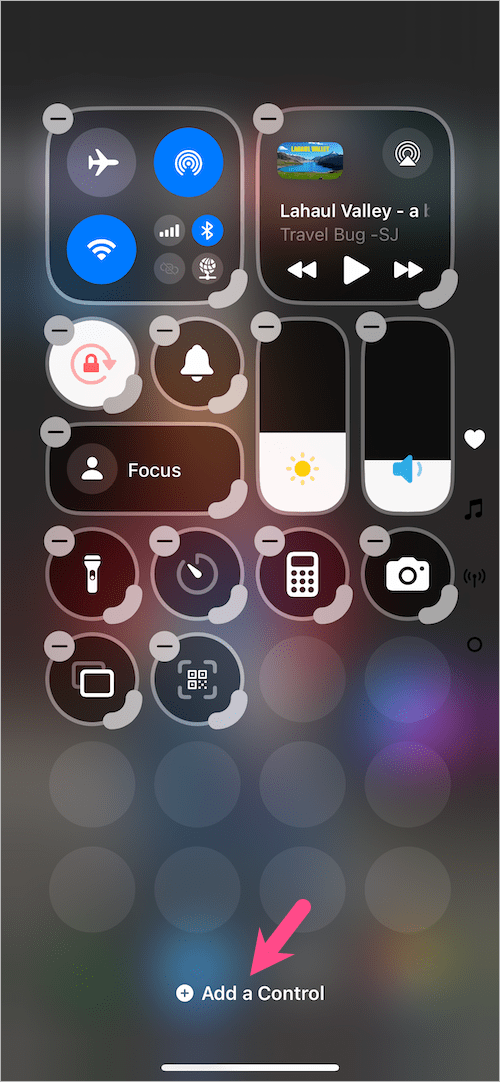
  1. Swipe down from the top-right corner of the screen to open Control Center.
  2. Touch and hold an empty area in Control Center.
  3. Tap Add a Control at the bottom. Add screen recording to Control Center on iPhone 18 Pro
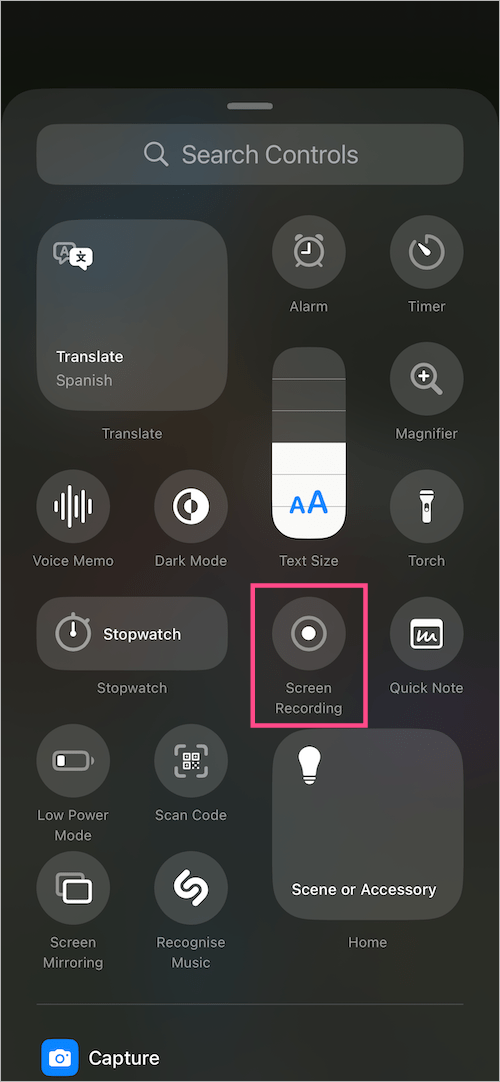
  4. Select Screen Recording. Add screen recording control to Control Center on iPhone 18 Pro Max
  5. Optionally, touch and drag the control to move it to your preferred position. Screen Recording control in Control Center on iPhone 18 Pro
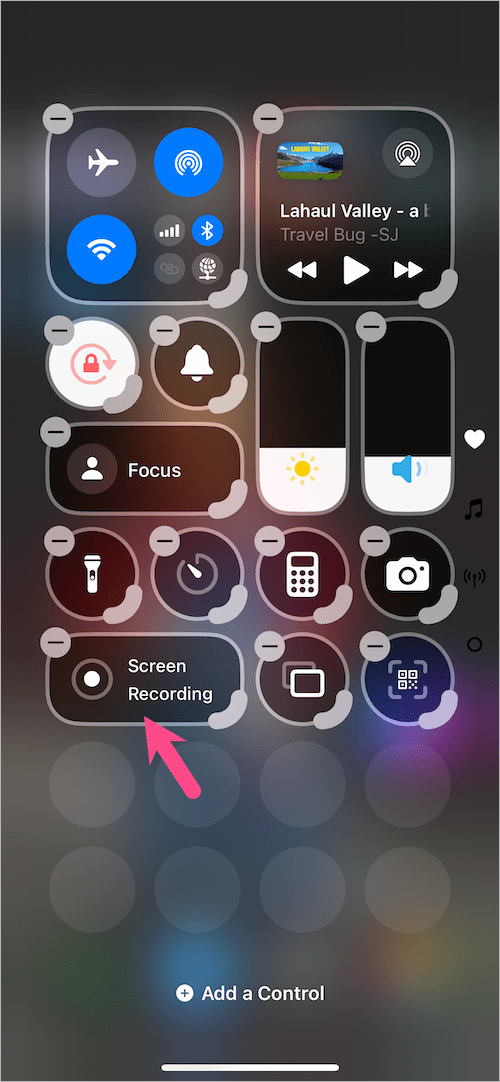
  6. Tap anywhere on the screen to finish.

The Screen Recording control will now appear in Control Center, ready to use.

How to Screen Record on iPhone 18 Pro and 18 Pro Max

Once the Screen Recording control is available, you can start recording your iPhone screen in just a few taps.

  1. Open Control Center by swiping down from the top-right corner of the screen.
  2. Tap the Screen Recording button (a white dot inside a circle). Screen record on iPhone 18 Pro and 18 Pro Max
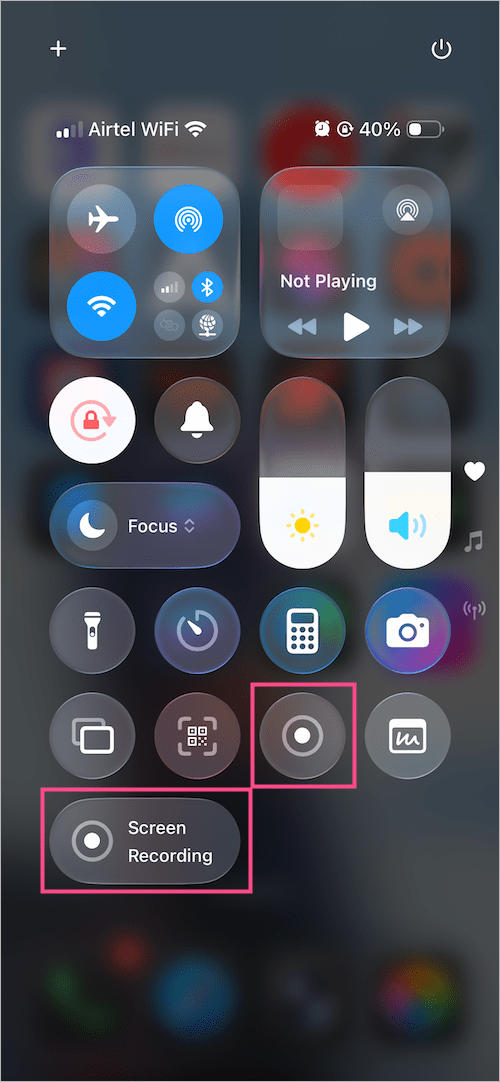
  3. Wait for the 3-second countdown to finish.
  4. Close Control Center and perform the actions you want to record.
  5. When you’re done, tap the red recording indicator in the Dynamic Island and select Stop. Stop screen recording on iPhone 18 Pro from Dynamic Island
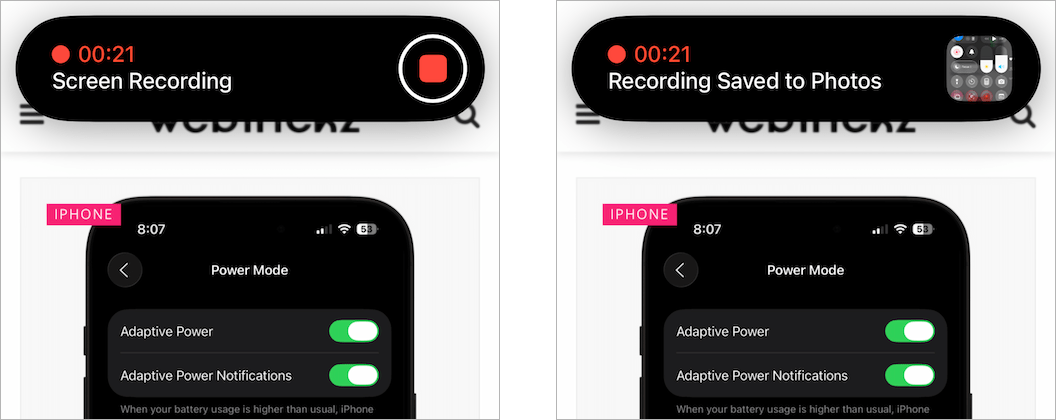
You can also stop a recording by opening Control Center and tapping the red Screen Recording button.
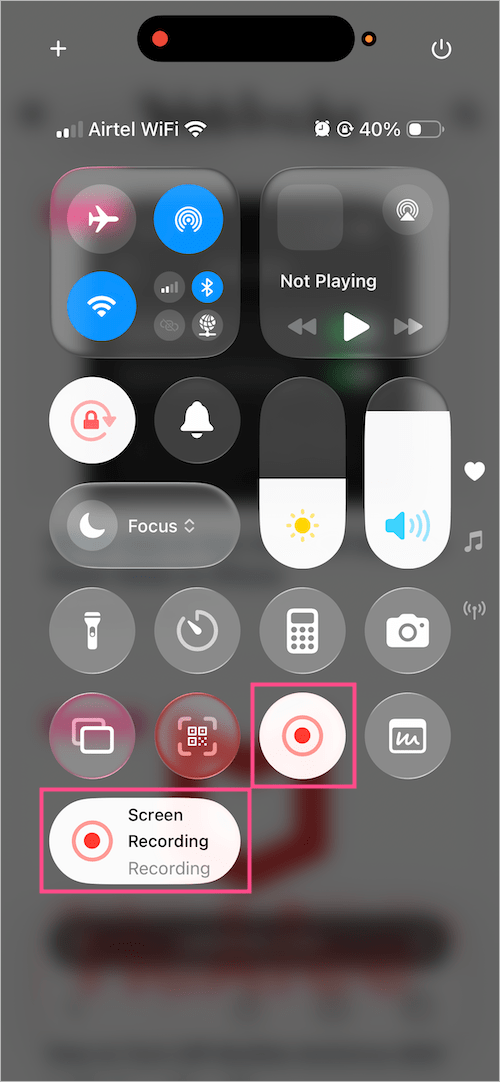
Stop screen record on iPhone 18 Pro

Your recording is automatically saved to the Photos app.

How to Screen Record with Microphone Audio

Want to narrate a tutorial or explain what’s happening on your screen? Turn on the microphone before starting the recording.

  1. Open Control Center.
  2. Touch and hold the Screen Recording control.
  3. Tap the Microphone icon to turn it on. Screen record with microphone audio on iPhone 18 Pro
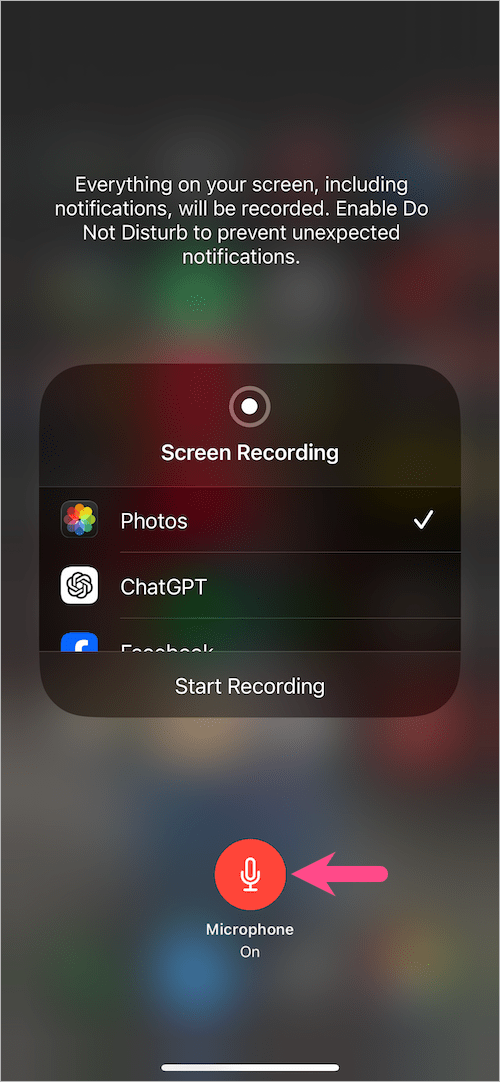
  4. Tap Start Recording.
  5. Wait for the 3-second countdown to finish.

Your iPhone will now record your voice along with the screen. When you’re finished, stop the recording as usual.

Note: Some apps may block screen recording or prevent their audio or video from being captured. Screen recording is also unavailable while screen mirroring.

How to Enable HDR Screen Recording on iPhone 18 Pro

If you want more vivid colors and higher contrast in your recordings, you can enable HDR screen recording.

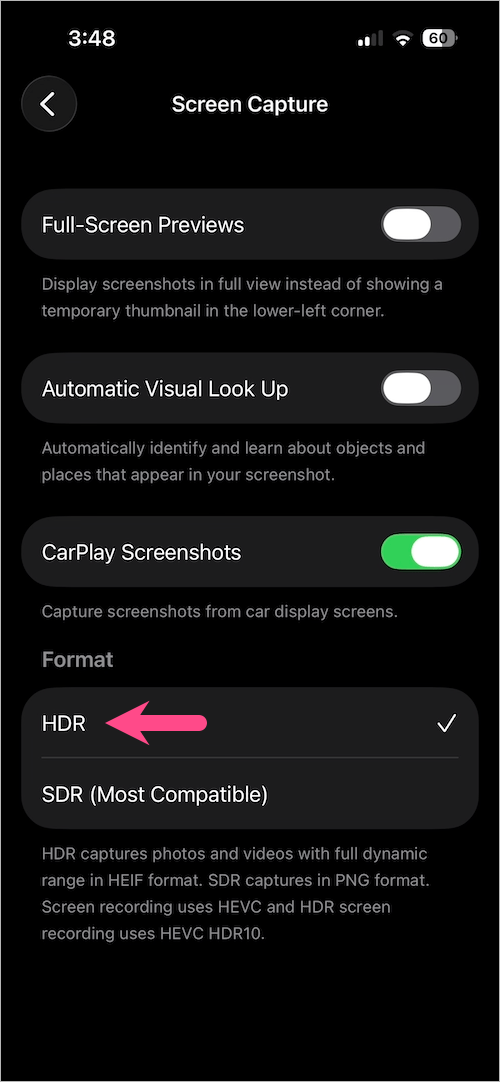
  1. Open the Settings app.
  2. Go to General > Screen Capture.
  3. Under Format, select HDR.

Enable HDR screen recording on iPhone 18 Pro

Once enabled, your iPhone will use HDR for supported screen recordings.

Where Are Screen Recordings Saved on iPhone 18 Pro?

Screen recordings are automatically saved to the Photos app. You don’t need to save them manually after stopping a recording.

To find your screen recordings:

  1. Open the Photos app.
  2. Tap Collections.
  3. Scroll to Media Types and tap Screen Recordings.
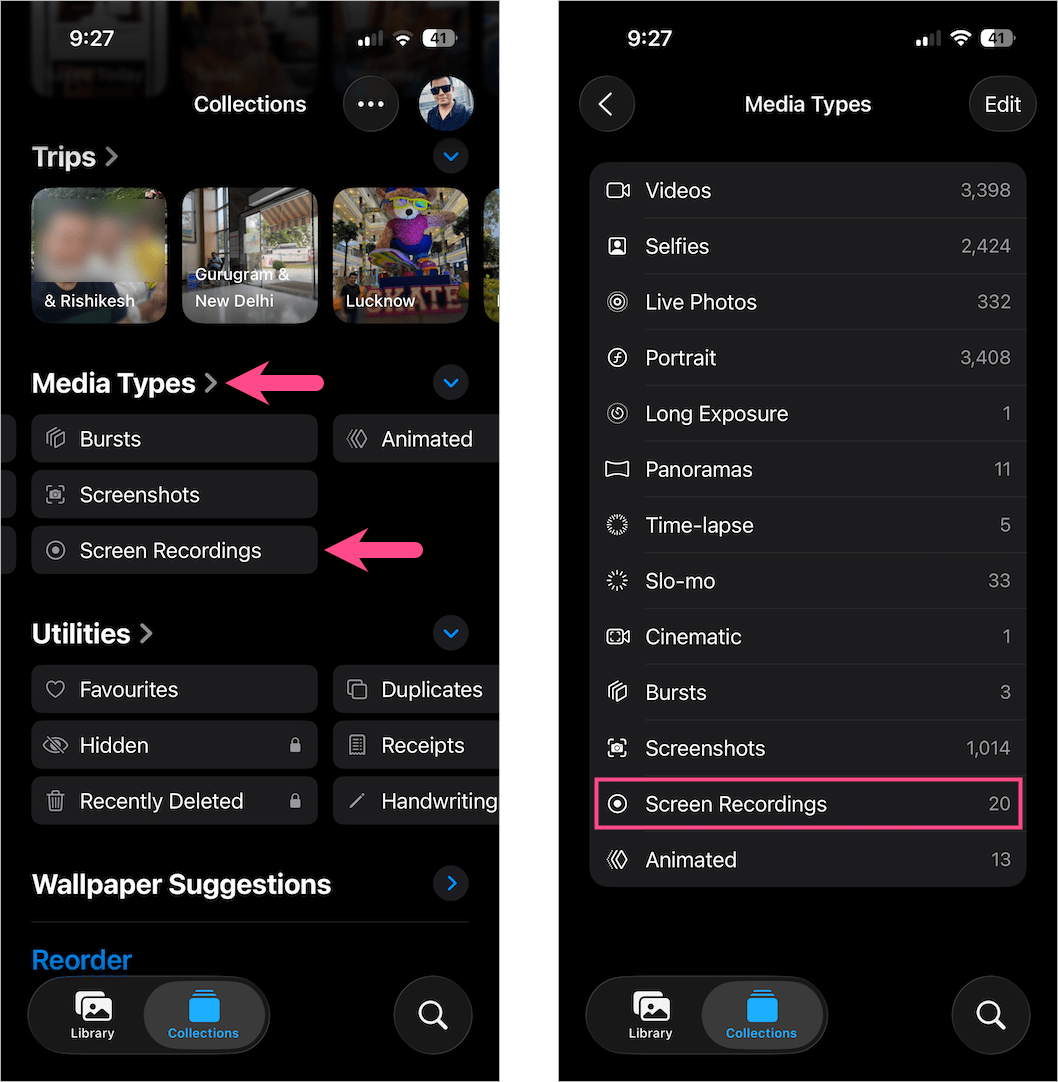
Find saved screen recordings on iPhone 18 Pro

From there, you can watch, trim, edit, or share a recording just like any other video in Photos.

Related iPhone Tips

  • How to Screen Record on iPhone 17, 17 Pro, and 17 Pro Max
  • How to Take a Screenshot on iPhone 18 Pro and 18 Pro Max

Add WebTrickz as a preferred source on Google
Tags: Control CenteriOS 27iPhone 18 ProiPhone 18 Pro MaxScreen Recording
ShareTweetSend
Previous Post

How to Take a Screenshot on iPhone 18 Pro or 18 Pro Max

Mayur Agarwal

Mayur Agarwal

Mayur Agarwal, the founder and editor of WebTrickz, is a tech enthusiast with a Bachelor's degree in Computer Applications and over 15 years of experience in tech writing. His passion for technology and gadgets drives him to create insightful how-to articles and troubleshooting guides.

Leave a Reply Cancel reply

Your email address will not be published. Required fields are marked *

Latest Stories

How to Screen Record on iPhone 18 Pro and 18 Pro Max

September 19, 2026
iPhone 18 Pro and 18 Pro Max

How to Take a Screenshot on iPhone 18 Pro or 18 Pro Max

September 18, 2026
silent mode popup in dynamic island

How to Put iPhone 18 Pro on Silent or Vibrate Mode

September 18, 2026
Restarting iPhone 18 Pro and 18 Pro Max

How to Restart or Force Restart iPhone 18 Pro and 18 Pro Max

September 11, 2026
iPhone 18 Pro and 18 Pro Max

How to Turn Off iPhone 18 Pro or 18 Pro Max

September 11, 2026
instagram logo

How to Find Scheduled Posts on Instagram

July 29, 2026
Facebook app on iPhone

How to Delete Watched Reels on Facebook (iPhone, Android, and Desktop)

July 28, 2026

Trending Stories

  • Easiest Way to Change Galaxy Nexus from Yakjuxw (Non-Yakju) to Android 4.2 Yakju/Takju and Get future Updates from Google

  • How to Turn Off Fn Lock on a Windows Laptop

  • Guide to Update Galaxy Nexus (YAKJUXW) to Android 4.0.4 YAKJU and Get future Updates from Google

  • How to Turn Off Microsoft Edge Game Assist in Windows 11

  • How to Turn Off Microsoft Family Safety on Windows 11 & 10

  • About Us
  • Contact Us
  • Privacy Policy
  • Advertise

© 2026 WebTrickz. All Rights Reserved.

No Result
View All Result
  • Reviews
  • Apps
  • How To’s
  • Android
  • Google
  • iPhone
  • Mac
  • About Us
  • Contact Us
  • Privacy Policy

© 2026 WebTrickz. All Rights Reserved.