


Most new Windows laptops from Dell, HP, and Asus come pre-installed with a trial version of McAfee Total Protection. While it provides decent security, not everyone prefers using McAfee. If you find the frequent pop-ups annoying, or if the software slows down your system, you may want to temporarily disable McAfee Antivirus instead of uninstalling it completely.
This guide explains how to turn off McAfee Antivirus 2025 in Windows 11 and Windows 10 safely.
Important: If McAfee is your only antivirus software, turning it off will leave your PC unprotected. Only disable it for troubleshooting or short-term use, and turn it back on afterward.
Why Disable McAfee Antivirus?
Here are some common reasons why users choose to turn off McAfee:
- Unwanted trial pop-ups – Constant reminders to upgrade or renew the subscription can get irritating.
- Performance concerns – Real-time scanning consumes resources, which may slow down gaming, video editing, or other intensive tasks.
- App or software conflicts – Some programs don’t work well with McAfee’s firewall or background scans.
- Manual control – You may prefer running on-demand scans instead of having McAfee constantly monitor your system.
How to Temporarily Turn Off McAfee Antivirus in Windows 11 or 10
McAfee allows you to disable its core protections individually. You can pause Real-Time Scanning, Firewall, and Scheduled Scans.
Note: You’ll likely need administrator rights to change McAfee settings.
1. Turn Off Real-Time Scanning
Real-Time Scanning constantly checks files and apps for threats. Here’s how you can turn off real-time protection on McAfee Antivirus:
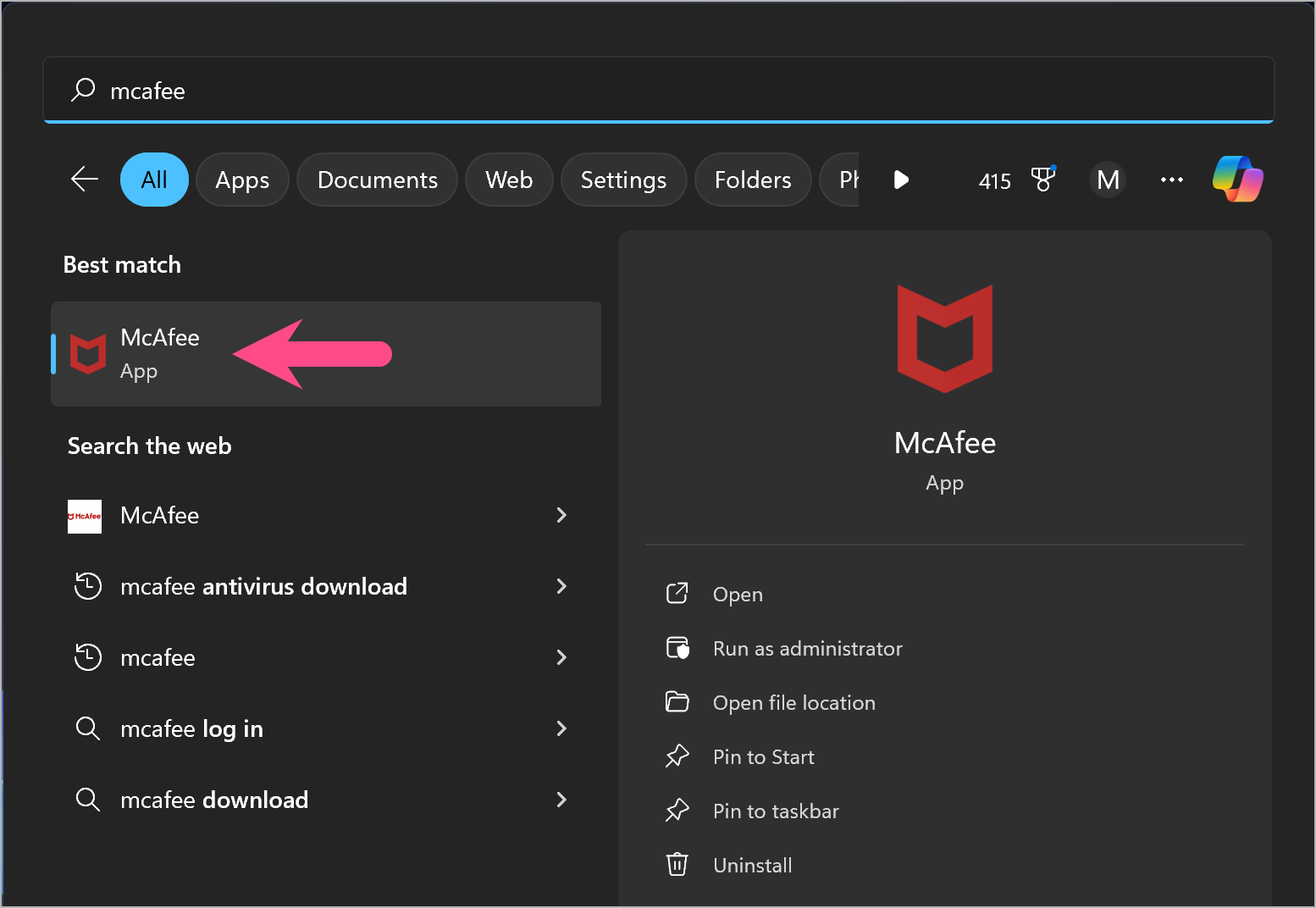
- Open the Start menu and search for McAfee Total Protection.
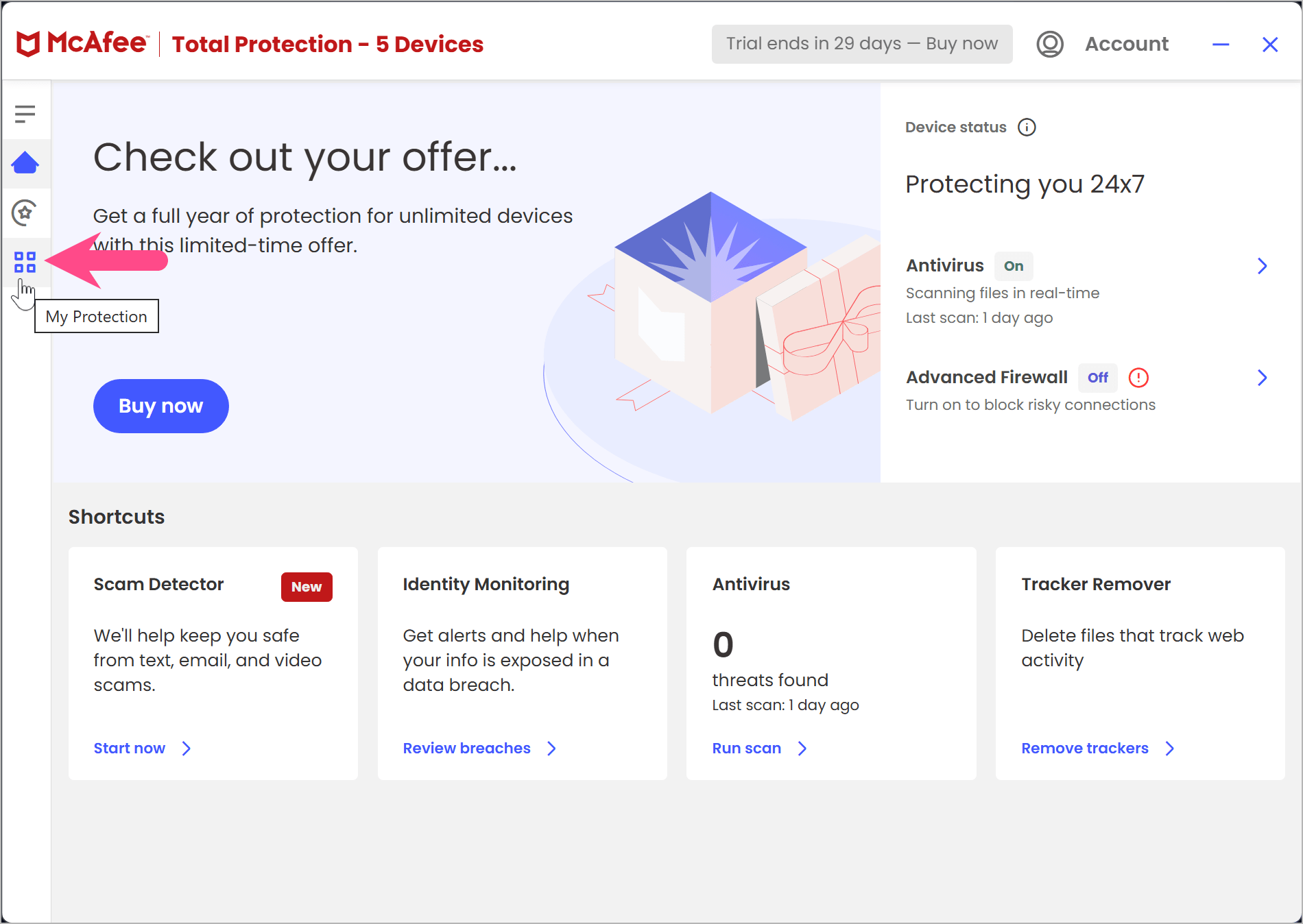
- Go to My Protection by clicking the four squares icon in the sidebar.
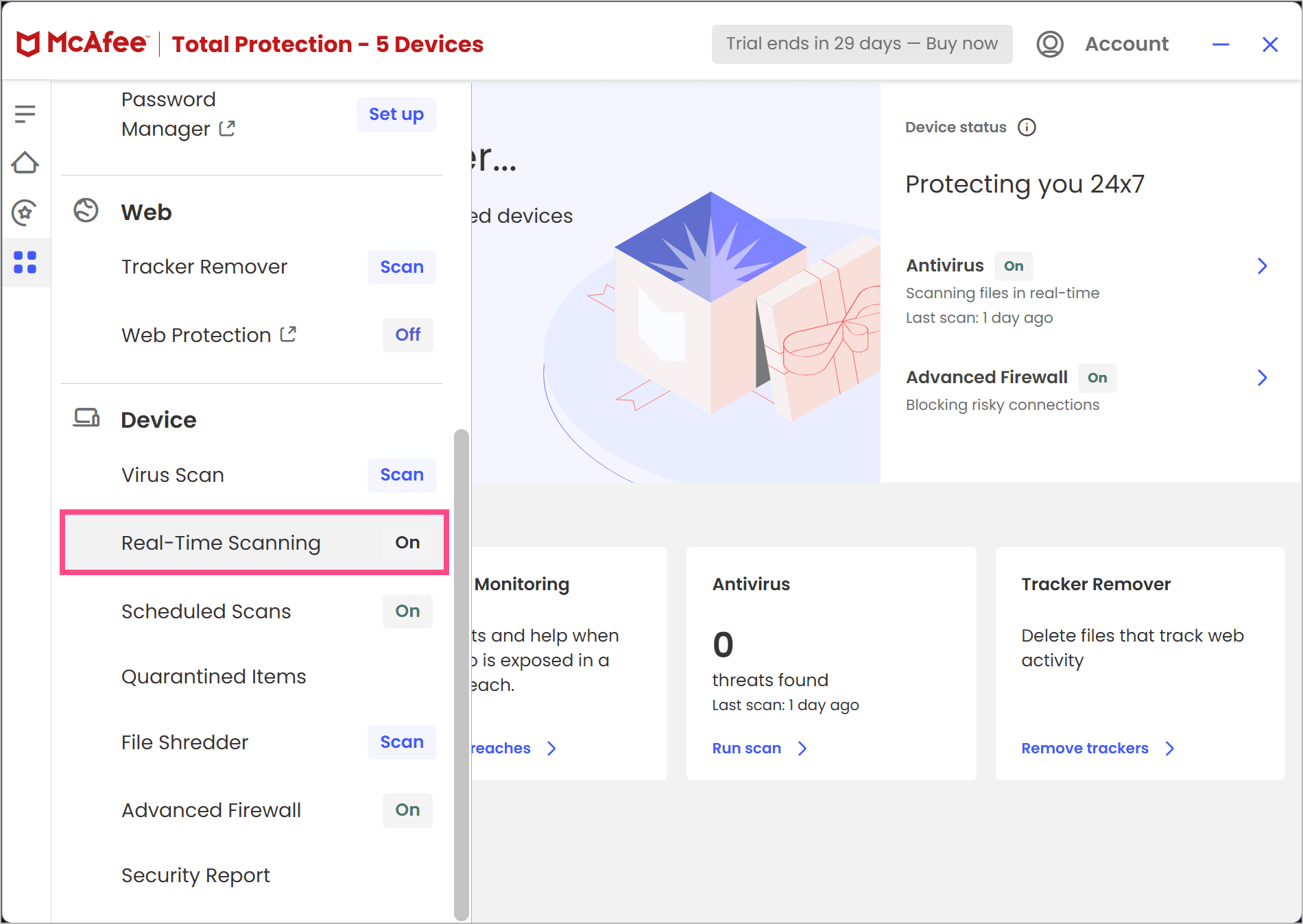
- Scroll down to the Device section and select Real-Time Scanning.
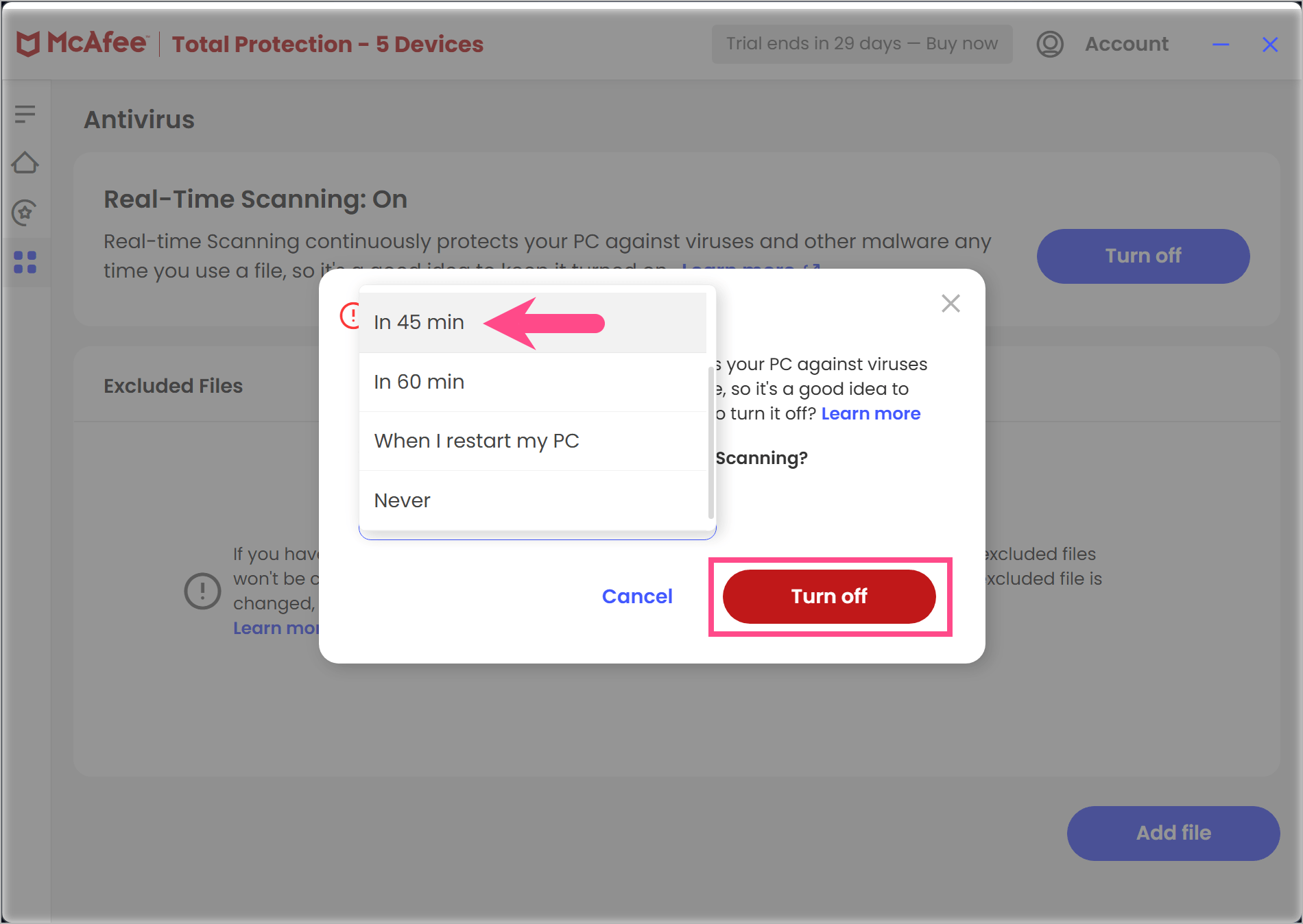
- Click Turn off.

- Choose how long you want it disabled (e.g., 15 minutes, 30 minutes, or until restart).
- Click Turn off again to confirm.
- Select Yes if a UAC prompt appears to allow McAfee to make the changes.
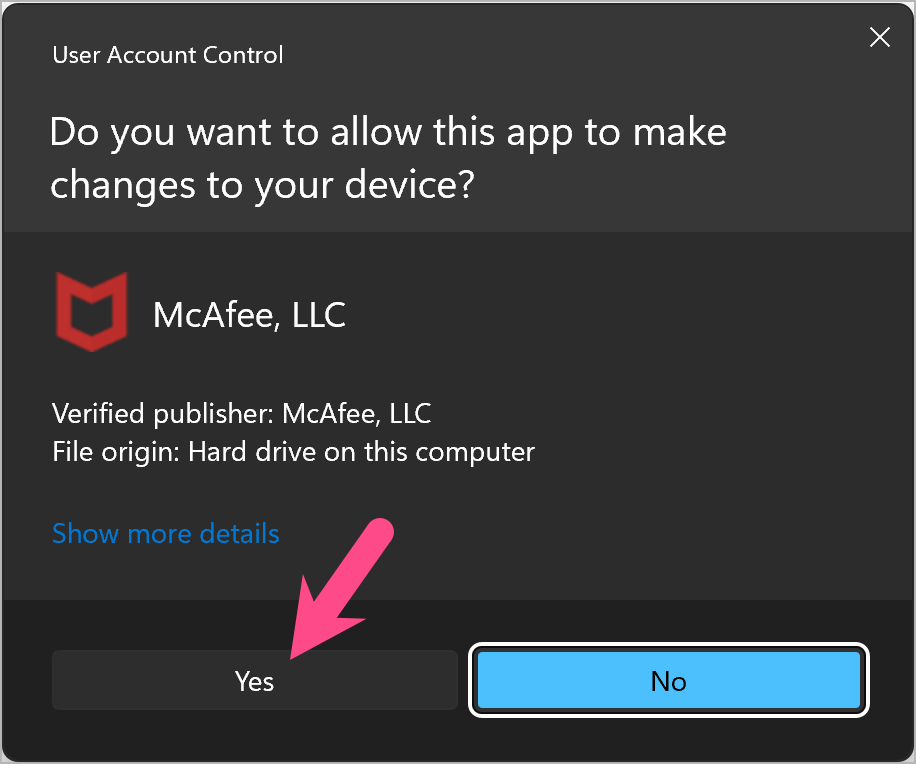
Tip: Select Never if you want to disable real-time scanning permanently. However, this is not recommended for security reasons.
Shortcut: Right-click the McAfee shield icon in the Windows system tray (bottom-right corner) and select Change settings > Real-time scanning for quicker access.
2. Turn Off McAfee Firewall
McAfee Firewall monitors internet traffic and blocks suspicious connections. To disable it:
- Open McAfee Total Protection.
- Go to My Protection and select Advanced Firewall (in the Device section).
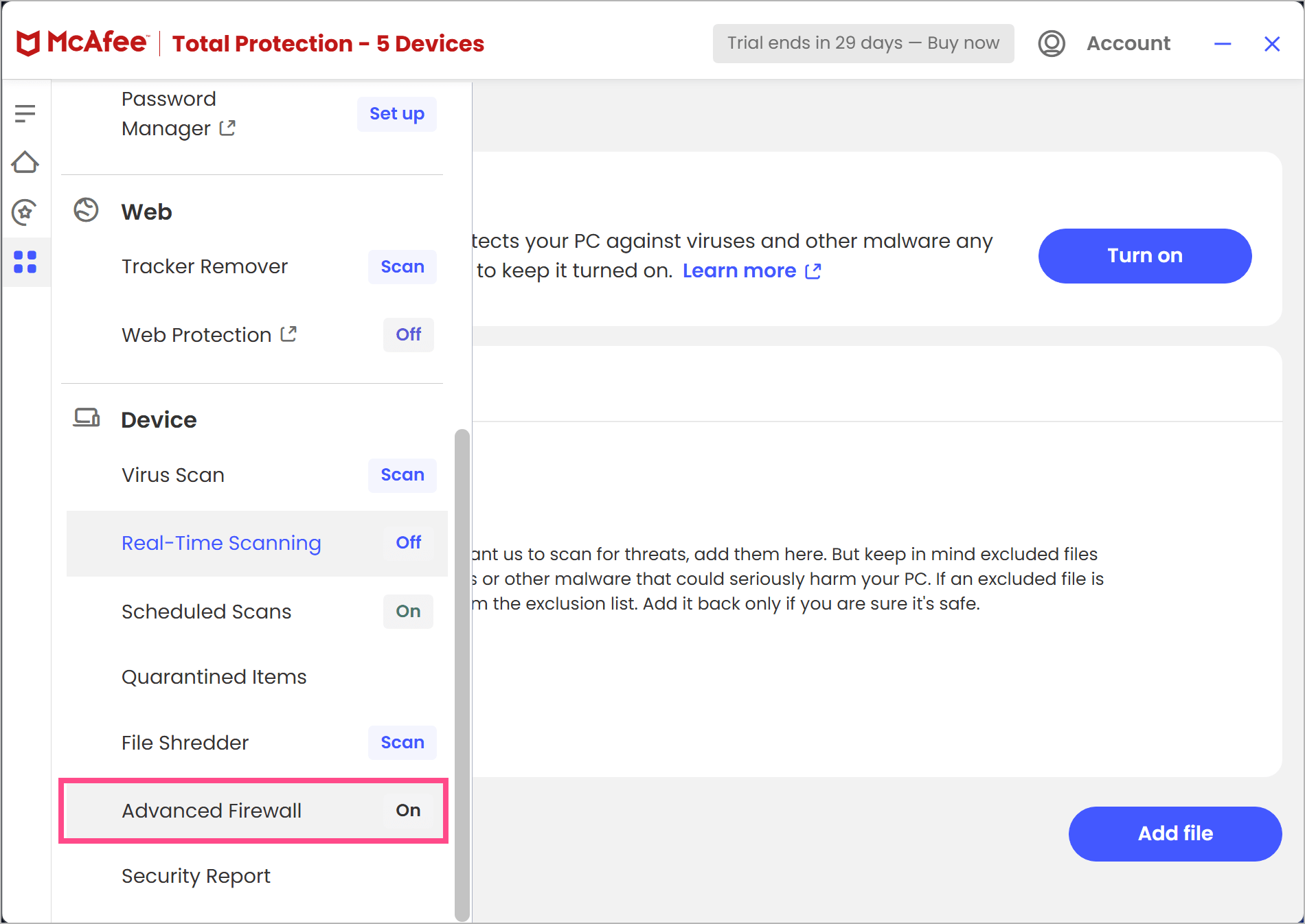
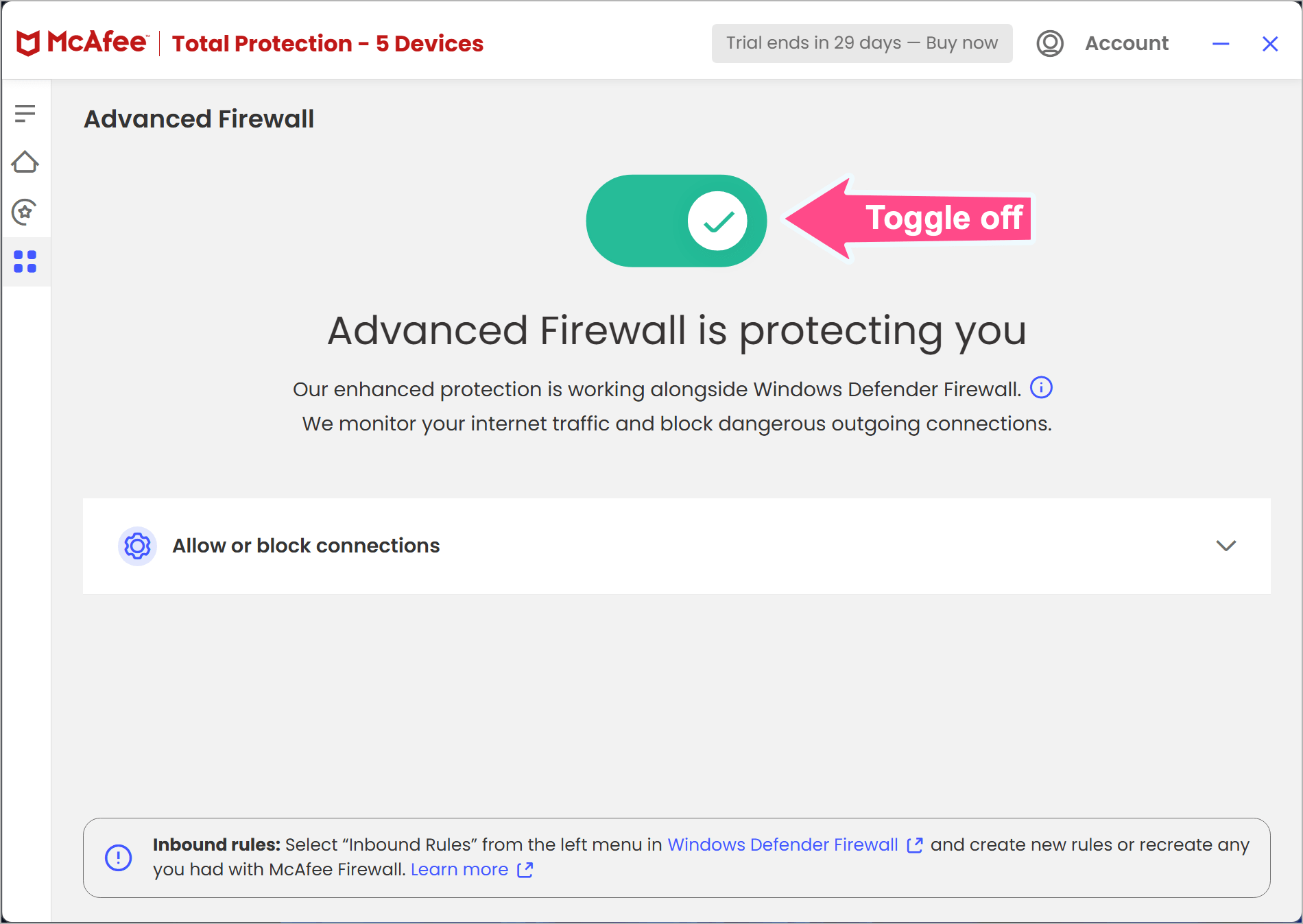
- To turn off McAfee Firewall temporarily, click the green toggle button.
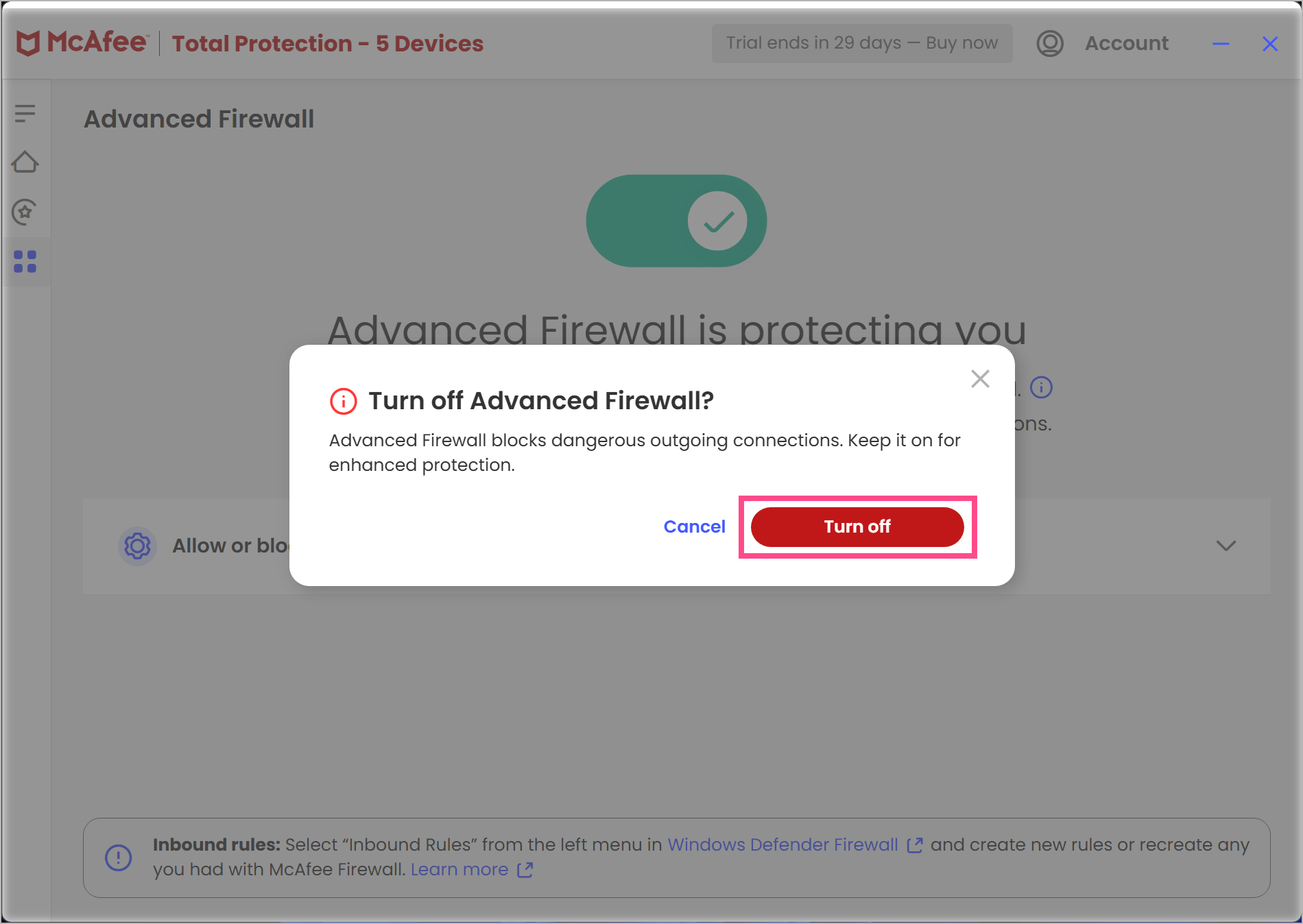
- Click Turn off to confirm.
- Select Yes to allow the UAC prompt.
Warning: Turning off your firewall exposes your PC to network threats. Only do this temporarily if another firewall is already active.
3. Disable Scheduled Scans
Scheduled scans run automatically in the background. If you prefer running scans manually, you can turn off automatic scans:
- Open McAfee Total Protection.
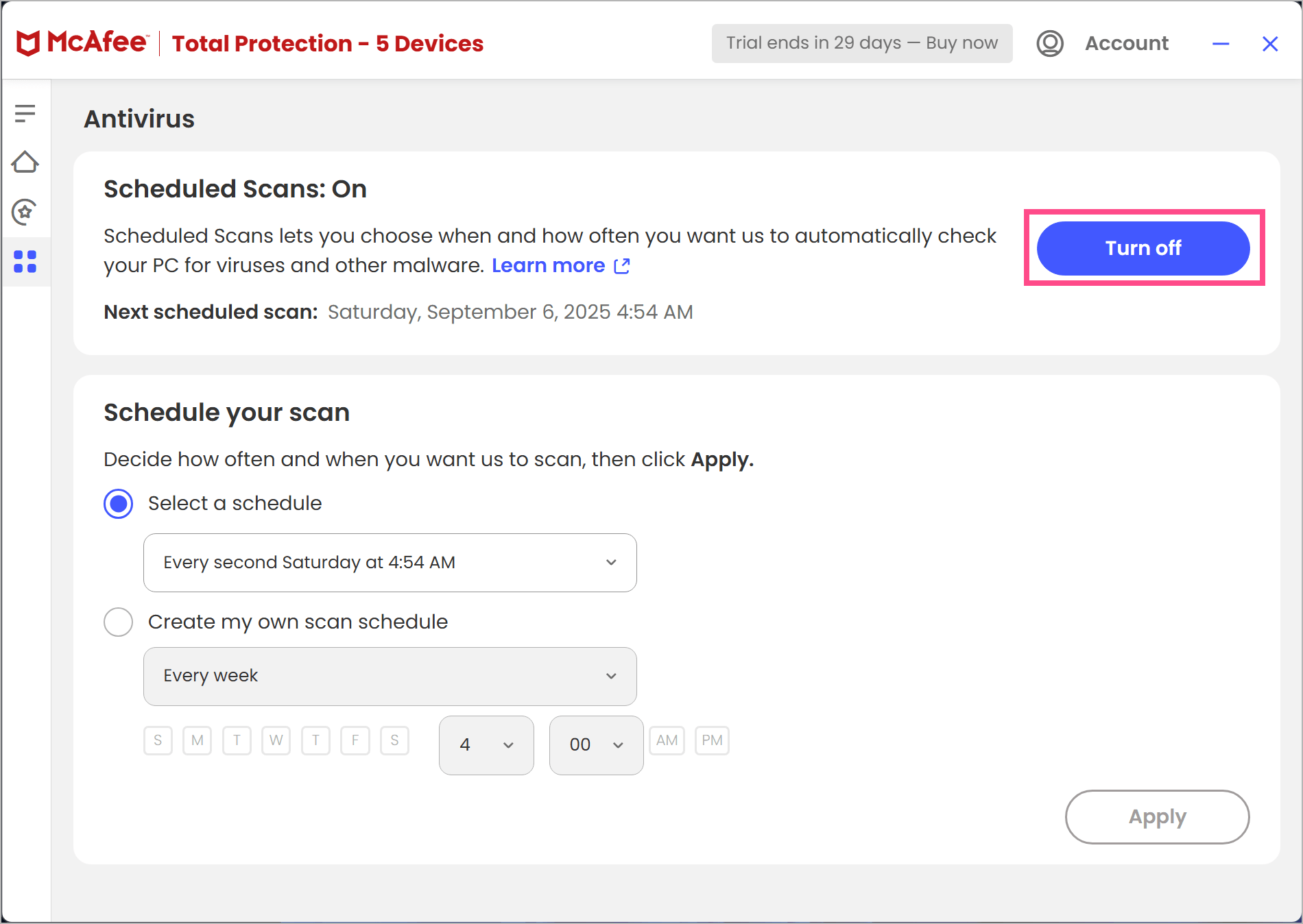
- Navigate to My Protection and select Scheduled Scans.
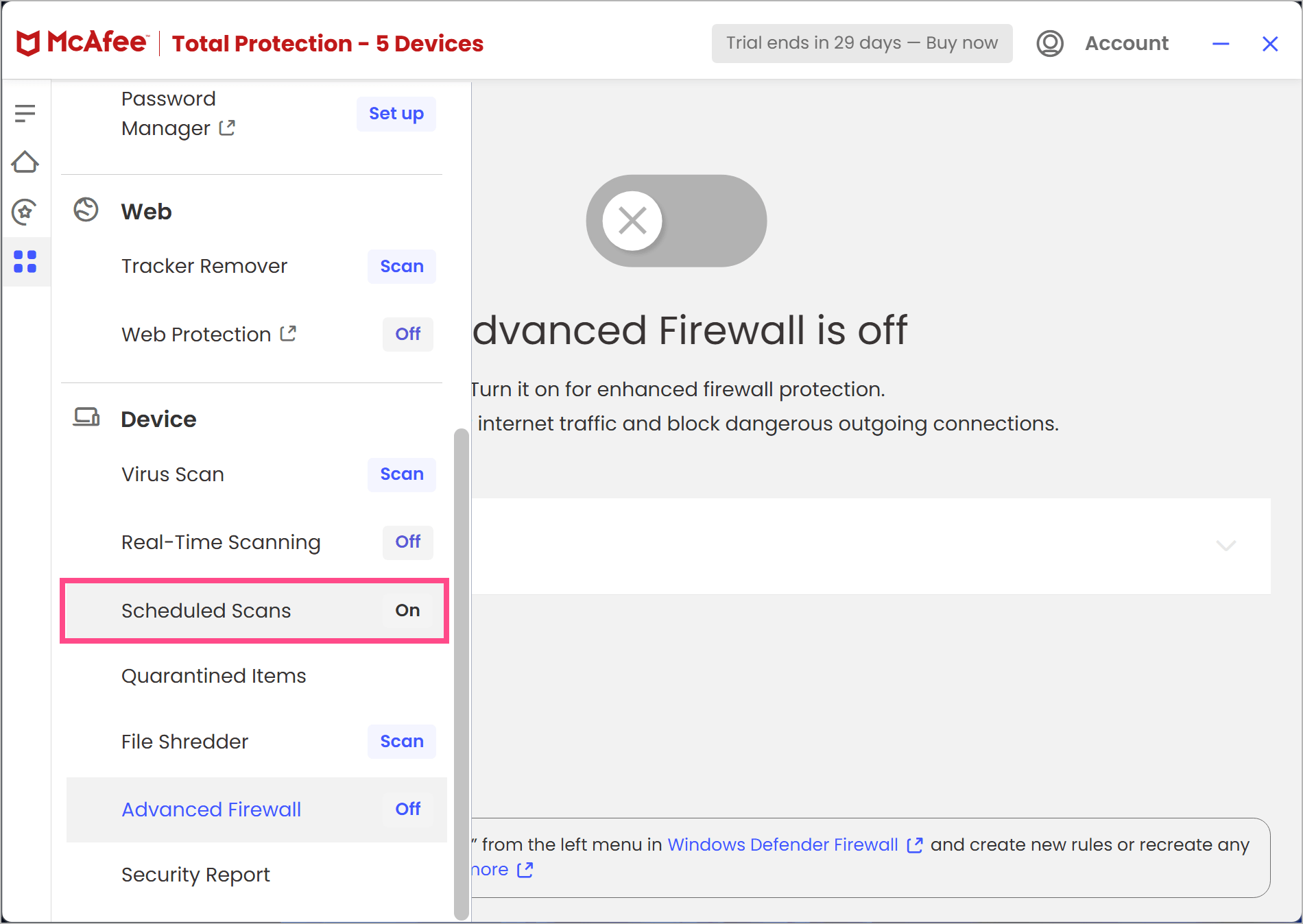
- Select Turn off or edit the schedule to your preference.
FAQs
Q1. How do I turn off McAfee Web Boost?
If installed as a browser extension, go to your browser’s extensions/add-ons page (edge://extensions/ or chrome://extensions/) and disable or remove McAfee Web Boost.
Q2. How can I turn off McAfee VPN?
Open McAfee and go to Secure VPN settings from the Home tab. Then toggle the VPN switch to turn it off.
Q3. How do I disable McAfee notifications in Windows?
Go to Windows Settings > System > Notifications. Scroll down, find McAfee, and toggle notifications Off.
Q4. How do I turn off McAfee Web Protection?
Open your browser’s extensions/add-ons page and disable or remove McAfee WebAdvisor.
McAfee WebAdvisor is a browser extension for Chrome, Edge, and Firefox that protects against malware and phishing attempts while you browse the web.
Q5. Can I disable McAfee permanently?
Yes, but instead of turning off protections, you should uninstall McAfee via Control Panel > Programs and Features, or use McAfee’s official removal tool (MCPR). This is the only way to permanently disable McAfee.
RELATED: How to Cancel McAfee Subscription to Stop Auto-Renewal









