


By default, ChatGPT can remember certain things from your previous conversations and use that information in future replies. It may also refer to your recent chats to give more relevant responses.
However, deleting a chat does not automatically remove the memories saved from that conversation.
If you want ChatGPT to stop remembering past information, you can easily delete saved memories or turn the Memory feature off completely.
In this guide, we’ll show you how to delete individual memories, clear all ChatGPT memory, and forget memories in ChatGPT on both desktop and mobile.
Why Delete Saved Memories from Your ChatGPT Account?
There can be several reasons why you may want to delete ChatGPT memories:
- You want better privacy and less personalization
- ChatGPT remembered incorrect information
- You shared personal or sensitive details
- You want to reset ChatGPT and start fresh
- Multiple people use the same account or device
- You no longer want ChatGPT referencing past chats
Some users also disable memory completely so ChatGPT won’t remember anything going forward.
How to Delete Individual Memories in ChatGPT
You can manually remove specific saved memories without clearing everything. Follow these steps to delete ChatGPT memory on your PC or Mobile.
On Computer (Website)
- Open ChatGPT in a web browser and sign in to your account.
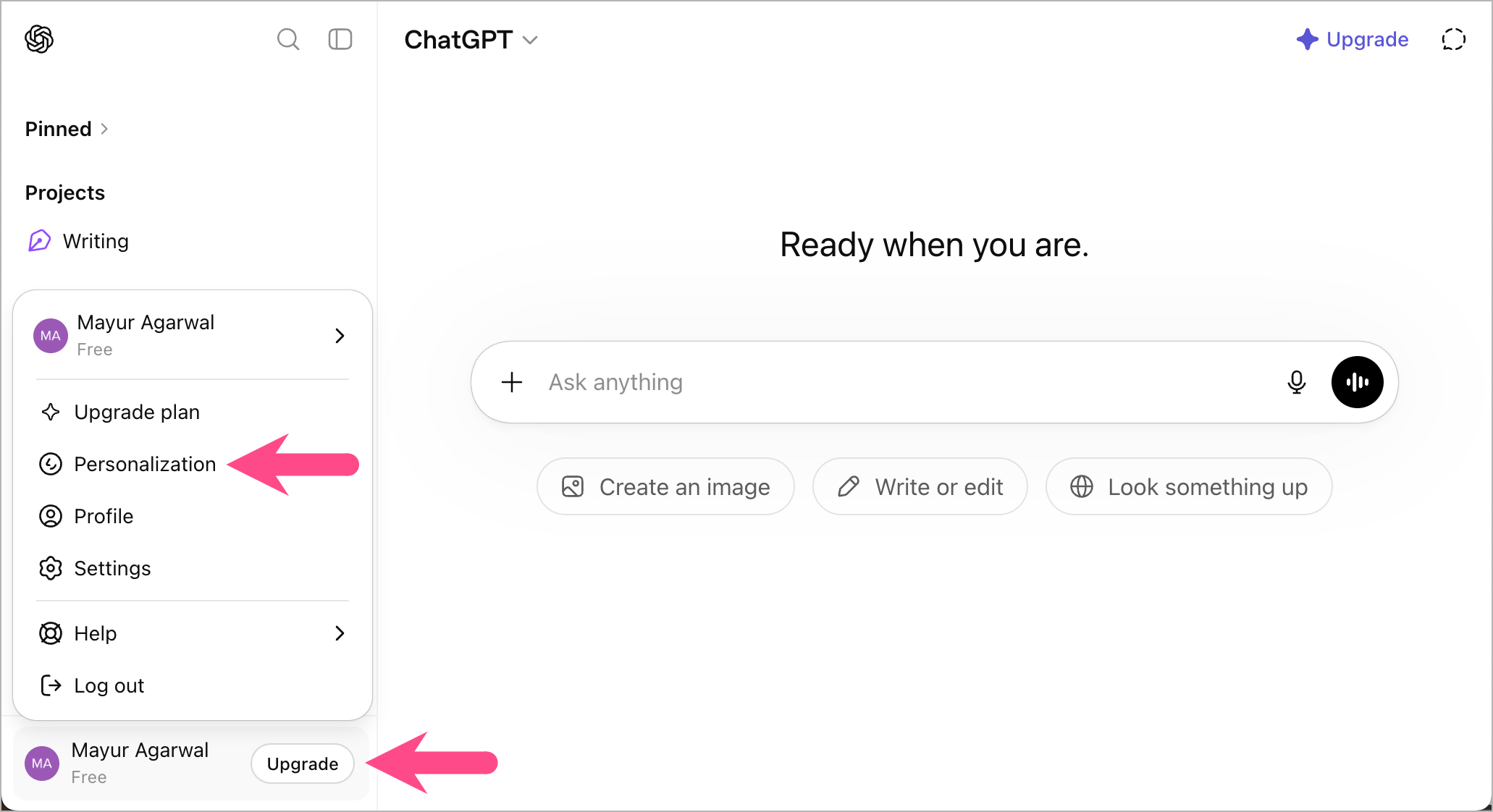
- Click your profile icon at the bottom-left corner.
- Select Personalization.
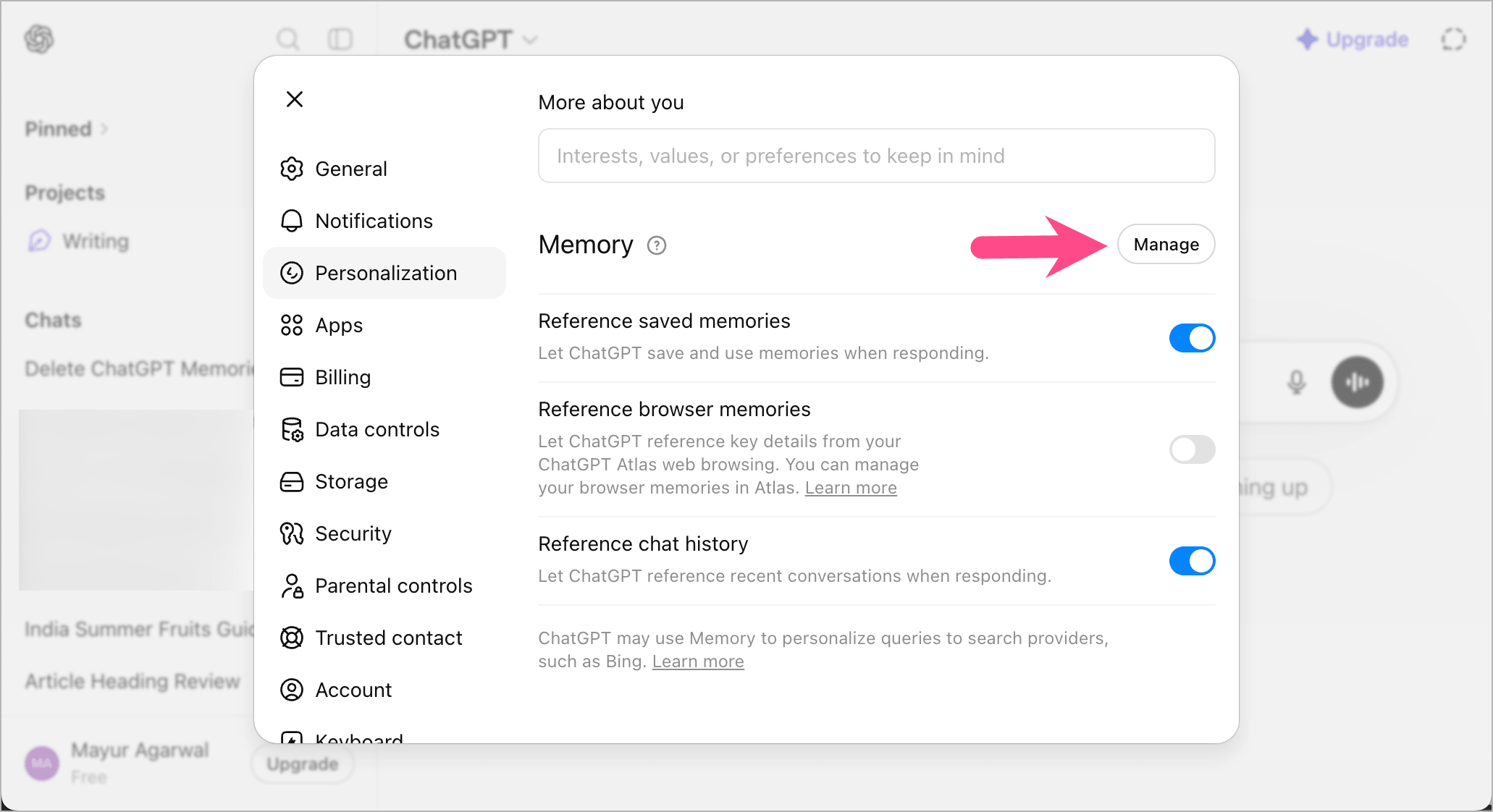
- Scroll down to the “Memory” section and click Manage.
- You’ll see all saved memories.
- To delete a saved memory, click the 3-dot icon next to the memory you want to remove.
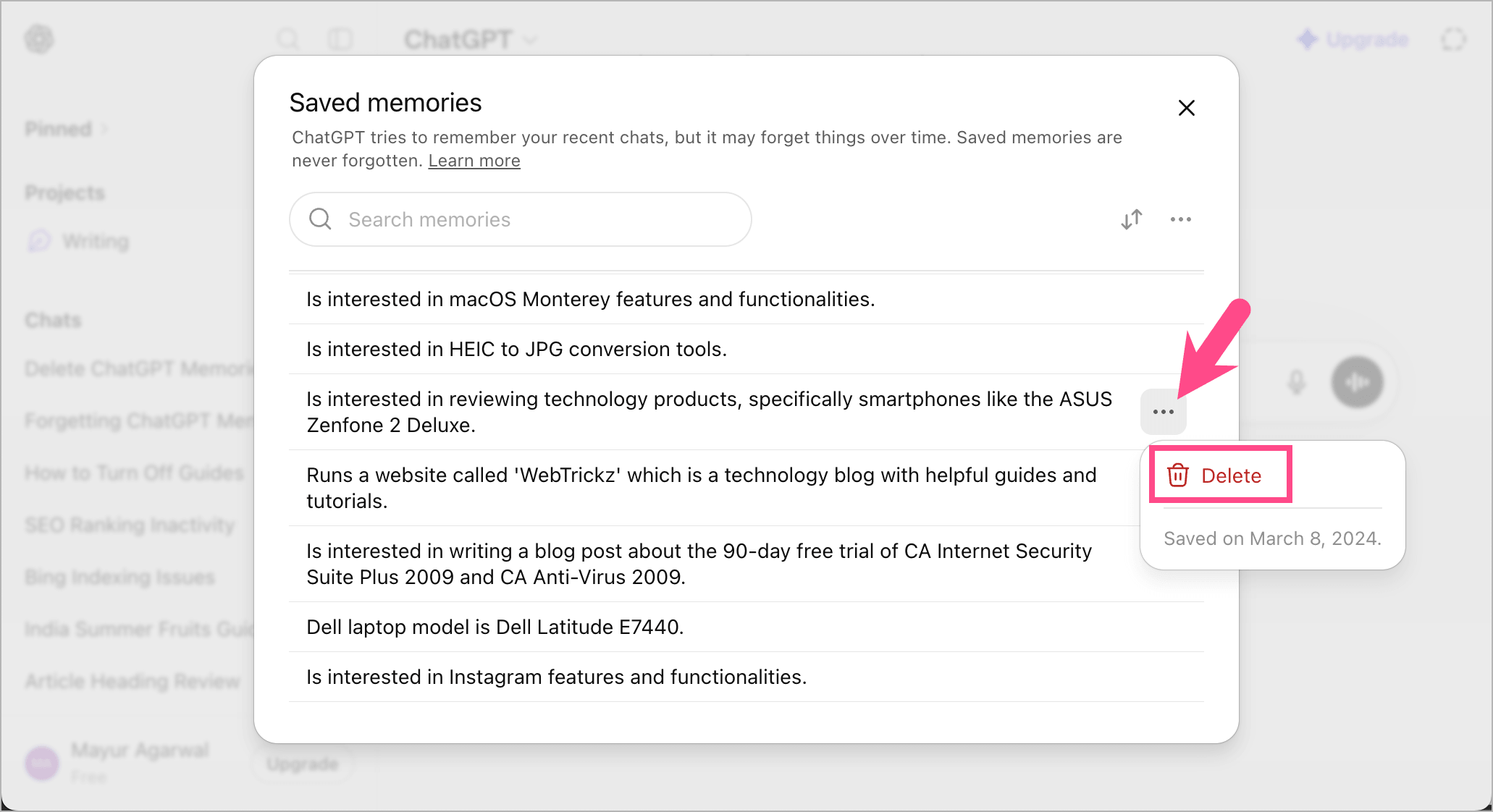
- Click Delete, then select Delete again to confirm.
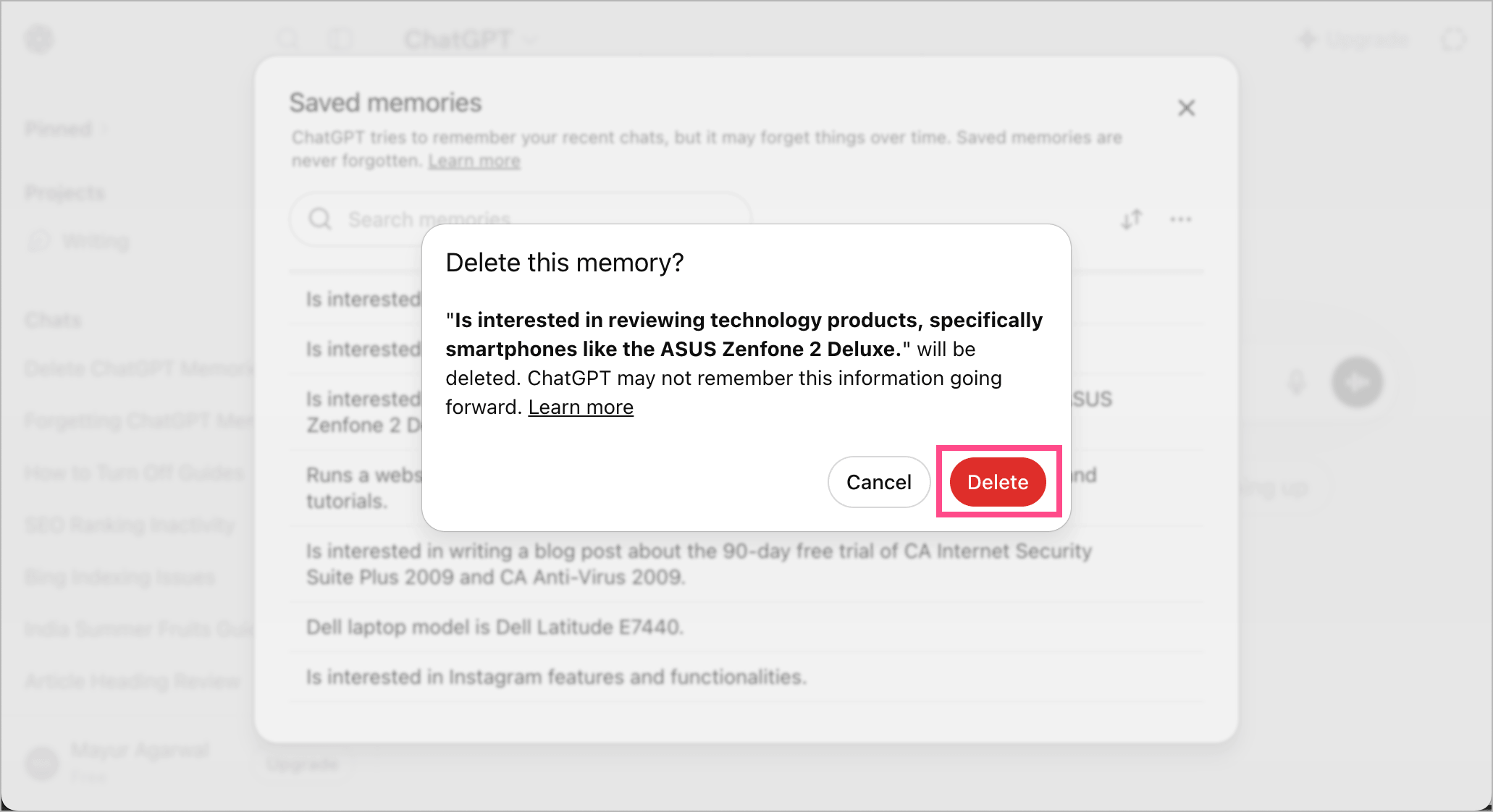
That’s it. The deleted memory won’t be used in future chats.
On iPhone and Android
- Open the ChatGPT app.
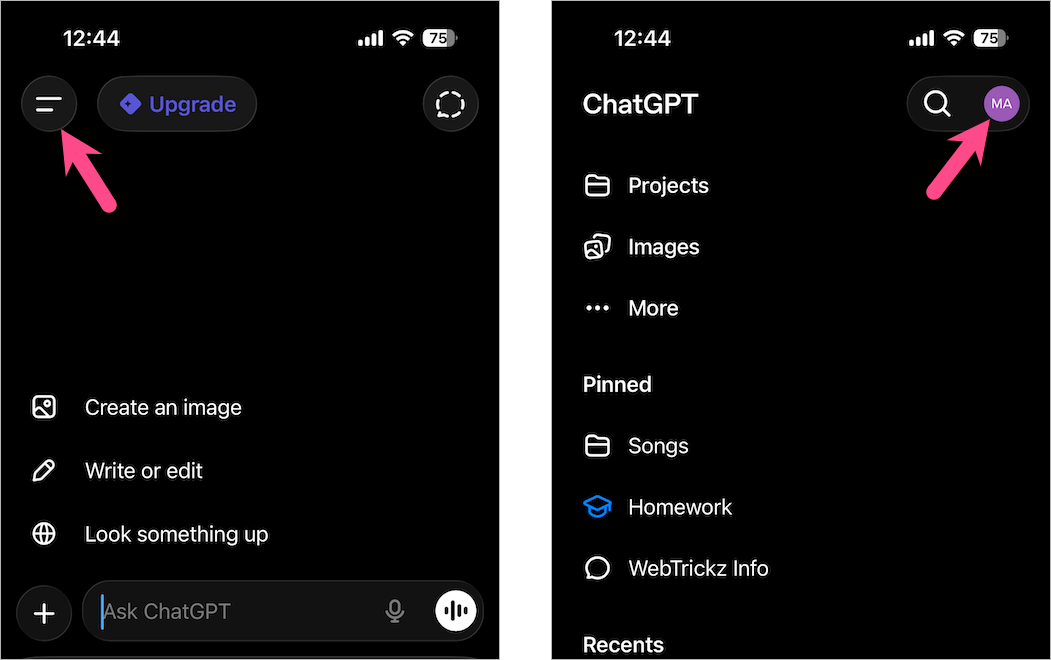
- Tap the Menu icon at the top-left corner, then tap your profile picture.
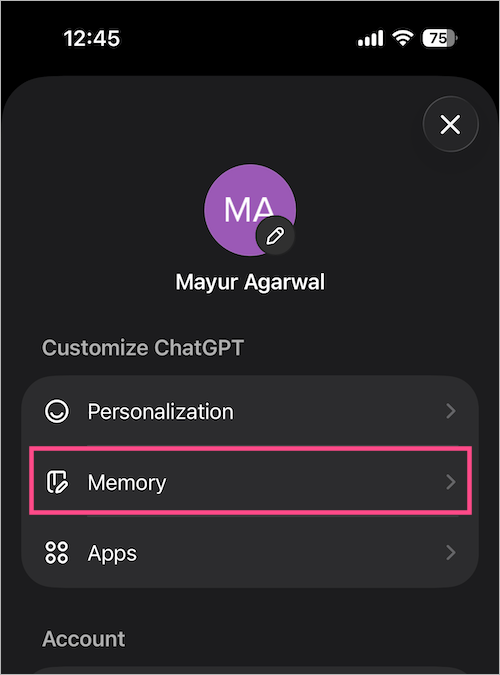
- Under Customize ChatGPT, go to Memory.
- Tap Saved memories (iPhone) or Manage memories (Android).
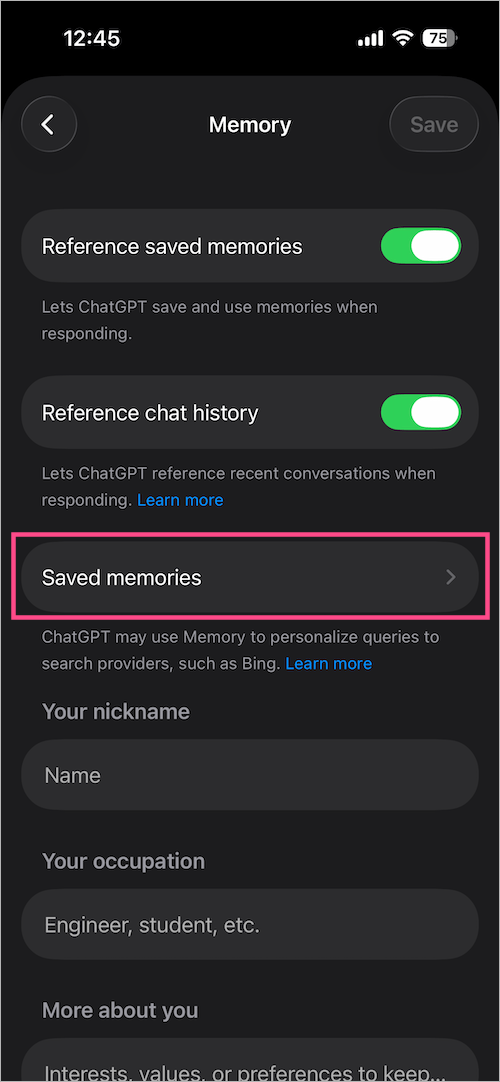
- Search or find the memory you want to delete from ChatGPT.
- To delete, long-press the particular memory and tap Delete.
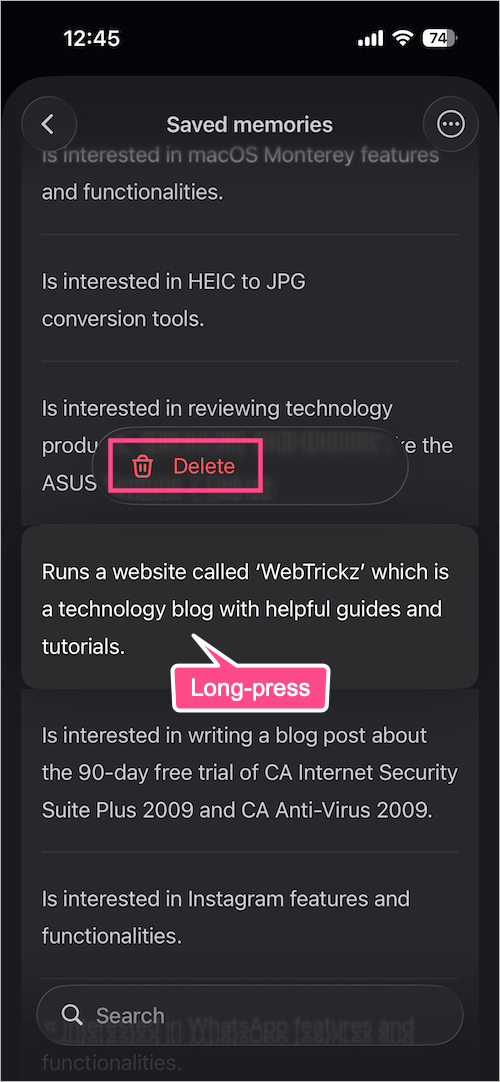
- Tap Delete again.
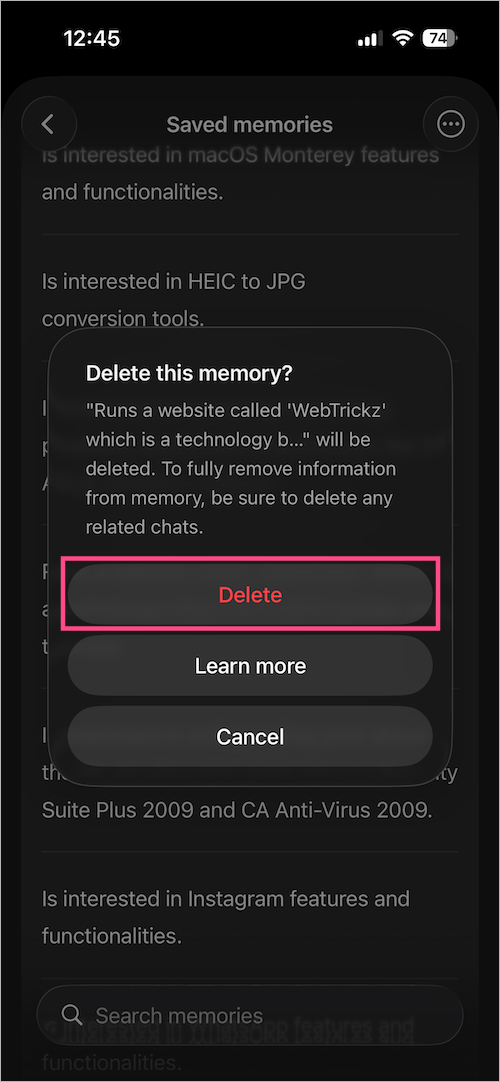
The selected memory will be instantly removed from your ChatGPT account.
How to Delete All ChatGPT Memory at Once
Looking to delete all your memories from ChatGPT? Here’s how you can clear all saved memories in one go.
On Desktop
- Visit chatgpt.com and log in to your account.
- Click your profile icon in the bottom left.
- Navigate to Settings > Personalization.
- Scroll down and click the Manage option next to Memory.
- To clear ChatGPT memory all at once, click the 3 dots (ellipsis icon).
- Click Delete all memories.
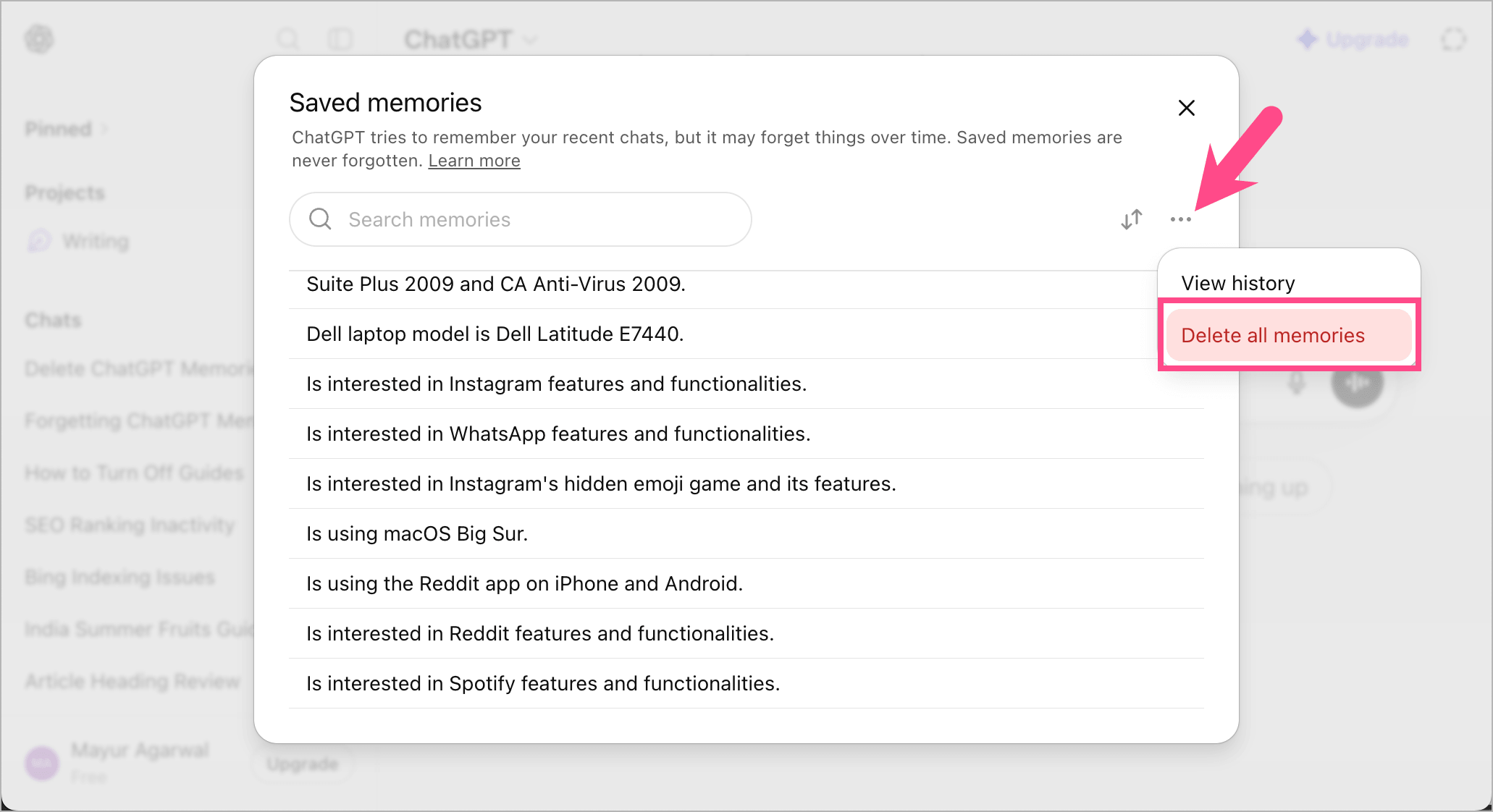
- Optional: Enable the checkmark for “Also delete all past versions of saved memories. This cannot be undone.”
- Select Delete all to confirm your choice.
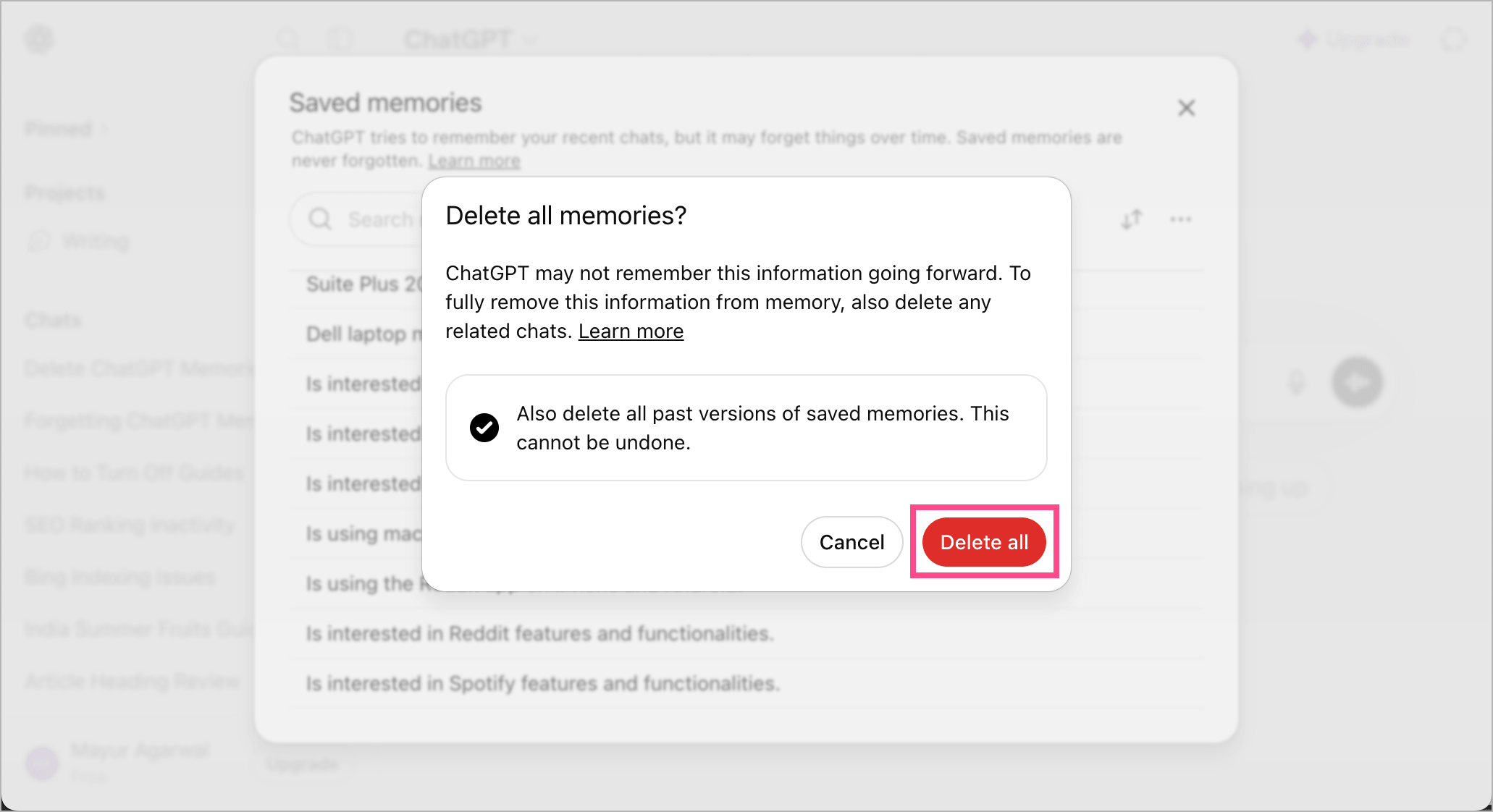
All saved memories will now be permanently removed from your account.
On ChatGPT App (iPhone and Android)
- Launch the ChatGPT app on your phone.
- Tap the Menu icon (top-left corner) and tap your profile picture.
- Under Customize ChatGPT, tap Memory.
- Go to Saved memories (iPhone) or Manage memories (Android).
- Tap the 3 dots (ellipsis icon) at the top-right, then tap Delete all.
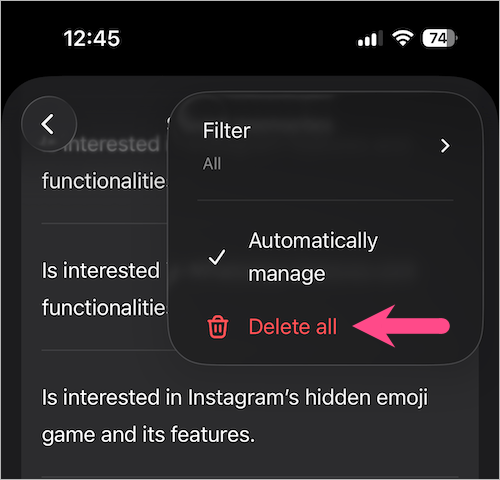
- Tap Delete all again to delete all saved memories.
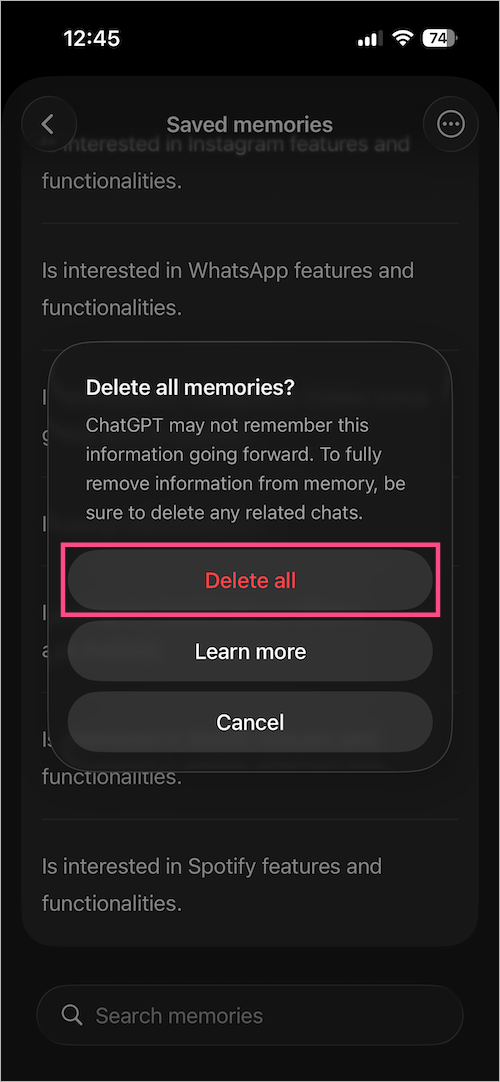
ChatGPT will no longer remember previously saved details.
How to Forget Existing Memories in ChatGPT
Besides manually deleting memories from Settings, you can directly ask ChatGPT to forget something.
To forget memory in ChatGPT, use such examples:
- “Forget that I run WebTrickz.”
- “Remove the memory about my Dell Latitude laptop.”
- “Don’t remember my location anymore.”
- “Delete everything you remembered from previous chats.”
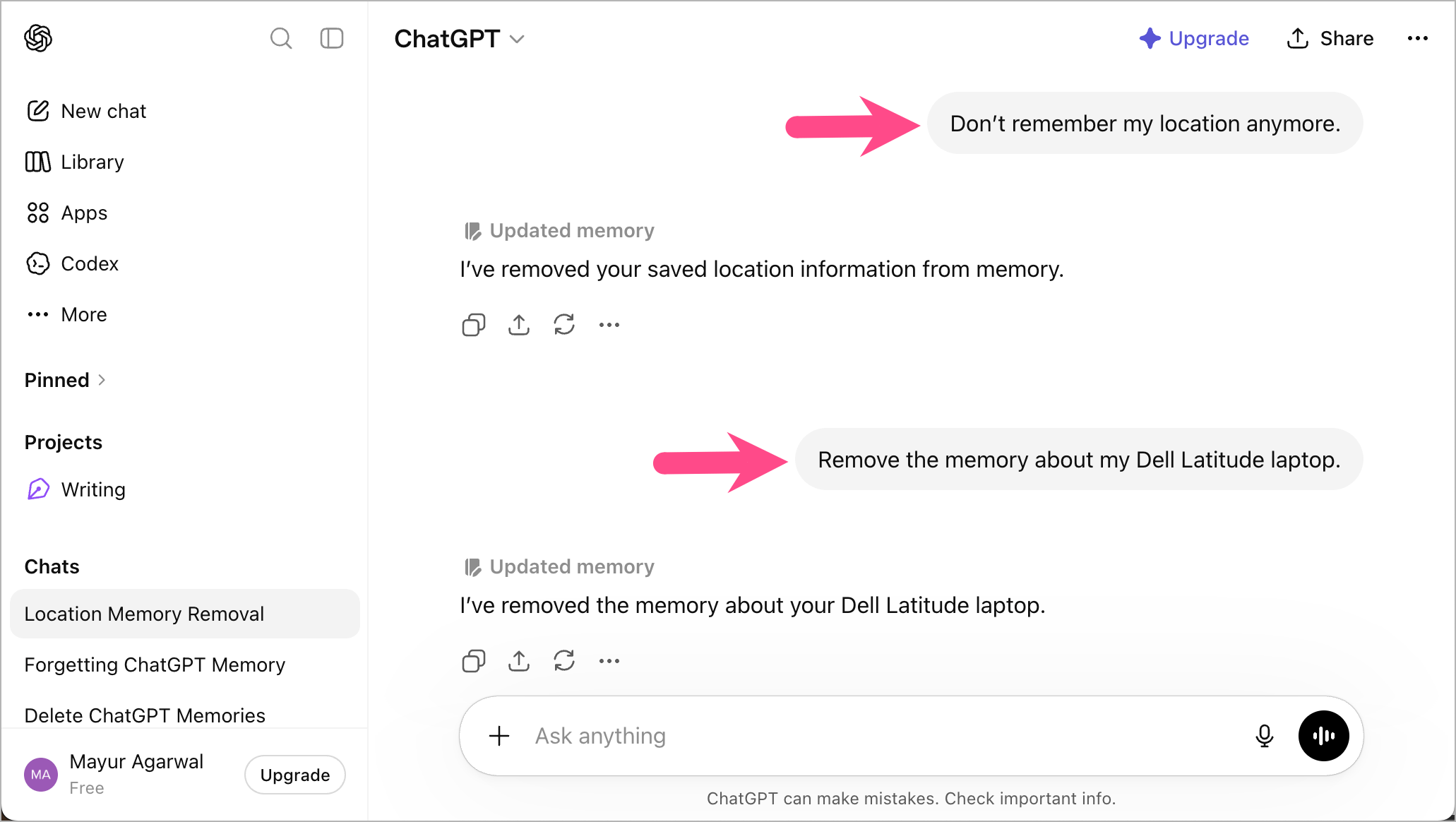
When you say that, ChatGPT will remove that saved memory and stop using it in future responses.
Note: OpenAI mentions that to fully remove a memory, you should delete both the saved memory (from Manage Memories) and the original chat where the information was shared.
Also, it may take a few days for deleted memories to completely stop appearing in responses.
FAQs
Does ChatGPT remember deleted chats?
Saved memories can remain even after deleting a chat because memories are stored separately from chat history. To fully remove information, delete both the memory and the original conversation.
How do I reset ChatGPT’s memory?
To completely reset ChatGPT memory:
- Delete all saved memories
- Delete related chats
- Remove relevant files from your file library
- Disable the Memory feature if you don’t want future memories saved
How to disable ChatGPT memory?
Open ChatGPT Settings, go to Personalization, and turn off the Reference saved memories toggle in the Memory section. This prevents ChatGPT from saving new memories.









