


Similar to Google’s AI Overviews, Bing shows Copilot AI-generated answers at the top of search results by default.
While some users may find these AI summaries useful, many people still prefer the traditional search experience without AI responses taking over the page.
Unfortunately, Bing currently offers no option to exclude or remove Copilot results from search, and there is no way to completely disable Copilot features in Microsoft Edge either.
Thankfully, there’s now an official workaround to get rid of Copilot Search in Bing.
Jordi Ribas, President of Search and AI at Microsoft, recently announced a new extension called Microsoft Bing AI Search Choice. The extension lets users quickly turn AI answers in Bing on or off with just one click.
Here’s how to turn off or disable Copilot results in Bing Search on Microsoft Edge and Google Chrome for Windows and Mac.
Disable Copilot in Bing Using Microsoft’s Official Extension
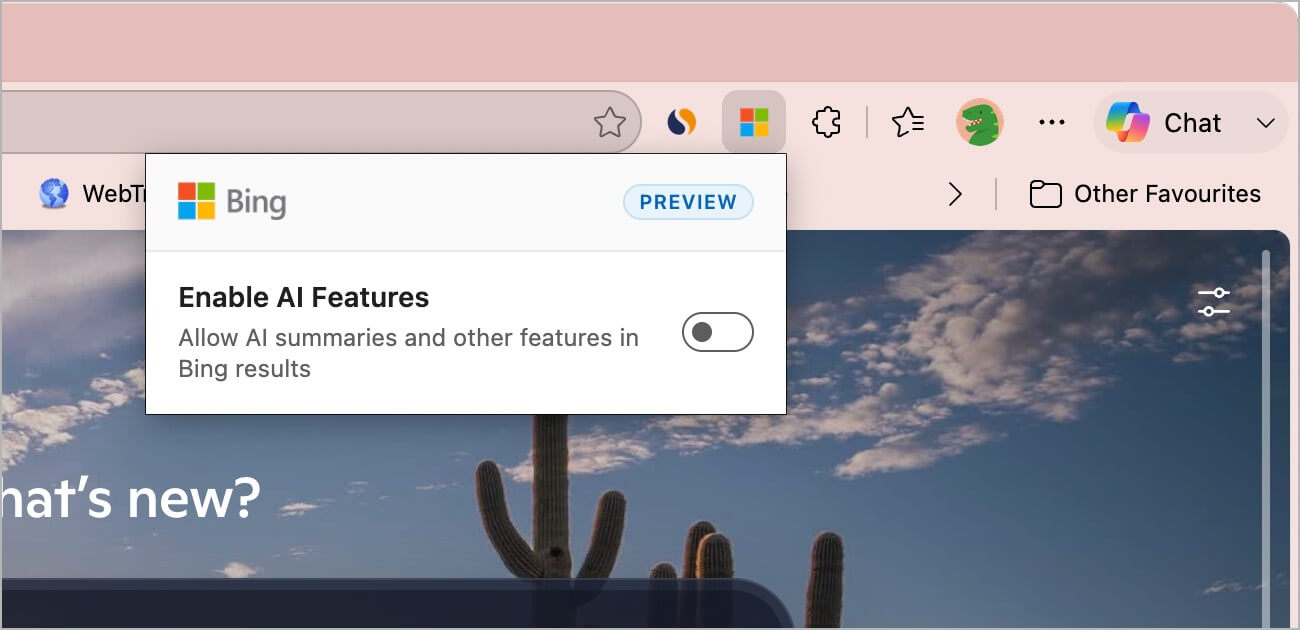
Microsoft Bing AI Search Choice is an official browser extension from Microsoft that lets users quickly enable or disable Copilot AI responses in Bing Search.
Currently in preview, the addon is available for both Microsoft Edge and Google Chrome.
Once enabled, the extension completely removes Copilot search results from Bing search, including searches made from the Bing homepage, the address bar, and even the Copilot-powered new tab page.
How to Turn Off Copilot Results in Bing Search
Looking to get rid of Copilot search in Edge or Chrome browser? Then follow these steps to turn off Copilot in Bing search on your Windows or Mac computer.
Disable Copilot in Bing on Edge
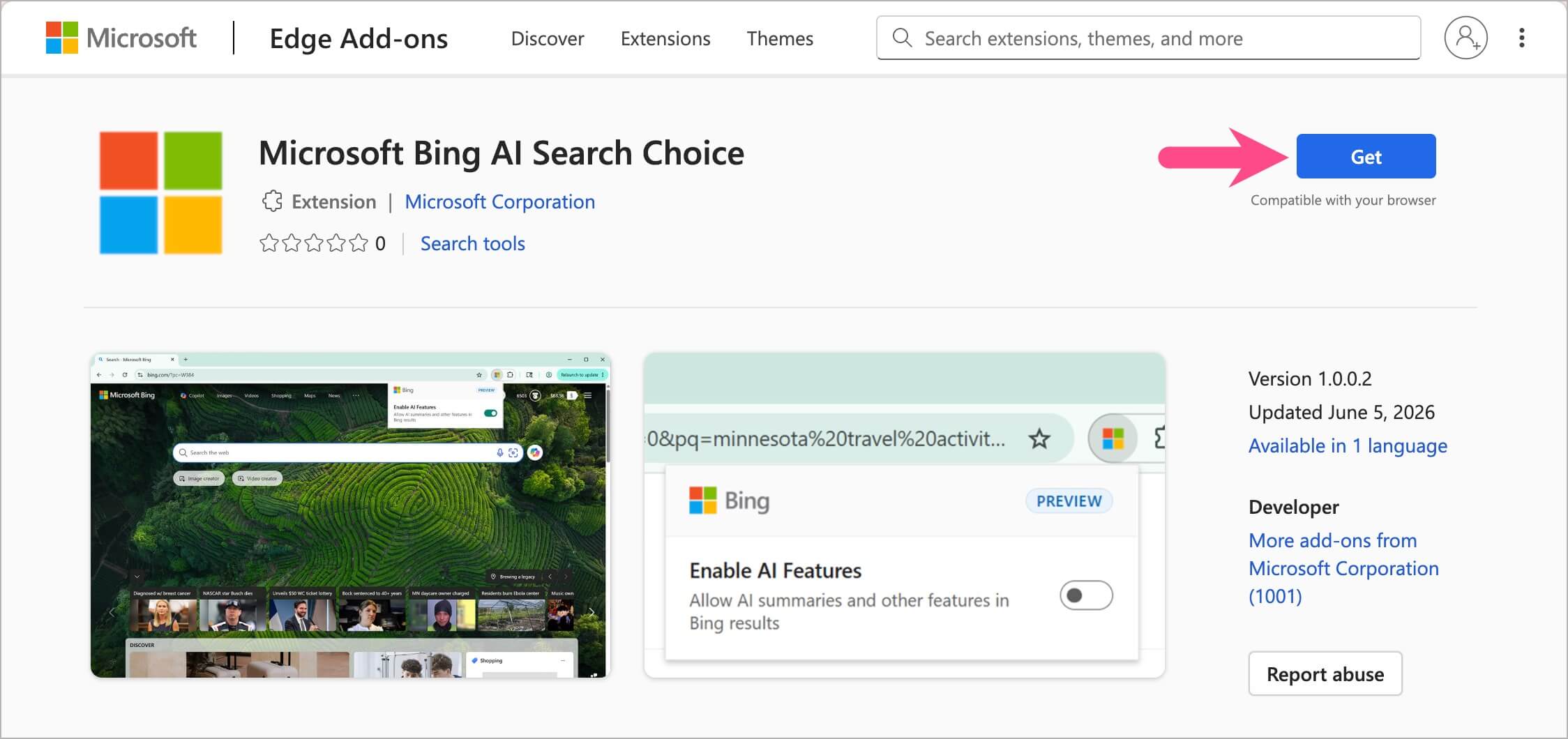
- Open Edge and go to the Microsoft Bing AI Search Choice extension page.
- Click Get, then click Add Extension to install the add-on.
- Microsoft Edge turns off the extension by default. To enable it, visit
edge://extensionsand toggle on the switch next to Microsoft Bing AI Search Choice.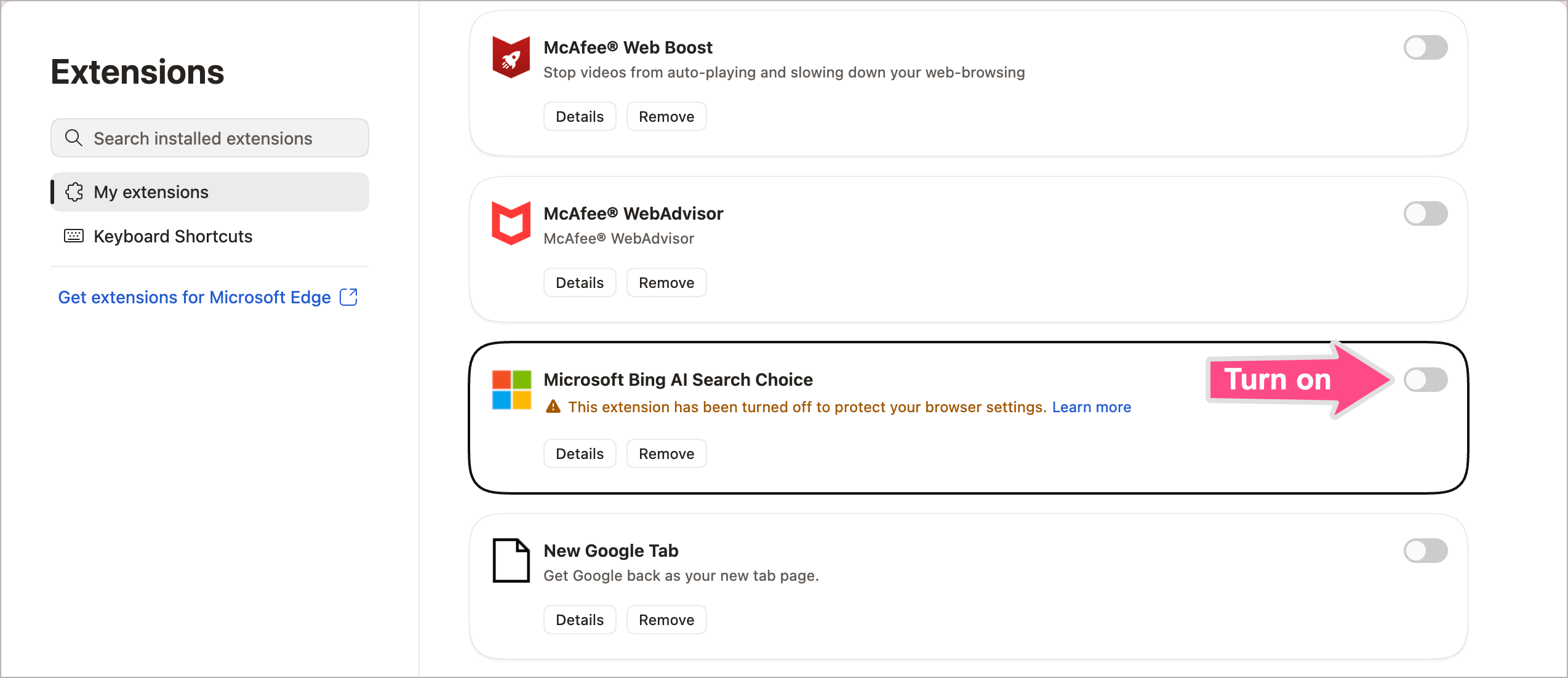
That’s it. Bing Search will now show regular search results without Copilot AI answers.
Disable Copilot in Bing on Chrome
- Open the extension page on the Chrome Web Store.
- Click Add to Chrome.
- Click Continue to install if you see a pop-up at the top.
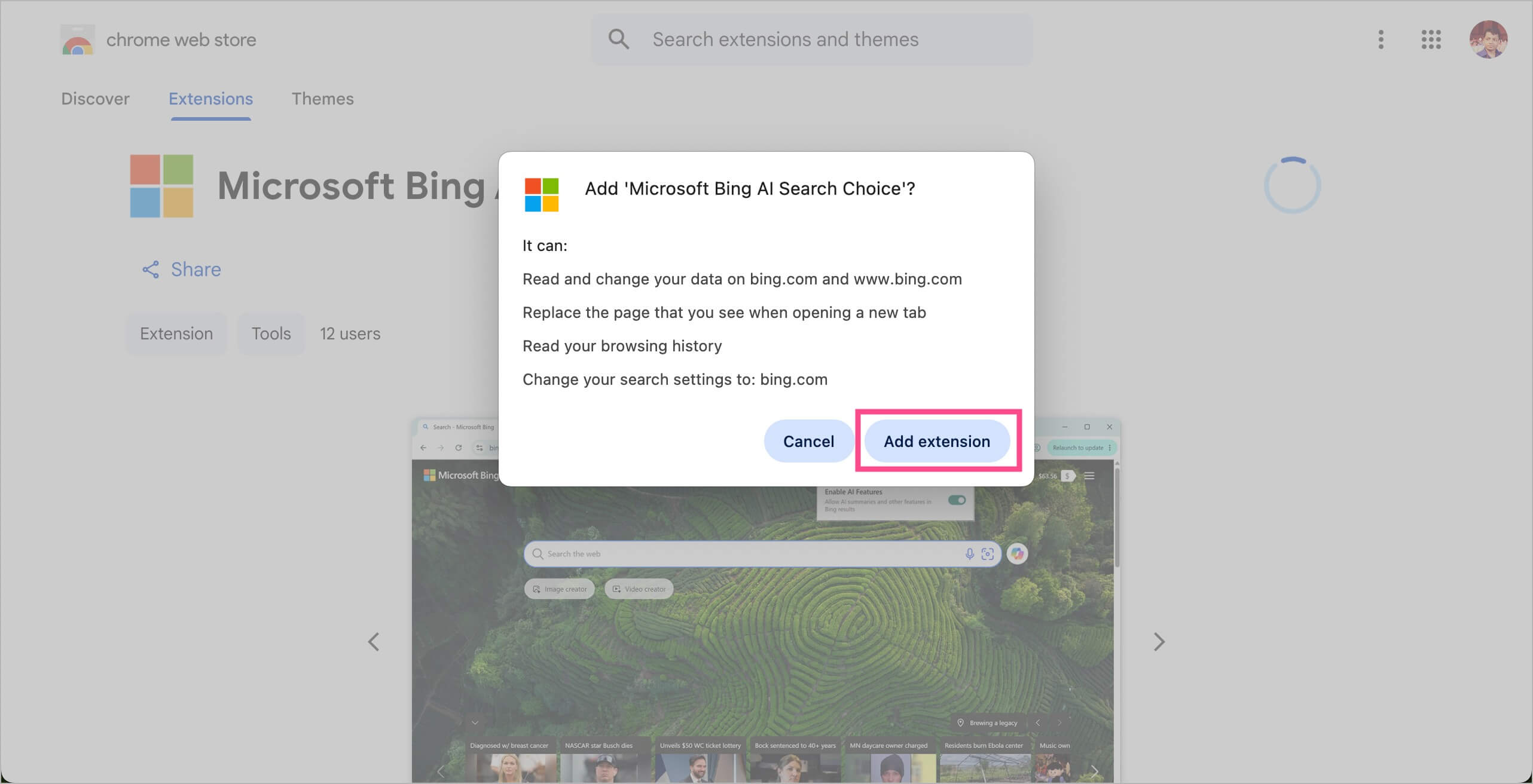
- Select Add extension to confirm.
- The addon also replaces the new tab page with the Bing homepage. If you see the below pop-up, select Keep it.
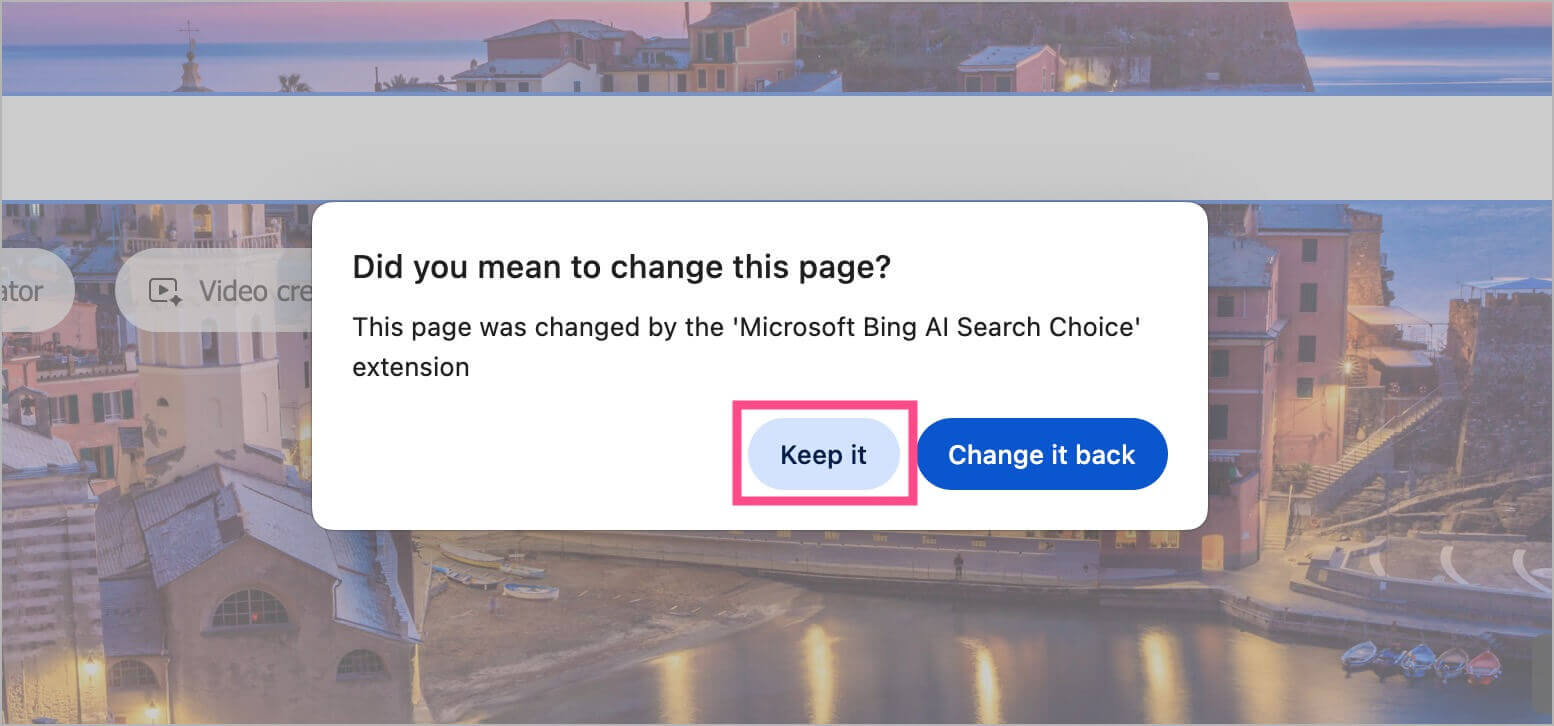
Since the extension gets enabled automatically, Copilot results should immediately stop appearing in Bing search results.
Tip: You can turn on the Enable AI features option anytime (from the toolbar) if you want AI summaries and Copilot answers again.

Tip: Pin the extension to the Edge or Chrome toolbar for quicker access.
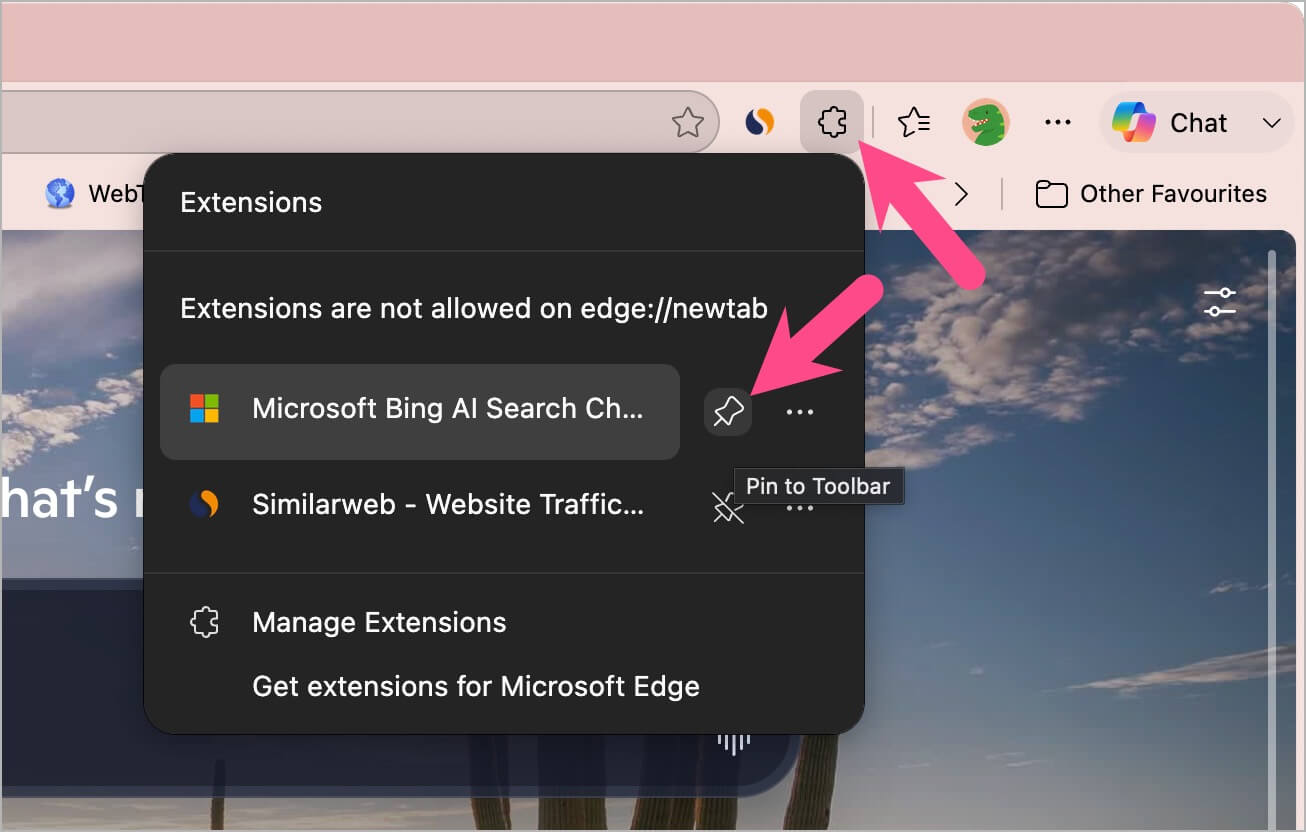
Note: The extension automatically sets Bing as your default search engine in both Microsoft Edge and Google Chrome. To change the search engine, you’ll first need to disable the extension.
Another Way to Remove Copilot from Bing Search
The official extension is definitely the easiest way to turn off Copilot search in Edge and Chrome. However, if you don’t want to install the addon or only want to remove Copilot from Bing search for certain queries, you can use this simple method instead.
Use the -ai Operator to Hide Bing AI Results
Bing also supports a hidden -ai search operator that removes Copilot-generated answers for a specific query. To use it, simply add -ai at the end of your search query.
For example: why is halloween celebrated -ai
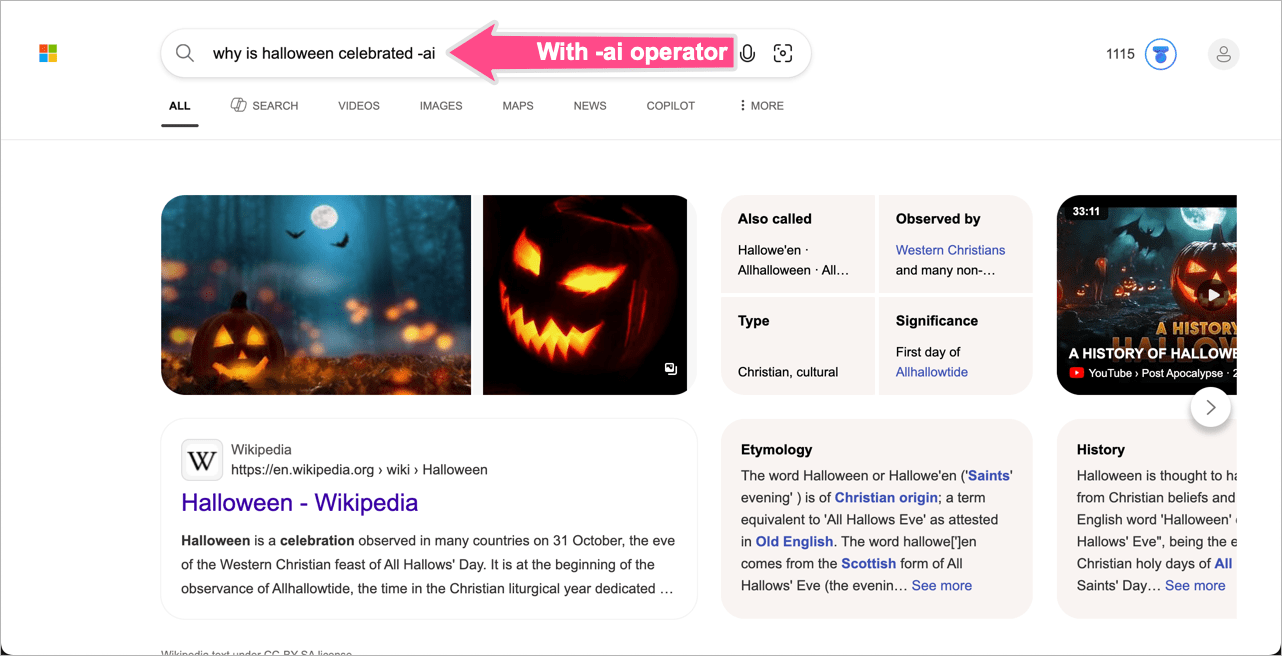
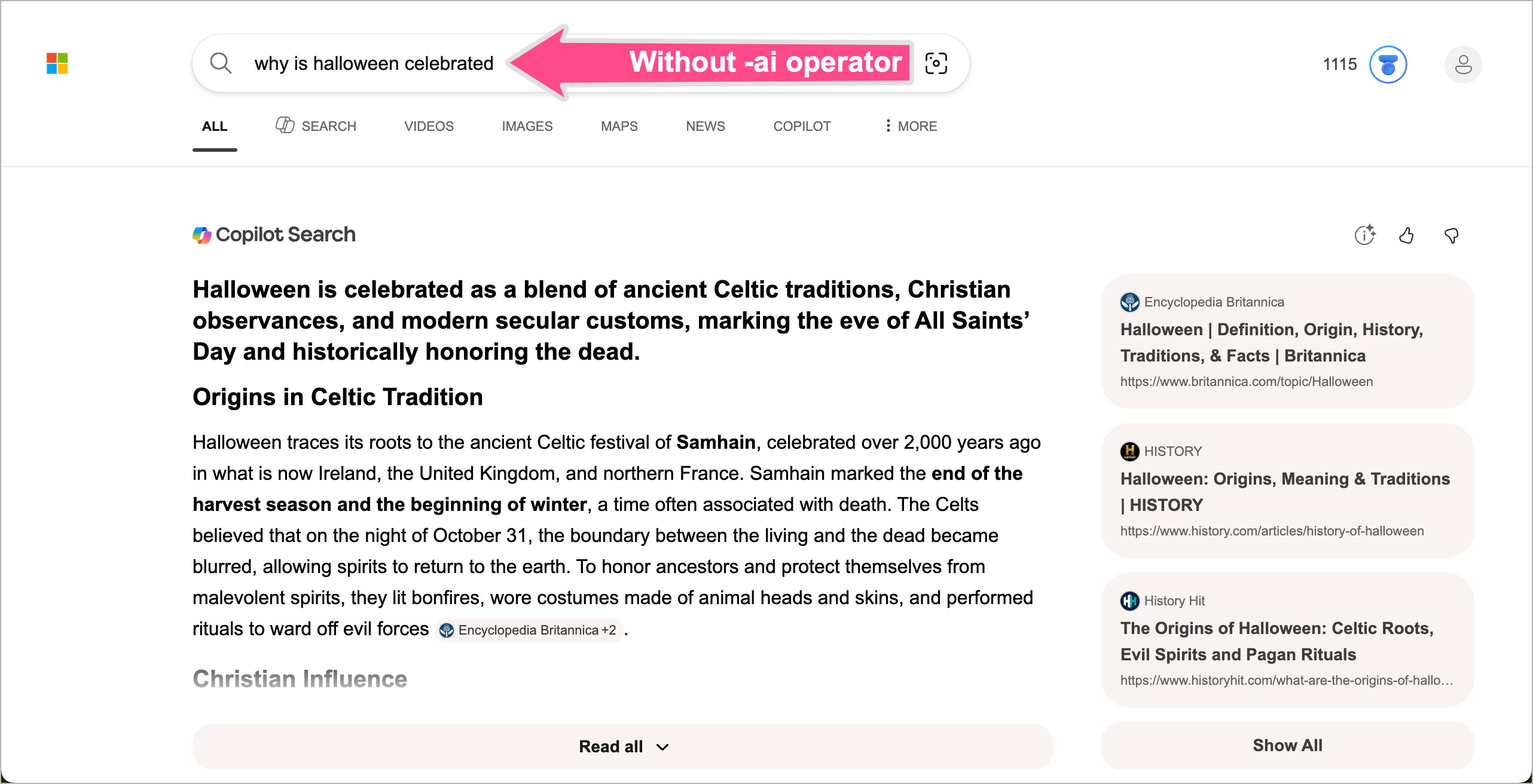
It’s a handy trick if you want to temporarily hide Copilot responses instead of disabling them entirely.
Conclusion
Although Microsoft still hasn’t added a built-in toggle directly within Bing Search, the new Microsoft Bing AI Search Choice extension is currently the best and cleanest way to disable Copilot AI responses in Bing.
The only downside is that the extension forces Bing to stay as your default search engine, with no option to change the search engine later.
Still, it’s good to see Microsoft finally giving users more control over AI-powered search features instead of forcing them on everyone.
Meanwhile, if you use Copilot regularly, you may also want to read our guide on deleting Microsoft Copilot chat history.








