


Websites often ask for permission to send notifications in your browser. These alerts can be useful for emails, messages, news updates, and social media notifications, but they can also become annoying over time.
If you’ve accidentally allowed notifications from random websites, you may start seeing frequent pop-ups through Microsoft Edge. Thankfully, Edge lets you completely disable website notifications or block notifications from specific sites only.
In this guide, you’ll learn how to turn off Microsoft Edge notifications on Windows 11, Windows 10, and Mac.
Why Disable Website Notifications in Edge
Here are some common reasons why users may want to disable notifications in Microsoft Edge:
- Reduce annoying notification pop-ups
- Stop distractions while working or browsing
- Prevent spam notifications from unknown websites
- Improve focus and browsing experience
- Keep the notification center clean and organized
What’s good is that Edge allows you to whitelist specific websites like Gmail, Twitter/X, Slack, or WhatsApp Web so you can still receive important alerts from them.
How to Turn Off All Notifications in Microsoft Edge
Looking to turn off website notifications in Edge browser? Follow the steps below to completely stop notifications from popping up in Microsoft Edge on Windows or Mac.
On Windows or Mac
- Open Microsoft Edge on your PC or Mac.
- Click the three-dot menu icon at the top-right corner and select Settings.
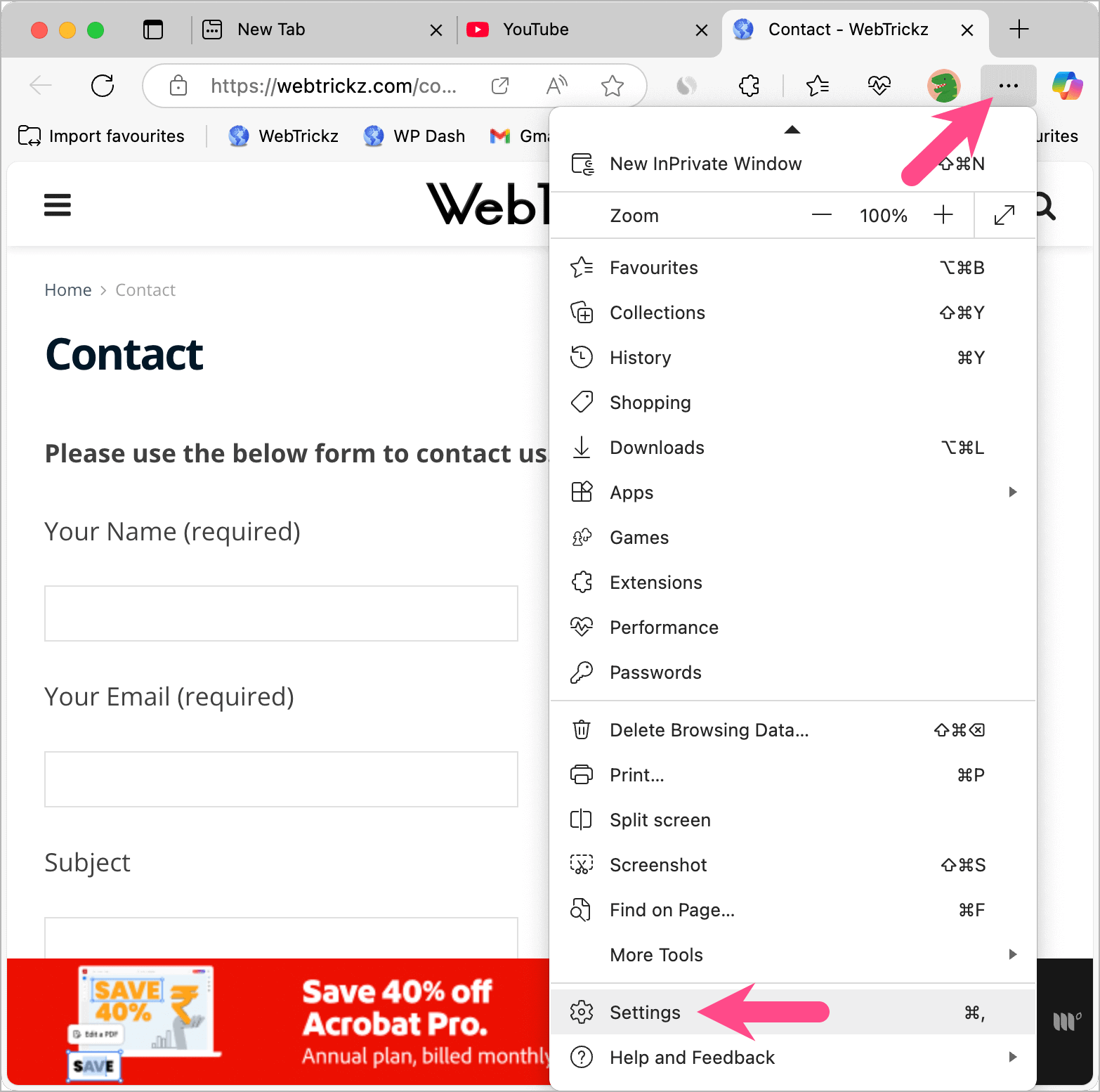
- In the left sidebar, click Privacy, search, and services, and then select Site permissions.
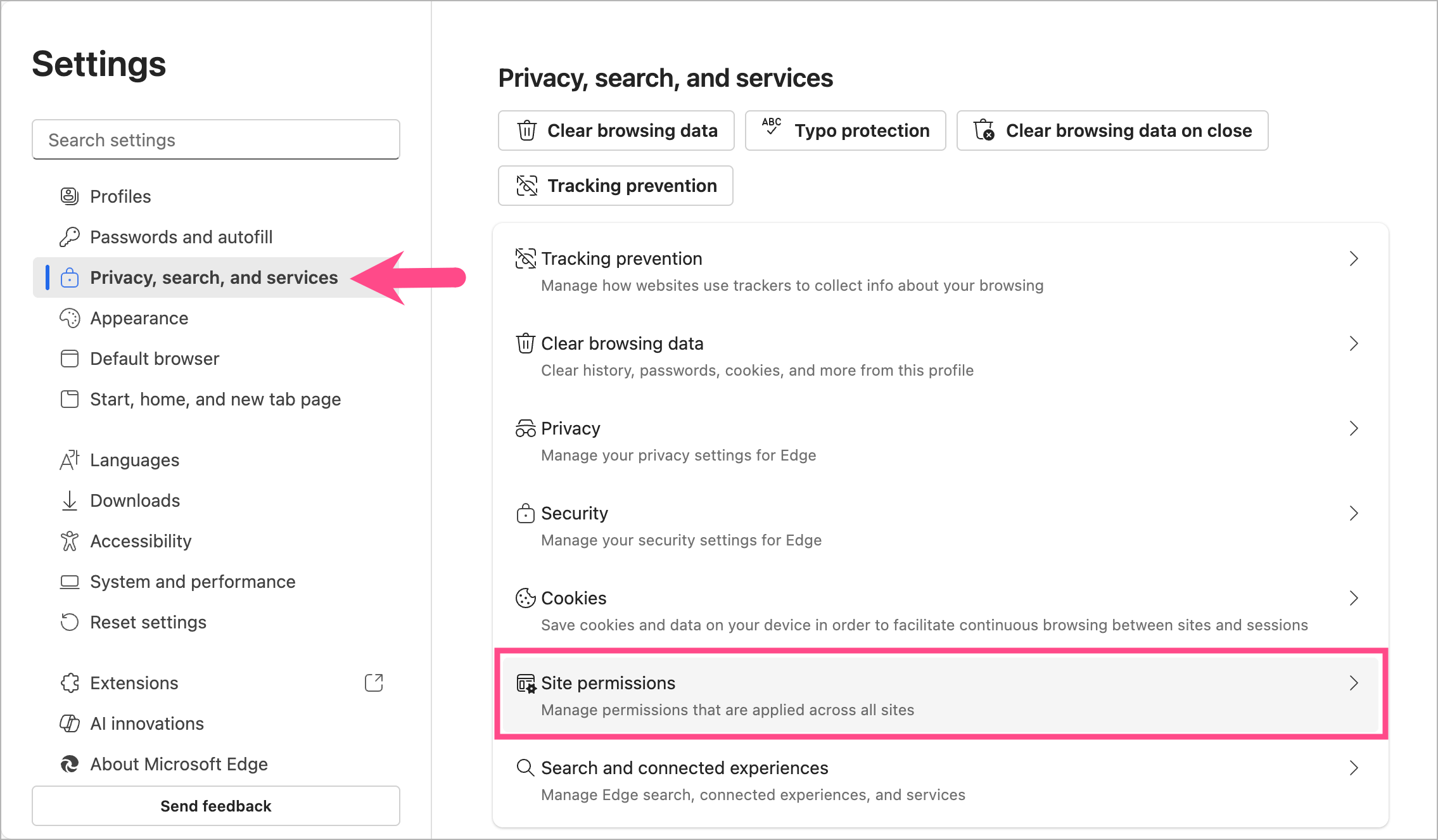
- Go to All permissions.
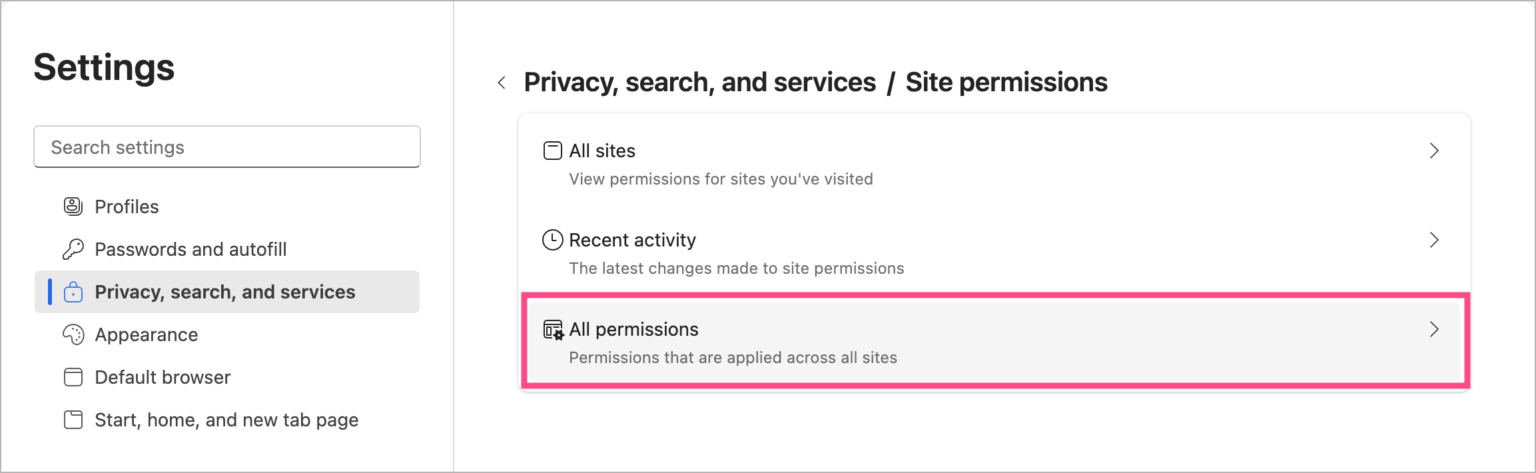
- Click Notifications.
- Under Default behaviour, turn off the toggle next to “Ask before sending (recommended)” to remove notifications from Edge.
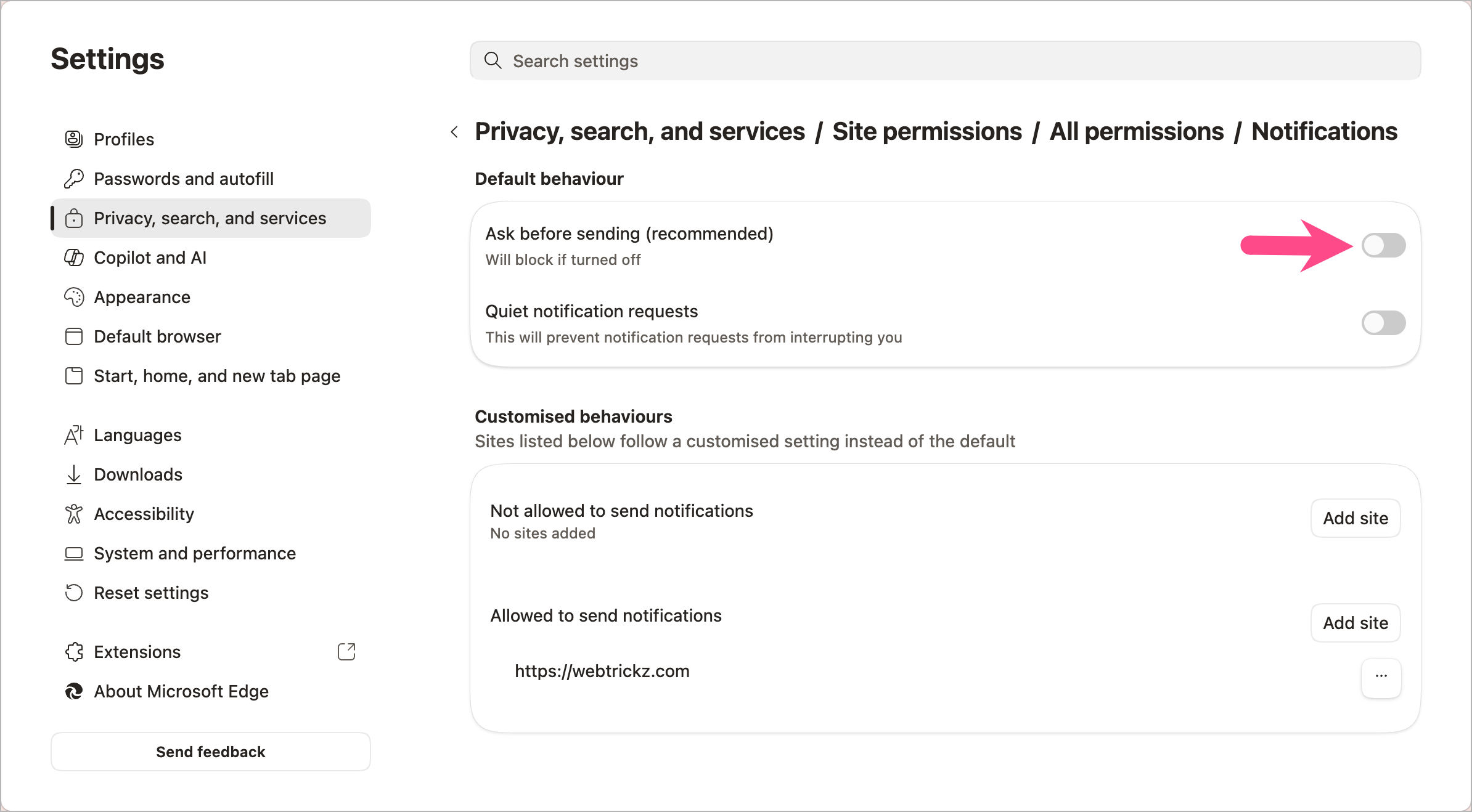
That’s it. Microsoft Edge will now stop websites from asking permission to send notifications.
Tip: You can directly visit edge://settings/privacy/sitePermissions/allPermissions/notifications to find notification settings in Edge.
How to Block Notifications From Specific Websites in Edge
Want to block notifications from specific sites in Edge? Instead of turning off notifications entirely, you can stop selected websites from sending notifications.
Using Edge notification settings
- Open Microsoft Edge.
- Click the three-dot menu and select Settings.
- In the left sidebar, go to Privacy, search, and services.
- Navigate to Site permissions > All permissions > Notifications.
- Under the Allowed to send notifications section, locate the website you want to block.
- Click the three-dot icon next to the website name.
- Select Block or Remove.
- Choose Block to prevent the website from sending notifications again.
- Choose Remove to reset the permission so the site may ask again later.
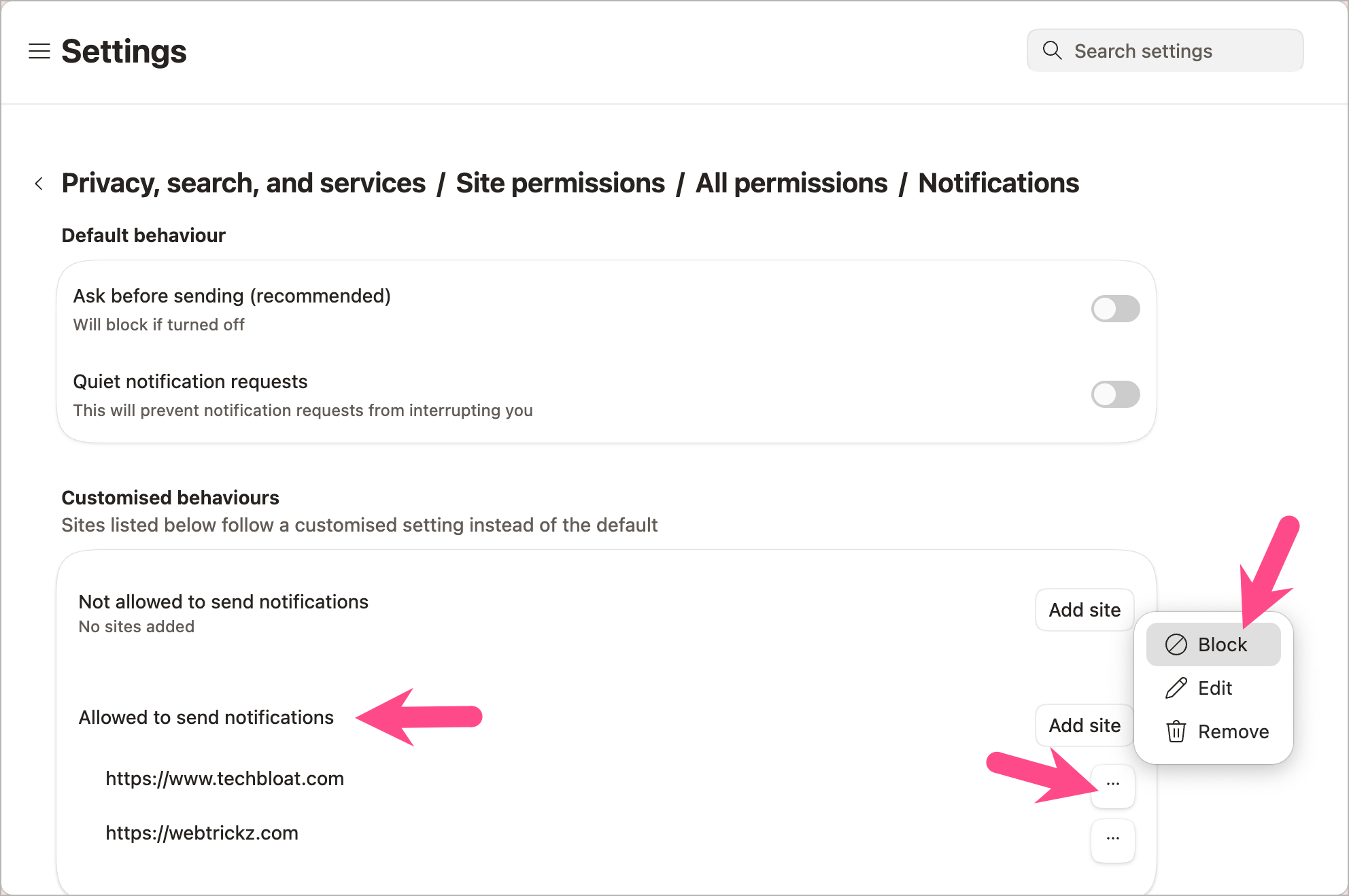
Once blocked, the website will no longer send notifications in Edge.
Alternate way – Block notifications from the address bar
You can also disable push notifications directly from the notification permission popup that appears in the address bar. To do so,
- Open the website in Microsoft Edge.
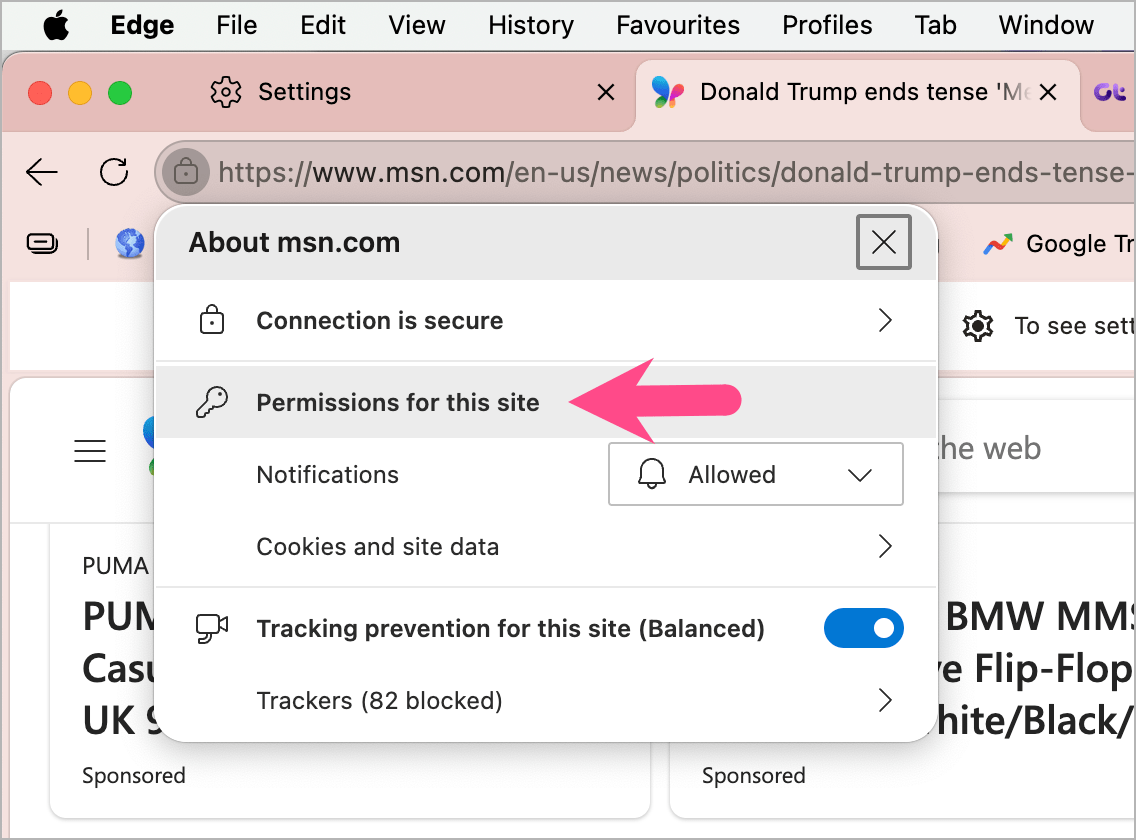
- Click the padlock or site information icon beside the address bar.
- Select Permissions for this site.
- Click the Notifications dropdown and change it to Block.
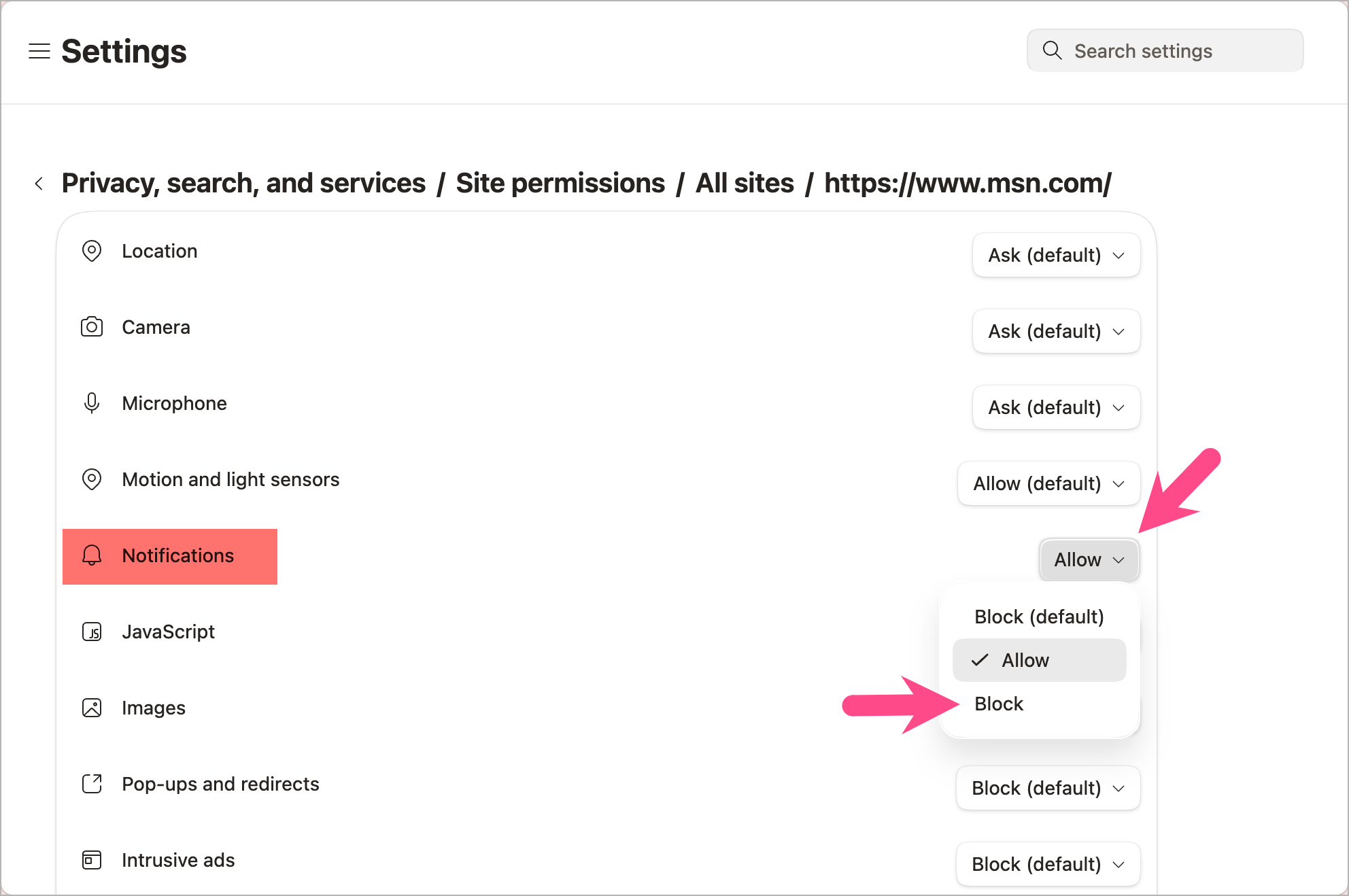
This is a quick way to stop notifications from a particular website without opening Edge settings.
How to Allow Notifications From Specific Websites in Edge
You can also customize notification settings in Edge to allow notifications from trusted websites only.
To whitelist specific websites in Edge:
- Open Microsoft Edge and go to Settings.
- Select Privacy, search, and services in the sidebar.
- Navigate to Site permissions > All permissions > Notifications.
- Under Customised behaviours, click the Add site button next to Allowed to send notifications.
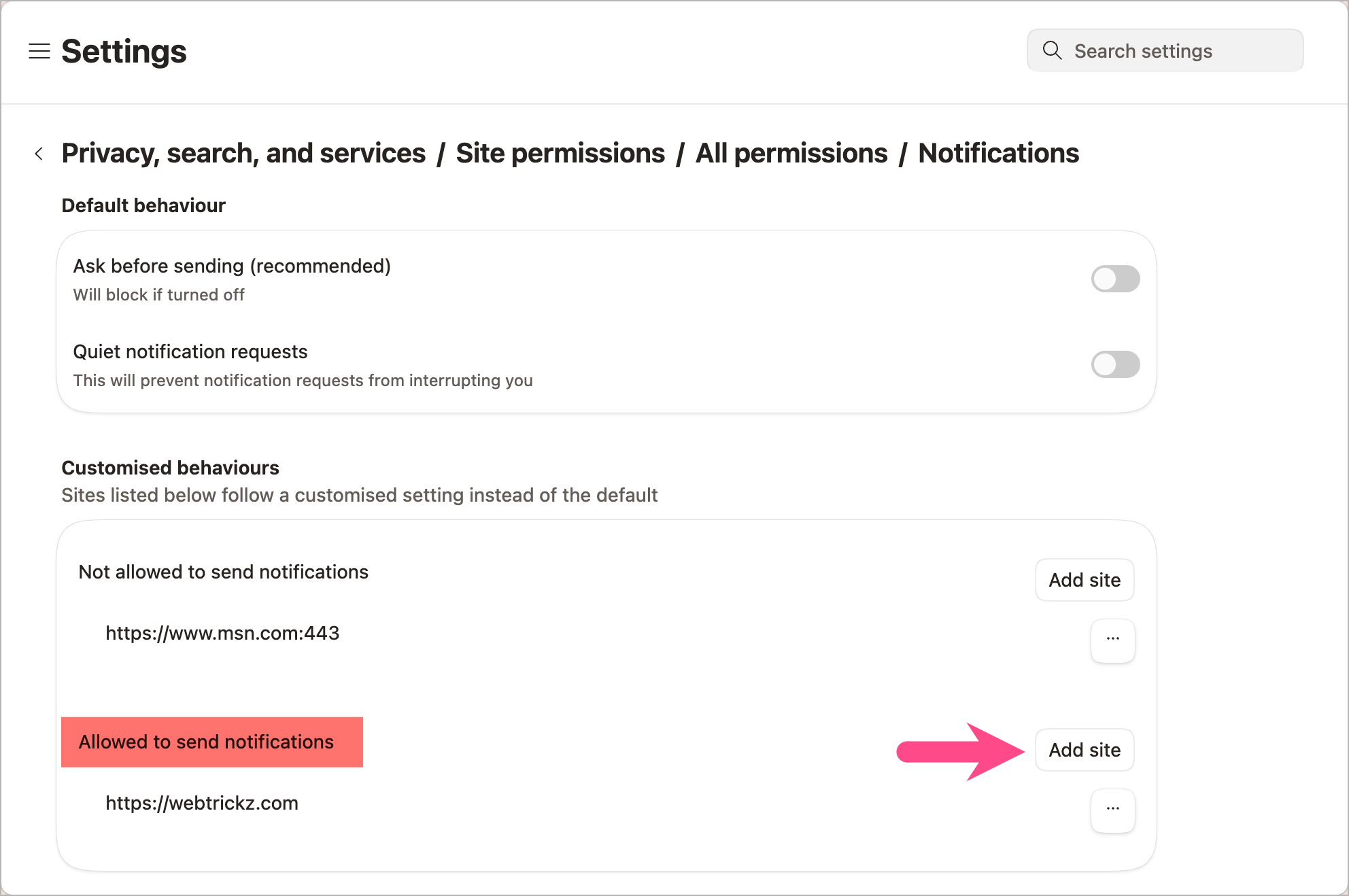
- Enter the website URL that you want to whitelist.
- Click Add.
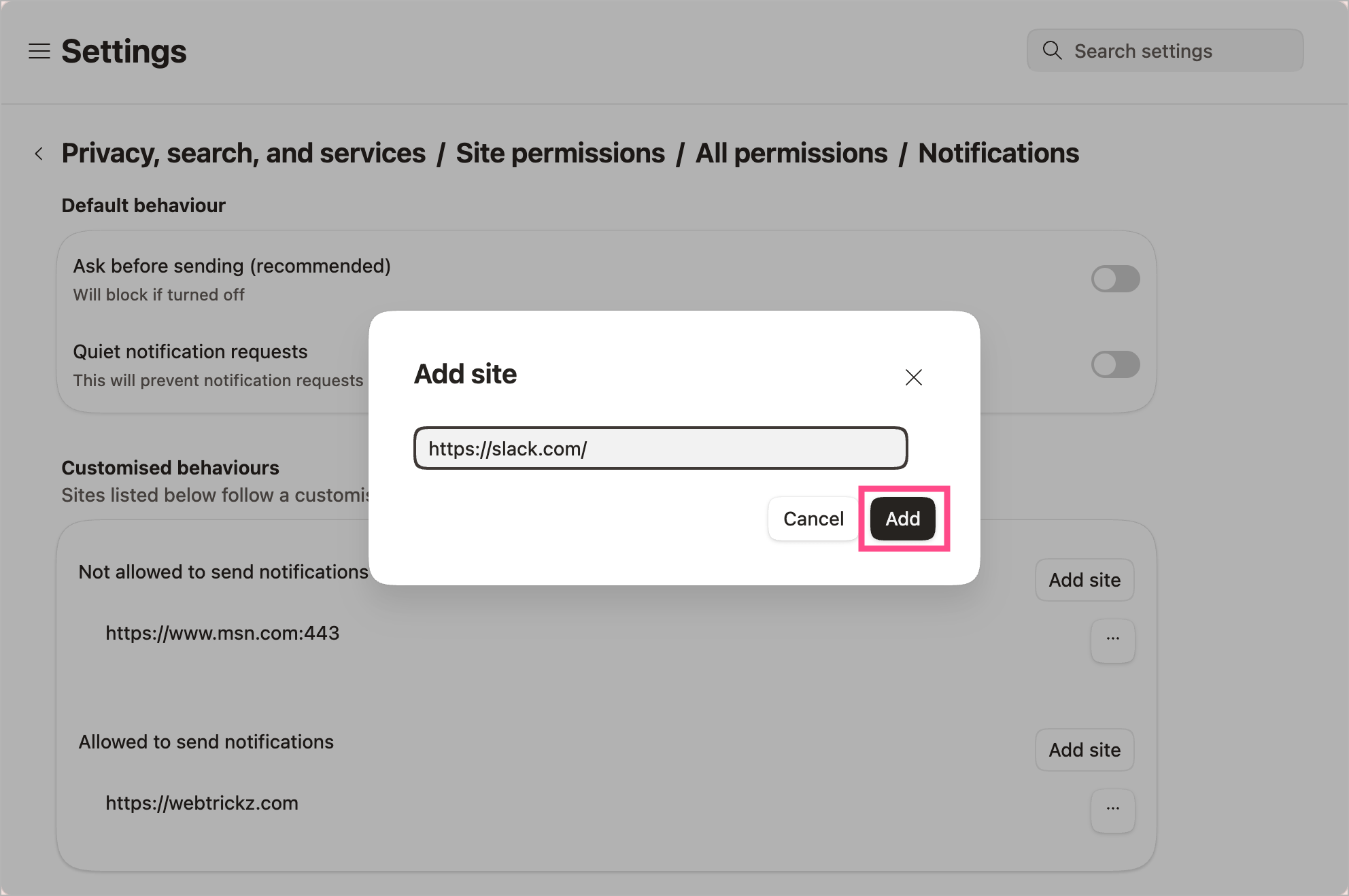
Sites listed under the “Allowed to send notifications” section will continue to send you notifications, irrespective of the default setting.
For example, you can allow notifications from Gmail, Twitter, Microsoft Teams, Slack, or WhatsApp Web while keeping notifications blocked for all other websites.
Use Quiet Notification Requests to Reduce Pop-Ups
If you don’t want to completely disable notifications in Edge, you can use the Quiet notification requests feature instead.
This feature reduces intrusive notification prompts by showing a small bell icon in the address bar instead of a large pop-up asking you to allow or block notifications. It helps make browsing less distracting while still allowing notifications from websites you trust.
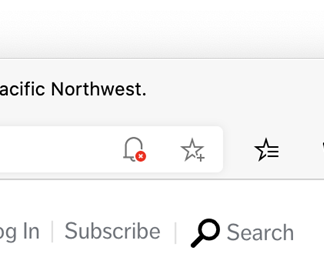
To enable Quiet notification requests in Edge:
- Open Microsoft Edge.
- Visit
edge://settings/privacy/sitePermissions/allPermissions/notifications. - Turn on the toggle for Quiet notification requests.
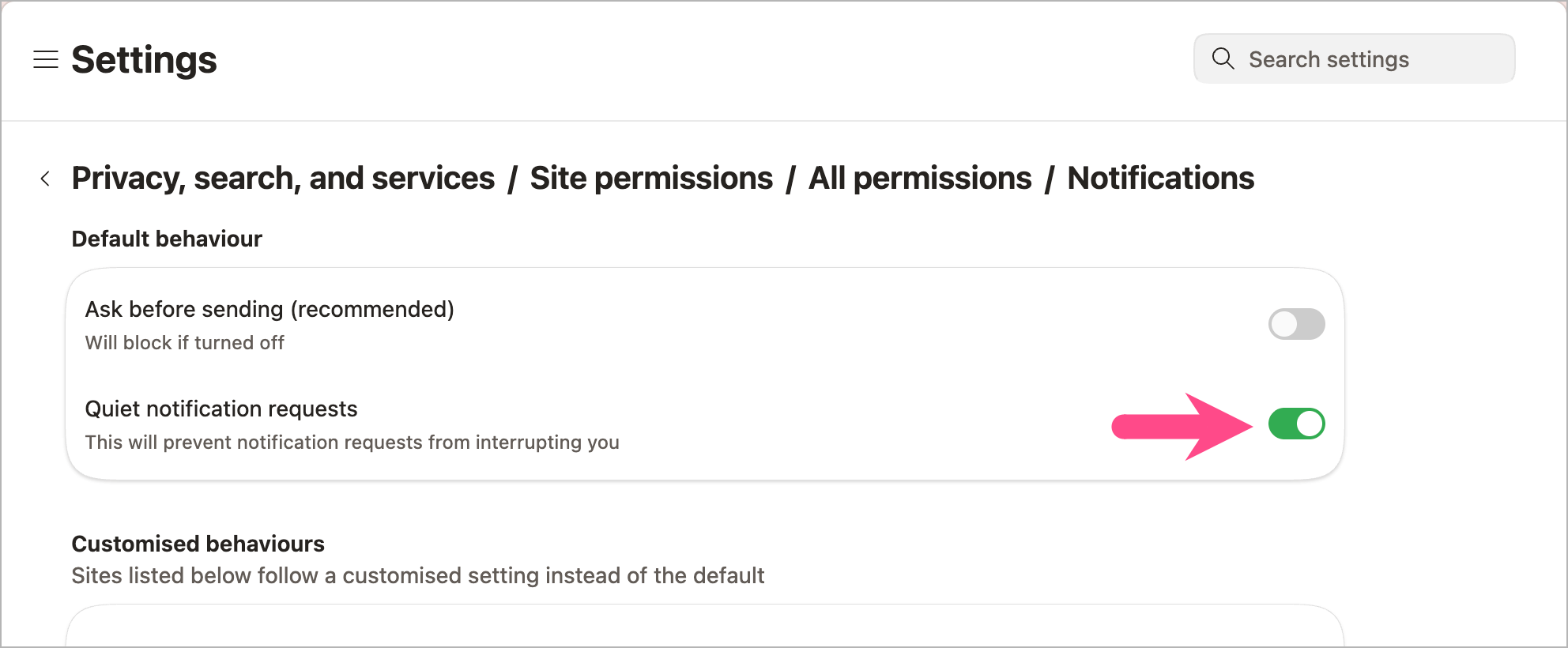
Once enabled, Edge will hide intrusive notification pop-ups for supported websites and show quieter notification prompts instead.
Want to disable notification prompts in Chrome, Firefox, or Safari too? Read our guide on stopping websites from asking to send notifications.
If you’re also dealing with intrusive pop-up windows in Edge, check our guide on how to disable or manage the pop-up blocker in Microsoft Edge.








