

WebTrickz
TRENDING
  • Complete list of 1337x Proxy and Mirror Sites
No Result
View All Result
  • Reviews
  • Editorials
  • Social Media
    • Facebook
    • Twitter
    • YouTube
    • Messenger
    • Instagram
    • Snapchat
    • WhatsApp
    • TikTok
  • Apps
  • How To’s
  • Apple
  • iPhone
  • Google
  • Android
  • Mac
  • Security
  • About Us
    • About Us
    • Contact Us
    • Privacy Policy
  • Reviews
  • Editorials
  • Social Media
    • Facebook
    • Twitter
    • YouTube
    • Messenger
    • Instagram
    • Snapchat
    • WhatsApp
    • TikTok
  • Apps
  • How To’s
  • Apple
  • iPhone
  • Google
  • Android
  • Mac
  • Security
  • About Us
    • About Us
    • Contact Us
    • Privacy Policy
No Result
View All Result
WebTrickz
No Result
View All Result
Home How To's

How to Block specific websites on computer with Kaspersky

Taigun by Taigun
February 19, 2024
in How To's, Tips 'n' Tricks

Kaspersky Internet Security users can easily block specific sites on all browsers of a computer system using the “Parental Control” feature integrated into it. Using Parental control, one can block any particular website and restrict access to sites belonging to categories like adult sites, illegal activity, social networking, Gambling, Drugs, etc.

Follow the steps below to Block Sites using Kaspersky:

1. Open Kaspersky, go to Security, and open Parental Control.

2. Tick mark ‘Enable Parental Control’, set user profile to ‘Child’. Now open ‘Settings’.
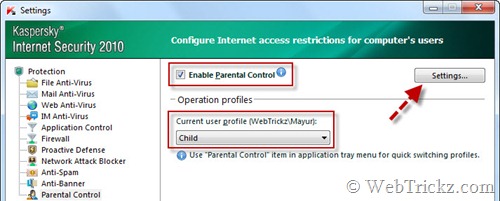
enable Parental Control

3. A Parental Control window will now open. Open Settings from the Child tab.
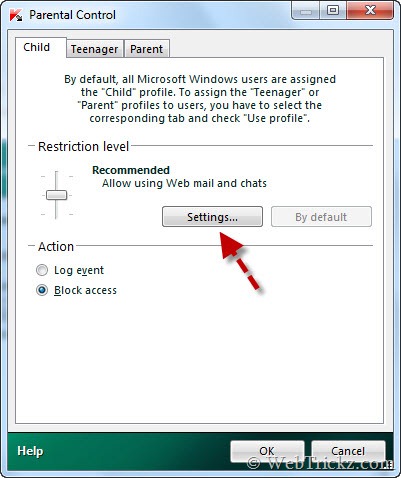
Parental Control window

4. Under “Child” profile settings, open the Restrictions tab. Enable the ‘Set Restrictions’ radio button and tick mark ‘Block access to web addresses’.
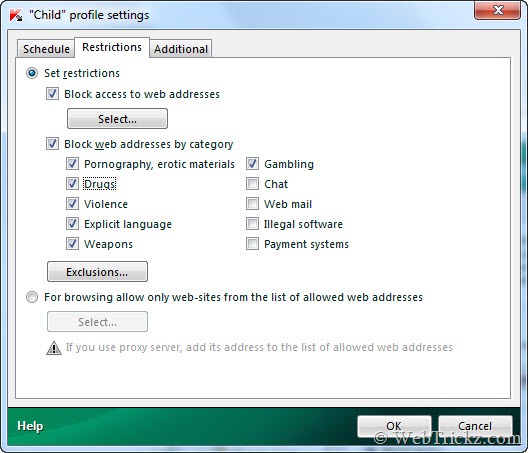
set child profile settings

6. Click the ‘Select’ button and add the list of websites that you want to block. You can also block web addresses by category.
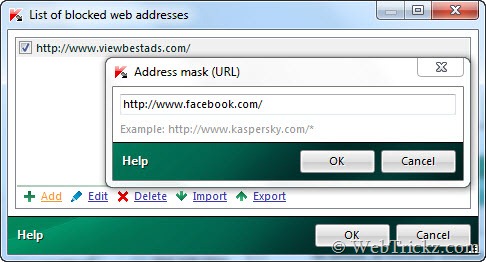
add sites to block

7. Click Ok on all open windows. Kaspersky will now ask to password-protect the application so that no other person can disable or modify its settings.
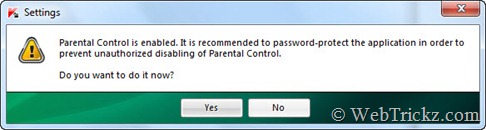
set password message

On completing all the above steps, specified sites will be blocked completely on all browsers of a computer. On opening the blocked site, you will get ‘Access Denied’ message as shown below:
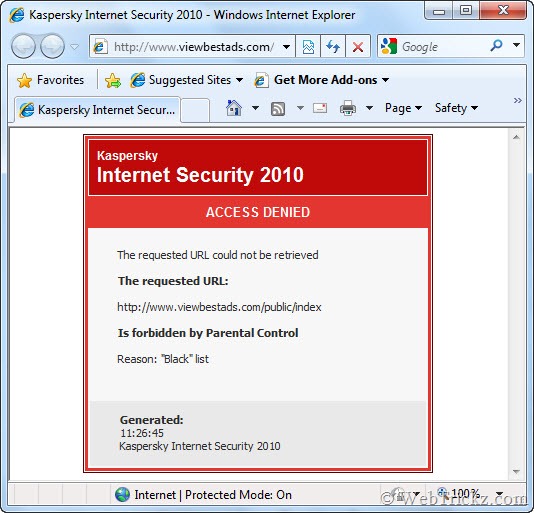
access denied to blocked site

Hope Kaspersky users will find this tip useful. 😀

For users who do not run Kaspersky can use this effective method – How to Block Adult content/websites using OpenDNS?


Tags: GuideKasperskyParental ControlTipsTricksTutorials
ShareTweetSend
Previous Post

How to Extract Commentators’ Email Addresses with IP & Name from a Post in WordPress

Next Post

PDFill – Collection of 15 Useful Free PDF Tools, PDF Writer and Image Writer & PDF Editor

Taigun

Taigun

Mayur Agarwal, the founder and editor of WebTrickz, is a tech enthusiast with a Bachelor's degree in Computer Applications and over 15 years of experience in tech writing. His passion for technology and gadgets drives him to create insightful how-to articles and troubleshooting guides.

Next Post

PDFill – Collection of 15 Useful Free PDF Tools, PDF Writer and Image Writer & PDF Editor

Leave a Reply Cancel reply

Your email address will not be published. Required fields are marked *

Latest Stories

1337x logo

1337x Proxy List 2026: Working Proxy & Mirror Sites

June 2, 2026

How to Find Saved Reels on Facebook App & Desktop (2026)

April 1, 2026
microsoft edge browser

How to Restore or Reopen Closed Tabs in Microsoft Edge

March 26, 2026
Facebook app on iPhone

How to See Recently Watched Reels on Facebook (2026 Guide)

April 3, 2026
microsoft edge new logo

Download Microsoft Edge Offline Installer [Latest Version]

March 16, 2026

How to Turn Off Bing SafeSearch in Microsoft Edge

March 12, 2026
google chrome logo

Download Google Chrome Offline Installer [Latest Version]

June 3, 2026

Trending Stories

  • microsoft family safety settings

    How to Turn Off Microsoft Family Safety on Windows 11 & 10

  • How to Turn Off Fn Lock or Fn Key on Windows 11/10 Laptop

  • How to Turn Off Microsoft Edge Game Assist in Windows 11

  • How to See Recently Watched Reels on Facebook (2026 Guide)

  • How to Restore or Reopen Closed Tabs in Microsoft Edge

  • About Us
  • Contact Us
  • Privacy Policy
  • Advertise

© 2026 WebTrickz. All Rights Reserved.

No Result
View All Result
  • Reviews
  • Apps
  • How To’s
  • Android
  • Google
  • iPhone
  • Mac
  • About Us
  • Contact Us
  • Privacy Policy

© 2026 WebTrickz. All Rights Reserved.






