WebTrickz
TRENDING
  • Claude vs ChatGPT: Which Is Better in 2026?
No Result
View All Result
  • Reviews
  • Editorials
  • Social Media
    • Facebook
    • Twitter
    • YouTube
    • Messenger
    • Instagram
    • Snapchat
    • WhatsApp
    • TikTok
  • Apps
  • How To’s
  • Apple
  • iPhone
  • Google
  • Android
  • Mac
  • Security
  • About Us
    • About Us
    • Contact Us
    • Privacy Policy
  • Reviews
  • Editorials
  • Social Media
    • Facebook
    • Twitter
    • YouTube
    • Messenger
    • Instagram
    • Snapchat
    • WhatsApp
    • TikTok
  • Apps
  • How To’s
  • Apple
  • iPhone
  • Google
  • Android
  • Mac
  • Security
  • About Us
    • About Us
    • Contact Us
    • Privacy Policy
No Result
View All Result
WebTrickz
No Result
View All Result
Home Android

How to Launch Google Assistant using Power button on OnePlus 6

Mayur Agarwal by Mayur Agarwal
May 6, 2021
in Android, How To's

A while back, we posted an article on how to launch Google Assistant on your OnePlus smartphone with navigation gestures. For those unaware, OnePlus introduced iPhone X-like navigation gestures with the OnePlus 5T, and the same is found in their latest flagship, the OnePlus 6. This gesture-based navigation approach is certainly a great replacement for on-screen keys. That’s because they offer relatively more screen real estate and a seamless way to navigate through the device without any issues.

The only gripe with OnePlus navigation gestures is that the users can’t launch Google Assistant easily. To do so, one only has the option to use voice commands such as “Ok Google” or “Hey Google”. Fortunately, OnePlus has addressed this problem with the OxygenOS Open Beta 3 recently released for the OnePlus 6. With Open beta 3, OnePlus 6 users can launch the Google Assistant or other third-party assistant apps by simply holding the power button for 0.5 seconds.

While most of you might think that this certain functionality to launch assistant might trigger an accidental lockdown of the device. Fortunately, that’s isn’t the case because the power off or restart menu is shown after you press the power key for 3 seconds. It’s worth noting that this feature isn’t enabled by default and needs to be turned on in order to use it. Now let’s see how to enable this new setting.

Launching Google Assistant using power key on OnePlus devices
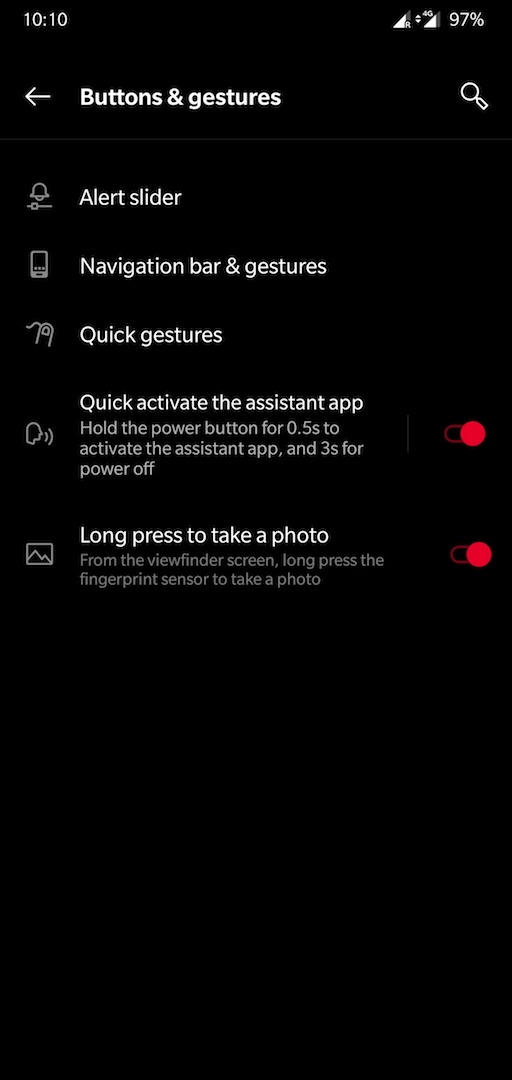
Quick activate the assistant app
google assistant oneplus
Google Assistant
  1. Make sure your device supports this particular software feature. Tip – OnePlus 6 users can install the Open beta 3 to get it right now.
  2. To enable it, head over to Settings > Buttons & gestures and toggle on the “Quick activate the assistant app” option.
  3. That’s it. Now press and hold the power button for 0.5s to launch the Google Assistant app.

Having said that, this is certainly a welcome addition to the OnePlus 6. We wish the above feature comes soon to other OnePlus devices as well, including the OnePlus 5T.

ALSO READ: How to remove Google Assistant from the power button on OnePlus Nord

Tags: AndroidOnePlusOnePlus 6OxygenOSTips
Share2TweetSend
Previous Post

Top 5 Features of Nokia 6.1 Plus You Should Know

Next Post

Hacks for Making a Good PowerPoint Presentation

Mayur Agarwal

Mayur Agarwal

Mayur Agarwal, the founder and editor of WebTrickz, is a tech enthusiast with a Bachelor's degree in Computer Applications and over 15 years of experience in tech writing. His passion for technology and gadgets drives him to create insightful how-to articles and troubleshooting guides.

Next Post

Hacks for Making a Good PowerPoint Presentation

Comments 1

  1. Kenneth Wildon says:
    3 months ago

    My One Plus 5, having undergone a Full Close down and reopen, went well. HOWEVER after a stop and restart, became fully charged. I went through the restart procedure.
    The restart plus one in a square comes on but then goes off and the device will not restart nor attempt a restart. Please can you help me with this?

    Reply

Leave a Reply Cancel reply

Your email address will not be published. Required fields are marked *

Latest Stories

Google Gemini

How to Cancel Your Gemini Subscription (2026 Guide)

June 21, 2026
difference between chatgpt and claude

Claude vs ChatGPT: Which AI Should You Use in 2026?

June 18, 2026
google chrome logo

Google Chrome Offline Installer: Direct Download Links

June 17, 2026
X logo

How to Remove All Bookmarks on X (Twitter) At Once in 2026

June 15, 2026
X logo

How to Find Bookmarks on X (Twitter) in 2026

June 15, 2026
copilot logo

How to Turn Off Copilot Search in Bing on Edge & Chrome

June 10, 2026
microsoft edge new logo

How to Turn Off Notifications in Microsoft Edge (2026 Guide)

June 8, 2026

Trending Stories

  • 1337x logo

    1337x Proxy List 2026: Working Proxy & Mirror Sites

  • How to Turn Off Microsoft Family Safety on Windows 11 & 10

  • How to See Recently Watched Reels on Facebook (2026 Guide)

  • How to Turn Off Microsoft Edge Game Assist in Windows 11

  • How to Turn Off Fn Lock or Fn Key on Windows 11/10 Laptop

  • About Us
  • Contact Us
  • Privacy Policy
  • Advertise

© 2026 WebTrickz. All Rights Reserved.

No Result
View All Result
  • Reviews
  • Apps
  • How To’s
  • Android
  • Google
  • iPhone
  • Mac
  • About Us
  • Contact Us
  • Privacy Policy

© 2026 WebTrickz. All Rights Reserved.