


Nokia is the most popular and world’s largest mobile phones manufacturer. If you are a mobile user then you must use the latest software version or firmware on your mobile.
The latest firmware is mainly used to flush out the bugs. Sometimes, a new update or firmware provides new features, applications, and improves the performance of your device.
So, I’ll tell you the detailed procedure to update your Nokia device firmware. You will need a PC, device USB cable, and a good Internet connection to perform this task.
Before updating, you need to check if your phone needs an update or Not. This can be checked by determining the software version currently installed on your Nokia device.
Check the current software version of your Nokia phone
1) To check enter *#0000# on your Nokia device’s keypad. The version number will look similar to this: V 12.3.456. Please write down the version number somewhere.
2) Now turn off your phone, remove the battery and locate the 7-digit product code printed on the white label beneath the battery. The code looks like: CODE: 0520001
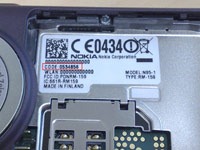
3) Then visit the Nokia Software Update webpage and enter the code you found in step 2. It will tell you if there is any update available or not for your phone.
How to Update to a New Firmware
Before updating, please ensure that:
1) You have backed up all data and content (contacts, photos, and messages) in your handset memory.
2) Your handset battery is fully charged.
3) Your handset has a SIM card inserted, and the profile is set to “Normal”
How to Backup:
You can back up your device memory data to your device memory card or to your PC using Nokia PC Suite. To backup follow this guide by Nokia.
Now follow the below steps carefully to Update your Nokia phone:
1) Download Nokia Software Updater and install it on your PC.
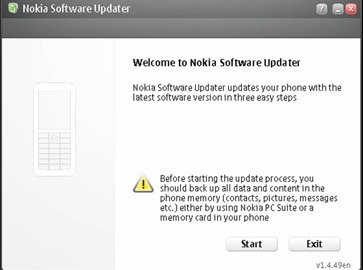
2) Run Nokia Software Updater. Click “Start”.
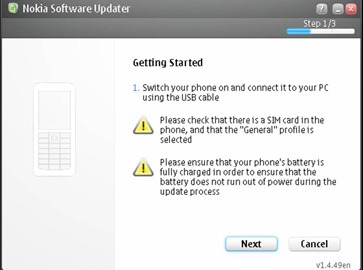
3) Connect your handset to your PC using the USB cable, then click “Next”
4) Now the Software Updater will automatically look for connected
handsets and search for necessary updates.
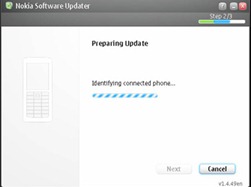
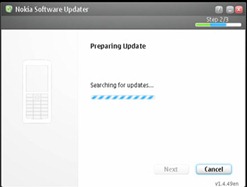
5) If new firmware or software is available, the below screen will be displayed showing the current and update version for your device.
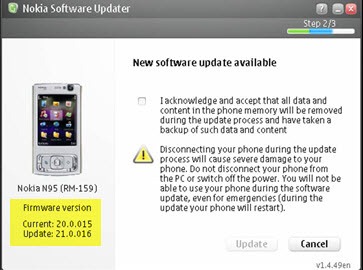
6) Confirm that you have backup all data in your handset memory, click Update.
Note: All data and content in the handset memory will be removed during the update process.
7) Do not disconnect the cable or switch off your handset during the update process. Disconnecting the cable will cause severe damage to your phone and it may stop working.
The update process will take a while. Please be patient.
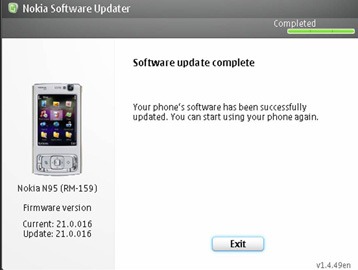
8) After a successful update, you’ll see a Software update complete message. Now you can start using your phone and enjoy the latest updates.
How to Restore mobile content after update:
You must have a backup file of the data you want to restore. The backup file is restored using Nokia PC Suite. To restore follow this guide by Nokia.
Please refer to the Nokia FAQ (Help) if you have any problems.
Note: Nokia device firmware cannot be downgraded. Once you have upgraded your device, you will not be able to restore to the earlier version.









thanks for the information…..keep up the good work
actually, with the latest handsets like nokia expressmusic 5800 and later models, you dont have to create a backup. the actually firmware upgrade wont harm your current settings and data (like pictures, messages.etc) in any way. basically, what i mean to say is, this application wont do a hard format with the newer models.
I followed all the above steps…but in the end when it is updating the software an error occurs saying “Software update fail…..For optimum connectivity,ur usb cable should be connected directly to the pc.and not via USB HUB…..” but i have not connected to usb hub or any such thing..i have connected directly to the PC…..PLS HELP
Thanks alot…..great and complete infor….thanks for sharing.