

WebTrickz
TRENDING
  • Turn Off Copilot Search in Bing (Official Extension)
No Result
View All Result
  • Reviews
  • Editorials
  • Social Media
    • Facebook
    • Twitter
    • YouTube
    • Messenger
    • Instagram
    • Snapchat
    • WhatsApp
    • TikTok
  • Apps
  • How To’s
  • Apple
  • iPhone
  • Google
  • Android
  • Mac
  • Security
  • About Us
    • About Us
    • Contact Us
    • Privacy Policy
  • Reviews
  • Editorials
  • Social Media
    • Facebook
    • Twitter
    • YouTube
    • Messenger
    • Instagram
    • Snapchat
    • WhatsApp
    • TikTok
  • Apps
  • How To’s
  • Apple
  • iPhone
  • Google
  • Android
  • Mac
  • Security
  • About Us
    • About Us
    • Contact Us
    • Privacy Policy
No Result
View All Result
WebTrickz
No Result
View All Result
Home How To's

How to Get Back Old Start Menu in Windows 8

Mayur Agarwal by Mayur Agarwal
February 26, 2024
in How To's, Windows 8

Metro Style UI is one of the most talked about features of Windows 8, which brings a whole new modern interface to the next major version of Windows. Metro style seen previously in Windows Phone 7, is specifically designed for touch devices like tablets and touch PCs. Metro is integrated and enabled by default when you install Windows 8 Developer Preview on a desktop and control it using a combo of mouse and keyboard.

However, it seems most basic desktop users are finding the Metro UI cool just for a short while. That’s because Windows 8 doesn’t include the old classic start menu and the real power of Metro interface can’t be experienced on traditional systems. Fortunately, there is an easy way to completely disable the Metro UI in Windows 8 and re-enable the classic start button/menu as seen in Windows 7, Vista, and XP.
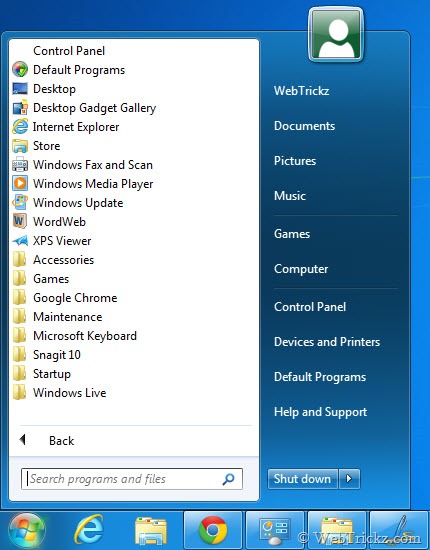
windows8_classic-start-menu

To Enable the old start menu in Windows 8 Dev build, open regedit. To open the registry editor in Windows 8, go to Start > Search, select Apps from the right sidebar, type regedit in the search bar, and select ‘regedit’ from the listed Apps.

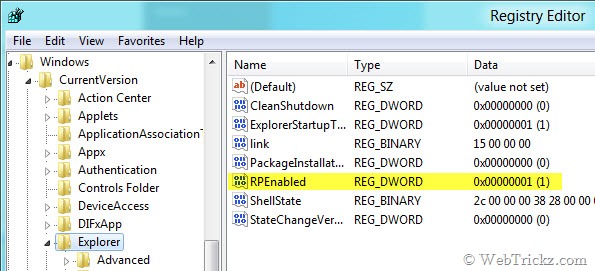
Navigate to HKEY_CURRENT_USER\Software\Microsoft\Windows\CurrentVersion\Explorer and change the value of RPEnabled from “1” to “0” (without quotes). Close the registry editor, you will get the old start menu. You may need to Log off to see the changes.
15-09-2011 16-59-20

However, there is one limitation. On enabling the classic start menu, you will no longer see or use the Metro UI. Just change the value back to “1” to get it again.

Update: Disabling Metro UI using the above method also disables Ribbon UI in Explorer.

Tip via [Neowin]

Tags: TipsTricksWindows 8
ShareTweetSend
Previous Post

Windows 8 Developer Preview Keyboard Shortcuts

Next Post

How to Dual Boot Windows 7 and Windows 8 Developer Preview

Mayur Agarwal

Mayur Agarwal

Mayur Agarwal, the founder and editor of WebTrickz, is a tech enthusiast with a Bachelor's degree in Computer Applications and over 15 years of experience in tech writing. His passion for technology and gadgets drives him to create insightful how-to articles and troubleshooting guides.

Next Post

How to Dual Boot Windows 7 and Windows 8 Developer Preview

Leave a Reply Cancel reply

Your email address will not be published. Required fields are marked *

Latest Stories

copilot logo

How to Turn Off Copilot Search in Bing on Edge & Chrome

June 10, 2026
microsoft edge new logo

How to Turn Off Notifications in Microsoft Edge (2026 Guide)

June 8, 2026
chatgpt logo

How to Clear or Delete ChatGPT Memory on PC and Mobile

June 5, 2026
1337x logo

1337x Proxy List 2026: Working Proxy & Mirror Sites

June 2, 2026

How to Find Saved Reels on Facebook App & Desktop (2026)

June 8, 2026
microsoft edge browser

How to Restore or Reopen Closed Tabs in Microsoft Edge

June 9, 2026
Facebook app on iPhone

How to See Recently Watched Reels on Facebook (2026 Guide)

June 5, 2026

Trending Stories

  • microsoft family safety settings

    How to Turn Off Microsoft Family Safety on Windows 11 & 10

  • 1337x Proxy List 2026: Working Proxy & Mirror Sites

  • How to Turn Off Microsoft Edge Game Assist in Windows 11

  • How to See Recently Watched Reels on Facebook (2026 Guide)

  • How to Turn Off Fn Lock or Fn Key on Windows 11/10 Laptop

  • About Us
  • Contact Us
  • Privacy Policy
  • Advertise

© 2026 WebTrickz. All Rights Reserved.

No Result
View All Result
  • Reviews
  • Apps
  • How To’s
  • Android
  • Google
  • iPhone
  • Mac
  • About Us
  • Contact Us
  • Privacy Policy

© 2026 WebTrickz. All Rights Reserved.







