


Windows 7 has come out with lots of new and exciting features. You may have noticed that we can’t open My Computer directly from Windows 7 Taskbar aka Superbar.
If we drag and drop My computer to the taskbar, it gets pinned to Windows Explorer rather than creating a new place for itself. Windows Explorer opens libraries which irritates me and quite a lot of users.
So, I’ve found a simple trick to pin My Computer to Windows 7 taskbar. The below procedure also works with Windows 8 Developer Preview.
Follow the simple steps below to Pin My Computer to the Taskbar –
1) Right-click on Desktop, and select New > Shortcut.
2) In the location of the item enter the following string exactly as given below:
%SystemRoot%\explorer.exe /E,::{20D04FE0-3AEA-1069-A2D8-08002B30309D}
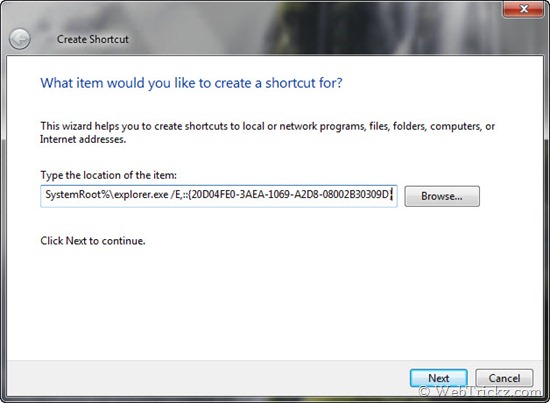
3) Give a name to the shortcut. For example, My Computer
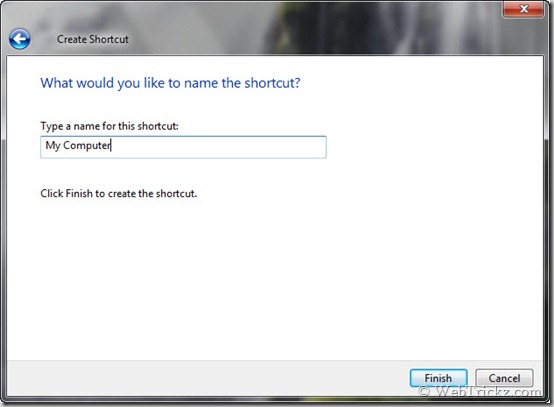
4) Now you’ll see a new shortcut of ‘My Computer’ placed on the desktop. It has the same icon as that of Windows Explorer. You can change its icon if you wish.
5) To pin the shortcut to Windows 7 Taskbar, just right-click on it and select “Pin to Taskbar”.
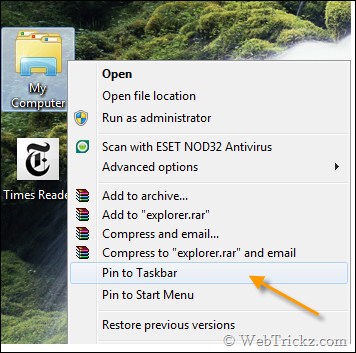
6) Enjoy! Your direct shortcut to My computer is now pinned on the taskbar.
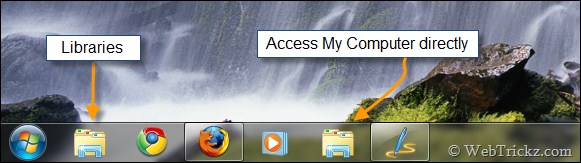








Wonderful man, I really wanted to show up both (my computer as well as explorer).
Kewl stuff!
Slick!!!Im using Windows 7 latest build…It is really better than win xp and Vista as u have said earlier!
great !!!!!! thanks alot 🙂
This would be great, if it had a right click context menu to access properties, instead of just the drives. Properties is the main reason that I have this displayed on the desktop.
Thanks for the tip. I’ve actually pinned the normal Computer icon to the taskbar and modified the “Windows Explorer” entry with your shortcut. You get the nice context menu then with your frequent folders on it but if you just click the icon you get Computer open.. perfect!
but there is a simple way.
jus open my computer window.
in address bar you will have a my computer icon .just drag it to task bar.
yes, u r too right.
Thank you very much for a solution.
Thanks m8
Cheers
Your instructions worked perfectly and solved a perplexing problem. Thanks for the post.
in windows xp I’ve always had the D: drive “pinned” to my taskbar. is there a way I can pin in windows 7 the drive ?
PLEASE TELL ME HOW TO PIN A FOLDER SHORT CUT TO TASKBAR
Excellent help – thanks very much. Sadly by “over simplifying” windows 7 they’re removed a lot of useful stuff
The shortcut works perfectly. What’s missing here is that you should change the icon for the shortcut to the classic My Computer icon. It is found in the basic icons available for explorer.
Thanks-Jeff
Thanks mate , but doing so will create another explorer.exe process which is unnecessary
Here’s a way to link my computer directly and much faster
1] Create a shortcut to My Computer on the desktop . Just drag it from the start menu to the desktop
2] Create a new text document. Change its filename and extension to “My Computer.exe”
3] Pin this My Computer.exe to the taskbar
4] Now Open “C:\Users\%User%\AppData\Roaming\Microsoft\Internet Explorer\Quick Launch\User Pinned\TaskBar”
5]Replace the shortcut My Computer [ the one linked to the .exe ] with the one on your desktop.
6] Click on the pinned item on the desktop .opening it will not create an extra explorer.exe process and it opens a tad bit faster too 🙂
Hi lordVJ,
What does replacing mean (step 5)? I could not get it working your way.
Please explain.
Thanks
how do you change the icon of the pinned mycomputer now in the taskbar?
Meant to reply to LordVJ….
how do you change the icon of the pinned mycomputer now in the taskbar?
Nevermind i got it.
lordVJ,
I was looking for just such a solution. Using the OP’s idea, when you open two folders, copy from one to the other, the close both folders, you’d expect the copy dialog to remain open; however since as you said, this was opening separate processes, when you closed the 2 windows, the copy dialog gets killed when you close the target folder.
Your solution doesn’t have that problem. There’s also has the added benefit of being able to left-click the shortcut when needing to open multiple windows, rather than right-clicking to open a new instance.
Thanks.
Thanks – that was so frustrating!!! This may be a really stupid question but I am now trying to add the personal folder with my name to the taskbar also and have the same problem. Where can I find that location code that I can copy and paste in the same was as I have now done with My Computer???
Thank You it worked for me
Awesome, thanks!
Thx Man =)
Thx! Worked fine for Windows 8
great !!!!!! thanks alot
I was looking this for such a long time.
It works after deleting that shortcut as well.
Thanks a lot…
Cheers buddy, as I’d accidently unpinned the option.
Whilst I could pin Windows explorer l couldnt find how to re-pin My computer.
Many thanks!!
Thanks, Stupid Windows 8 wont let you pin Computer or control panel to the task bar,
This way works,
Thanks a lot!!!!
cool advice…thanks
THANK YOU FOR F**KS SAKE IT TOOK FOREVER TO FIND THIS.
Thank you! I hate that you can’t pin My Computer to taskbar in Win 8
Thanks to you our cyber world is little easier to navigate.THANK YOU!!
Great
This also worked for Windows 8
thanks
Thank you!
you did to much work 🙂 right click screen ,then personalize, then change desktop icons. click computer and apply. Then you will see computer icon on your desktop ,simply right click then click create shortcut,then drag that new shortcut to the taskbar done!!!
That might work for Win 7 but not for Win 8 Users as windows will not let you drag Computer Shortcut to the Taskbar and dragging the shortcut created by the system will place the useless Explorer shortcut that points to Libraries, having said that the original solution does have issues. As someone mentioned it creates another explorer.exe process or multiples of it if you click on the shortcut multiple times (although windows will eventually kill/close it). Someone posted different solution but not all that clear (when it comes to Win 8) so here’s step by step for Windows 8 users:
1. On Desktop Right click empty space and click Personalise.
2. Click on Change Desktop Icons
3. Place Check mark in the Computer under Desktop Icons section
4. Click Ok
5. Right Click on the new Computer Icon on your desktop and click Create Shortcut (might seem pointless but it will be needed and moved in step 11)
6. On Desktop create a new text file (Right click, New > Text File)
7. Rename the New Text Document.txt to Computer – Shortcut.exe (Click Yes on warning popup)
8. Right click on the Computer – Shortcut.exe and click Pin To Taskbar
9. Double click on Computer
10. Navigate to System Drive*\Users\Name**\AppData\Roaming\Microsoft\Internet Explorer\Quick Launch\User Pinned\TaskBar
11. From Desktop drag the Shortcut that you created in Step 5 (named as: Computer – Shortcut, not the Computer – Shortcut.exe!) into the Explorer Window
12. On the Replace or Skip Files dialogue click on Replace the file in destination
Now you can close all explorer windows, delete all shortcuts on desktop that you created and that you might not want there at all (don’t worry the Task Bar shortcut to Computer will still work even when you delete the original shortcut on the desktop). This is a little bit more lengthy than the Original solution however it has to be done on Win 8 if you do NOT want extra eplorer.exe processes to waste your memory (again they’re eventually killed by windows, but until then they’re wasting memory).
*System Drive would be one where windows was installed to (Usually C:)
** Name would be the User name that you’re logged onto
P.S. You can change the icon on the Task Bar Computer Shortcut by navigating to System Drive*\Users\Name**\AppData\Roaming\Microsoft\Internet Explorer\Quick Launch\User Pinned\TaskBar
Right click on the Computer – Shortcut and click Properties. Click on the Shortcut tab, clikc Change Icon… button then click on the icon that you want in the list (If you want one that seems to be selected you must select it and click OK to for Windows to refresh Taskbar icon). This has to be done at least until after a restart, not sure if restarting forces windows to refresh and display a correct icon.
Thanks. It works perfect