

WebTrickz
TRENDING
  • Complete list of 1337x Proxy and Mirror Sites
No Result
View All Result
  • Reviews
  • Editorials
  • Social Media
    • Facebook
    • Twitter
    • YouTube
    • Messenger
    • Instagram
    • Snapchat
    • WhatsApp
    • TikTok
  • Apps
  • How To’s
  • Apple
  • iPhone
  • Google
  • Android
  • Mac
  • Security
  • About Us
    • About Us
    • Contact Us
    • Privacy Policy
  • Reviews
  • Editorials
  • Social Media
    • Facebook
    • Twitter
    • YouTube
    • Messenger
    • Instagram
    • Snapchat
    • WhatsApp
    • TikTok
  • Apps
  • How To’s
  • Apple
  • iPhone
  • Google
  • Android
  • Mac
  • Security
  • About Us
    • About Us
    • Contact Us
    • Privacy Policy
No Result
View All Result
WebTrickz
No Result
View All Result
Home Google

How to Add Google+ as a Search Engine in Chrome

Taigun by Taigun
February 23, 2024
in Google, How To's

Google Plus has become widely popular with more than 20 million users and numerous amount of posts have been shared on Google Plus since its launch. Meanwhile, Twitter also has all sorts of stuff from various categories, plus it acts as an influential and smart search engine to search queries in real time. Similarly, Google Plus has a whole lot of stuff publicly available that one can use to search for any information posted on Google+.

google plus

But that’s currently not possible because Google Plus web interface only has a search option to Find people and not its content. However, you can easily set Google+ as a search engine in Chrome browser or make it your default search engine. See how:

1. Click on the Wrench icon in Google Chrome and select Options.

2. Under Basics, move to Search and click on Manage Search Engines

3. Scroll down to Other Search Engines and fill in the below-mentioned entries:

googleplus-add-search-engine

– Input Google+ in the ‘Add a new search engine’ box.

– Input posts in the ‘Keyword’ box.

– Input the below line in the ‘URL with %s in place of query’ box.

{google:baseURL}search?q=site:plus.google.com inurl:posts/* %s

That’s it. Set it as your default search engine if you want!

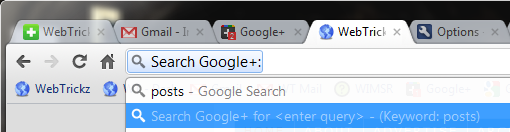
Now, just type posts in Chrome’s address bar and select the option in drop-down that says Search Google+ for <enter query> – (Keyword: posts)
search google plus

Don’t worry you don’t have to remember that – it appears automatically. Once you have selected that Search Google+: will show up. Then just type in your keywords or search query to search among all the posts and profiles on Google+.

Tip credit: Heather Buckley

Alternatively, you can use gplussearch.com to search Google Plus in any browser.
Tags: BrowserChromeGoogle PlusTips
ShareTweetSend
Previous Post

How to Rearrange your Album Photos on Google+ [Video]

Next Post

Stable Google Chrome 13 gets Instant Pages & Print Preview

Taigun

Taigun

Mayur Agarwal, the founder and editor of WebTrickz, is a tech enthusiast with a Bachelor's degree in Computer Applications and over 15 years of experience in tech writing. His passion for technology and gadgets drives him to create insightful how-to articles and troubleshooting guides.

Next Post

Stable Google Chrome 13 gets Instant Pages & Print Preview

Leave a Reply Cancel reply

Your email address will not be published. Required fields are marked *

Latest Stories

1337x logo

1337x Proxy List 2026: Working Proxy & Mirror Sites

June 2, 2026

How to Find Saved Reels on Facebook App & Desktop (2026)

April 1, 2026
microsoft edge browser

How to Restore or Reopen Closed Tabs in Microsoft Edge

March 26, 2026
Facebook app on iPhone

How to See Recently Watched Reels on Facebook (2026 Guide)

April 3, 2026
microsoft edge new logo

Download Microsoft Edge Offline Installer [Latest Version]

March 16, 2026

How to Turn Off Bing SafeSearch in Microsoft Edge

March 12, 2026
google chrome logo

Download Google Chrome Offline Installer [Latest Version]

June 3, 2026

Trending Stories

  • microsoft family safety settings

    How to Turn Off Microsoft Family Safety on Windows 11 & 10

  • How to Turn Off Microsoft Edge Game Assist in Windows 11

  • How to Turn Off Fn Lock or Fn Key on Windows 11/10 Laptop

  • How to See Recently Watched Reels on Facebook (2026 Guide)

  • How to Restore or Reopen Closed Tabs in Microsoft Edge

  • About Us
  • Contact Us
  • Privacy Policy
  • Advertise

© 2026 WebTrickz. All Rights Reserved.

No Result
View All Result
  • Reviews
  • Apps
  • How To’s
  • Android
  • Google
  • iPhone
  • Mac
  • About Us
  • Contact Us
  • Privacy Policy

© 2026 WebTrickz. All Rights Reserved.







