WebTrickz
TRENDING
  • Complete list of 1337x Proxy and Mirror Sites
No Result
View All Result
  • Reviews
  • Editorials
  • Social Media
    • Facebook
    • Twitter
    • YouTube
    • Messenger
    • Instagram
    • Snapchat
    • WhatsApp
    • TikTok
  • Apps
  • How To’s
  • Apple
  • iPhone
  • Google
  • Android
  • Mac
  • Security
  • About Us
    • About Us
    • Contact Us
    • Privacy Policy
  • Reviews
  • Editorials
  • Social Media
    • Facebook
    • Twitter
    • YouTube
    • Messenger
    • Instagram
    • Snapchat
    • WhatsApp
    • TikTok
  • Apps
  • How To’s
  • Apple
  • iPhone
  • Google
  • Android
  • Mac
  • Security
  • About Us
    • About Us
    • Contact Us
    • Privacy Policy
No Result
View All Result
WebTrickz
No Result
View All Result
Home Android

How to Unlock Nexus Devices Bootloader easily without wiping any data

Taigun by Taigun
July 26, 2024
in Android, How To's

This is a follow-up post to our previous post that describes how to root Nexus 5 without the need to unlock the bootloader. It’s a commonly known fact that to customize a Nexus device, one needs to have an unlocked bootloader. An unlocked bootloader serves several purposes like flashing a custom recovery to root your device, installing a custom ROM, using a custom kernel, taking nandroid backups, etc.

Unlocking the bootloader using the fastboot command “fastboot oem unlock” wipes the entire device to prevent unauthorized users from accessing your data. Fortunately, there is an amazing app ‘BootUnlocker for Nexus Devices’ that bypasses the wipe function and makes unlocking and locking tasks a 1-click job.

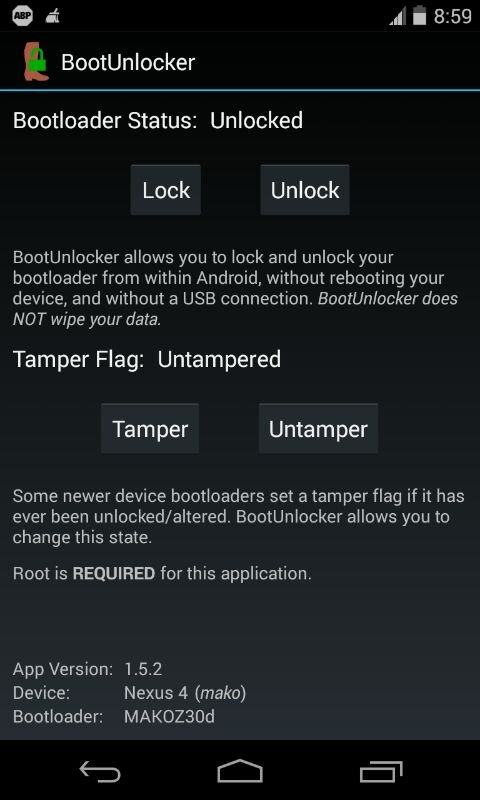
BootUnlocker for Nexus is a free app with no ads, that uses root privileges to unlock and lock your bootloader from within Android, without wiping your data. The app performs this severe task with great ease, you can simply toggle between lock/unlock anytime and anywhere, without the need to reboot your device and neither a USB connection nor fastboot is required. This allows you to keep your bootloader locked for security, with this application safely protected behind your lock screen password. The app now lets you change the Tamper flag with a click on devices like Nexus 4 and Nexus 5, which sets a tamper flag if the device bootloader has ever been unlocked or altered.

– BootUnlocker Requires Root

– Supports Galaxy Nexus (GSM, Verizon, or Sprint), Nexus 4, Nexus 5, Nexus 7 (2013), and Nexus 10, with root.

To Root your Nexus device, follow our post ‘How to Root Nexus 5 & Nexus 4 without Unlocking Bootloader/ Wiping data‘.

After your device is rooted, install the ‘BootUnlocker’ application from Google Play. Run the app and grant Superuser access when it requests. Whenever you want to unlock or relock your bootloader, just run BootUnlocker.
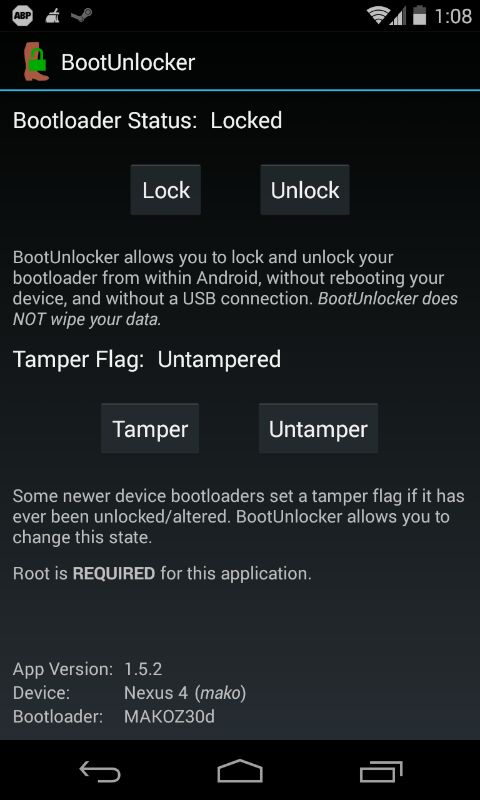
IMG-20140619-WA0005

IMG-20140619-WA0007

To confirm your device is unlocked, boot into fastboot mode and check the lock state. Alternatively, look for the lock icon on the Google screen while the phone is booting. Hope you found this trick useful.

Tags: AndroidBootloaderGalaxy NexusRootingTipsTutorialsUnlocking
ShareTweetSend
Previous Post

How to Root Nexus 5 & Nexus 4 without Unlocking Bootloader/ Wiping data

Next Post

Asus Zenfone 5 Review: Intel Inside powered 5” Budget Android Smartphone

Taigun

Taigun

Mayur Agarwal, the founder and editor of WebTrickz, is a tech enthusiast with a Bachelor's degree in Computer Applications and over 15 years of experience in tech writing. His passion for technology and gadgets drives him to create insightful how-to articles and troubleshooting guides.

Next Post

Asus Zenfone 5 Review: Intel Inside powered 5” Budget Android Smartphone

Leave a Reply Cancel reply

Your email address will not be published. Required fields are marked *

Latest Stories

1337x logo

1337x Proxy List 2026: Working Proxy & Mirror Sites

June 2, 2026

How to Find Saved Reels on Facebook App & Desktop (2026)

April 1, 2026
microsoft edge browser

How to Restore or Reopen Closed Tabs in Microsoft Edge

March 26, 2026
Facebook app on iPhone

How to See Recently Watched Reels on Facebook (2026 Guide)

April 3, 2026
microsoft edge new logo

Download Microsoft Edge Offline Installer [Latest Version]

March 16, 2026

How to Turn Off Bing SafeSearch in Microsoft Edge

March 12, 2026
google chrome logo

Download Google Chrome Offline Installer [Latest Version]

June 3, 2026

Trending Stories

  • microsoft family safety settings

    How to Turn Off Microsoft Family Safety on Windows 11 & 10

  • How to Turn Off Microsoft Edge Game Assist in Windows 11

  • How to Turn Off Fn Lock or Fn Key on Windows 11/10 Laptop

  • How to See Recently Watched Reels on Facebook (2026 Guide)

  • How to Restore or Reopen Closed Tabs in Microsoft Edge

  • About Us
  • Contact Us
  • Privacy Policy
  • Advertise

© 2026 WebTrickz. All Rights Reserved.

No Result
View All Result
  • Reviews
  • Apps
  • How To’s
  • Android
  • Google
  • iPhone
  • Mac
  • About Us
  • Contact Us
  • Privacy Policy

© 2026 WebTrickz. All Rights Reserved.