

WebTrickz
TRENDING
  • Complete list of 1337x Proxy and Mirror Sites
No Result
View All Result
  • Reviews
  • Editorials
  • Social Media
    • Facebook
    • Twitter
    • YouTube
    • Messenger
    • Instagram
    • Snapchat
    • WhatsApp
    • TikTok
  • Apps
  • How To’s
  • Apple
  • iPhone
  • Google
  • Android
  • Mac
  • Security
  • About Us
    • About Us
    • Contact Us
    • Privacy Policy
  • Reviews
  • Editorials
  • Social Media
    • Facebook
    • Twitter
    • YouTube
    • Messenger
    • Instagram
    • Snapchat
    • WhatsApp
    • TikTok
  • Apps
  • How To’s
  • Apple
  • iPhone
  • Google
  • Android
  • Mac
  • Security
  • About Us
    • About Us
    • Contact Us
    • Privacy Policy
No Result
View All Result
WebTrickz
No Result
View All Result
Home Chrome

How to Upload Photos directly from Web to Google Photos in Chrome

Taigun by Taigun
October 29, 2020
in Chrome, How To's

We all love Google Photos because of the ease and ability to quickly access all our uploaded photos from the cloud, anytime and anywhere. One can easily upload photos to Google Photos using its web interface, desktop tools for Windows and Mac and dedicated apps for Android and iOS. However, you can’t directly upload or save a photo from a webpage to Google Photos without first saving it to your computer.
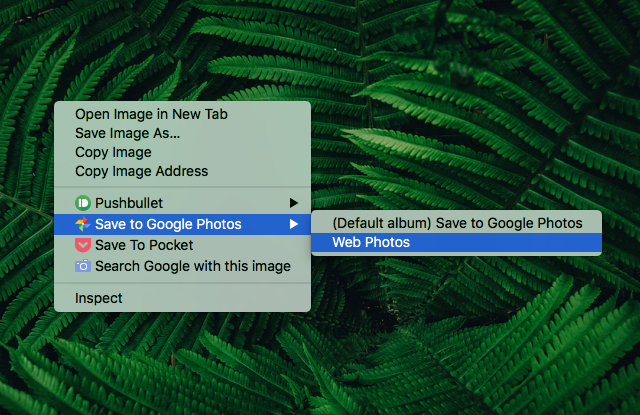
save to google photos chrome extension
Save images to Google Photos from right-click menu in Chrome

Thankfully, there is an extension “Save to Google Photos” for Google Chrome that makes it possible to save your favourite web photos directly to Google Photos or any specific album. The app adds a “Save to Google Photos” option to the right-click context menu of Chrome browser, thereby letting you upload photos to your Google Photos account with great ease. Thanks to unlimited free storage on Google Photos, you can save images and wallpapers directly to Google Photos without worrying about storage space on your device or the fear of losing the photos.
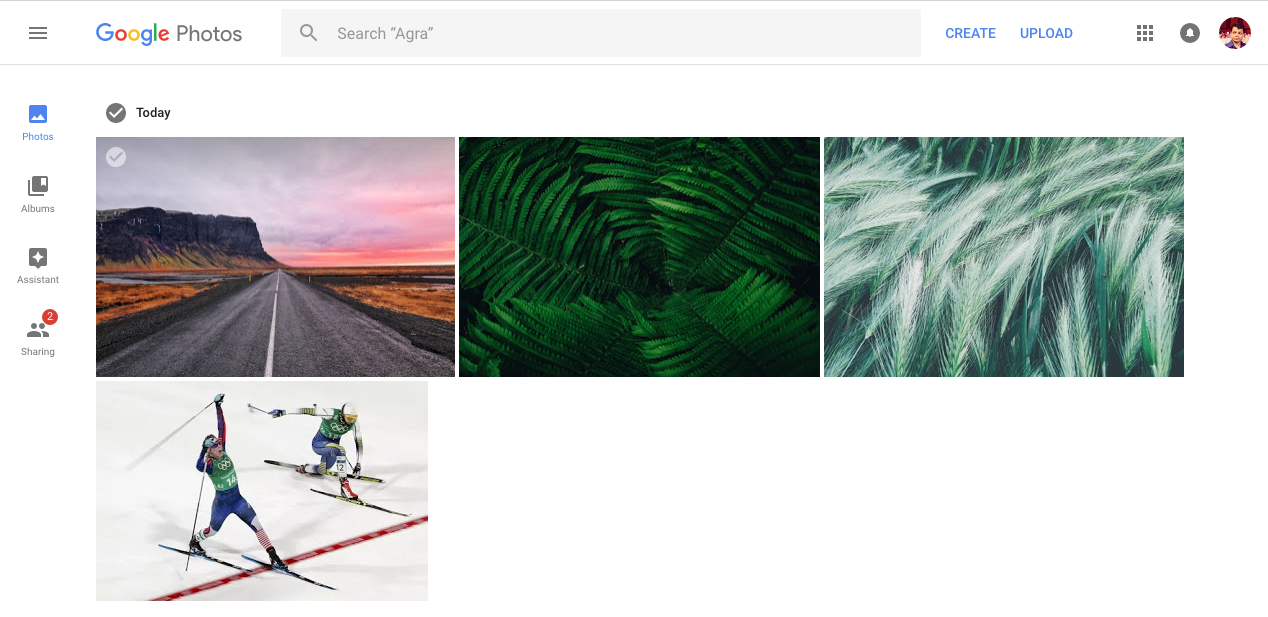
Google Photos

Besides letting you seamlessly upload photos in the background, the extension offers other nifty features such as:

  • Option to save a photo to any specific album in Google Photos
  • Ability to handle the duplicate pictures automatically
  • Option to choose the album(s) to show in right-click menu

How to Set Up –

To get started, simply add the extension to Google Chrome. Then choose your Google account and click on “Allow” to let Google Photos Upload manage your photos and videos. You can now save images by right-clicking them and selecting Save to Google Photos > Default album or any preferred album. The albums shown in right-click menu can be changed from the extension settings by tapping the blue heart icon next to the respective album.
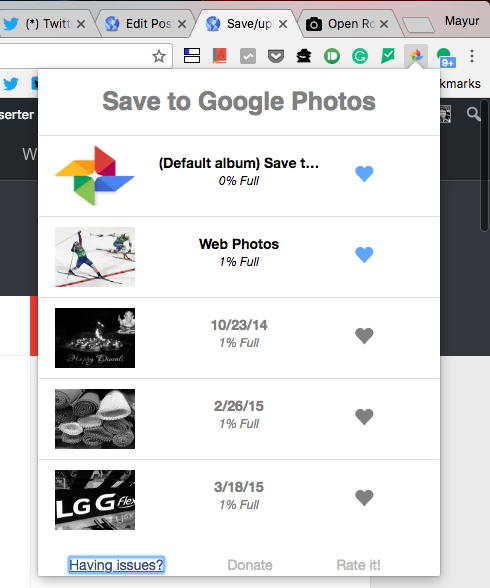
Save to Google Photos settings

Personally concerned about privacy, I contacted the developer and was informed that the extension reads album data (name, capacity and album cover) and only uploads new photos to specified albums. It is not made to view, delete or modify existing photos.

Do try it out and share your thoughts!

Tags: Browser ExtensionChromeGoogle PhotosPhotosTips
Share3TweetSend
Previous Post

How to Recover Permanently Deleted Photos from Google Photos

Next Post

How to Setup Cloudflare 1.1.1.1 DNS on iOS and Android

Taigun

Taigun

Mayur Agarwal, the founder and editor of WebTrickz, is a tech enthusiast with a Bachelor's degree in Computer Applications and over 15 years of experience in tech writing. His passion for technology and gadgets drives him to create insightful how-to articles and troubleshooting guides.

Next Post

How to Setup Cloudflare 1.1.1.1 DNS on iOS and Android

Comments 3

  1. Coleyna says:
    7 years ago

    Hi Mayur;
    I went to the Chrome Web Store to get this extension, but the recent reviews weren\’t good. Some say it doesn\’t work anymore and others say that it\’s not actually free. Because of that, I\’m wondering if you know of any good alternatives that you could recommend? Thanks!

    Reply
  2. Joao says:
    7 years ago

    yeah it doesnt work properly – I have relied on it to save the pictures but later found out they were not saved). Also it only lets you store a limited ammount of pics. It seems the extension page no longer exists anyway.

    Reply
  3. Barra Darcy says:
    5 years ago

    This doesn’t seem to work properly. I get a message saying it’s blocked. Does anyone know what to do?

    Reply

Leave a Reply Cancel reply

Your email address will not be published. Required fields are marked *

Latest Stories

1337x logo

1337x Proxy List 2026: Working Proxy & Mirror Sites

June 2, 2026

How to Find Saved Reels on Facebook App & Desktop (2026)

April 1, 2026
microsoft edge browser

How to Restore or Reopen Closed Tabs in Microsoft Edge

March 26, 2026
Facebook app on iPhone

How to See Recently Watched Reels on Facebook (2026 Guide)

April 3, 2026
microsoft edge new logo

Download Microsoft Edge Offline Installer [Latest Version]

March 16, 2026

How to Turn Off Bing SafeSearch in Microsoft Edge

March 12, 2026
google chrome logo

Download Google Chrome Offline Installer [Latest Version]

June 3, 2026

Trending Stories

  • microsoft family safety settings

    How to Turn Off Microsoft Family Safety on Windows 11 & 10

  • How to Turn Off Fn Lock or Fn Key on Windows 11/10 Laptop

  • How to Turn Off Microsoft Edge Game Assist in Windows 11

  • How to See Recently Watched Reels on Facebook (2026 Guide)

  • How to Restore or Reopen Closed Tabs in Microsoft Edge

  • About Us
  • Contact Us
  • Privacy Policy
  • Advertise

© 2026 WebTrickz. All Rights Reserved.

No Result
View All Result
  • Reviews
  • Apps
  • How To’s
  • Android
  • Google
  • iPhone
  • Mac
  • About Us
  • Contact Us
  • Privacy Policy

© 2026 WebTrickz. All Rights Reserved.







