

WebTrickz
TRENDING
  • Complete list of 1337x Proxy and Mirror Sites
No Result
View All Result
  • Reviews
  • Editorials
  • Social Media
    • Facebook
    • Twitter
    • YouTube
    • Messenger
    • Instagram
    • Snapchat
    • WhatsApp
    • TikTok
  • Apps
  • How To’s
  • Apple
  • iPhone
  • Google
  • Android
  • Mac
  • Security
  • About Us
    • About Us
    • Contact Us
    • Privacy Policy
  • Reviews
  • Editorials
  • Social Media
    • Facebook
    • Twitter
    • YouTube
    • Messenger
    • Instagram
    • Snapchat
    • WhatsApp
    • TikTok
  • Apps
  • How To’s
  • Apple
  • iPhone
  • Google
  • Android
  • Mac
  • Security
  • About Us
    • About Us
    • Contact Us
    • Privacy Policy
No Result
View All Result
WebTrickz
No Result
View All Result
Home How To's

How to enable check boxes feature in Windows 7 & Vista to select files and folders ?

Taigun by Taigun
December 25, 2021
in How To's, Windows 7, Windows Vista / XP

Windows 7 and Vista has a hidden but useful feature, which I think most of you are not aware of. This cool feature provides the ability to tick and choose particular files and folders only. This can be done using a checkbox, as you have seen in Gmail.
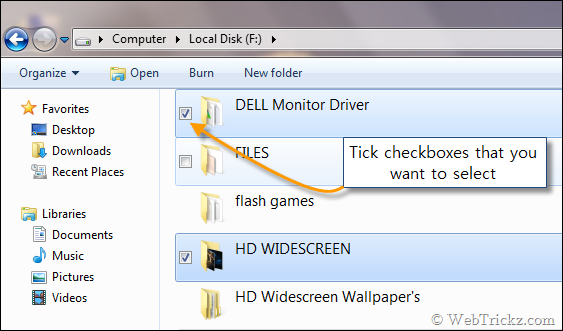
Select check boxes which you want

These checkboxes are only visible when one hovers the mouse click over an item. You’ll just need to select the checkbox shown before a file or folder to select those elements.

This is really useful for a newbie who doesn’t know the trick of keeping the ‘Ctrl’ key pressed and selecting the required components using the mouse. It’s also helpful as the checkbox selected doesn’t get vanished unlike in the Ctrl trick.

To enable the check boxes feature, just go Organize > Folder and Search options > View tab. Then check the option “Use check boxes to select items” and select OK.
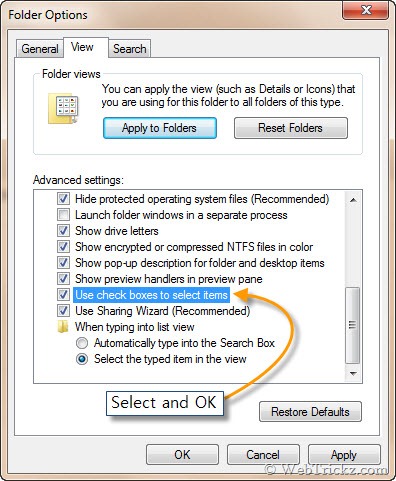
enable check boxes in Windows 7 & Vista

That’s it. You’ll now see check boxes in front of files, folders, and drives. Now you can cut, copy or delete a no. of selected items at the same time.

Shared  via  [ JKwebtalks ]
Tags: Windows Vista
ShareTweetSend
Previous Post

How to Find Wallpapers & Themes Hidden in Windows 7

Next Post

How to pin My Computer to Windows 7 taskbar directly ?

Taigun

Taigun

Mayur Agarwal, the founder and editor of WebTrickz, is a tech enthusiast with a Bachelor's degree in Computer Applications and over 15 years of experience in tech writing. His passion for technology and gadgets drives him to create insightful how-to articles and troubleshooting guides.

Next Post

How to pin My Computer to Windows 7 taskbar directly ?

Comments 1

  1. Jaspreet says:
    17 years ago

    Interesting feature! Thanks for sharing.

    Reply

Leave a Reply Cancel reply

Your email address will not be published. Required fields are marked *

Latest Stories

1337x logo

1337x Proxy List 2026: Working Proxy & Mirror Sites

June 2, 2026

How to Find Saved Reels on Facebook App & Desktop (2026)

April 1, 2026
microsoft edge browser

How to Restore or Reopen Closed Tabs in Microsoft Edge

March 26, 2026
Facebook app on iPhone

How to See Recently Watched Reels on Facebook (2026 Guide)

April 3, 2026
microsoft edge new logo

Download Microsoft Edge Offline Installer [Latest Version]

March 16, 2026

How to Turn Off Bing SafeSearch in Microsoft Edge

March 12, 2026
google chrome logo

Download Google Chrome Offline Installer [Latest Version]

June 3, 2026

Trending Stories

  • microsoft family safety settings

    How to Turn Off Microsoft Family Safety on Windows 11 & 10

  • How to Turn Off Microsoft Edge Game Assist in Windows 11

  • How to Turn Off Fn Lock or Fn Key on Windows 11/10 Laptop

  • How to See Recently Watched Reels on Facebook (2026 Guide)

  • How to Restore or Reopen Closed Tabs in Microsoft Edge

  • About Us
  • Contact Us
  • Privacy Policy
  • Advertise

© 2026 WebTrickz. All Rights Reserved.

No Result
View All Result
  • Reviews
  • Apps
  • How To’s
  • Android
  • Google
  • iPhone
  • Mac
  • About Us
  • Contact Us
  • Privacy Policy

© 2026 WebTrickz. All Rights Reserved.







