


ChatGPT offers a simple way to manage your conversation history using the Delete and Archive options. If your chat list is getting cluttered, archiving chats is a smart way to keep things organized without losing important conversations.
This quick guide shows how to find archived chats in ChatGPT on desktop, Android, and iPhone, and also explains how to unarchive or permanently delete them.
Why You Should Archive a ChatGPT Chat?
Archiving chats is useful when you want to clean up your ChatGPT conversation list without permanently removing chats you may need later.
Here’s why archiving is better than deleting in many cases:
- Keeps your chat history clean and clutter-free
- Let’s you hide completed or less important conversations
- Allows you to revisit old chats anytime
- Prevents accidental permanent data loss
Unlike deleting, archived chats remain accessible and can be restored with just a tap or click. That’s why it’s important to know how to access archived conversations in ChatGPT.
How to Find Archived Chats in ChatGPT
ChatGPT allows you to view archived chats from both the mobile app and the web version. The steps may vary slightly depending on the device you’re using.
On Web Browser (Desktop)
To see archived chats in ChatGPT on a computer, follow these steps:
- Open ChatGPT in a web browser and log in to your account.
- Look at the left sidebar where your recent chats are listed.
- Click on your profile icon at the bottom of the sidebar.
- Select Settings.
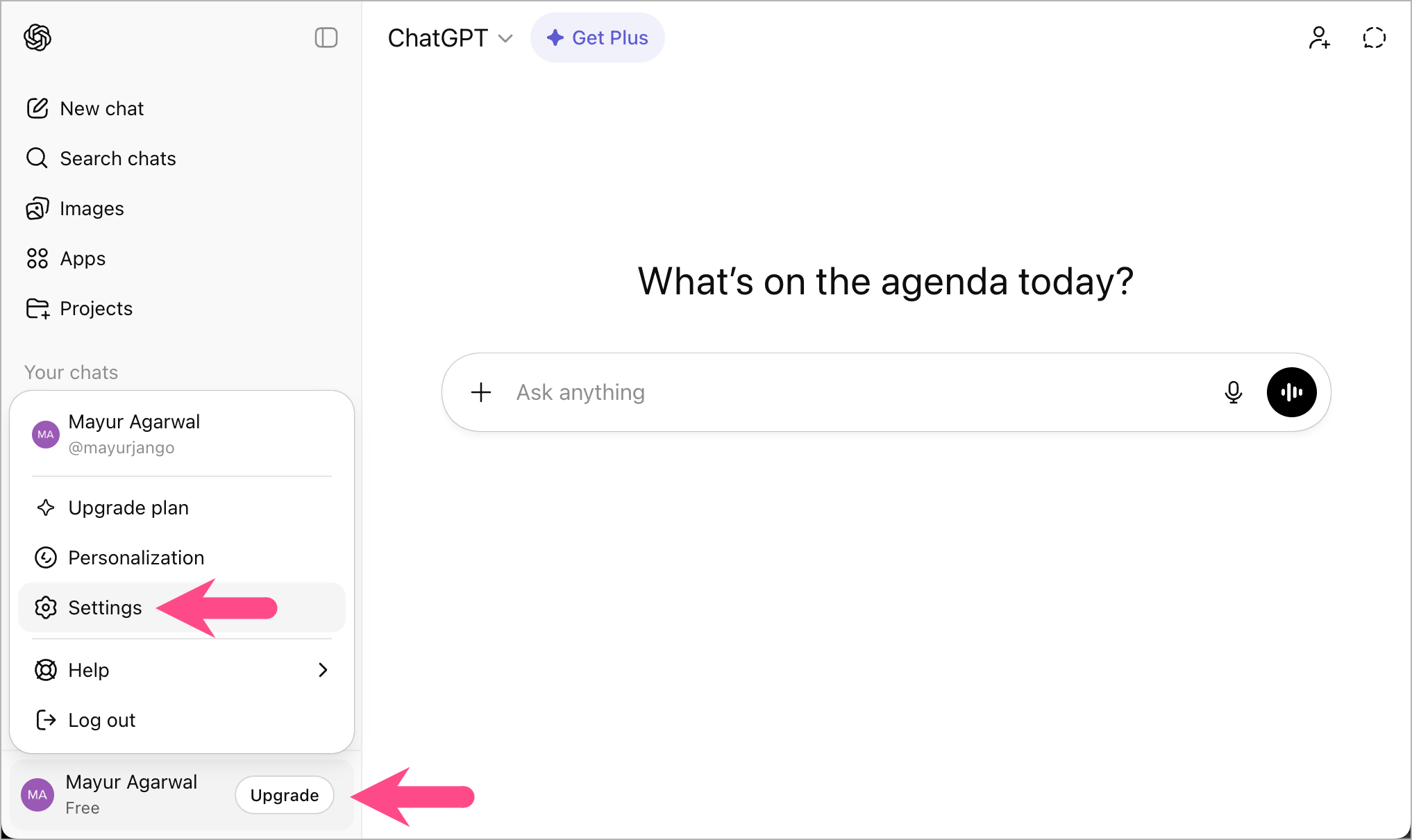
- Open Data controls.
- Click the Manage option next to Archived chats.
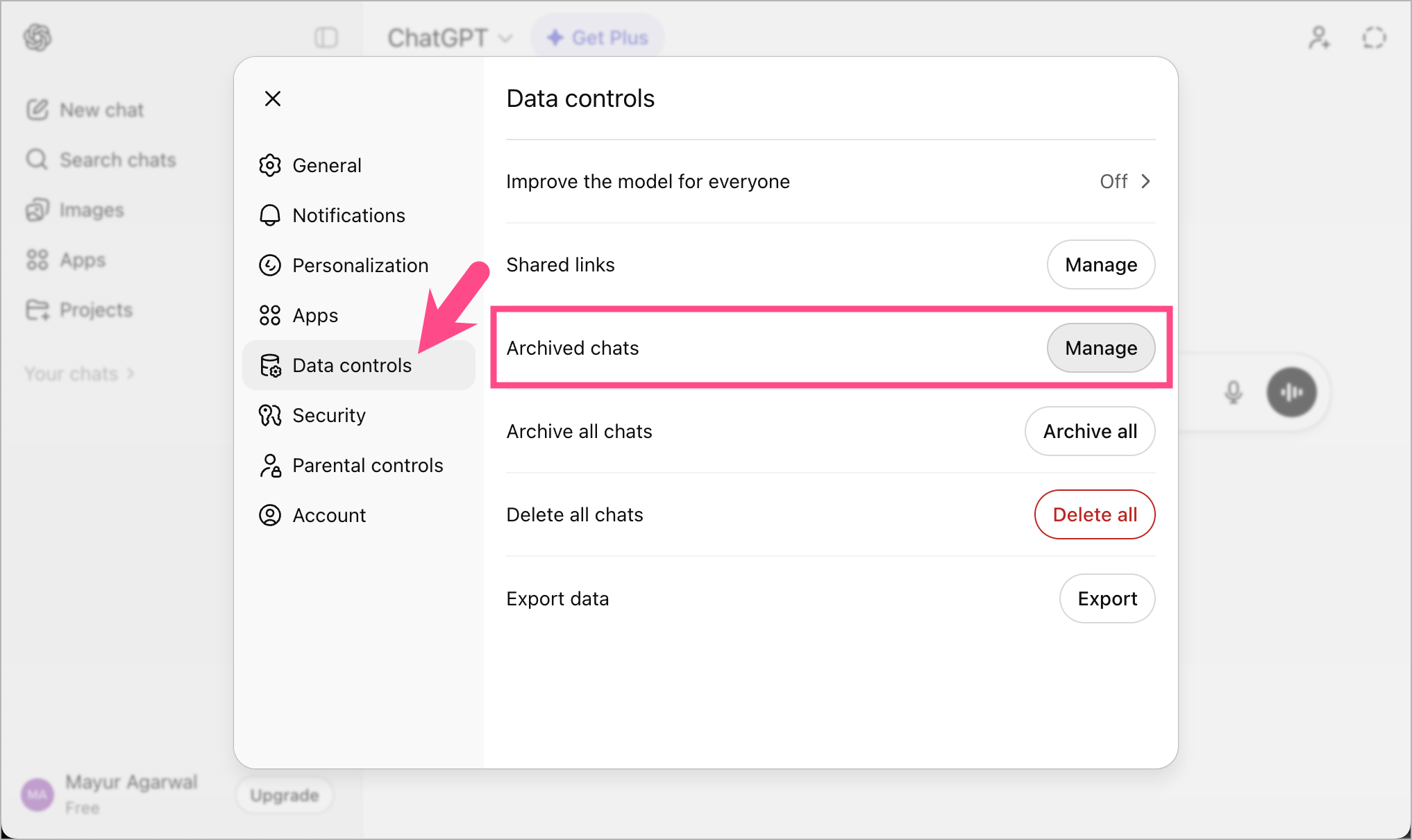
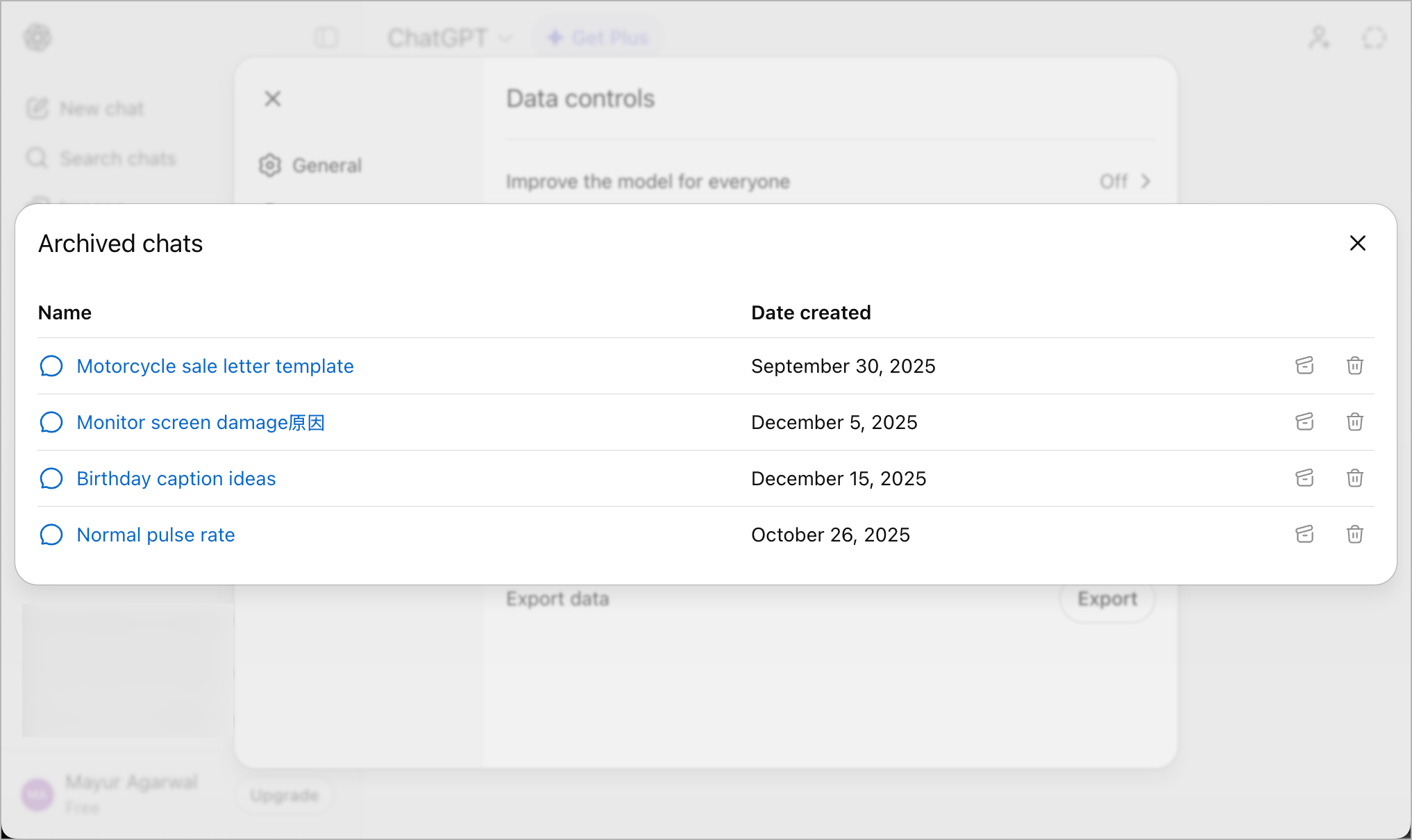
You’ll now see all your archived ChatGPT conversations in one place. You can also view the archived chat without the need to unarchive it.
On iPhone
Here’s how to access your ChatGPT archive on an iPhone or iPad:
- Open the ChatGPT app on your iPhone.
- Tap the Menu icon at the top-left corner.
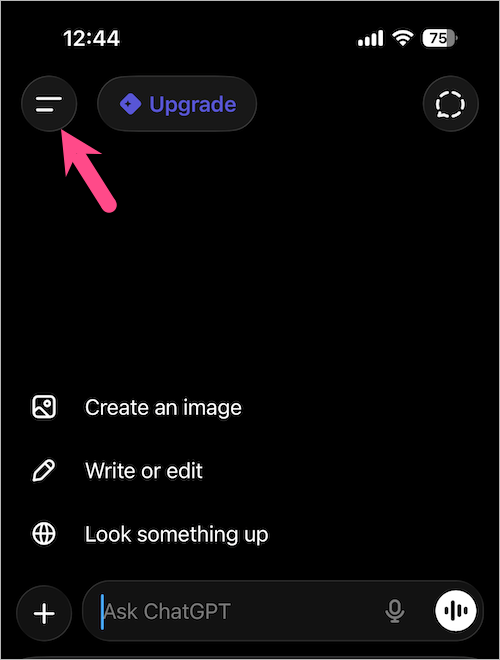
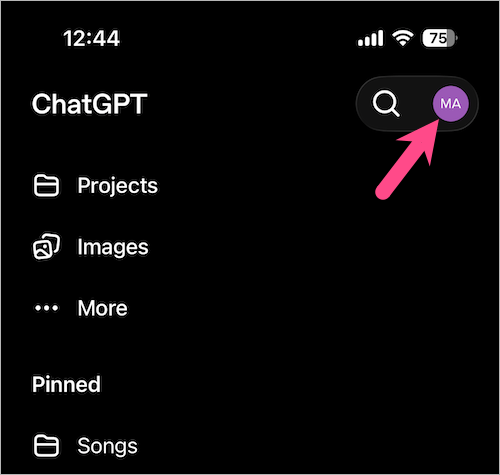
- Tap your profile icon in the top right to open Settings.
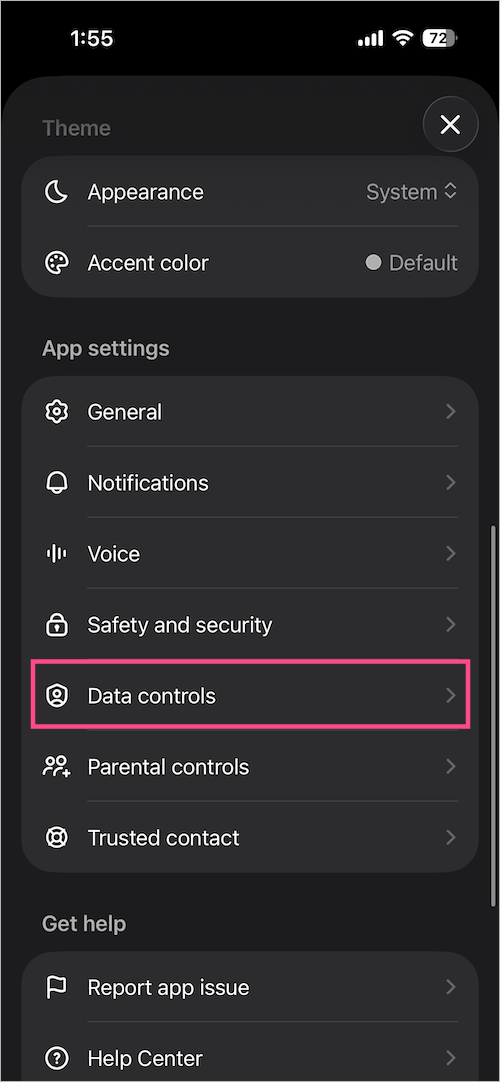
- In the App settings section, go to Data controls.
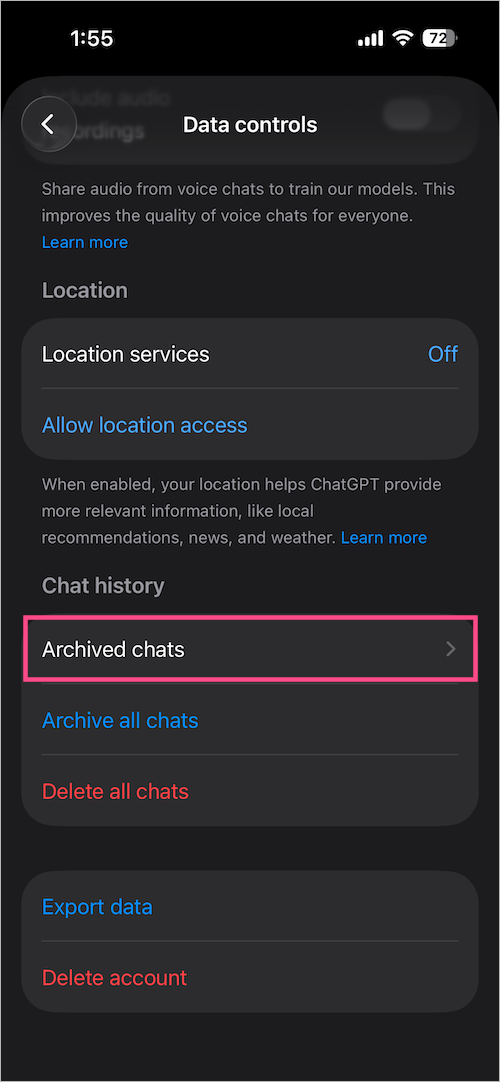
- Under Chat history, select Archived chats.
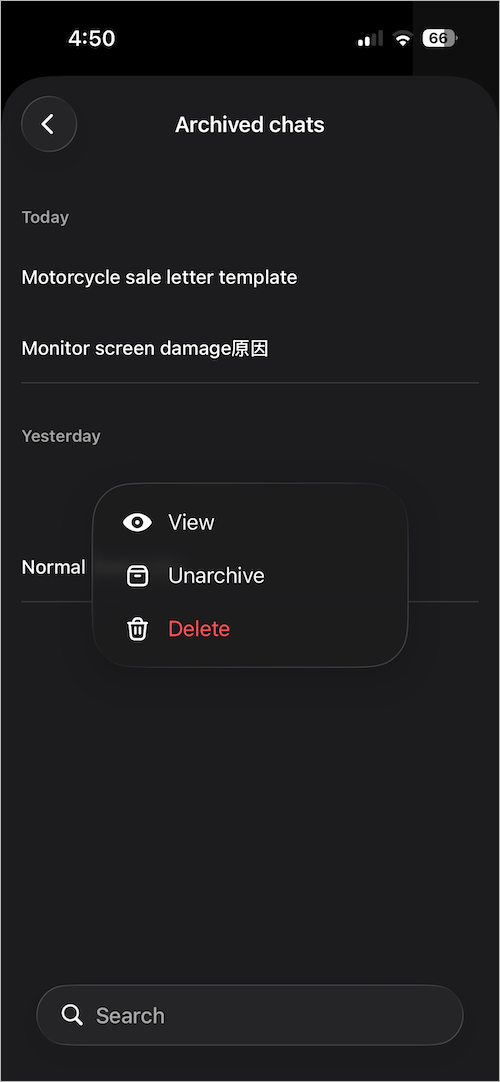
All your archived conversations will be displayed here. You can either view, unarchive, or delete them.
On Android
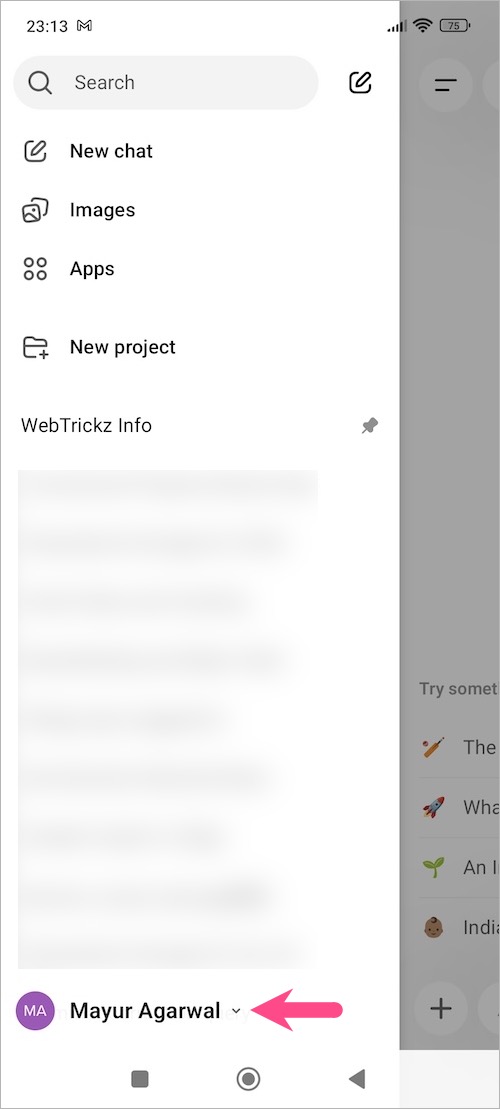
- Open the ChatGPT app on your Android phone.
- Tap the Menu icon (at the top left) to open the chat history section.
- Tap your profile icon to go to Settings.
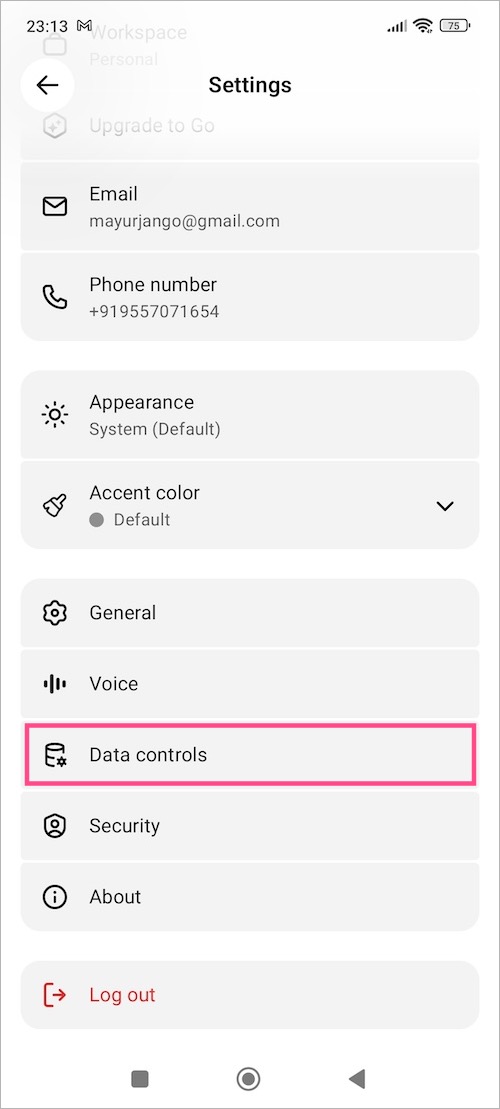
- Open Data controls.
- Under the Chat history section, tap View archived chats.
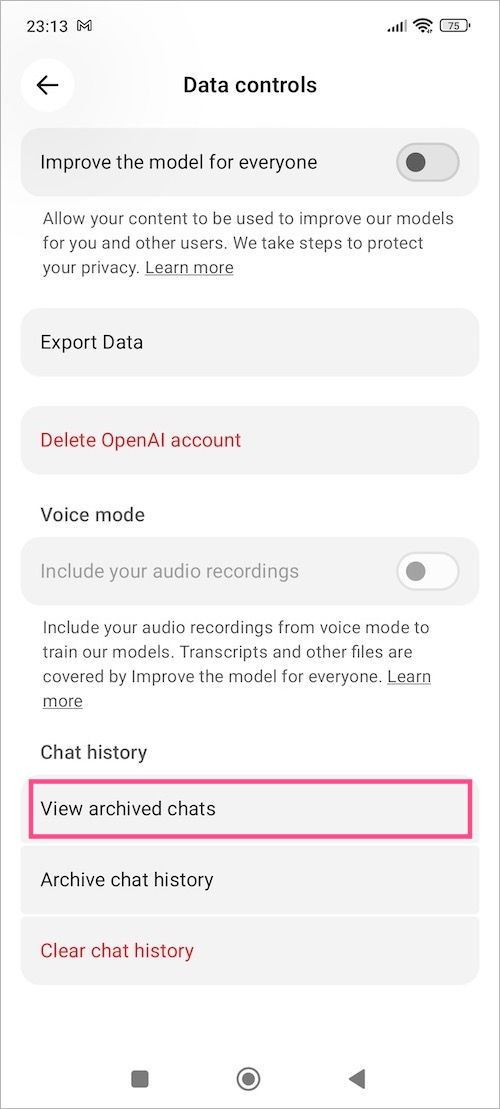
You can now view all archived ChatGPT conversations linked to your account.
How to Unarchive Chats in ChatGPT
If you want an archived chat to appear again in your main chat list, you can easily unarchive it.
To unarchive a chat conversation in ChatGPT:
- Open Archived chats from ChatGPT settings (follow the above-stated steps).
- Select the conversation you want to restore.
- Tap or click Unarchive.
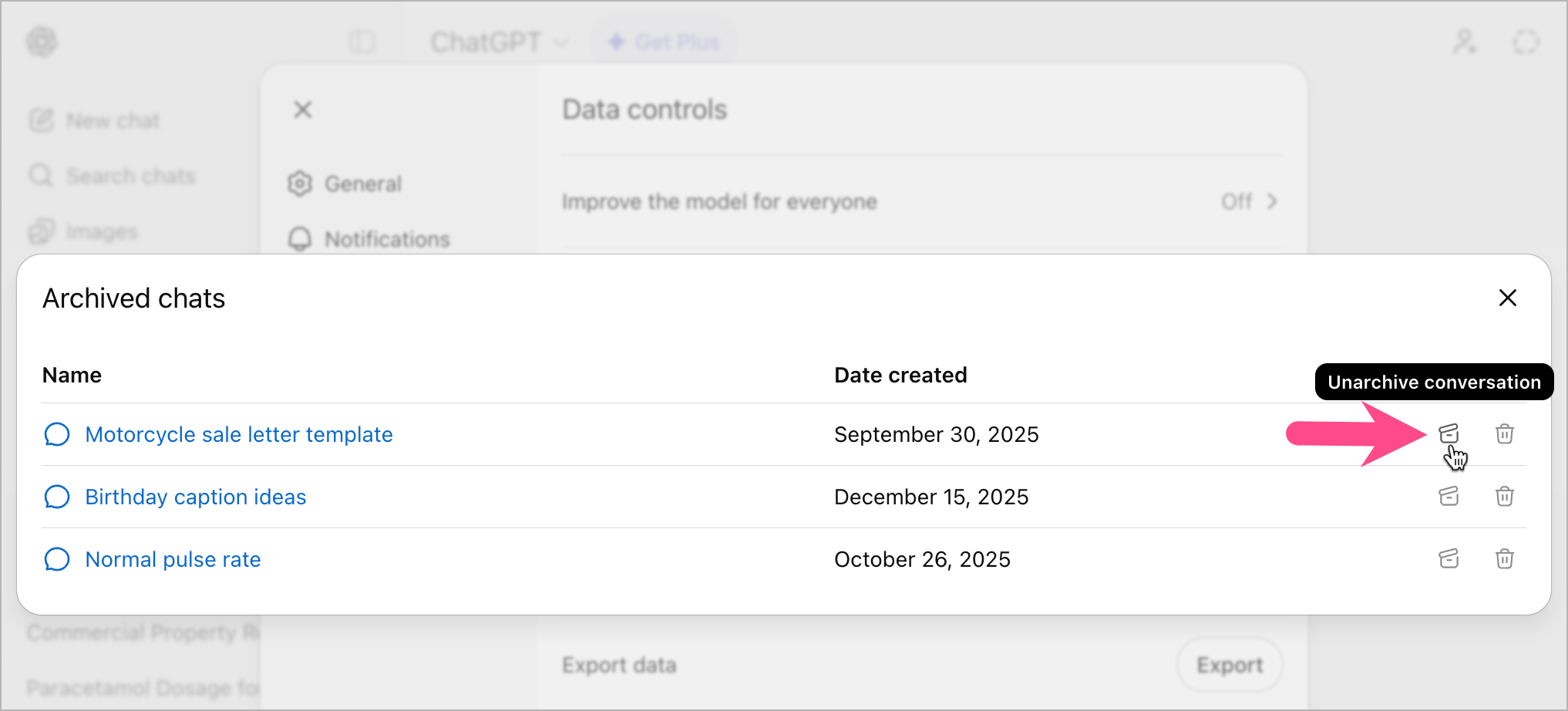
The chat will instantly move back to your regular chat history.
FAQs
How to Archive a Chat in ChatGPT?
To archive a conversation in ChatGPT:
- On mobile: Long-press on the chat in the chat list and tap Archive.
- On desktop: Click the three-dot menu next to a chat and select Archive.
The chat will be hidden from your main history, but will remain saved in your account.
Can You Delete a Chat Permanently from Archived Chats?
Yes, you can permanently delete archived chats. To do so,
- Navigate to Archived chats.
- Select the conversation you want to delete.
- Tap Delete.
Once deleted, the chat is permanently removed and cannot be recovered.









