WhatsApp has started rolling out one of its most requested features: usernames. Instead of sharing your phone number with everyone, you can now create a unique username that others can use to contact you while keeping your number private.
Whether you’re chatting with someone for the first time, joining a community, or simply want an extra layer of privacy, a WhatsApp username makes connecting easier and more secure.
In this guide, you’ll learn how to reserve and set up a WhatsApp username on Android and iPhone, understand the username requirements, explore the privacy benefits, and learn how to manage your username after it’s created.
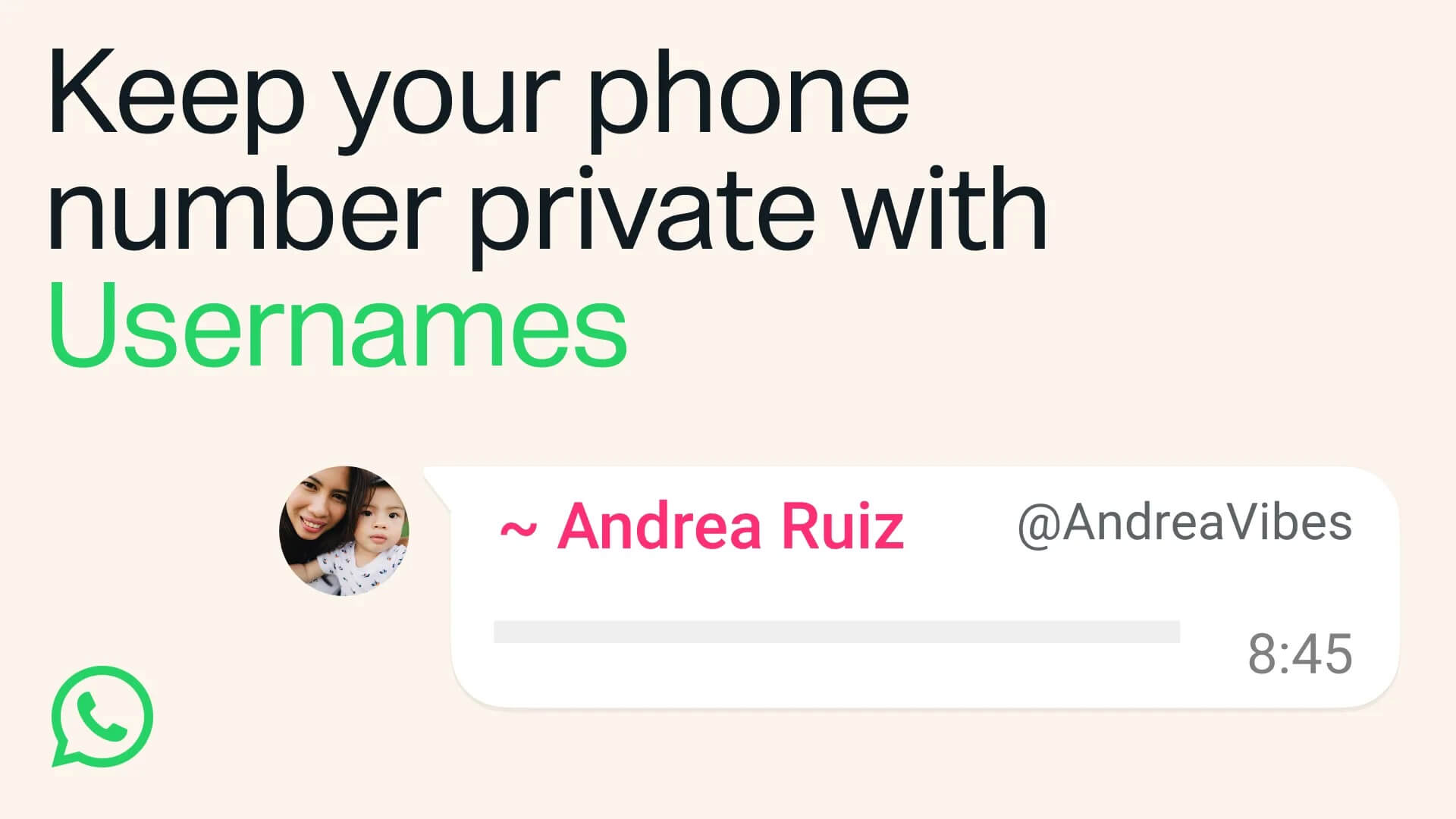
What Is a WhatsApp Username?
A WhatsApp username is a unique identifier that lets people contact you without knowing your phone number.
Think of it as a handle similar to those on Instagram or Telegram. Once you’ve created one, you can simply share your username instead of your mobile number when chatting with new people.
This feature is designed to improve privacy while making it easier to connect with friends, businesses, creators, and communities.
Key things to know
- Every WhatsApp username is unique, so two WhatsApp accounts can’t have the same username.
- Usernames are optional.
- A username doesn’t replace your phone number; you’ll still need your phone number to register and use WhatsApp.
- You can share your username instead of your phone number in supported situations.
- Existing contacts can continue messaging you as usual.
- You can change or delete your username later if you want.
WhatsApp Username Requirements
Before you reserve your WhatsApp username, make sure it meets these requirements:
- Must be 3 to 35 characters long.
- Can contain lowercase letters (a–z), numbers (0–9), underscores (_), and periods (.).
- Must contain at least one letter (can’t consist only of numbers).
- Must be unique and can’t contain restricted words or phrases.
WhatsApp automatically checks whether your chosen username is available as you type. If it’s already taken, you’ll be prompted to choose another one.
Examples
Valid: mayur, mayur_tech, john.2026, emma91, webtrickz_official
Invalid: 123456 (numbers only), @mayur (invalid character), hello! (invalid character), john..doe (consecutive periods), mayur.com (looks like a domain).
Tip: If your preferred username is taken, try adding your initials, profession, or brand name instead of random numbers.
How to Reserve or Create a WhatsApp Username
Before you begin, make sure:
- You’re using the latest version of WhatsApp.
- You have an active WhatsApp account.
Note: WhatsApp usernames are rolling out gradually worldwide. If you don’t see the Username option yet, keep your app updated and check back periodically.
On Android
- Open WhatsApp and tap the three-dot menu in the top-right corner.
- Go to Settings > Account > Username.
- To create a WhatsApp username, tap Create username (or Reserve username).
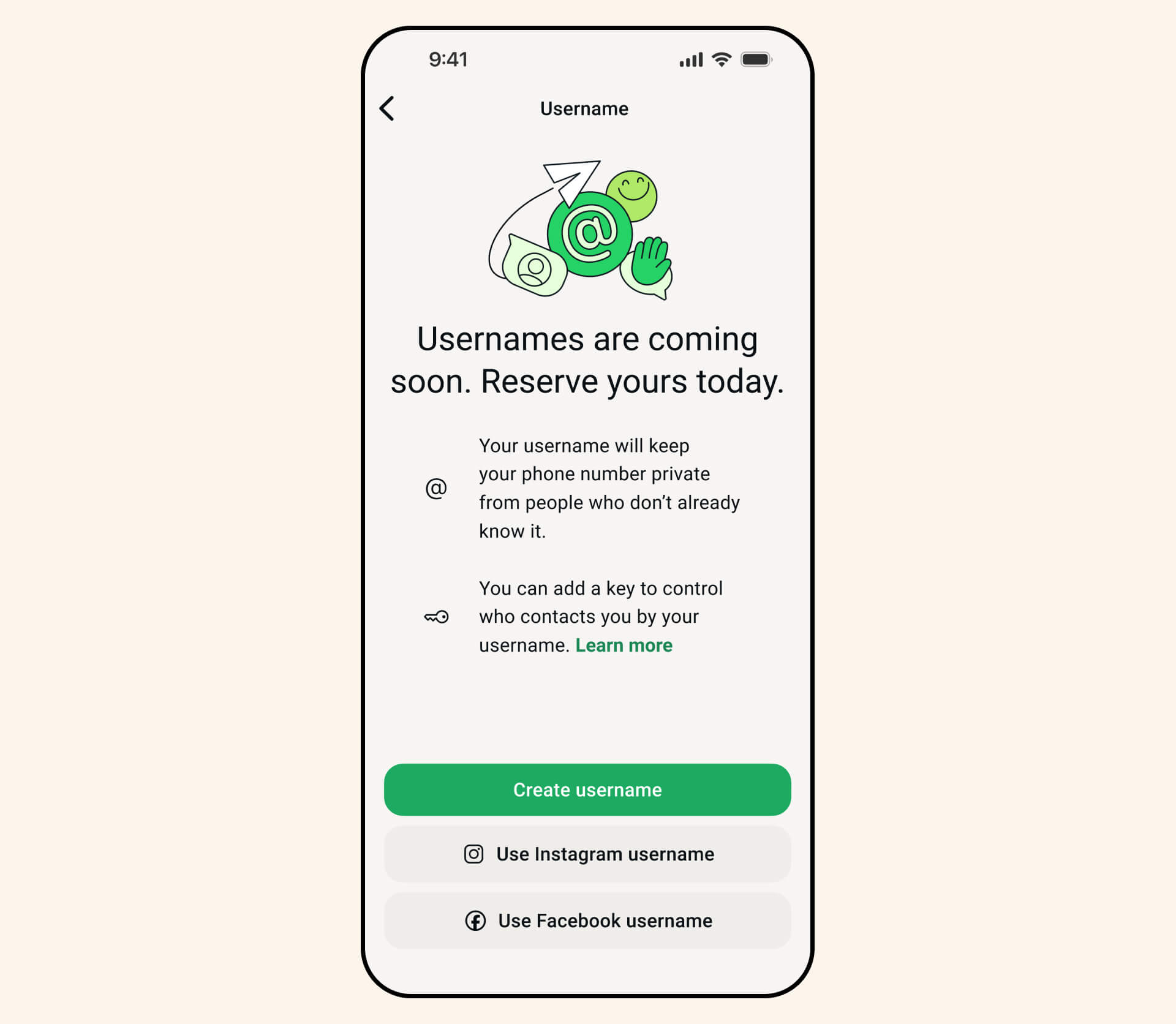
- Enter your preferred username.
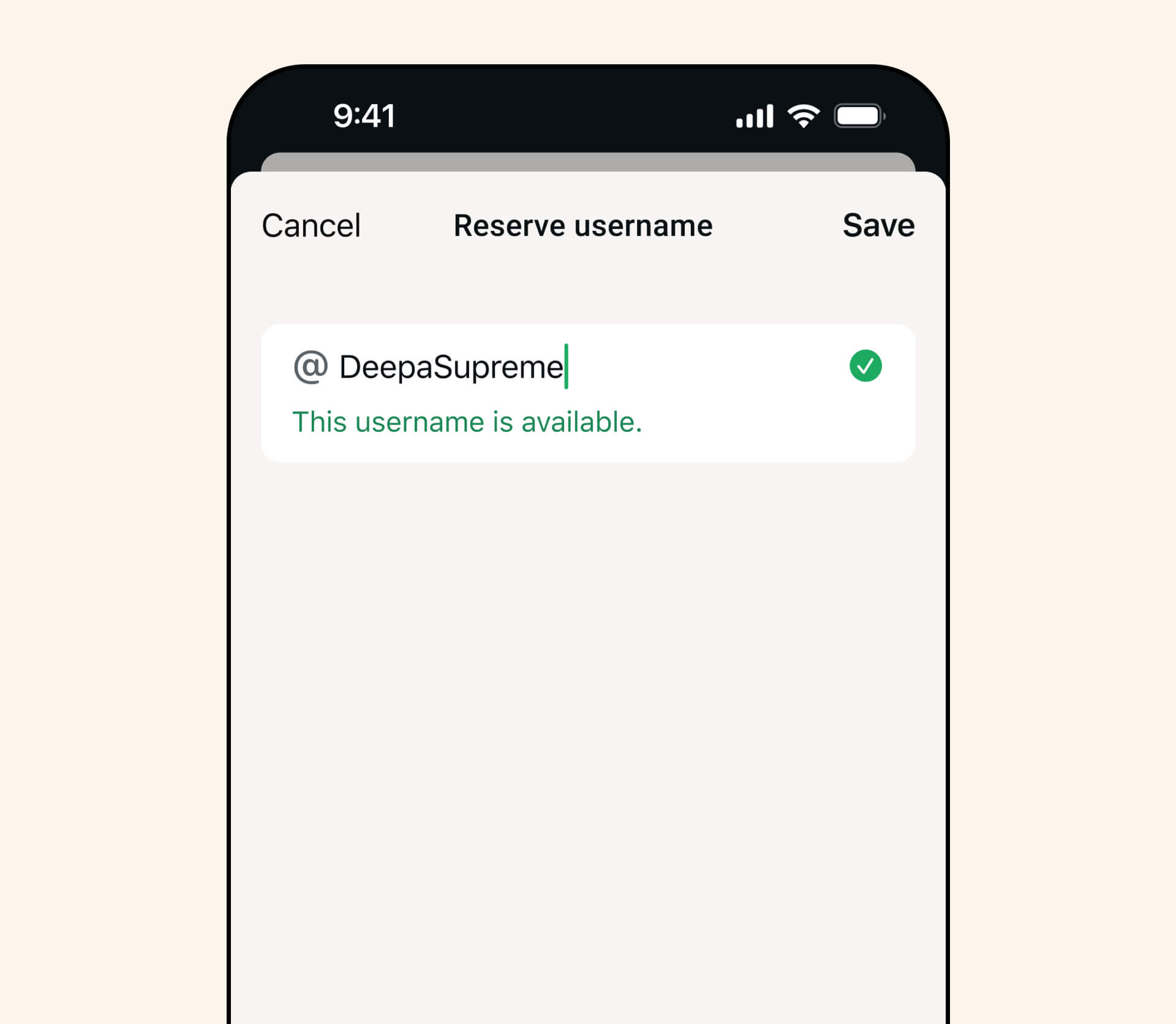
- If the username is available, tap Save > Done to reserve it.
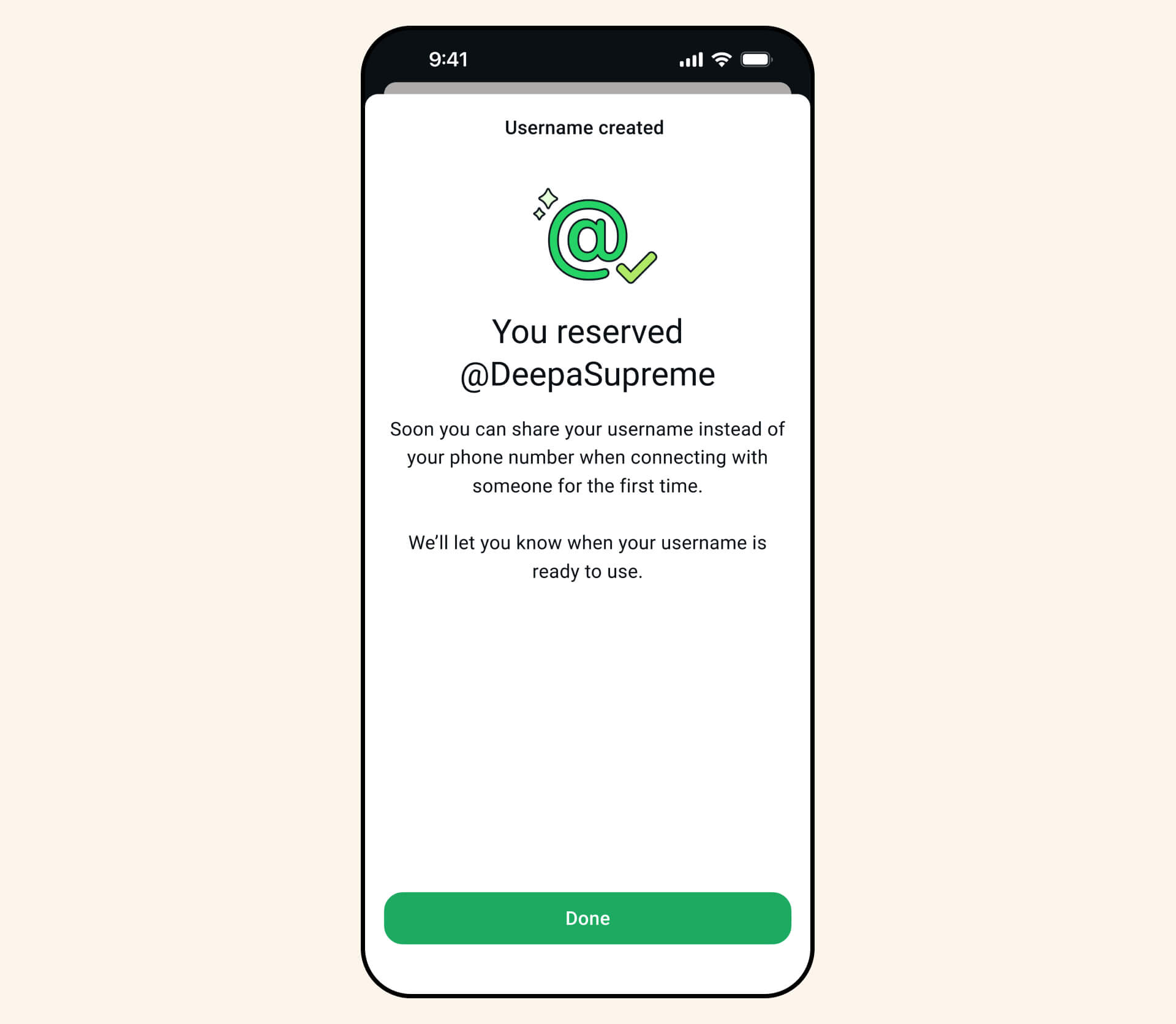
Your WhatsApp username will be linked to your account and can be changed later if needed.
On iPhone
- Open WhatsApp and tap the You tab on the bottom navigation bar.
- Select Account > Username.
- Enter the username you’d like to reserve.
- If it’s available, tap Done to save it.
Once your username is active, you can share it with others instead of your phone number, where supported.
Another Way to Reserve a Username
You can also reserve a username on WhatsApp directly from your profile.
- Android: Open WhatsApp and tap the three-dot menu > Settings.
iPhone: Open WhatsApp and tap the You tab. - Tap your profile picture at the top.
- Tap Create username > Create username.
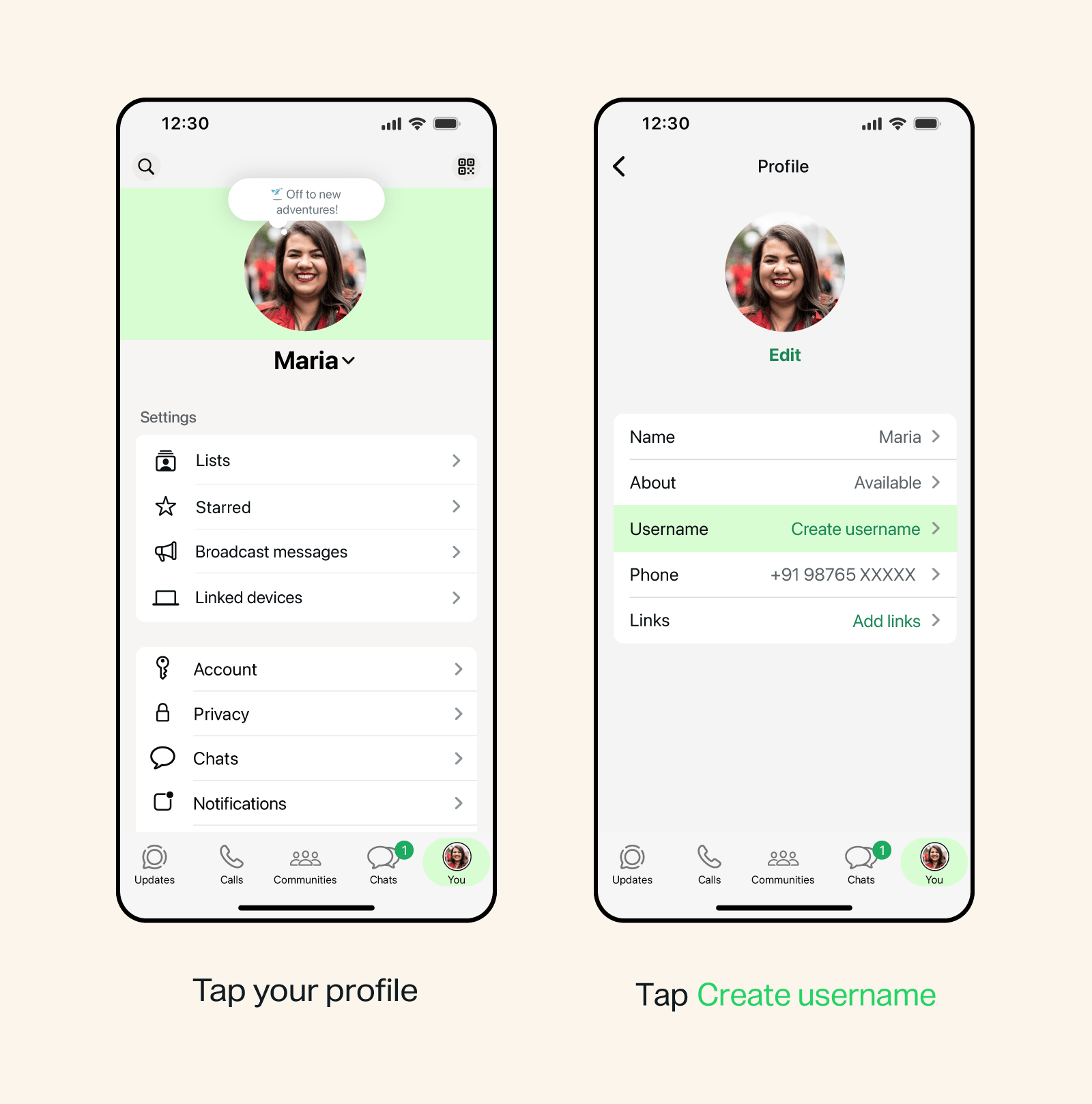
- Choose your preferred username or select one of the available suggestions.
- Tap Save > Done.
Can You Create a WhatsApp Username on Web or Desktop?
Right now, you can’t reserve or create a WhatsApp username using WhatsApp Web or the desktop app.
If you try to look for the option, you won’t find it because username reservation is currently supported only on your primary Android phone or iPhone.
Once you’ve reserved a username on your mobile device, it will automatically be linked to your WhatsApp account and reflected across your linked devices, including WhatsApp Web and Desktop.
Note: According to WhatsApp, you’ll need to use your primary mobile device to reserve a username. Support for creating usernames on WhatsApp Web or Desktop may be added in a future update.
How to Find Your WhatsApp Username
Forgot your WhatsApp username or want to check which one you’re using? You can view your current username at any time in your account settings.
To check your WhatsApp username or handle, open the WhatsApp app and navigate to Settings > Account > Username. You’ll see your current username displayed.
You can also copy it directly from this screen to share with others.
Can’t Find the Username Option? Here’s How to Fix It
Don’t see the Username option in WhatsApp yet? Don’t worry, you’re not alone.
Meta is rolling out WhatsApp usernames in phases, so the feature may not be available to every account immediately, even if you’re using the latest version of the app.
If the Username option is missing, try the following:
1. Update WhatsApp
Install the latest version of WhatsApp from the Google Play Store, Apple App Store, or update the desktop app if you’re using WhatsApp Web or Desktop.
2. Restart WhatsApp
Close the app completely and reopen it. Sometimes newly enabled features appear only after restarting the app.
3. Wait for the rollout
If everything is up to date but the WhatsApp username feature still isn’t available, you’ll need to wait until Meta enables usernames for your account. There isn’t currently a way to force-enable the feature.
Note: Avoid installing beta APKs or using unofficial methods claiming to unlock usernames early. Besides being unreliable, they may compromise your account security.
How WhatsApp Usernames Protect Your Privacy
One of the biggest advantages of WhatsApp usernames is that they let you connect with new people without sharing your phone number. Instead of giving someone your mobile number, you can simply share your unique username.
That said, a WhatsApp username doesn’t replace your phone number. You’ll still need a valid phone number to register for and use WhatsApp, as your number remains linked to your account for verification and security purposes.
Your phone number stays private
When someone starts a conversation with you using your username, they won’t see your phone number. This adds an extra layer of privacy, especially when messaging people for the first time.
However, your phone number may still be visible in certain situations, such as:
- People who already have your phone number saved.
- Existing chats created before usernames were introduced.
- Situations where WhatsApp requires your phone number for account verification or security.
RELATED: How to Send WhatsApp Messages Without Adding a Contact
Can someone search for your WhatsApp username?
No. Unlike some social media platforms, WhatsApp doesn’t have a public directory where users can search for usernames.
Instead, someone generally needs to know your exact username to contact you for the first time. WhatsApp also doesn’t suggest your username to other users, giving you greater control over who can reach you.
Add an extra layer of protection with a username key
For even more privacy, WhatsApp lets you create an optional username key.
When enabled, people will need to enter both your username and your username key to start a conversation with you. This helps prevent others from messaging you simply because they know your username.
You can choose to share your username key only with people you want to hear from, making it especially useful if your username is easy to guess or widely shared.
Good to know: Creating a WhatsApp username is completely optional. If you prefer, you can continue using WhatsApp with your phone number just as you always have.
ALSO READ: How to Find Locked Chats in WhatsApp
How to Change or Delete Your WhatsApp Username
Having a WhatsApp username is completely optional. You can change or delete your username at any time from your account settings.
Change your username
If you want a different username, simply go to Settings > Account > Username, enter a new username, and save the changes. If your preferred username is already taken, you’ll need to choose another one.
Delete your username
If you no longer want to use a username, you can delete it from the same Username settings page.
Keep in mind that:
- If you delete your username, people will be able to see your phone number again in situations where your username previously kept it private.
- You’ll have 14 days to reclaim your deleted username. After that, it may become available for someone else to claim.
- If someone else claims your old username after the 14-day period, you’ll need to choose a different one.
Note: Deleting your username doesn’t affect your WhatsApp account, chats, contacts, or phone number. You can continue using WhatsApp normally.
Tips for Choosing a Good WhatsApp Username
Since usernames are unique, it’s worth choosing one that you’ll be happy using for years.
Here are a few tips:
- Keep it short and memorable.
- Use your real name or brand name if possible.
- Avoid random numbers unless necessary.
- Make it consistent with your Instagram, Facebook, or Threads username.
- Don’t include personal information such as your birth year unless you want it to be public.
- Choose a username on WhatsApp that you’ll be comfortable using long term, as changing or deleting it may allow someone else to claim your previous username.
A clean, professional username is easier to remember and share.
Frequently Asked Questions
Does every WhatsApp account have a username?
No. Usernames are optional. If you don’t create one, you can continue using WhatsApp with your phone number as before.
Why can’t I create a WhatsApp username?
If you can’t add a username to WhatsApp, the feature may not be available on your account yet. Make sure you have the latest version of WhatsApp and check whether the Username option appears under Settings > Account.
Can two people have the same WhatsApp username?
No. Every username must be unique. Once a username is claimed, no one else can use it unless it becomes available again.
Can someone message me using only my username?
Yes. Once you’ve reserved a WhatsApp username, you can share it with others so they can start a conversation with you without knowing your phone number.
Will my contacts still see my phone number?
Yes. Creating a username doesn’t affect your existing chats or contacts. People who already have your phone number can continue contacting you as usual, and your phone number may still be visible in situations where WhatsApp requires it.
Can I change or delete my WhatsApp username?
Yes. Having a WhatsApp username is completely optional. You can change or delete it at any time from your account settings. If you delete your username, you’ll have 14 days to reclaim it before it may become available for someone else to claim.
Can someone take my WhatsApp username?
Yes, if you change or delete your username, it may become available for someone else to claim. If the username you want is already taken, you’ll need to choose another one. Some usernames are also reserved for businesses, government organizations, and public figures.
Final Thoughts
WhatsApp usernames make it easier to connect with new people while keeping your phone number private. If the feature is available on your account, it’s a good idea to reserve your preferred username before someone else claims it. If you don’t see the Username feature yet, update WhatsApp to the latest version and keep an eye out, as Meta continues its global rollout.