


Want to remove all your bookmarks on X (Twitter) at once? The X mobile app has a built-in Clear all Bookmarks option that lets you delete every saved post without removing bookmarks one by one.
This guide shows how to clear all bookmarks on X using the official app on iPhone and Android. If you’re using X on a computer, you’ll also find a workaround to bulk delete bookmarks using a Chrome extension.
If you can’t locate your saved posts, see our guide on how to find bookmarks on X first.
How to Remove All Bookmarks on X at Once
The steps to clear all bookmarks differ slightly between the X app for iPhone and Android.
On iPhone or iPad
On iPhone, the Clear all Bookmarks option is hidden under the Bookmarks tab in History.
- Open the X app on your iPhone or iPad.
- If you use multiple X accounts, switch to the account whose bookmarks you want to clear.
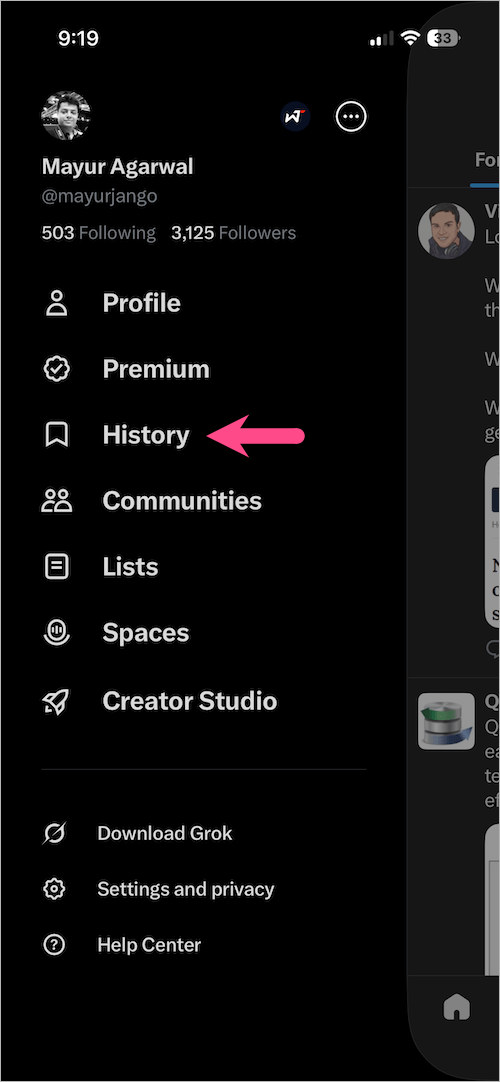
- Tap your profile picture in the top-left corner.

- Select History from the menu.
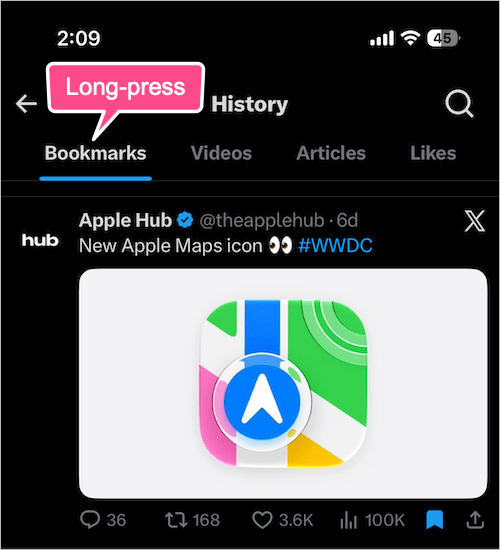
- In the History section, touch and hold the Bookmarks tab at the top to reveal the hidden option.
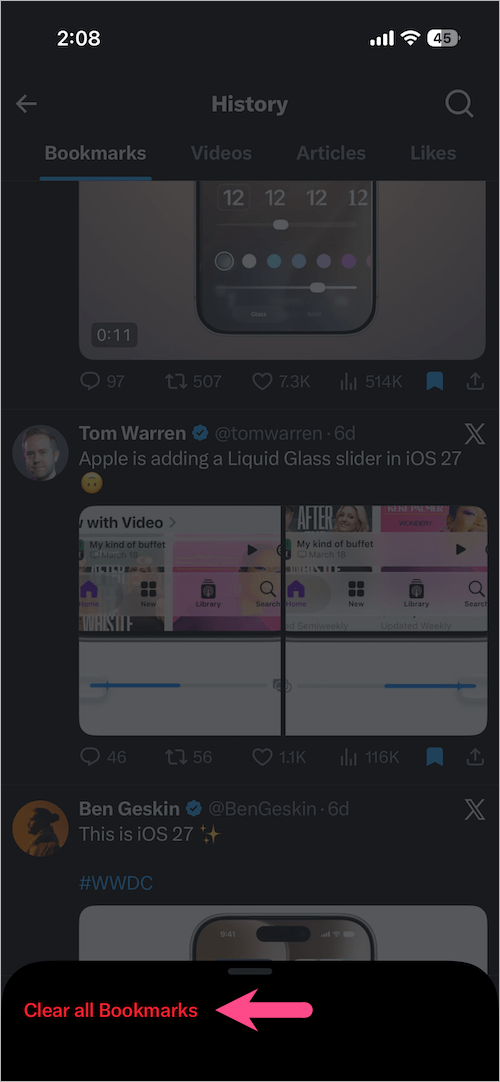
- Tap Clear all Bookmarks at the bottom of the screen.
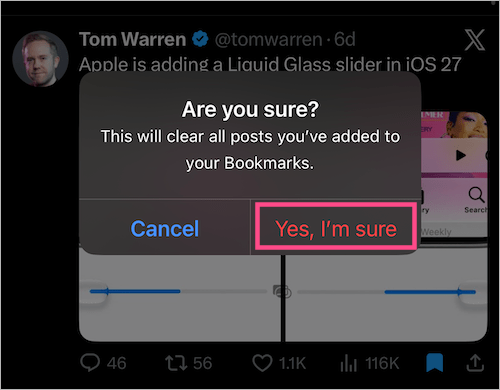
- Tap Yes, I’m sure to remove all posts from your Bookmarks.
On Android
Here’s how to remove all X (Twitter) bookmarks at once on Android:
- Open the X app.
- Tap your profile picture in the upper-left corner or swipe right on the screen.
- Select Bookmarks from the side navigation menu.

- Tap the three-dot menu in the top-right corner.
- Select Clear all Bookmarks.

- Tap Clear to confirm.
Once confirmed, all your bookmarked posts will be removed from your X account.
Can’t Find the “Clear all Bookmarks” Option?
The location of Clear all Bookmarks differs between the iPhone and Android versions of the X app.
On iPhone and iPad, open History and touch and hold the Bookmarks tab at the top. The Clear all Bookmarks option should appear at the bottom of the screen.
On Android, open Bookmarks and tap the three-dot menu in the upper-right corner.
If the option still doesn’t appear, update the X app to the latest version and try again.
How to Clear All Bookmarks on X on a Computer
Unlike the mobile app, the X website currently doesn’t include a native Clear all Bookmarks option. If you primarily use X on a computer, a browser extension can automate the removal process.
One option is the Twitter Remove All Bookmarks Chrome extension, which also works with Microsoft Edge. The extension automatically removes bookmarks as they load on your X Bookmarks page.
Note: This is a third-party extension and isn’t developed by X. Review its permissions and Chrome Web Store listing before installing it.
How the Extension Works
Unlike X’s built-in Clear all Bookmarks feature, the extension doesn’t instantly erase your entire bookmarks library. Instead, it opens the X Bookmarks page, scrolls through saved posts, and removes bookmarks automatically as they load.
The process can take some time if you have a large number of saved posts.
Steps to Bulk Delete X Bookmarks on Desktop
- Install the Twitter Remove All Bookmarks extension in Chrome or Microsoft Edge.
- Open the X website and make sure you’re signed in to the correct account.
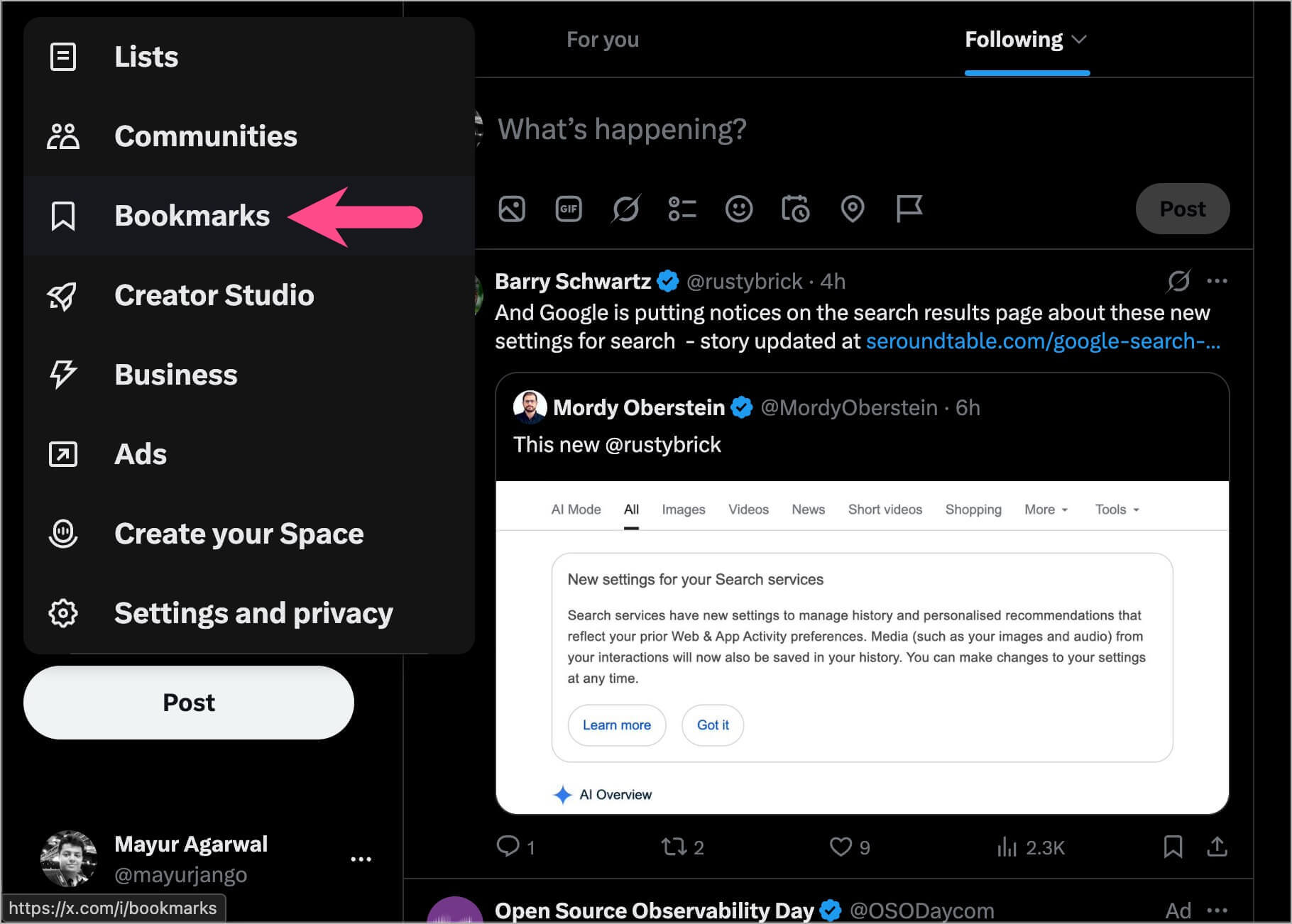
- Go to Bookmarks from the left sidebar.
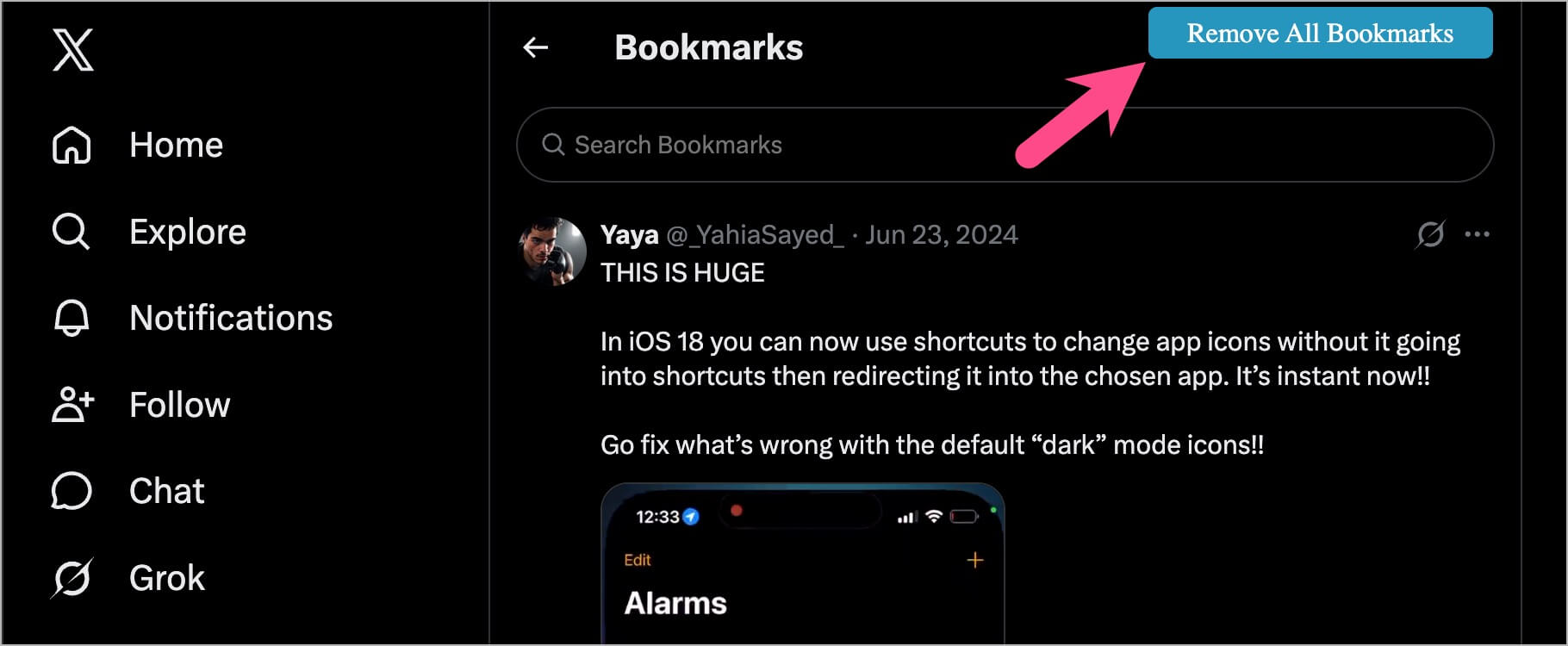
- If the extension is enabled, you’ll see a Remove All Bookmarks option on the Bookmarks page.
- To delete all bookmarks on X, click Remove All Bookmarks.
- The extension will start removing bookmarks as they load.
Once the process is complete, your Bookmarks section should be empty. The changes will sync across devices connected to your X account.
Note: The process may take some time depending on the number of bookmarks and your internet connection.
Tip: Remove the extension after you’re finished if you no longer need it.
X’s native Clear all Bookmarks option in the mobile app remains the easiest way to clear your entire bookmarks list.
What Happens When You Clear Bookmarks on X?
Clearing all bookmarks only removes posts you’ve saved to your Bookmarks. It doesn’t delete the original posts or affect your other activity on X.
- All saved bookmarks are removed from your account.
- The original posts remain on X.
- Your Likes, reposts, and replies are unaffected.
- Other users aren’t notified.
- The change syncs across your mobile and desktop devices.
Can You Undo “Clear All Bookmarks”?
No. Once you confirm the action, X permanently removes the saved bookmarks from your account. There is no recycle bin or option to restore them.
If you have important saved posts, review your Bookmarks before clearing the entire list.
How to Delete Individual X Bookmarks
If you only want to remove certain saved posts instead of clearing your entire bookmarks list, you can delete bookmarks individually.
- Open the X app or website and go to Bookmarks.
- Find the saved post you want to remove.
- Tap or click the Bookmark icon on the post to remove it from your Bookmarks.
- Repeat the process for any other bookmarks you want to remove.
This method is better if you only have a few saved posts you no longer need.








