


Whether you bookmarked an important tweet, a useful guide, a video, or a post you wanted to revisit later, X (formerly Twitter) makes it easy to save content for future reference. However, many users have recently been confused by changes to the X app interface.
If you’re having trouble finding your Twitter bookmarks, you’re not alone. X has started replacing the dedicated Bookmarks menu with a new History tab on iPhone and iPad, making some users think their saved Twitter bookmarks have disappeared.
The good news? Your bookmarks haven’t been deleted.
In this guide, you’ll learn how to find bookmarks on X, access saved posts on mobile and desktop, understand where bookmarks are stored, and troubleshoot issues when X bookmarks aren’t showing.
What Are Bookmarks on X (Twitter)?
Bookmarks are a private saving feature on X that lets you save posts for later without publicly liking or reposting them.
Many people use bookmarks to:
- Save long threads for future reading
- Store useful tutorials and guides
- Keep track of important announcements
- Save shopping recommendations
- Bookmark recipes, travel ideas, and videos
Unlike Likes, bookmarks are intended solely for personal use.
If you’re wondering if other people can see your saved posts, check our guide on whether people can see your bookmarks on X.
How to Find Your Bookmarks on X App
Want to view your saved bookmarks on the X app for iPhone or Android? Here’s how:
To access your bookmarks on the X mobile app:
- Open the X app on your device.
- Tap your profile picture in the top-left corner.

- Select History from the side navigation menu.
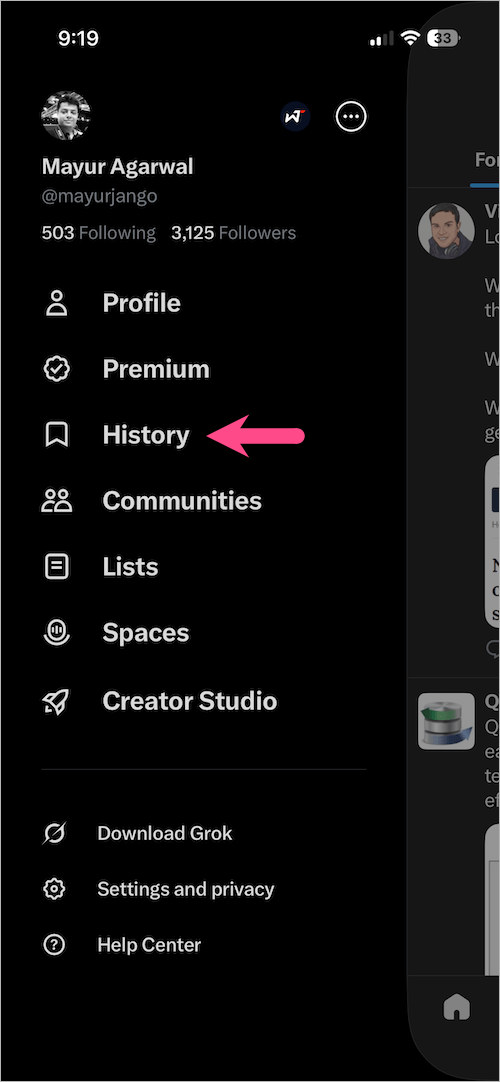
- Tap the Bookmarks tab to view all your saved tweets in reverse chronological order (most recent displayed first).
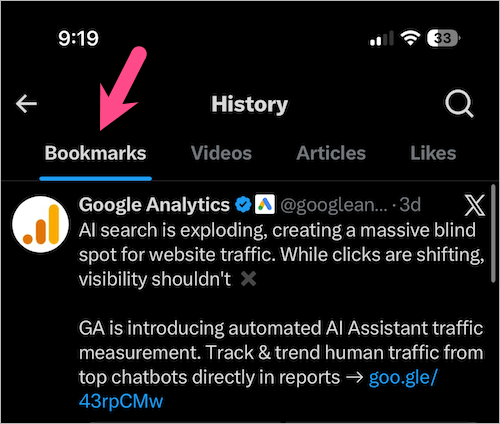
Your saved bookmarks, liked posts, articles, and long videos are now organized inside the History section.
If You Still See the Bookmarks Menu
If you’re using the X app on Android or haven’t updated the X app yet on iOS, follow these steps instead:
- Open the X app on your phone.
- Tap your profile picture in the top-left or swipe right on the screen.
- Select Bookmarks from the navigation menu.
You’ll see all your bookmarked posts on X in one place.
How to View X Bookmarks on Desktop
Want to see your bookmarks on the X website?
Here’s how you can access all your X bookmarks from a computer:
- Visit the X website and sign in to your account.
- From the left sidebar menu, click the More option.
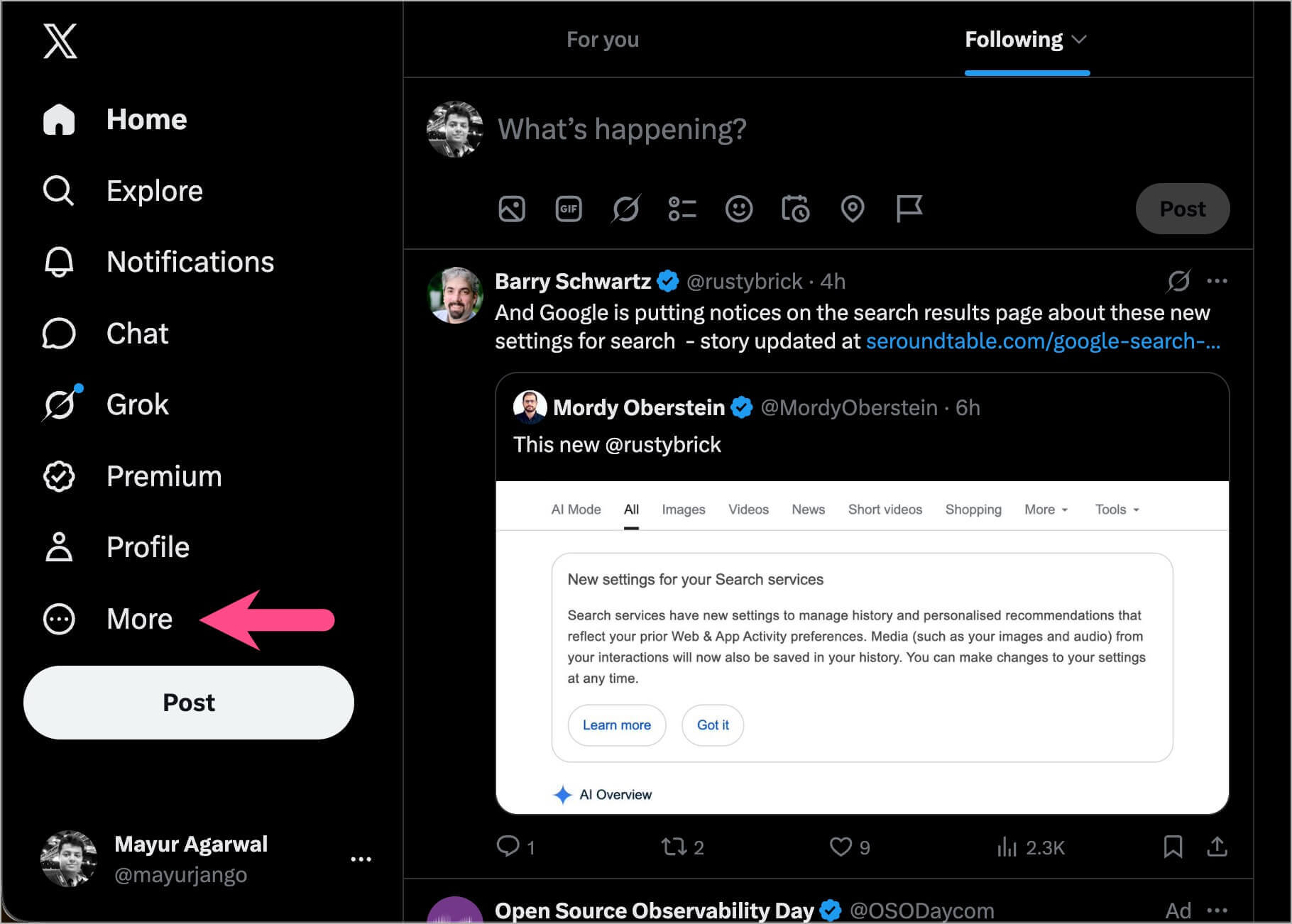
- Select Bookmarks from the list.
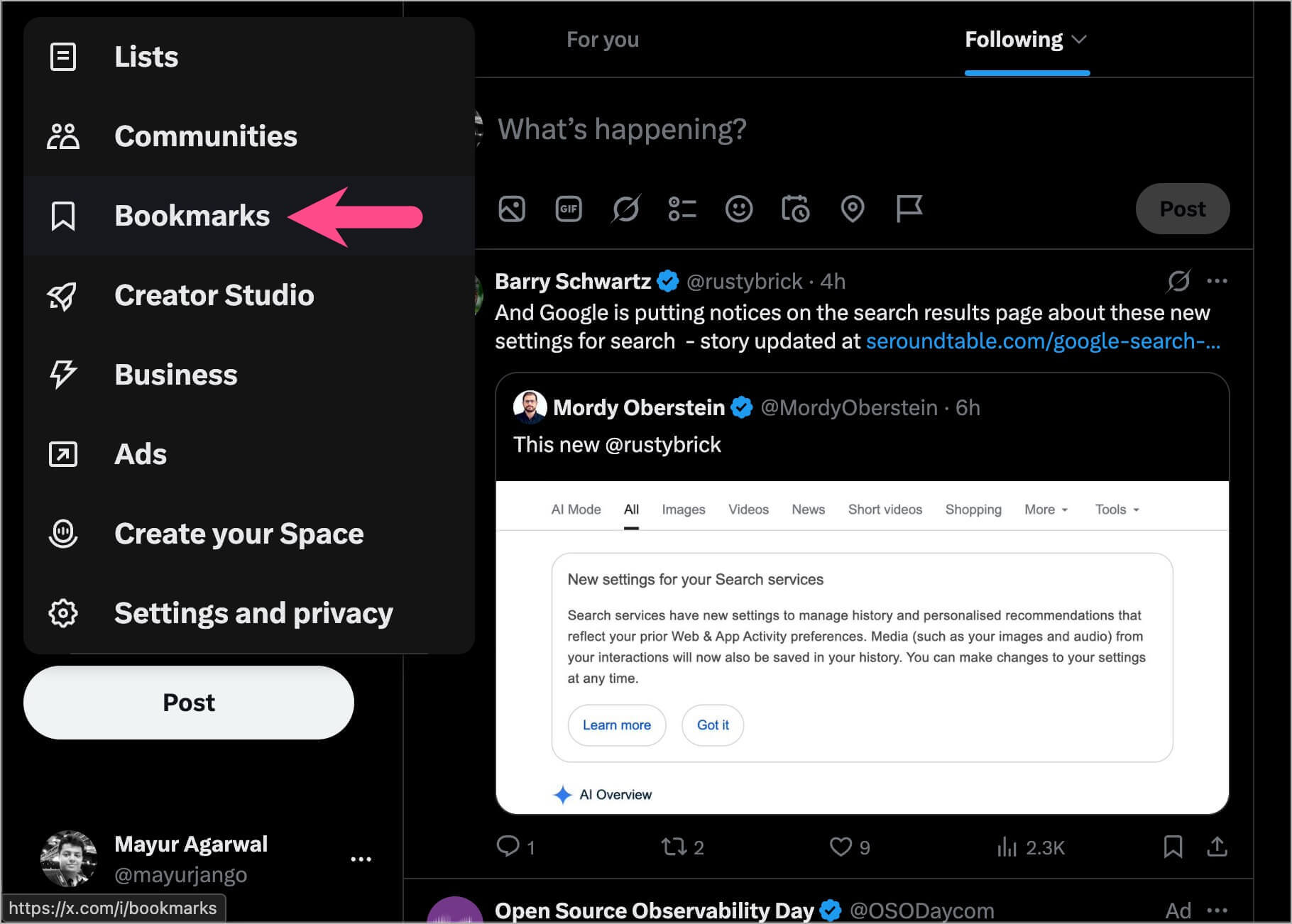
Your saved posts will appear instantly.
This works across all web browsers like Chrome, Safari, Edge, and Firefox.
Where Are My Bookmarks Stored on X?
A common question users ask is: Where are my bookmarks stored on X?
Bookmarks are stored on X’s servers and linked directly to your account rather than a specific device.
This means:
- Bookmarks automatically sync across devices.
- Posts saved on your phone appear on your computer.
- Bookmarks saved on desktop appear on your tablet or mobile device.
- You won’t lose bookmarks when switching devices.
As long as you’re signed into the same account, your bookmarks remain accessible from anywhere.
Who Can See My Bookmarks on X?
Are bookmarks public on X?
No. Bookmarks on X are completely private.
Only you can see the posts you’ve bookmarked.
Unlike Likes, replies, and reposts, bookmarked posts are not visible to:
- Followers
- Profile visitors
- Other X users
- The author of the post
Can someone see if I bookmarked their post?
No. X does not notify users when someone bookmarks their content.
This privacy-focused design is one reason many users prefer bookmarks over Likes when saving posts.
X Bookmarks Not Showing? Try These Fixes
Are your X bookmarks missing or not showing up? Before assuming they’re gone, check whether you’re using the latest version of the app.
Check for the New History Tab
Many iPhone and iPad users are now seeing a new History feature instead of the traditional Bookmarks menu.
History includes separate tabs for Bookmarks, Likes, Articles, and Long Videos.

As a result, many users think their X bookmarks have disappeared when they’ve actually been moved.
To find your missing bookmarks:
- Open the X app on your phone.
- Tap your profile picture.
- Select History.
- Open the Bookmarks tab.
Your Bookmarks Are Still There
Bookmarks remain linked to your account and continue syncing across devices.
Likewise, your likes haven’t been deleted. They’re simply located inside the new History section.
Both bookmarks and likes remain private and can only be viewed by you.
Update the X App
Install the latest version of X from the App Store on iPhone or iPad or the Google Play Store on Android devices. This ensures you get the latest features, provided they roll out in your geographic region.
Verify You’re Using the Correct Account
If you use multiple X accounts, make sure you’re signed into the account where the bookmarks were originally saved.
Wait for the Rollout
The History feature is being rolled out gradually. Depending on your device and region, you may still see the traditional Bookmarks menu instead.
Frequently Asked Questions
Why did my bookmarks disappear on X?
In many cases, your bookmarks haven’t disappeared. X has started replacing the standalone Bookmarks menu with a new History section that includes Bookmarks, Likes, Articles, and Videos. Open History from the navigation menu to access your saved posts.
How do I find saved tweets on X?
Open the X app, tap your profile picture, and go to History > Bookmarks. On older versions of X, open the side menu and tap Bookmarks directly.
Can other people see my bookmarks on X?
No. X (Twitter) Bookmarks are private and only visible to the account owner. Other users, followers, profile visitors, and the author of a post cannot see what you’ve bookmarked.
Can the author see if I bookmarked their post?
No. X does not notify users when you bookmark their posts. Bookmarks are private, and only you can see the content you’ve saved.
How do I remove bookmarks on X?
To delete a bookmarked post:
- Open your Bookmarks page.
- Locate or search for the saved post.
- Tap or click the bookmark icon again.
The post will immediately be removed from your bookmarks list.
Conclusion
Bookmarks are one of the most useful features on X for saving posts you want to revisit later. Whether you’re using an iPhone, Android device, or desktop browser, accessing your saved posts only takes a few taps.
If you can’t find the Bookmarks option anymore, check whether your version of X includes the new History section. Your saved posts haven’t disappeared; they’ve simply been moved to a new location.








