WebTrickz
TRENDING
  • Claude vs ChatGPT: Which Is Better in 2026?
No Result
View All Result
  • Reviews
  • Editorials
  • Social Media
    • Facebook
    • Twitter
    • YouTube
    • Messenger
    • Instagram
    • Snapchat
    • WhatsApp
    • TikTok
  • Apps
  • How To’s
  • Apple
  • iPhone
  • Google
  • Android
  • Mac
  • Security
  • About Us
    • About Us
    • Contact Us
    • Privacy Policy
  • Reviews
  • Editorials
  • Social Media
    • Facebook
    • Twitter
    • YouTube
    • Messenger
    • Instagram
    • Snapchat
    • WhatsApp
    • TikTok
  • Apps
  • How To’s
  • Apple
  • iPhone
  • Google
  • Android
  • Mac
  • Security
  • About Us
    • About Us
    • Contact Us
    • Privacy Policy
No Result
View All Result
WebTrickz
No Result
View All Result
Home How To's

How to Restart or Force Restart iPhone Duo

Mayur Agarwal by Mayur Agarwal
October 19, 2026
in How To's, iPhone

Restarting your iPhone Duo can help resolve minor glitches, app issues, and other temporary problems. If your iPhone freezes or stops responding, you can force restart it using a specific button sequence.

Running iOS 27, iPhone Duo supports several ways to restart, including using the physical buttons, AssistiveTouch, or a force restart when the device becomes unresponsive.

Quick answerTo restart iPhone Duo normally, turn it off and then turn it back on. To force restart a frozen iPhone Duo, quickly press and release Volume Up, quickly press and release Volume Down, then press and hold the Side button until the Apple logo appears.

How to Restart iPhone Duo

A normal restart involves turning off your iPhone Duo and then turning it back on. This can help resolve minor glitches or performance issues.

  1. Press and hold the Side button and either Volume button simultaneously until the power-off screen appears.
  2. Drag the slide to power off slider to the right.
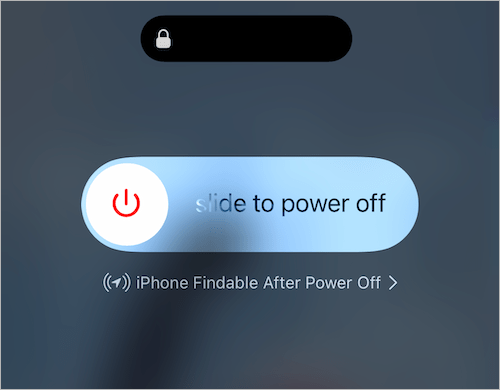
  3. Wait for your iPhone Duo to turn off completely.
  4. Press and hold the Side button until the Apple logo appears.

Your iPhone Duo will start up normally.

For more details, see our guide on how to turn off iPhone Duo.

Restart iPhone Duo Without Using Buttons

If your iPhone’s physical buttons aren’t working properly but the touchscreen is responsive, you can restart it using AssistiveTouch.

  1. Open Settings and go to Accessibility > Touch > AssistiveTouch.
  2. Turn on AssistiveTouch. Turn on AssistiveTouch on iphone Duo
  3. Tap the floating AssistiveTouch button on the screen. Floating AssistiveTouch button on iphone screen
  4. Select Device, then tap More. AssistiveTouch Menu options in ios 27
  5. Tap Restart and confirm when prompted. Restart iPhone Duo without using buttons
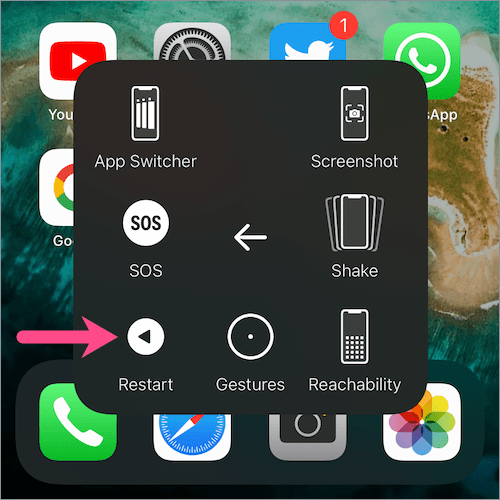
Your iPhone Duo will restart automatically.

How to Force Restart iPhone Duo

If your iPhone Duo freezes, gets stuck on a screen, or stops responding to touch, a normal restart may not be possible. In this situation, you can force restart the device using its physical buttons.

Follow these steps to force restart iPhone Duo:

  1. Quickly press and release the Volume Up button.
  2. Quickly press and release the Volume Down button.
  3. Immediately press and hold the Side button.
  4. Keep holding the Side button until the Apple logo appears, then release it.

The iPhone will restart automatically.

Note: The Apple logo may take several seconds to appear. Keep holding the Side button until you see it, even if the screen briefly goes black.

A force restart doesn’t erase your personal data. Use it when your iPhone is unresponsive and a normal restart isn’t possible.

What If iPhone Duo Won’t Turn On?

If your iPhone Duo doesn’t turn on after a force restart, its battery may be depleted or the device may need further troubleshooting.

Try the following:

  1. Connect your iPhone Duo to a working charger and cable.
  2. Let it charge for at least 30 minutes.
  3. While it’s connected to the charger, try the force-restart sequence again.
  4. If the screen remains black, continue charging for up to an hour before trying again.

If your iPhone Duo still won’t turn on, it may need further troubleshooting or service.

Does Force Restart Erase Data on iPhone Duo?

No. A force restart doesn’t erase your photos, apps, messages, or other personal data. It simply forces your iPhone to reboot when it isn’t responding normally.

A force restart is different from a factory reset, which erases the device’s content and settings.


Add WebTrickz as a preferred source on Google
Tags: iOS 27iPhone DuoTips
ShareTweetSend
Previous Post

How to Turn Off iPhone Duo

Mayur Agarwal

Mayur Agarwal

Mayur Agarwal, the founder and editor of WebTrickz, is a tech enthusiast with a Bachelor's degree in Computer Applications and over 15 years of experience in tech writing. His passion for technology and gadgets drives him to create insightful how-to articles and troubleshooting guides.

Leave a Reply Cancel reply

Your email address will not be published. Required fields are marked *

Latest Stories

Apple iPhone Duo

How to Restart or Force Restart iPhone Duo

October 19, 2026
iPhone Duo

How to Turn Off iPhone Duo

October 19, 2026
Closing Apps on iPhone 18 Pro and 18 Pro Max

How to Close Apps on iPhone 18 Pro and 18 Pro Max

September 19, 2026

How to Screen Record on iPhone 18 Pro and 18 Pro Max

September 19, 2026
iPhone 18 Pro and 18 Pro Max

How to Take a Screenshot on iPhone 18 Pro or 18 Pro Max

September 23, 2026
silent mode popup in dynamic island

How to Put iPhone 18 Pro on Silent or Vibrate Mode

September 18, 2026
Closing Apps on iPhone 18 Pro and 18 Pro Max

How to Restart or Force Restart iPhone 18 Pro and 18 Pro Max

September 23, 2026

Trending Stories

  • Photo by Jeff Hardi on Unsplash

    How to Turn Off Fn Lock on a Windows Laptop

  • How to Turn Off Microsoft Edge Game Assist in Windows 11

  • How to Turn Off Microsoft Family Safety on Windows 11 & 10

  • How to Delete All Saved Posts and Reels on Instagram at Once

  • How to Find and Change Safari Settings on iPhone (2026)

  • About Us
  • Contact Us
  • Privacy Policy
  • Advertise

© 2026 WebTrickz. All Rights Reserved.

No Result
View All Result
  • Reviews
  • Apps
  • How To’s
  • Android
  • Google
  • iPhone
  • Mac
  • About Us
  • Contact Us
  • Privacy Policy

© 2026 WebTrickz. All Rights Reserved.