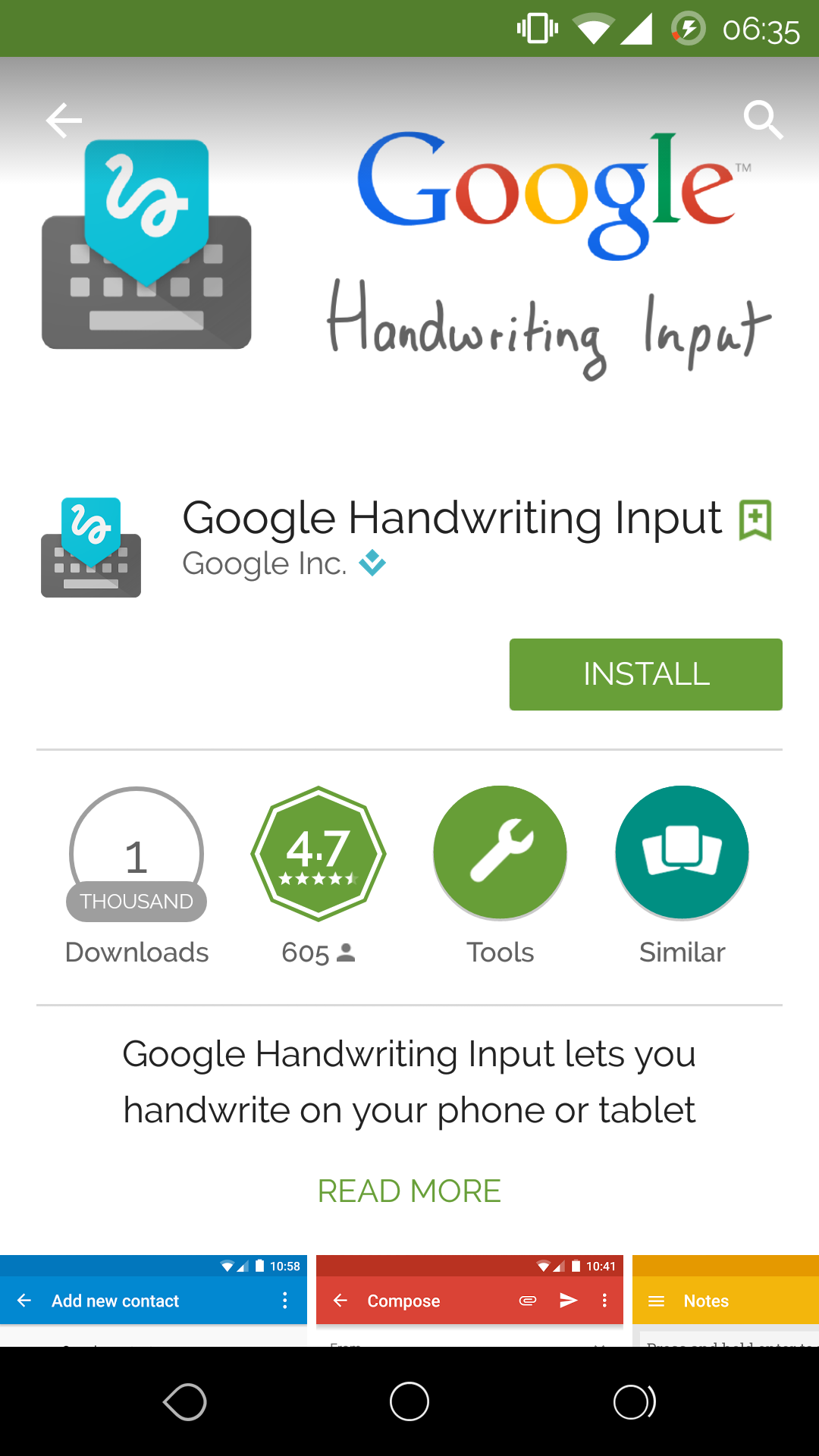
For the ones who do not have a tablet with a stylus or a device like a Samsung Galaxy Note, inputting the text via handwriting is either something they’ve never tried or yearned for but couldn’t find a good one to try or had to purchase a special app. But what if someone threw in an app for free, that you could use to toggle between the normal keyboard and a handwriting recognition one – makes you happy? yeah, Google’s Handwriting recognition app is out now on the Google Play Store and to sweeten the deal it’s FREE! And if this was not enough this app seamlessly works on tablets and smartphones that run Android.
So we played around with the app and the following is what you need to do:
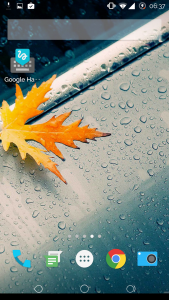
Head over to the Google Play Store to download the app. Once downloaded, tap the app icon and tap on OK for confirmation.
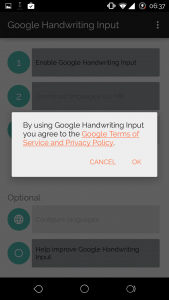
In the following screen that comes up next, enable Google Handwriting Input. Tap OK to confirm.

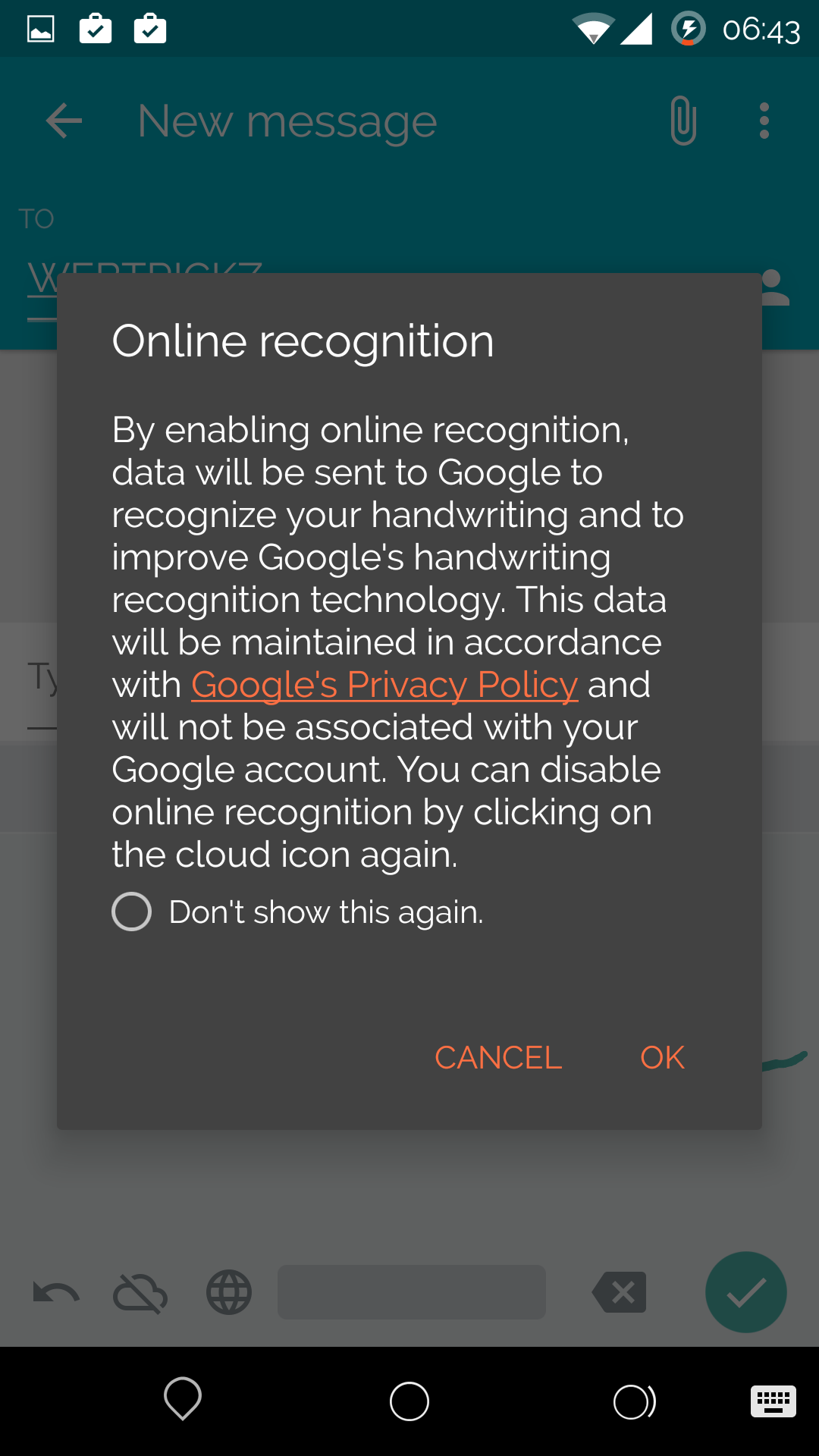
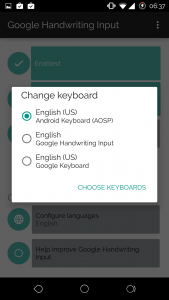
Choose the ‘Google Handwriting Input’ as your keyboard on the next screen to try out. Once done you should be able to see all the 3 options ticked and you are all set to go now!

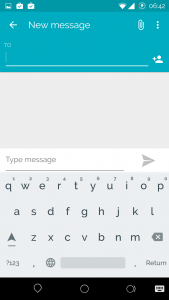
This is your normal Google Keyboard and once you tap on the tiny globe to the left of the space bar, the handwriting recognition comes up
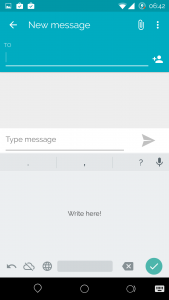
You can now start scribbling or sliding or even use a stylus if you have one! and things start showing up

Our thoughts on the app:
New kid on the block! – so we are normally used to typing a lot and with the keyboards getting so good at predictions, swiping, and sliding corrections and fill outs we’ve in fact become so fast in sending large amounts of text also. In addition to this, we also make use of voice input which also works so well but it again depends – you cannot use a voice input while in a very noisy slash crowded place! So for all practical purposes, we use the normal keyboard. One of the key reasons why one may use this is it’s NEW from Google and more so to go thru the fresh breath of air. The new keyboard is SIMPLE and does well but it all boils down to specific users as to how much and how long they may use this
Accurate but a tad slow – we must admit this new keyboard is simply so accurate in converting the handwriting into text, me being very bad at my handwriting could get it to write accurately 9 out 10 times and that is an indication of its smartness and we are impressed. However many times there is a tiny lag or 2-3 seconds for the output to come up. This is not dependent on how neat or scribbled your handwriting is but something that the keyboard is trying to grasp, predict and type out. But we hope it improves with an update in the future and we do not want to be too fussy about this in the 1.0 release! What’s more it can even predict smilies!
UI – Google has incorporated the highly regarded Material Design UI and this is good. The reason why we say this is most of the apps including WhatsApp which is easily one of the best-used apps for communication has also incorporated the material UI. Thus this new keyboard just blends in and it’s a feast to the eyes – trust us! it’s so cool. The fact that it’s so easy to toggle across to the Google keyboard makes it all the more intuitive to use.
Extensive language support – so this works not just for English but for as many as 82 different languages! Just head onto the settings section of the app and move it to a language of your choice. We tried English, French, German, and boy it worked so well.
So overall it is a fresh breath of air Google has brought in with this handwriting recognition app. It’s day 1 and most of us have gone crazy in using it and since it works so well we will use it and keep toggling with the normal keyboard. Whether it’s a simple app or a complex app, it ought to do its primary task good and this one just does that.
Millions of users may not adopt this right away but this is surely some happy news for users like me who wanna bring the stylus occasionally and scribble things up while in a meeting or a discussion when away from the PC or the Laptop. We wind up with three words – Simple, Accurate, and Productive.