

WebTrickz
TRENDING
  • Claude vs ChatGPT: Which Is Better in 2026?
No Result
View All Result
  • Reviews
  • Editorials
  • Social Media
    • Facebook
    • Twitter
    • YouTube
    • Messenger
    • Instagram
    • Snapchat
    • WhatsApp
    • TikTok
  • Apps
  • How To’s
  • Apple
  • iPhone
  • Google
  • Android
  • Mac
  • Security
  • About Us
    • About Us
    • Contact Us
    • Privacy Policy
  • Reviews
  • Editorials
  • Social Media
    • Facebook
    • Twitter
    • YouTube
    • Messenger
    • Instagram
    • Snapchat
    • WhatsApp
    • TikTok
  • Apps
  • How To’s
  • Apple
  • iPhone
  • Google
  • Android
  • Mac
  • Security
  • About Us
    • About Us
    • Contact Us
    • Privacy Policy
No Result
View All Result
WebTrickz
No Result
View All Result
Home Windows 10

How to Move the Taskbar from Side to Bottom in Windows 10

Two easy ways to put the Windows 10 taskbar back at the bottom.

Mayur Agarwal by Mayur Agarwal
August 1, 2025
in How To's, Windows 10

By default, the Windows taskbar appears at the bottom of the screen in Windows 10 and earlier versions. However, you might accidentally move the taskbar to the right or left side of the screen. This usually happens due to an unintended mouse drag or pressing the wrong keyboard shortcut. Since most users are familiar with the bottom position, they want to move the taskbar back to its default location.

Fortunately, it’s easy to restore the taskbar to its default position on Windows 10. Below are two ways to switch the taskbar from a vertical to a horizontal position (and vice versa).

Here’s how you can move the Windows 10 taskbar to the bottom using a mouse or keyboard.

How to Change the Taskbar Location in Windows 10

Method 1: Using Keyboard or Settings

This method is useful if your mouse isn’t working and you want to move the taskbar using the keyboard.

  1. Open the Start menu and click the gear icon to open Settings.
  2. Navigate to Personalization > Taskbar.
    • Alternatively, right-click an empty space on the taskbar and select Taskbar settings.
  3. Look for the Taskbar location on screen option. move taskbar to bottom on windows 10 using keyboard
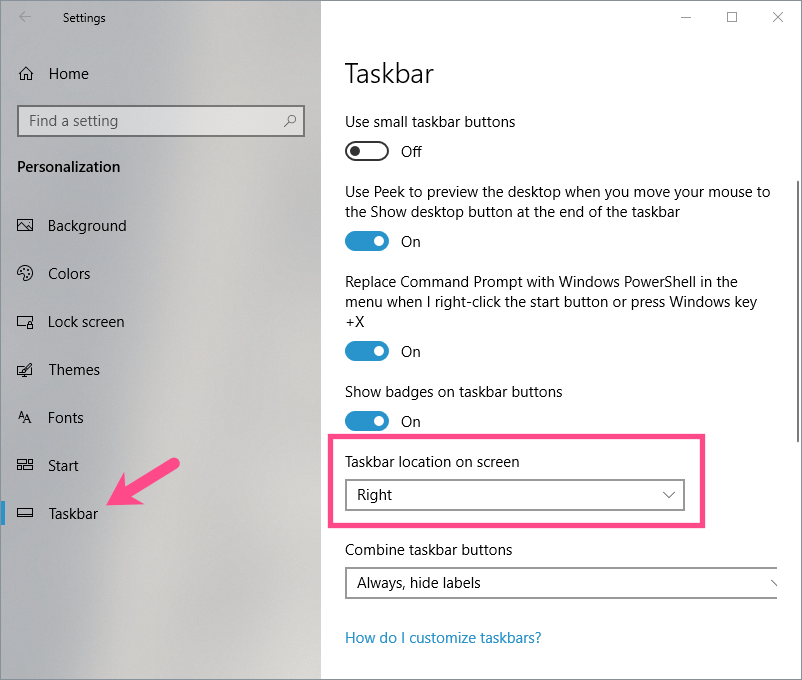
  4. Click the drop-down menu and select Bottom. change taskbar location in windows 10
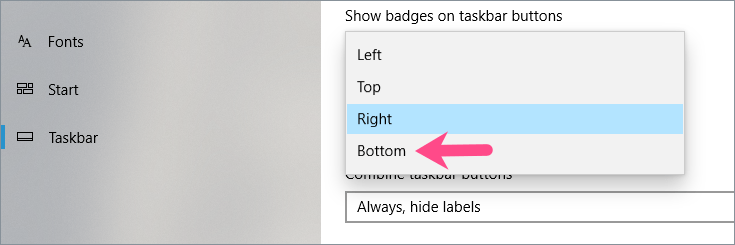
This will instantly restore the taskbar to its original bottom position.

Method 2: Dragging with the Mouse

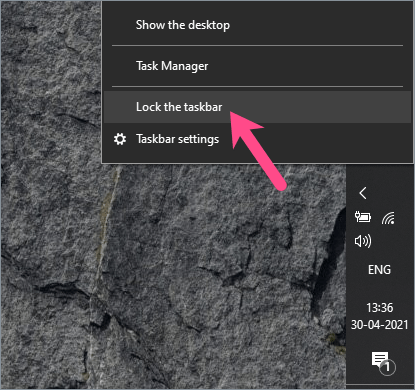
  1. First, make sure the Lock the taskbar setting is turned off. unlocked taskbar in windows 10
  2. Click and hold a blank space on the taskbar.
  3. Drag the taskbar from the right or left edge to the bottom of the screen using the primary mouse button. (Refer to screenshot) move windows 10 taskbar from side to bottom of screen
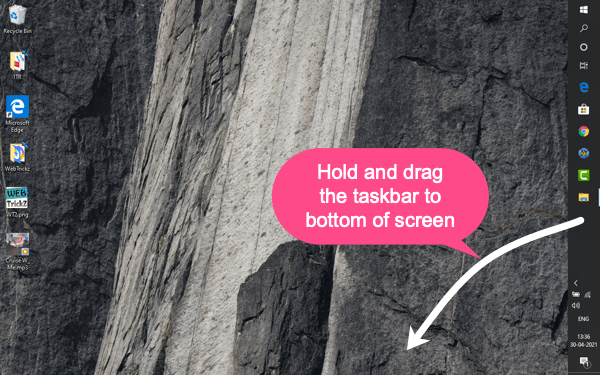
  4. Release the mouse button, and the taskbar will snap into a horizontal position.

Tip: You can also move the taskbar to the top edge of the screen using the same method.

Tip: Lock the Taskbar to Prevent Accidental Moves

After changing the taskbar location on your desktop, you can lock it to prevent accidental movement or resizing.

To lock the taskbar in Windows 10, right-click an empty area on the taskbar and select Lock the taskbar. A check mark next to the option indicates that the taskbar is locked and cannot be moved.
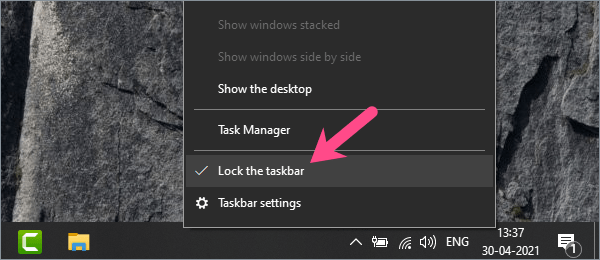
how to lock windows 10 taskbar in one place

You can also lock or unlock the taskbar by navigating to Settings > Personalization > Taskbar.

Tags: TaskbarTipsTroubleshooting TipsWindows 10
ShareTweetSend
Previous Post

How to Pin a Website to the Taskbar on Mac with Chrome

Next Post

How to Mute a Single Tab Instead of a Website in Chrome

Mayur Agarwal

Mayur Agarwal

Mayur Agarwal, the founder and editor of WebTrickz, is a tech enthusiast with a Bachelor's degree in Computer Applications and over 15 years of experience in tech writing. His passion for technology and gadgets drives him to create insightful how-to articles and troubleshooting guides.

Next Post
google chrome logo

How to Mute a Single Tab Instead of a Website in Chrome

Comments 1

  1. venkatesh says:
    3 years ago

    Hurry…!!! its working problem solved.

    Reply

Leave a Reply Cancel reply

Your email address will not be published. Required fields are marked *

Latest Stories

Google Gemini

How to Cancel Your Gemini Subscription (2026 Guide)

June 21, 2026
difference between chatgpt and claude

Claude vs ChatGPT: Which AI Should You Use in 2026?

June 18, 2026
google chrome logo

Google Chrome Offline Installer: Direct Download Links

June 17, 2026
X logo

How to Remove All Bookmarks on X (Twitter) At Once in 2026

June 15, 2026
X logo

How to Find Bookmarks on X (Twitter) in 2026

June 15, 2026
copilot logo

How to Turn Off Copilot Search in Bing on Edge & Chrome

June 10, 2026
microsoft edge new logo

How to Turn Off Notifications in Microsoft Edge (2026 Guide)

June 8, 2026

Trending Stories

  • 1337x logo

    1337x Proxy List 2026: Working Proxy & Mirror Sites

  • How to Turn Off Microsoft Family Safety on Windows 11 & 10

  • How to See Recently Watched Reels on Facebook (2026 Guide)

  • How to Turn Off Microsoft Edge Game Assist in Windows 11

  • How to Turn Off Fn Lock or Fn Key on Windows 11/10 Laptop

  • About Us
  • Contact Us
  • Privacy Policy
  • Advertise

© 2026 WebTrickz. All Rights Reserved.

No Result
View All Result
  • Reviews
  • Apps
  • How To’s
  • Android
  • Google
  • iPhone
  • Mac
  • About Us
  • Contact Us
  • Privacy Policy

© 2026 WebTrickz. All Rights Reserved.





