


Instagram allows users to pin their favorite posts and reels to the top of the profile grid. The pinning feature works similarly to how you pin your own post on Facebook and Twitter. You can pin up to three posts or reels on Instagram wherein the most recently pinned post appears at the top, whereas any existing pinned posts are moved either to second or third position.
Pinning helps you maximize the visibility of your post or reel since the pinned items always stay at the top of your Instagram profile. This is a great way to highlight the best and most engaging reels videos or posts you’ve shared on Instagram.
Why can’t I pin a reel on Instagram?
While the process to pin Instagram posts is pretty straightforward, you might get confused when you try to pin reels. That’s because the ‘Pin to Profile’ option doesn’t appear on all the reels that you’ve posted.
Apparently, the option to pin reels on Instagram only appears for reels that you’ve already added to your profile grid. What’s even worse is that you cannot add reels back to the profile grid after removing or posting them.
TL;DR: You can’t pin reels that you haven’t shared to your Instagram Feed while posting.
Worry not if you can’t find the option to pin Instagram reels video. Fortunately, there is a workaround you can use to put a reel back on your profile grid and then pin it to your profile.
Now let’s see how you can normally pin reels to your Instagram profile as well as when there is no ‘Pin to your profile’ option in reels.
How to pin Instagram reels to your profile grid
- Make sure to update the Instagram app to the latest version.
- Go to the profile tab and tap the ‘Posts’ tab.
- Open the reel you want to pin to your profile.

- Tap the ellipsis icon (3-dot) at the top-right.
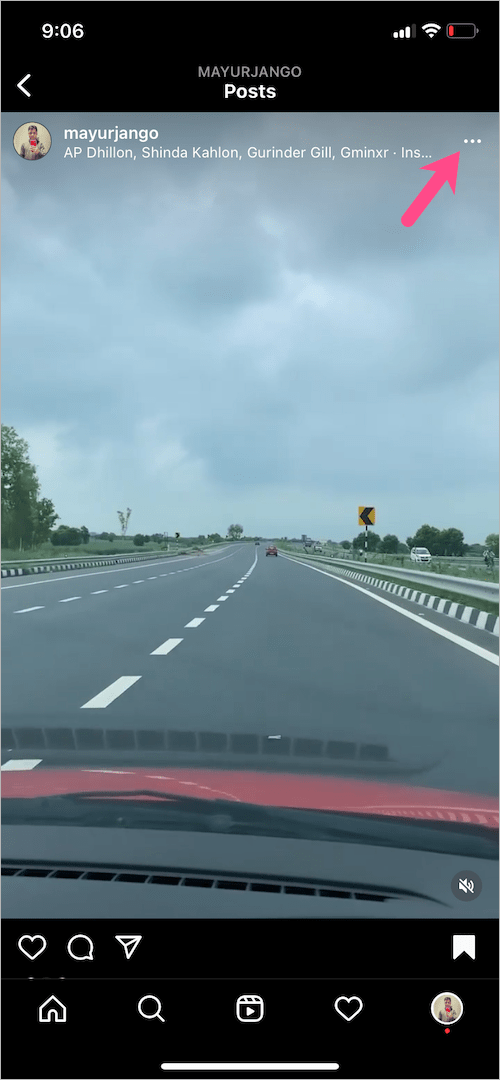
- Select “Pin to your profile” to pin the particular reel.
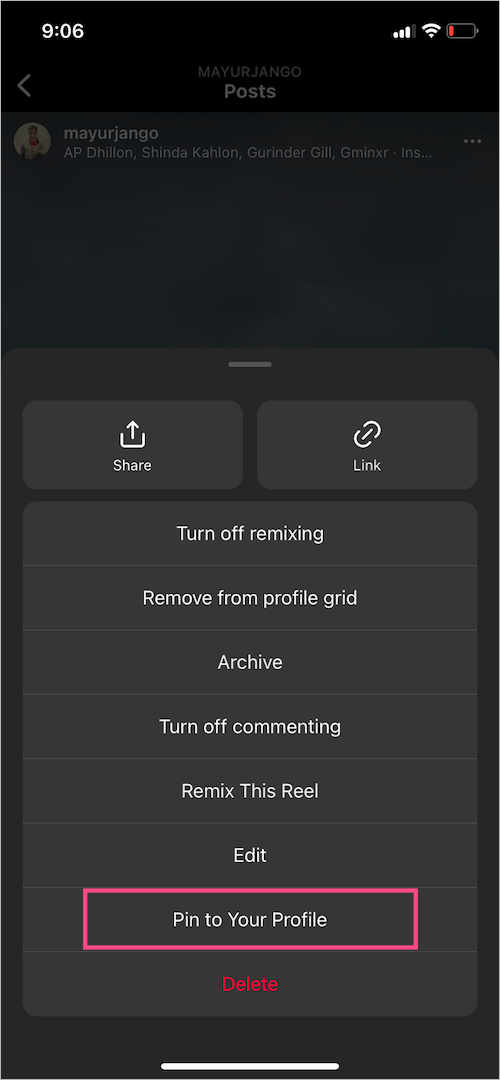
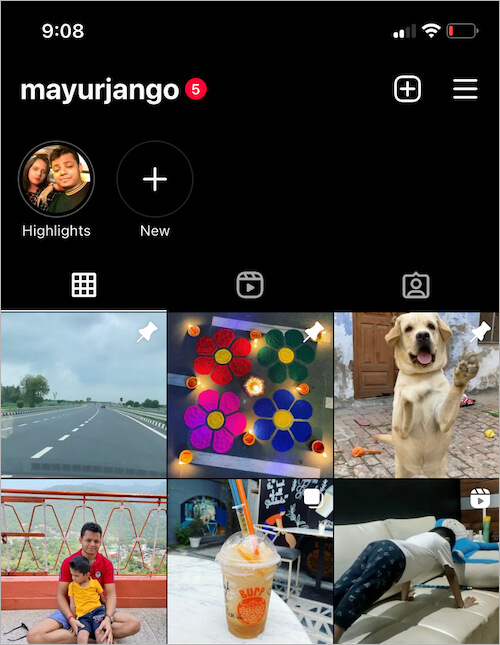
That’s it. The pinned reel will now appear at the start of your profile grid and will have a white pin icon over it, indicating the post is pinned.
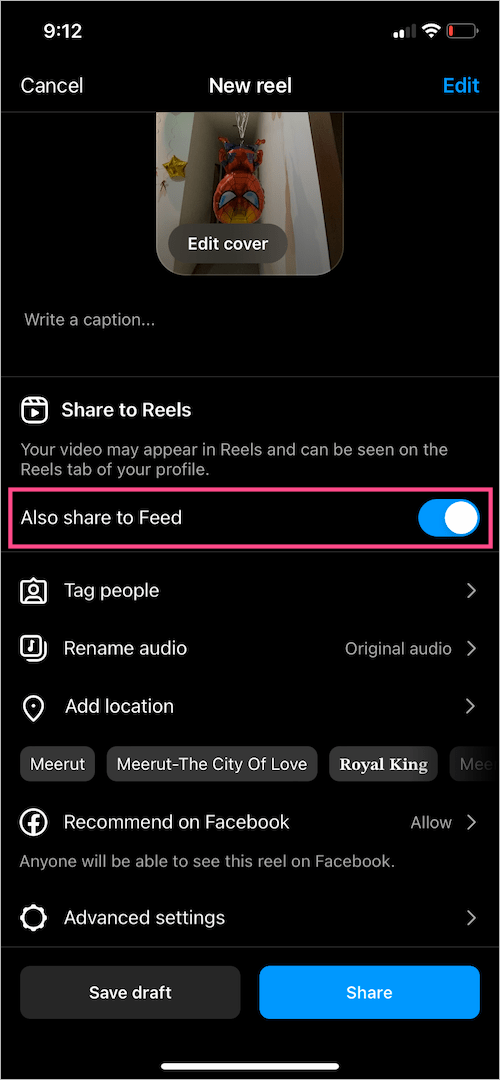
TIP: If you prefer to pin a reel on your profile grid then make sure to enable the “Also share to Feed” option while sharing the reel. This will allow you to easily pin that reel without any workaround.
Pin reels that aren’t available on the profile grid
Are you unable to pin a reel since the option to pin reels is missing altogether?
In such a case, follow our detailed guide on “Adding Instagram reels back to profile grid after removing or posting“. Once the reel shows up on your Instagram feed, follow the above-stated steps to quickly pin it to your profile.
NOTE: You need to have an Android device to put reels back on the profile grid. iPhone users can instead use an Android device to get the job done.
How to unpin reels on Instagram
You can unpin an Instagram reel from the top of your profile at any point in time. Doing so will move the certain post or reel back to its original position in the profile grid.
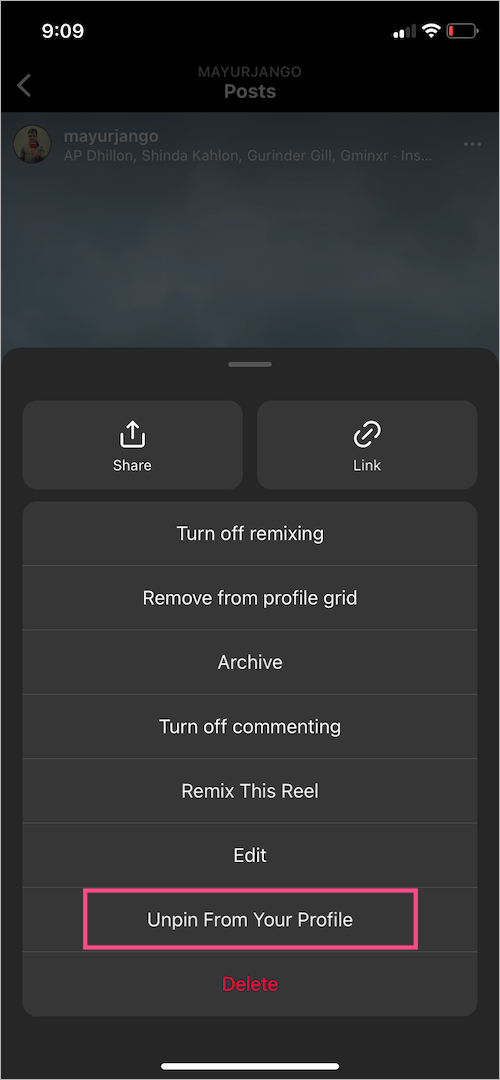
To unpin a reel, go to your profile and tap one of the pinned reels you want to unpin. Then tap the 3-dot menu in the upper-right corner of the reel. Now, simply tap the “Unpin from your Profile” option.











Do you get paid as a creator on a pinned reel?
I’m still having an issue with this. I’d really appreciate if I was able to speak to someone about this? Instagram have no contact to speak to actual people. Please email me [email protected]. Thanks.