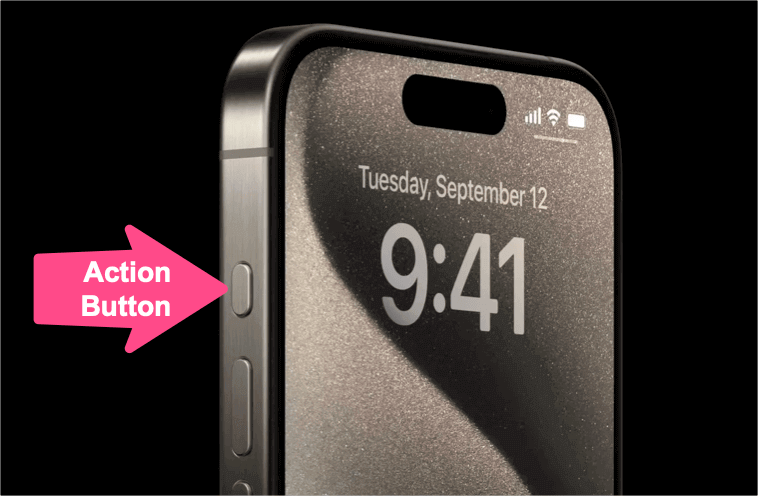
The iPhone 18 Pro and iPhone 18 Pro Max use a customizable Action button instead of the traditional Ring/Silent switch. By default, the Action button lets you quickly switch between Ring and Silent modes.
If you’ve set the Action button to do something else, you can still turn Silent mode on or off from Control Center or Settings. You can also choose whether your iPhone vibrates when it is in Silent mode.
Here’s how to put your iPhone 18 Pro or 18 Pro Max on Silent and make it vibrate for incoming calls and alerts.
How to Put iPhone 18 Pro on Silent
There are several ways to enable Silent mode on the iPhone 18 Pro.
Using the Action Button
The quickest way to silence your iPhone is by using the Action button.
- Locate the Action button above the volume buttons on the left side of your iPhone.
- Press and hold the Action button.
- Your iPhone will switch to Silent mode, and a Silent notification will briefly appear in the Dynamic Island.
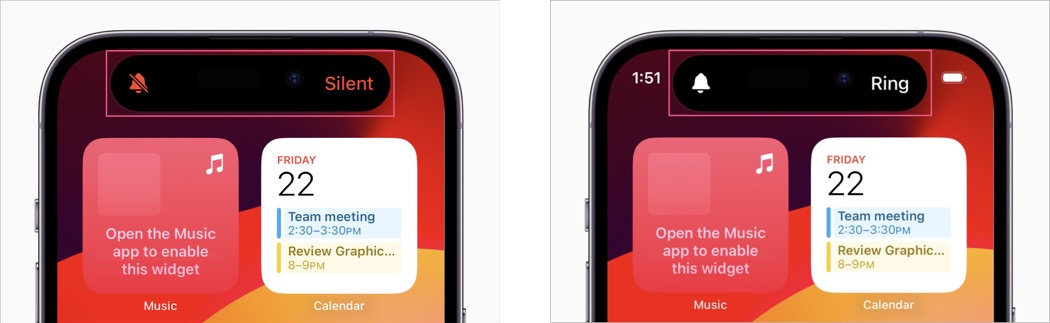
- Press and hold the Action button again to switch back to Ring mode.
By default, the Action button is configured to turn Silent mode on or off. You can also customize the Action button to perform other actions. If you’ve assigned it to another function, you can change it back under Settings > Action Button.
From Control Center
If your Action button is assigned to another function, you can turn Silent mode on or off from Control Center instead.
- Swipe down from the top-right corner of the screen to open Control Center.
- Tap the Silent Mode control (bell icon).
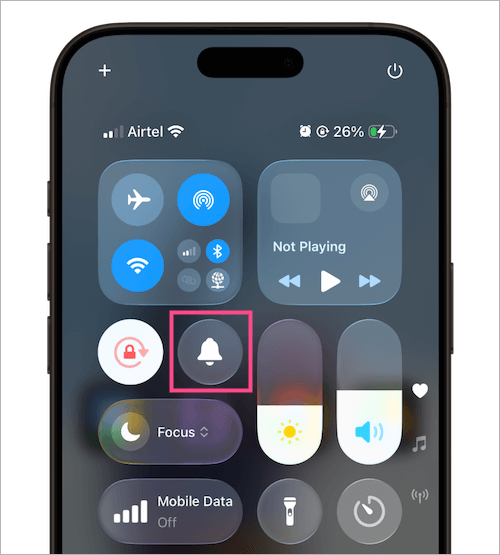
Silent Mode control in Control Center on iPhone - Silent mode will turn on.
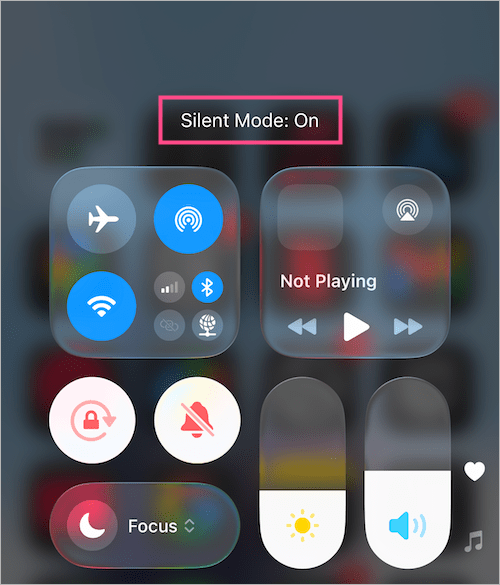
- Tap the same control again to turn Silent mode off.
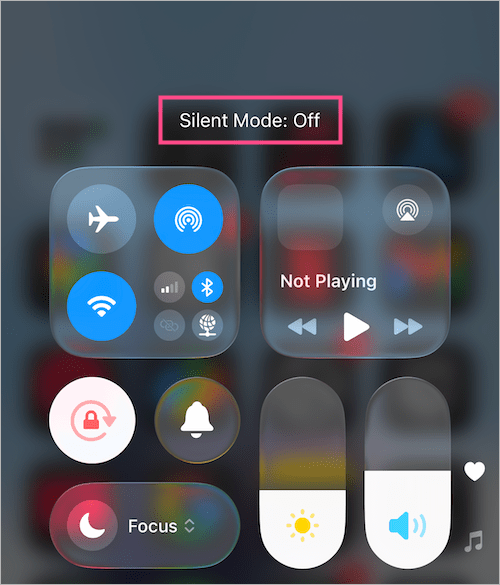
This is also useful if you prefer using an on-screen control instead of the physical button.
From Settings
You can also toggle Silent mode on or off from the Settings app.
- Open Settings.
- Go to Sounds & Haptics.
- Turn on the Silent Mode toggle.
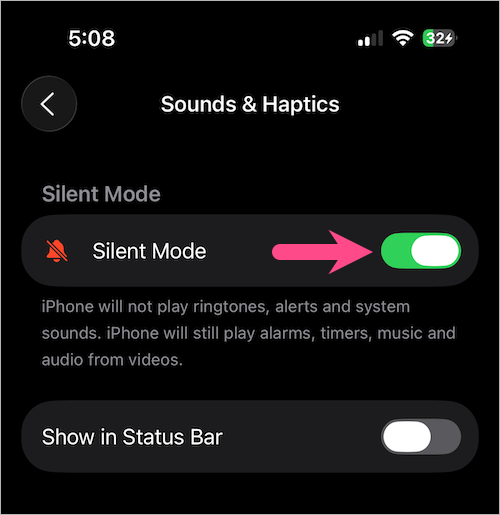
- Turn it off when you want to switch back to Ring mode.
If you want to completely power down your iPhone instead, see our guide on how to turn off iPhone 18 Pro.
How to Put iPhone 18 Pro on Vibrate
There isn’t a separate “Vibrate mode” switch on newer iPhones. Instead, you control vibration through the Haptics settings.
If you want your iPhone 18 Pro to vibrate when Silent mode is enabled:
- Open Settings.
- Tap Sounds & Haptics.
- Tap Haptics under Ringtone.
- Select Play in Silent Mode.
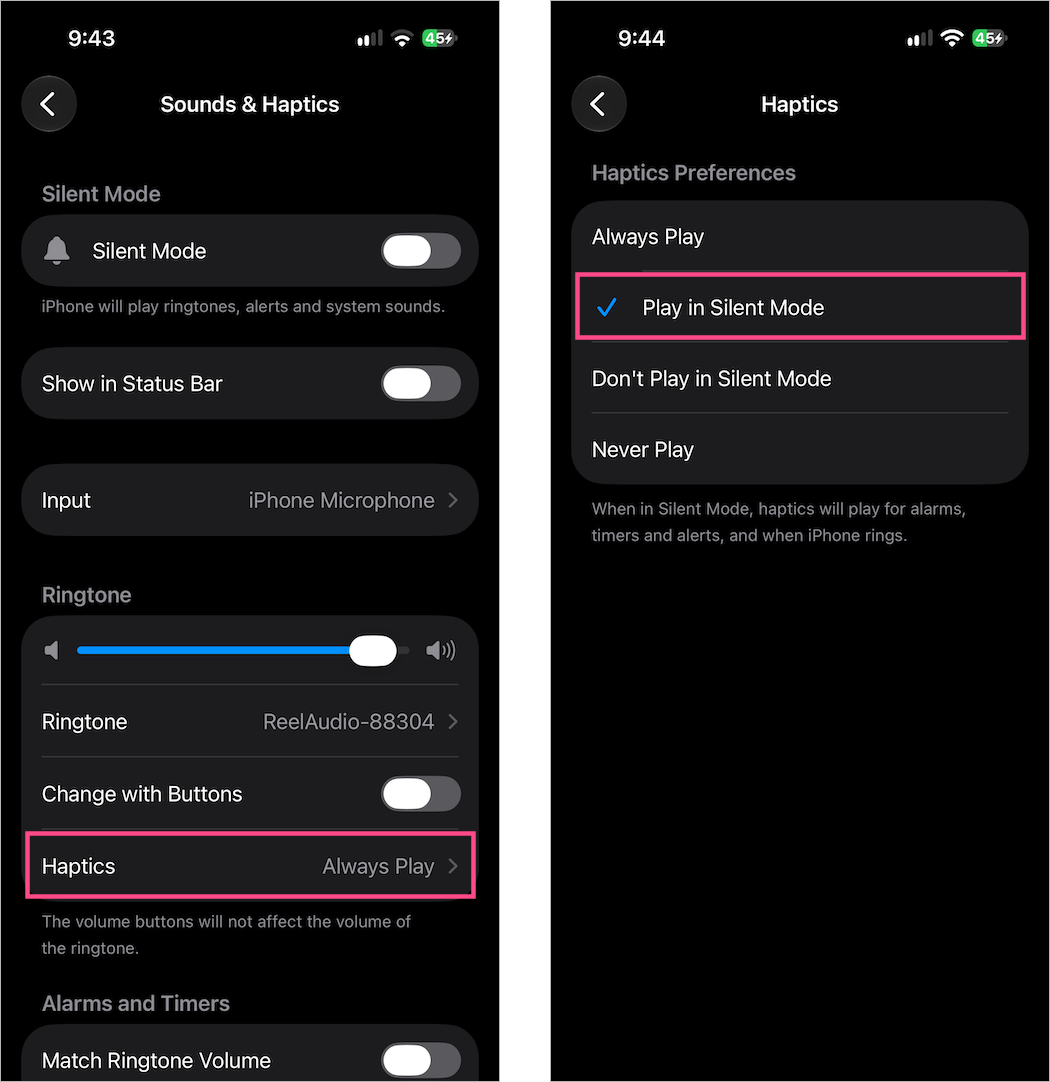
Your iPhone will now vibrate for incoming calls and alerts while remaining silent.
Make iPhone 18 Pro Vibrate in Ring Mode
If you want haptic alerts in both Ring and Silent modes:
- Go to Settings > Sounds & Haptics.
- Tap Haptics.
- Select Always Play.
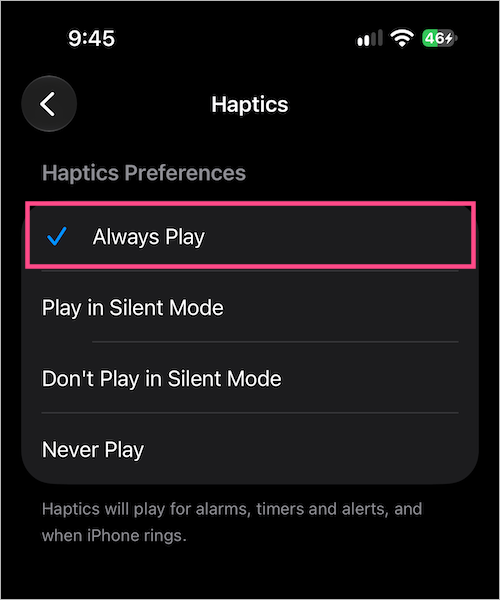
With this option enabled, your iPhone will provide haptic feedback for incoming calls and alerts in both Ring and Silent modes.
Stop iPhone 18 Pro From Vibrating in Silent Mode
If you don’t want your iPhone to vibrate when it’s silent:
- Open Settings > Sounds & Haptics.
- Tap Haptics.
- Select Don’t Play in Silent Mode.
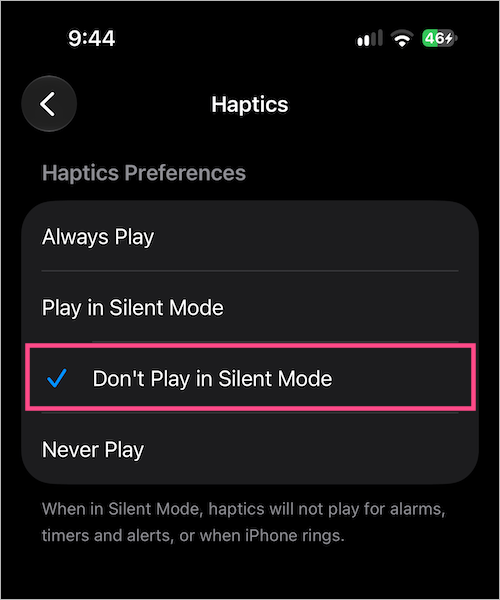
Your iPhone will remain silent without vibrating for incoming calls and alerts.
How to Turn the Ringer On or Off on iPhone 18 Pro
You don’t have to use Silent mode to stop your iPhone from ringing. You can also lower the ringer volume all the way down while keeping the iPhone in Ring mode.
- Open Settings > Sounds & Haptics.
- Under Ringtone, drag the volume slider all the way to the left to turn off the ringer.
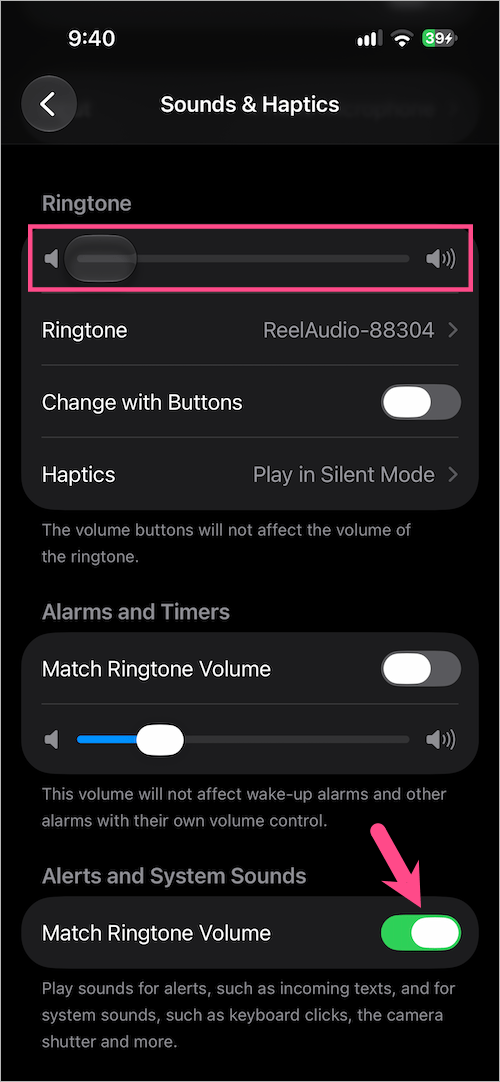
- Move the slider to the right whenever you want to turn the ringer back on and increase its volume.
If Match Ringtone Volume is enabled, the ringer volume can also control the volume of alerts and system sounds. You can adjust the matching options under Alerts and System Sounds and Alarms and Timers.
This method lowers the ringer volume without enabling Silent mode.
How to Hide the Silent Mode Icon on iPhone 18 Pro
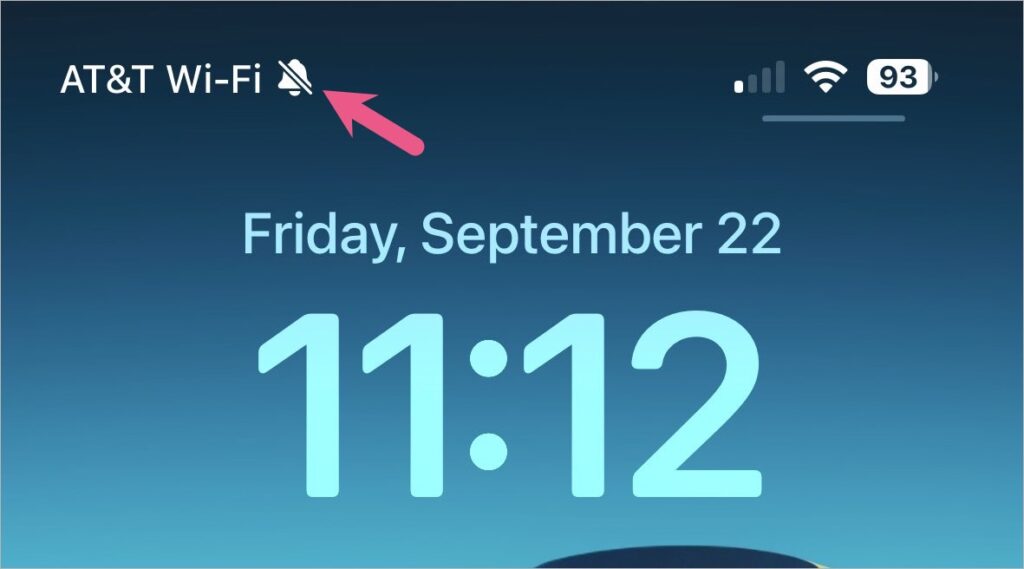
When Silent mode is enabled, your iPhone can show a crossed-out bell icon in the status bar. If you don’t want this indicator to appear:
- Open Settings.
- Go to Sounds & Haptics.
- Under Silent Mode, turn off Show in Status Bar.
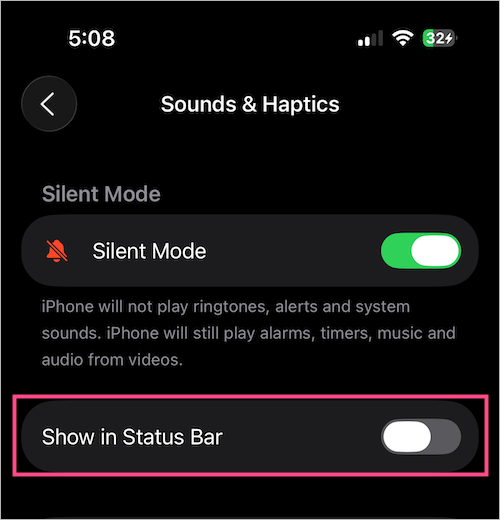
The iPhone will remain in Silent mode, but the Silent mode icon will no longer appear in the status bar.
FAQs
What happens when Silent mode is turned on?
When Silent mode is enabled, your iPhone won’t ring or play alert sounds for incoming calls, texts, and notifications. It can still vibrate if haptics are enabled.
Sounds from alarms, music, videos, and some games can still play through the speaker even when Silent mode is on.
Where is the Silent button on iPhone 18 Pro and 18 Pro Max?
The iPhone 18 Pro and 18 Pro Max don’t have the traditional Ring/Silent switch found on older iPhones. Instead, the Action button acts as the Silent button by default.
Press and hold the Action button to switch between Ring and Silent modes. If you’ve set the Action button to another function, you can use Control Center or Settings > Sounds & Haptics to control Silent mode.
How do I make my iPhone 18 Pro vibrate?
Go to Settings > Sounds & Haptics > Haptics and select Play in Silent Mode. This makes the iPhone vibrate for incoming calls and alerts while Silent mode is enabled.
Why is my iPhone 18 Pro not vibrating on Silent?
Go to Settings > Sounds & Haptics > Haptics and make sure Play in Silent Mode is selected.
If it still doesn’t vibrate, check that Do Not Disturb isn’t enabled under Control Center > Focus. You should also make sure vibration is enabled under Settings > Accessibility > Touch > Vibration.
If your iPhone 18 Pro becomes unresponsive or frozen, see our guide on how to force restart iPhone 18 Pro when frozen.