


After creating a WhatsApp username, you can add a username key for extra privacy. When enabled, people who haven’t messaged you before will need both your username and key to start a chat with you.
You can add, change, or remove your username key anytime from the same settings screen, and this guide shows you how.
What is a WhatsApp Username Key?
A username key is an optional code linked to your WhatsApp username. It gives you more control over who can contact you using your username. When a username key is enabled, people messaging you by username for the first time must enter both your username and key before they can send you a message.
Existing chats, saved contacts, people in shared groups, and anyone you’ve messaged before don’t need your key to contact you.
Who doesn’t need your Username Key?
Your username key is only required for people contacting you by username for the first time.
The following people can still message you without your key:
- People who already have your phone number saved
- People you’ve chatted with before
- People in a shared WhatsApp group
- People who scanned your QR code
- Anyone you messaged first
How to add a Username Key in WhatsApp
Before you begin, make sure you’ve already created a WhatsApp username. The username key option only becomes available after that.
Here’s how to add a username key to your WhatsApp account:
- Open WhatsApp on your iPhone or Android phone.
- Go to Settings.
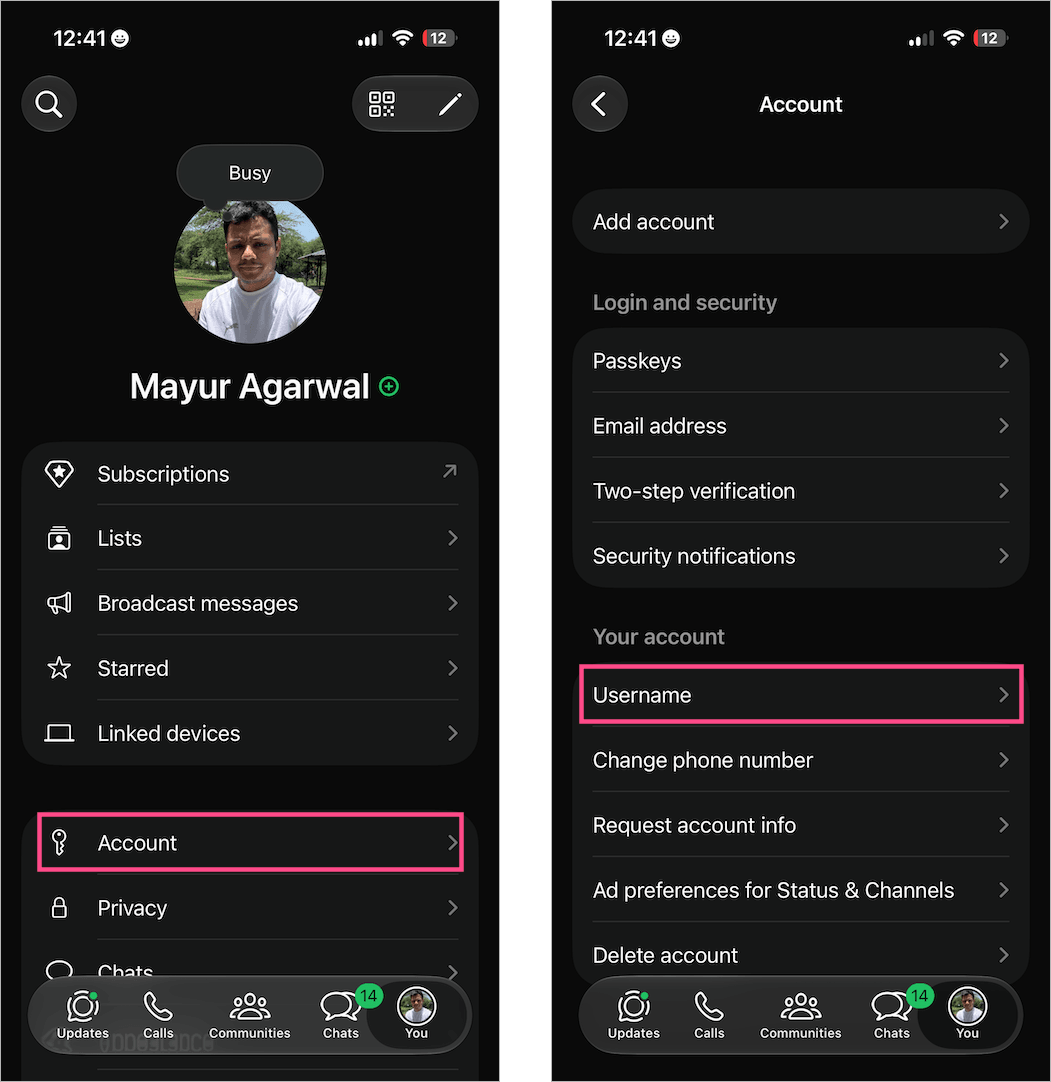
- Tap Account > Username.
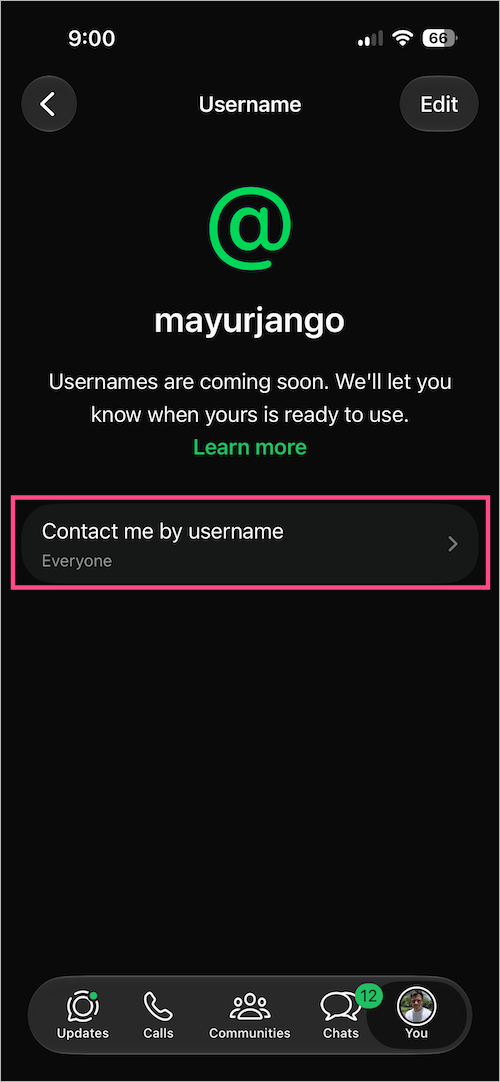
- Tap Contact me by username.
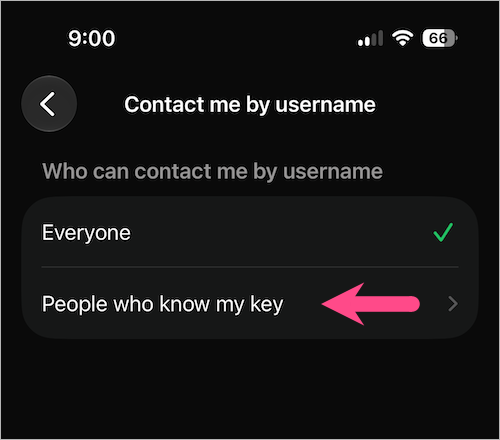
- Under ‘Who can contact me by username’, select “People who know my key“.
- WhatsApp will automatically generate a 4-digit Username key.
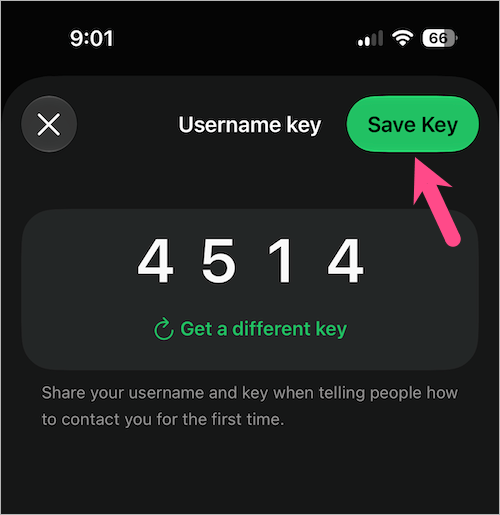
- Optional: Tap Get a different key to generate a new key instead.
- Tap Save Key to set the key as your username key.
Once saved, a Username key added confirmation will briefly appear at the bottom of the screen.
Now you’ll need to share both your username and key with anyone you want to start a new conversation with.
Note: You can’t manually choose a custom username key. WhatsApp automatically generates one for you. If you don’t like the generated key, tap Get a different key to generate another one.
Tip: Only share your username key with people you want to hear from. If you think someone else has access to your key, simply generate a new one.
How to change your WhatsApp Username Key
Want to use a different key? You can generate a new one whenever you like.
To change your username key on WhatsApp:
- Open WhatsApp.
- Navigate to Settings > Account > Username.
- Tap Contact me by username.
- Select the Username key option.
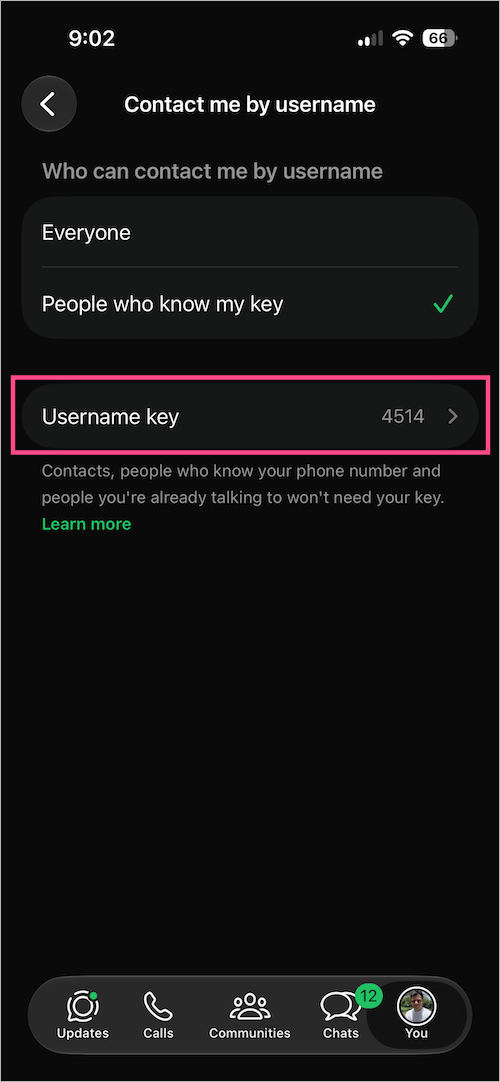
- Tap Get a different key (visible below your current key) to choose a new key. You can tap it multiple times to generate different keys.
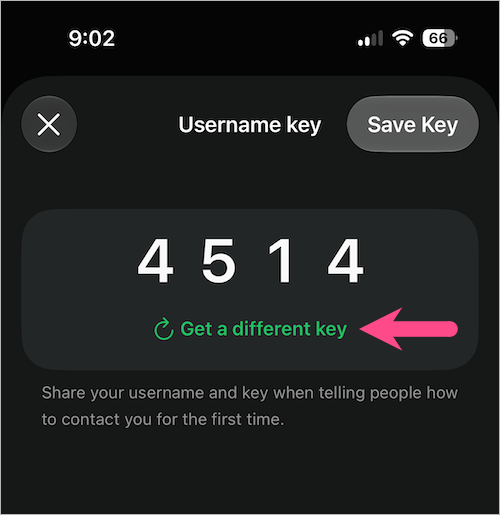
- Once you get a key of your choice, tap Save Key at the top-right.
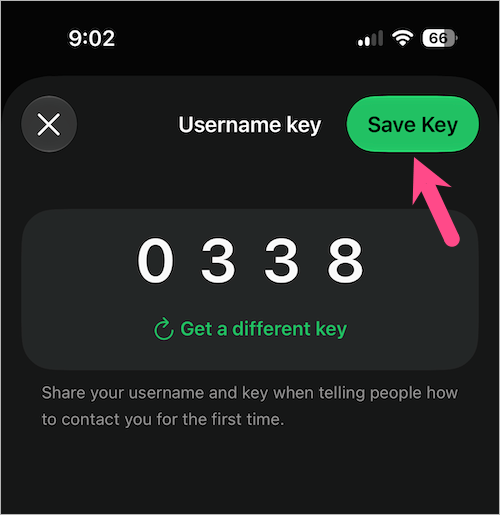
Once you save it, a Username key changed pop-up message will appear.
It’s worth noting that changing your username key immediately invalidates the previous one. Anyone trying to contact you using the old key will need your updated key instead.
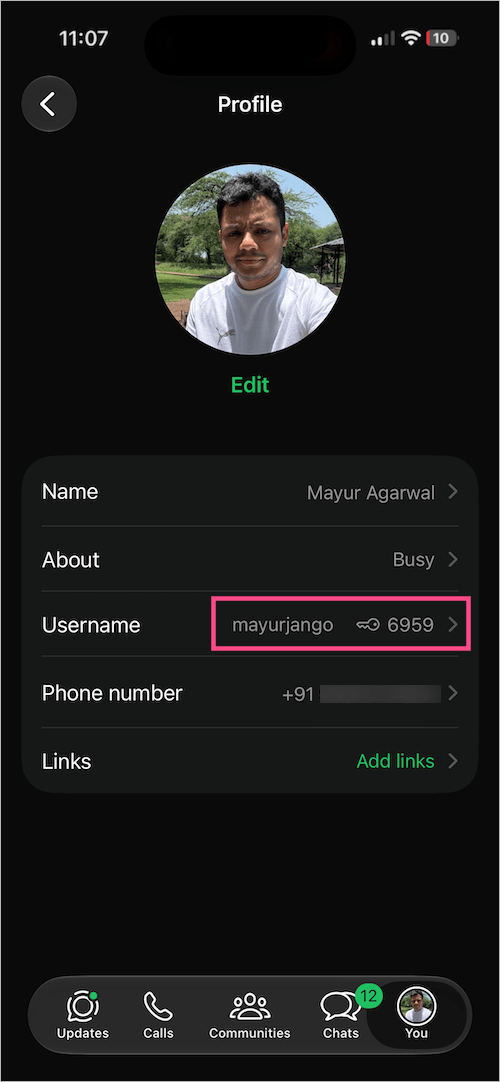
Forgot your key? You can view it anytime by going to WhatsApp > Settings > Account > Username. Your current key appears below your username as Key: XXXX.
During testing, I found that WhatsApp displays your username and key together on the Profile screen, making it easy to check or share them whenever needed.
RELATED: How to Change Your WhatsApp Username
How to remove your WhatsApp Username Key
If you no longer need the extra privacy layer, you can remove your username key at any time. For this:
- Open WhatsApp.
- Navigate to Settings > Account > Username.
- Tap Contact me by username.
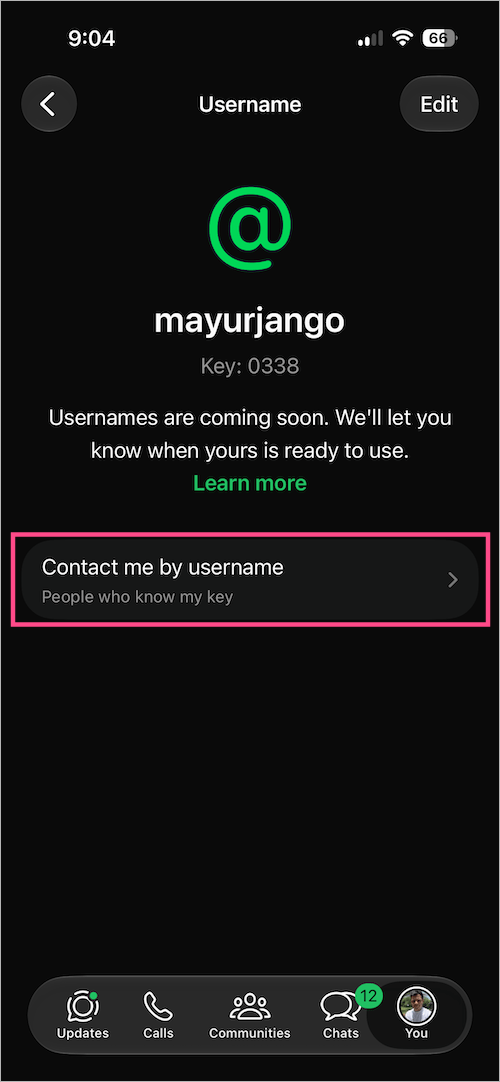
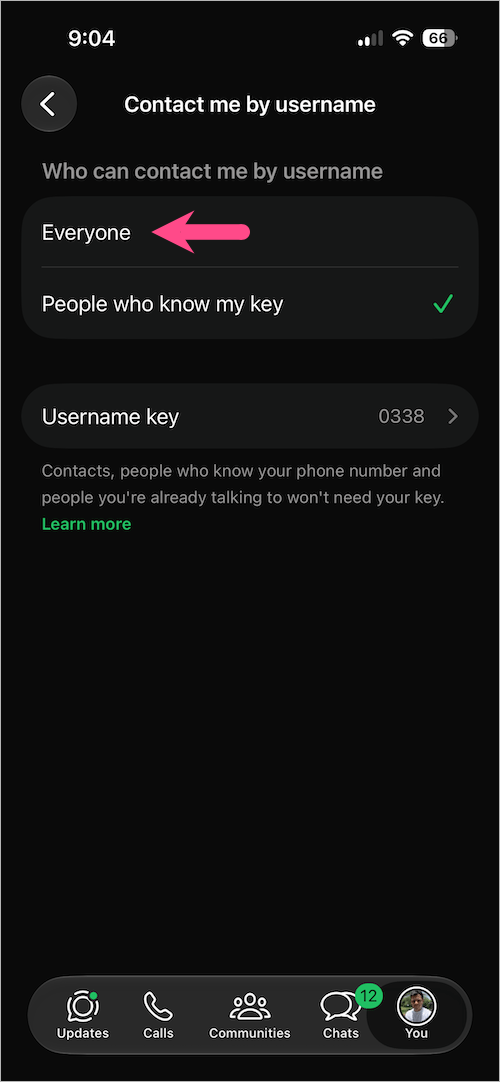
- Under ‘Who can contact me by username’, select “Everyone” to remove your WhatsApp username key.
- Tap Remove to confirm your choice.
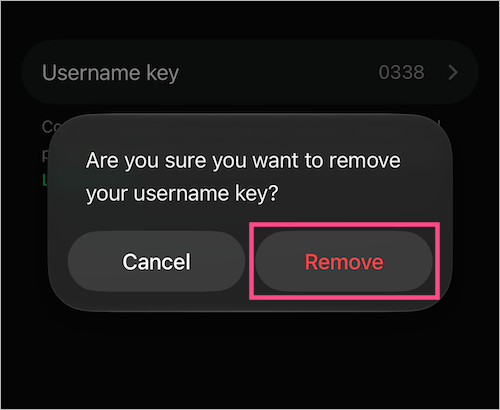
After removing your key, anyone who knows your exact WhatsApp username can start a conversation with you without entering a key. Your username itself won’t be deleted or changed, and you can enable a new username key again later.
Existing conversations remain unaffected, and anyone you’ve already chatted with can continue messaging you as usual.
What happens when you change your Username Key?
When you change your username key:
- Your old key immediately stops working
- Anyone who wants to contact you through your username will need your new key
- Your WhatsApp username doesn’t change
- Your chats, groups, contacts, and call history remain unaffected
- People you’ve already chatted with can continue messaging you without needing your new username key
Things to know about Username Keys
- Username keys are completely optional.
- Adding a username key doesn’t affect your existing chats or conversations.
- You won’t be notified if someone can’t contact you because they don’t have your key.
- You can change or remove your key whenever you like.
- If your Meta account indicates you’re under 18, WhatsApp may enable a username key by default to help protect your privacy.








